Once a parent has registered with their ID and holds a credential, they don't need to scan their ID again for every event. Turn on the returning-guest fast path and invited holders register with one click.
Who this is for
Owners and admins. Credentials need the Pro plan or higher; events need event registration.
Before you start
- The guest needs an active, unexpired credential in your organization that has an ID on file: name, date of birth and ID details captured when they first registered with ID. Credentials issued by hand from a profile have no ID on file and never qualify.
- The guest must be invited (their personal invite link or RSVP email). The event's Public Link doesn't use the fast path.
- The invitation must go to the same email that is on their credential.
Menus: steps show the app launcher first and the classic menu in brackets. See Find your way around to tell which one you have.
Steps
- Go to Settings › Security & policies › Credentials & screening (classic menu: Configure › Credentials & screening). (On the Credentials page, the gear button opens the same page. With the app launcher, Credentials is in the Access app.)
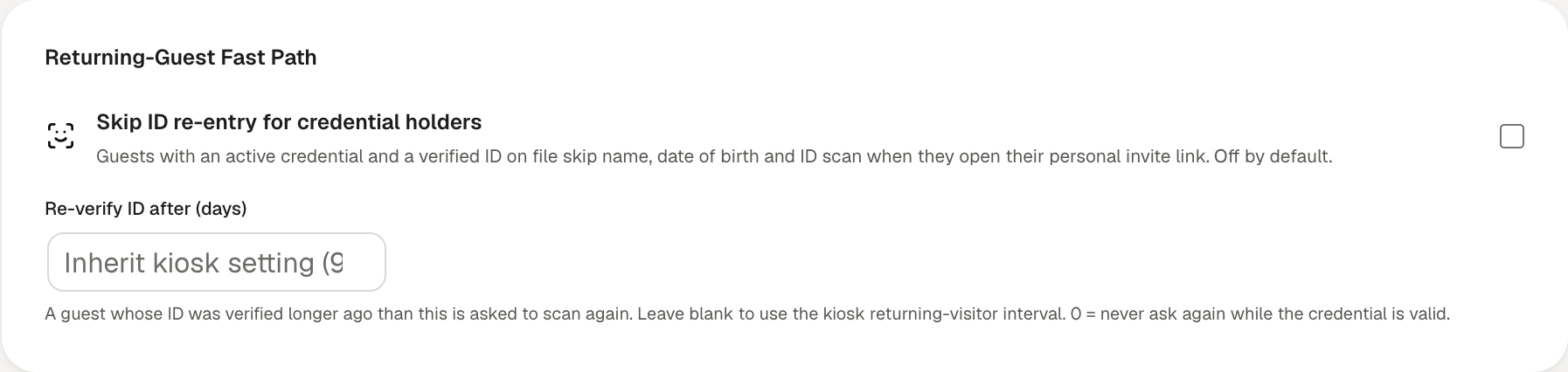
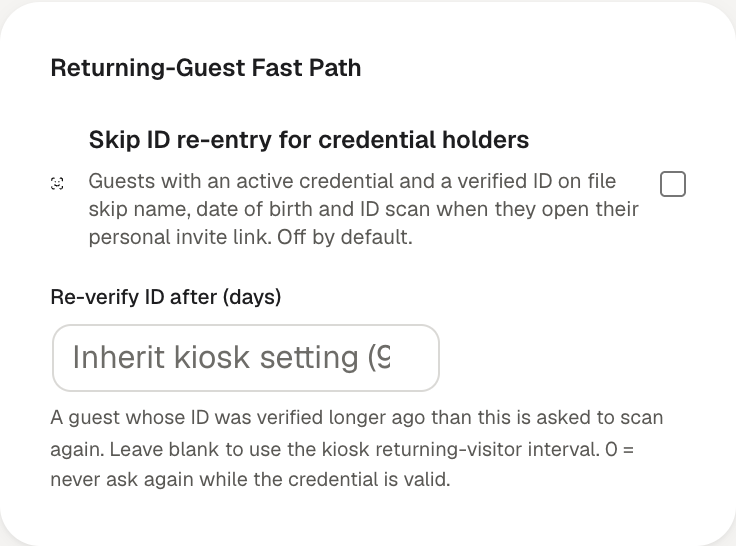
- Under Returning-Guest Fast Path, tick Skip ID re-entry for credential holders.
- Optional: set Re-verify ID after (days).
- Blank uses the kiosk's returning-visitor interval, which is 90 days unless you changed it.
- 0 means never ask again while the credential is valid.
- Select Save at the top of the page.
What happens next
For every new invitation sent after you save: - Guest clicks Yes on the RSVP: if nothing else is required, they are registered right away and see "You're registered, [name]." with "Your KyberAccess credential is on file." No name, date of birth, ID scan or selfie. - Guest opens the registration link: they see Welcome back and "ID on file ••1234" ("Your verified credential covers your name, date of birth and ID, so there is nothing to scan."). They fill in any required contact fields and select Confirm registration. - Not you, or need to update your ID? takes them through the full form instead. - If the event requires screening, a clear background check newer than Re-screening interval (days) (default 90) is reused. Otherwise a new check runs from the details on the credential. - The registration shows as Registered (returning guest) on the credential's Timeline, and is counted under Credentials › By event.
How long the ID counts: Re-verify ID after (days) is measured from the day the ID was captured, normally when the credential was first issued. Joining more events does not restart it. Once it runs out, the guest scans their ID at every registration.
To check one person, open their credential: Identity on file shows Verified, Re-verify by, and Returning-guest fast path: Eligible / Not eligible.
Settings that change this
| Setting | Where | Default | Effect |
|---|---|---|---|
| Skip ID re-entry for credential holders | Settings › Security & policies › Credentials & screening (classic: Configure › Credentials & screening) | Off | Turns the fast path on |
| Re-verify ID after (days) | Settings › Security & policies › Credentials & screening (classic: Configure › Credentials & screening) | Blank (90) | How old the ID on file may be |
| Re-screening interval (days) | Settings › Security & policies › Credentials & screening › Background Re-Screening (classic: Configure › Credentials & screening › Background Re-Screening) | 90 | How old a clear check may be and still be reused |
| Re-scan ID if last visit older than (days) | Settings › Apps › Front Desk › Kiosk features › Returning Visitor Express Check-In (classic: Configure › Kiosk › Features › Returning Visitor Express Check-In) | 90 | Used when Re-verify ID is blank |
Credentialed visitors bypass registration (Event Access, same page) is a different, older setting. It applies at the iPad kiosk and matches people by email or by first and last name, then skips the background check. We recommend leaving it off. Auto-grant event access to credentialed guests and Require active (non-expired) credential currently have no effect: credentials must always be active and unexpired.
Troubleshooting
- Guest still asked for their ID:
- The invitation was sent before you turned the fast path on. Resend it.
- Their credential shows Not eligible (no ID on file, or past Re-verify by).
- The invitation went to a different email than the one on the credential.
- Their credential is suspended, revoked or expired.
- Guest clicked Yes but still landed on a form: the event requires a contact field (phone, company, a custom question) that isn't on file. They fill that in and select Confirm registration.
- "Returning-guest fast path is off" banner on Credentials: it disappears once you save the setting, or select × to dismiss it.