To make sure nobody gets a credential without giving ID and passing a screening, issue credentials only through a registration event set up as below. Don't hand them out with Issue Credential: that button creates a credential immediately, with no ID step and no screening.
Who this is for
Owners and admins (event roles can build the event). Pro plan, event registration, background checks.
Before you start
Turn screening on: open Settings › Security & policies › Screening provider (classic menu: Configure › Security & checks › Background Checks), tick Enable Sex Offender Registry Checks, then Save.


Menus: steps show the app launcher first and the classic menu in brackets. See Find your way around to tell which one you have.
Steps
- In Apps › Events › Events (classic menu: Events under Operations), create or edit the event, select Switch to Advanced, and open the Registration tab.
- Turn on Combine RSVP & Registration. Invited guests give name, date of birth, ID photo and selfie as part of saying yes.
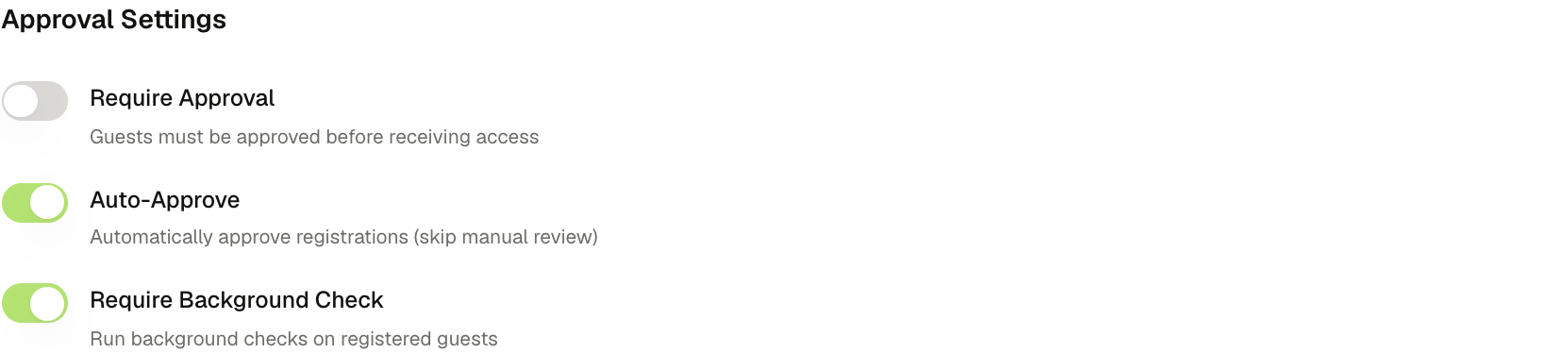
- Under Approval Settings, turn on Require Background Check. Turn on Require Approval too if a person should also approve every guest.
- Under Credential Policy, choose Permanent Credential and set the expiry.
- Save. Add guests and send invitations from the event. Share only the personal invitations, not the Public Link.
What happens next
- A credential is issued only after the guest has registered and their screening is clear. If the check finds a possible match, or the registry does not answer, the guest waits in Review queue (Apps › Security › Review queue; classic menu: Review Queue under Security) and nothing is issued until a person approves.
- With Require Approval on, a guest is issued a credential only once approved.
Things that skip the ID step or screening
- Issue Credential (Credentials page or a person's profile): no ID, no screening.
- Issue QR codes / Issue QR to all on the event: issues straight away. Guests with no screening on file get a check queued, but the credential does not wait for the result.
- The event Public Link: no ID, date of birth or screening.
- Skip ID re-entry for credential holders (off by default): holders with a fresh ID on file skip the ID step. They are still screened, and a clear check from the last Re-screening interval days is reused.
Troubleshooting
- Guests registered but were not screened. Check that Require Background Check is on for the event, and that background checks are enabled for the organization.
- "Batch checks are off" on Background Checks. Background checks are disabled for the organization. See Before you start.
Related articles
- How credentials, ID checks and background screenings work together
- Give a group of parents (by grade) a credential for the school year
- Review and decide held visitors