KyberAccess keeps three things about a person: what we know about who they are (name, date of birth, ID photo), whether they were screened (a sex offender registry check), and whether they hold a credential (one QR code / Wallet pass that opens their visits and events). This article explains exactly when each one is collected or checked, how long each one lasts, and which setting controls it.
Menus: steps show the app launcher first and the classic menu in brackets. See Find your way around to tell which one you have.
The short version
- ID, name and date of birth are collected when the person registers: at the iPad kiosk, or on an event's registration page. They are not collected again on a schedule.
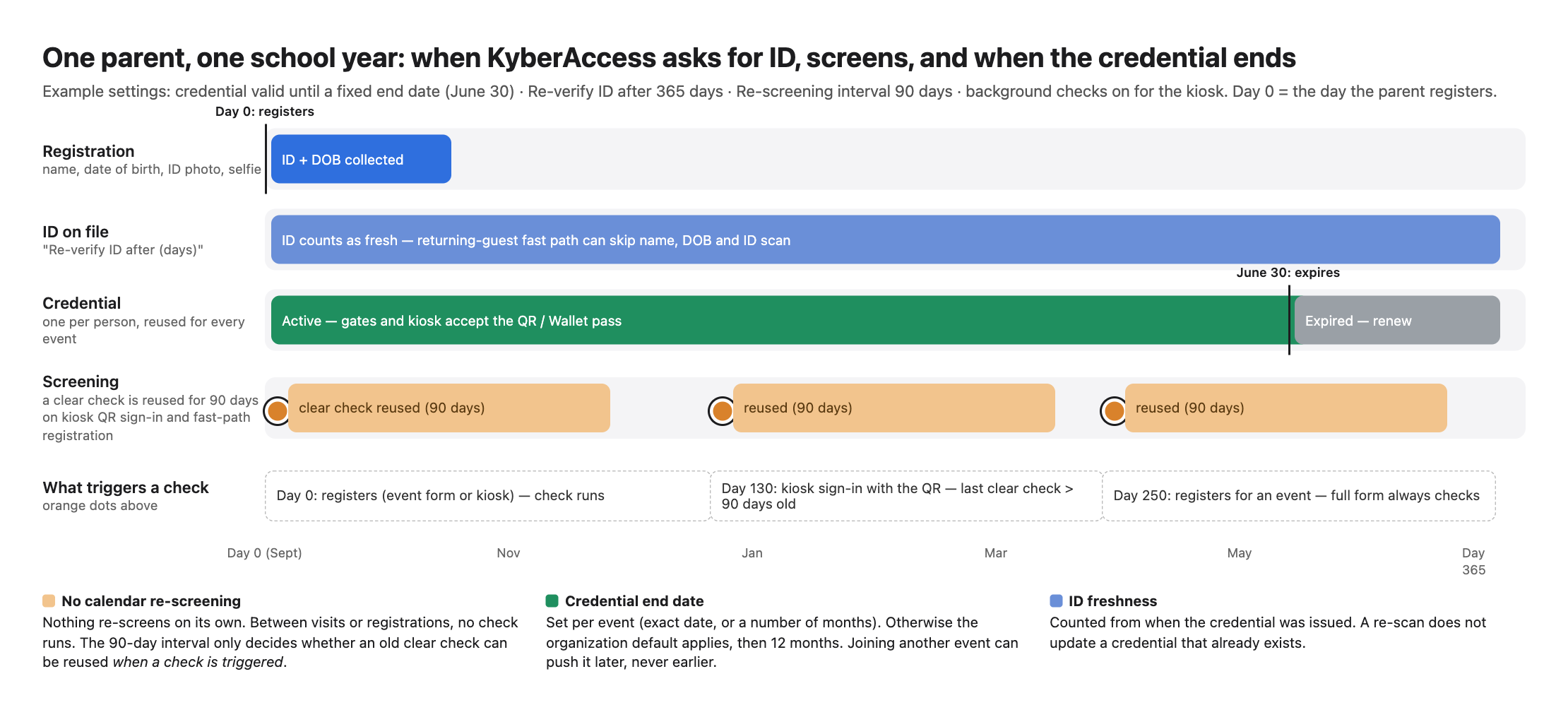
- A credential lasts until its expiry date. For event credentials that is the event's exact end date, or a number of months (organization default 12 months). Each new event the holder joins can push the date later, never earlier.
- Screening only runs when something triggers it: a registration, a kiosk sign-in, a batch you start, or a check you run by hand. Every night KyberAccess also works out who would be due a re-screen under your policy, but for now this is report only: nobody is re-screened on a calendar until KyberAccess turns that part on with you.
- All of these numbers live on one page: Settings › Security & policies › Credentials & screening (classic menu: Configure › Credentials & screening).
1. When KyberAccess asks for ID, name and date of birth
| Where | What is collected | When |
|---|---|---|
| iPad kiosk check-in | Name and date of birth read from the driver's license barcode, ID photo, selfie | Every check-in, if the ID step is on in Settings › Apps › Front Desk › Kiosk flow (classic: Configure › Kiosk › Flow builder). Returning visitors can skip it (see section 2). |
| Event registration page (from an invitation or RSVP) | Name, date of birth, ID photo, selfie | When the event has Require Background Check on, or Combine RSVP & Registration on, or requires an ID scan. |
| Event public registration link (Public Link) | Name, email, phone, company only | No ID and no date of birth are collected here. |
| Staff entry (Registration, Issue Credential, Add Guests) | Whatever staff type | No ID is captured. |
When a credential is created, KyberAccess saves a snapshot of the person's identity on it: name, date of birth, the last 4 characters of the ID number, and the date that snapshot was taken. That date is what "is the ID still fresh?" is measured from.
2. How long an ID counts as fresh
Two separate features let someone skip the ID step. Each has its own clock.
Credential holders invited to an event: the returning-guest fast path - Turn on Skip ID re-entry for credential holders in Settings › Security & policies › Credentials & screening › Fast path & reminders (classic menu: Configure › Credentials & screening › Fast path & reminders). It is off by default. - When it is on, a guest with an active credential and a verified ID on file skips name, date of birth and ID scan when they open their personal invite link. If they have nothing else to fill in, they are registered with one click on the RSVP page. - An ID scan stays current for (on the same page): 90 days, 180 days, 1 year, or Never ask again. The default is 90 days. The clock counts from when the identity was saved on the credential, which is normally when the credential was first issued. - Joining more events does not restart this clock. Once it runs out, the guest goes through the full ID step at every registration.
Walk-ins at the kiosk: Returning Visitor Express Check-In - Settings › Apps › Front Desk › Kiosk features › Returning Visitor Express Check-In (classic menu: Configure › Kiosk › Features › Returning Visitor Express Check-In), then Skip ID scan for returning visitors and Re-scan ID if last visit older than (days) (default 90). - This clock counts from the person's last visit, not their last ID scan. Someone who visits regularly can go a long time without re-scanning.
3. How long a credential lasts
A credential is valid until its expiry date. After that, every kiosk, gate and guard scan refuses it. A background job marks credentials expired every few minutes.
Where the date comes from, first match wins: 1. Event › Registration › Credential Policy › Permanent Credential › Or set an exact expiry date, e.g. the last day of school. Valid through the end of that day. 2. The same event's Credential Expiry (months) (1–120). 3. Settings › Security & policies › Credentials & screening › New credentials last (classic menu: Configure › Credentials & screening › New credentials last) (a set number of months, or No expiry, which you have to pick on purpose). 4. 12 months.
More rules: - Joining another event pushes the date later, never earlier. If the new event would give a later date, the credential moves to it. - Changing a default never changes credentials that already exist. To extend existing ones, use Credentials › Renewals or Renew on a credential. - Issue Credential (on a person's profile): enter an Expiration Date, or leave it blank to use New credentials last (12 months unless you changed it). Credentials issued with a blank date before November 17, 2026 have no end date; they are left as they are and counted under Never expire on the settings page. - Optional reminder emails to holders before expiry: Settings › Security & policies › Credentials & screening › Email holders before their credential expires (classic menu: Configure › Credentials & screening › Email holders before their credential expires) (off by default; 30, 14 or 7 days before, sent around 10:15 AM ET).
4. When screening runs
Screening is a US sex offender registry check on name and, when known, date of birth.
| Trigger | Does a check run? | Can an older clear check be reused? |
|---|---|---|
| Kiosk check-in (walk-in or registration at the iPad) | Yes, if background checks are on for the kiosk, or Settings › Security & policies › Sign-in & sessions › Background Checks (classic: Configure › Security & checks › Security › Background Checks) is on, or the event requires it | No. A fresh check runs every time. The one exception: Returning Visitor Express with Skip background check for returning on and Re-check if last BG check older than (days) set to 0 skips the check for every returning visitor |
| Kiosk sign-in by scanning a credential QR | Yes, under the same switches as kiosk check-in | Yes. A clear check newer than Re-screening interval (days) is reused. Default 90, set in Settings › Security & policies › Credentials & screening › A clear background check counts for (classic menu: Configure › Credentials & screening › A clear background check counts for) |
| Event registration page, full form | Yes, if the event has Require Background Check on or background checks are on for registration | No. A fresh check runs |
| Event registration, returning-guest fast path or one-click RSVP | Yes, from the identity on the credential | Yes, within the Re-screening interval |
| Staff Issue QR codes on an event with Require Background Check | A check is queued for guests who don't have one yet | The credential is issued without waiting for the result |
| Event Public Link registration | No. If the event requires a check, KyberAccess records that the person registered without one (shown on the settings page) | – |
| Run checks (batch) on the Background Checks page or Screen all guests on an event | Yes, for everyone eligible | People screened inside your Recheck frequency window are skipped unless you tick Re-check people already screened |
| Calendar date / interval passing | Not yet. The nightly re-screen is report only: it counts who would be due | – |
If a check finds a possible match: the person is held for review or refused, depending on the on-flag action you chose (Settings › Apps › Front Desk › Kiosk features › Background Check; classic: Configure › Kiosk › Features › Background Check). A held event guest gets no credential until someone approves them in the review queue (Apps › Security › Review queue; classic menu: Review Queue). Approving issues the credential and emails it.
If the registry does not answer, the person is held for a staff decision. Nobody is waved through unscreened.
An existing credential is not suspended automatically yet when a later check flags its holder. Choose what should happen under Settings › Security & policies › Credentials & screening › When a check comes back flagged (classic menu: Configure › Credentials & screening › When a check comes back flagged) (tell admins, suspend, or revoke). Until KyberAccess turns that part on with you it is report only: the settings page shows how many credentials it would affect. Meanwhile, suspend or revoke by hand from Credentials.
5. The settings, in one place
Everything below is on Settings › Security & policies › Credentials & screening (classic menu: Configure › Credentials & screening), with a What this means summary that updates as you change it.
| Setting | Default | What it does |
|---|---|---|
| A clear background check counts for | 90 days | Reuse window for kiosk QR sign-in and invite-link registration. If walk-ins or batch screening use a different number, the page shows it and offers Use … everywhere when I save |
| An ID scan stays current for | 90 days | ID freshness for the fast path |
| New credentials last | 12 months | New credentials when nobody sets a date. No expiry only if you pick it |
| Re-screen credential holders | every year, plus at event registration and stale kiosk sign-in | Report only for now |
| When a check comes back flagged | Tell admins only | Report only for now |
| Skip ID re-entry / Kiosk: credential holders skip registration / Email holders before expiry | Off | Fast path & reminders section |
Under the settings, What this would change today shows how many credential holders are due a re-screen, how many flagged people still hold a working credential, how many gate entries in the last 30 days the screening check would have refused, and how many credentials never expire. Each part says Report only until KyberAccess turns it on with you.
These old controls were removed because they did nothing: the Persistent Credentials page under Security & checks, Returning Visitor Policy on the Security tab, Event RSVP and Auto-Revoke Credentials on Flag on Background checks, Test Mode, Registration — on flag, Notify security team and Recognition window on Kiosk › Features, and Valid For on the QR policy.
Related articles
- Give a group of parents (by grade) a credential for the school year
- Require registration and screening before a credential is issued
- Change how long credentials last
- Set how often people are re-screened
- Run background checks for a whole group (batch)
- Review and decide held visitors