Stop a credential for a while (suspend), turn it back on (reactivate), end it for good (revoke), or replace a lost QR code (reissue).
Which one do I need?
| You want to… | Use | Can it be undone? |
|---|---|---|
| Pause access while you look into something | Suspend | Yes, Reactivate |
| Turn a suspended credential back on | Reactivate (called Reinstate on a person's profile) | – |
| End a credential for good | Revoke | No. Revoked is final; issue a new one |
| Replace a lost or shared QR code | Re-issue (person's profile) | The old QR stops working; the new one replaces it |
| Push the expiry date later | Extend / Renew | See Renew credentials in bulk |
Who this is for
Owners, admins and Front Desk / Security members. Other roles may see the buttons, but the change is refused with "Only an owner, admin or security member can change a credential's status."
Before you start
- Find the credential: open Apps › Access › Credentials (classic menu: Credentials in the sidebar, under Operations), then search by name, email, phone or credential ID.
- Every change needs a reason. It is saved in the credential's history with your name and the time.
Menus: steps show the app launcher first and the classic menu in brackets. See Find your way around to tell which one you have.
Suspend or reactivate one credential
- On Credentials, select the person's row. A side panel opens.
- Select Suspend (or Reactivate if it is already suspended).
- Type a reason, then select Suspend / Reactivate again to confirm.
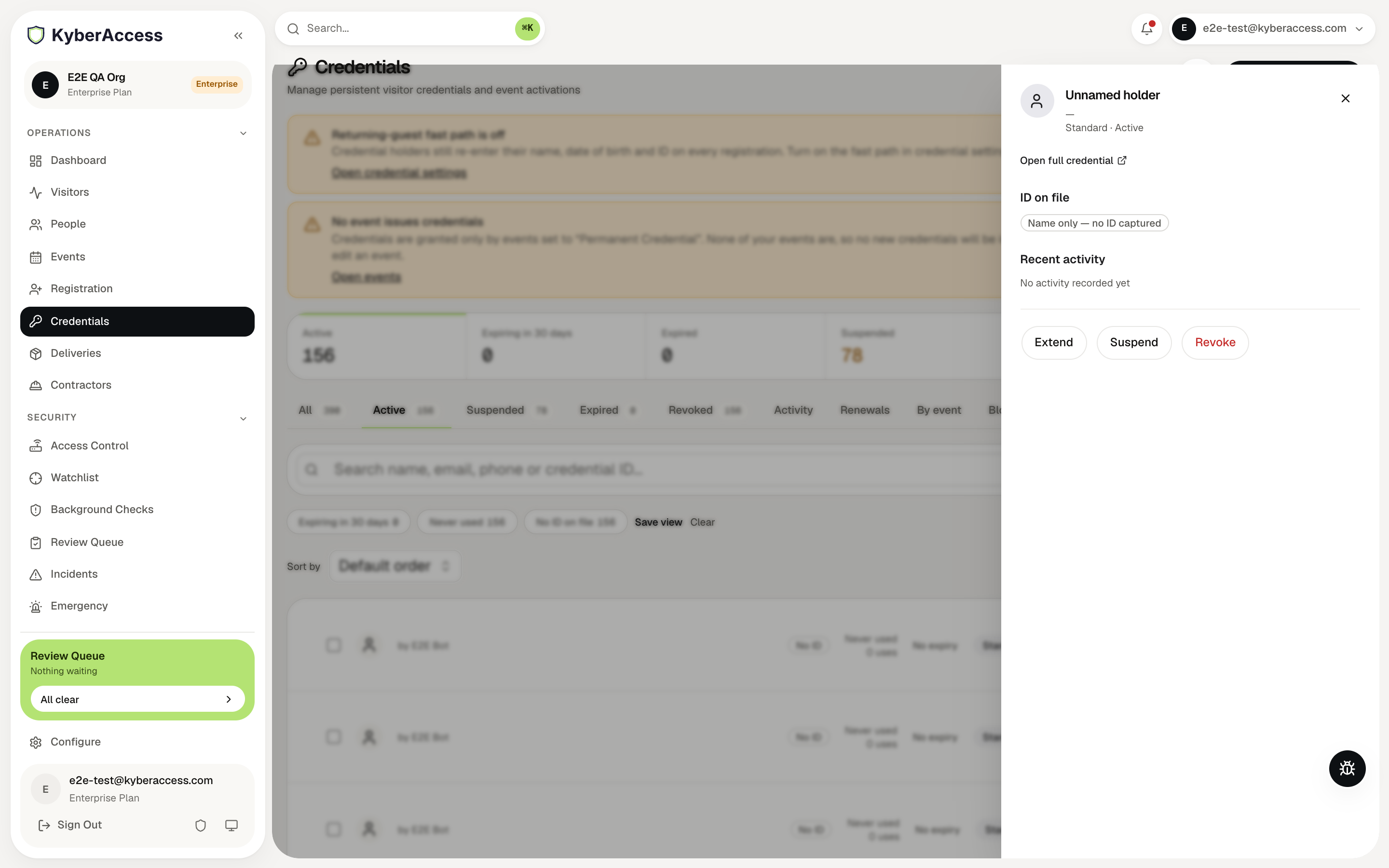
You can also do this from the full credential page (Open full credential in the panel). There the buttons are at the top: Suspend, Revoke, Reactivate, and a box asks for the reason.
Revoke a credential
- Select the row, then Revoke.
- Choose a Revoke reason:
- No longer needed / holder request — the person can be issued a new credential later.
- Data correction / duplicate — same; use this for a duplicate or a typo.
- For cause — blocks the person from getting a new credential at future events until staff act.
- Add a note and confirm.
The full credential page's Revoke button always revokes for cause. Use the side panel when you need a non-blocking reason.
Reissue (lost or shared QR code)
- Open People (in the Apps panel under Shared records; classic menu: People under Operations), select the person, and go to the Credentials tab.
- Select Re-issue and confirm. The old credential is revoked as "replaced" (this does not block the person).
- The Issue Credential window opens. Pick the type, enter an Expiration Date (MM/DD/YYYY), and select Issue Credential.
- Send the person their new QR code: on Credentials, tick the new credential and select Resend Pass.
If you cancel step 3, the old credential is already revoked. Select Issue Credential on the profile to finish.
Change many at once
- On Credentials, tick the rows (up to 200 at a time).
- In the bar at the bottom, choose Suspend, Reactivate or Revoke.
- Enter a reason (and a revoke reason for Revoke), then confirm. Rows that don't fit (for example, reactivating one that is not suspended) are skipped and counted.
What happens next
- The change takes effect immediately. A suspended, revoked or expired credential is refused at kiosks, gates and guard scans, and its Apple/Google Wallet pass stops downloading.
- Already-saved Wallet passes stay on the phone, but the QR code on them is refused.
- The change appears on the credential's Timeline and on Credentials › Activity.
- Credentials › Blocked lists everyone with a suspended or for-cause credential. They are refused a new credential when they register for an event.
Troubleshooting
- "Only an owner, admin or security member can change a credential's status": your role can't suspend, reactivate, revoke, reissue or renew credentials. Ask an owner or admin, or have your role changed under Settings › People & roles › Team & roles (classic menu: Configure › Team & roles).
- "Cannot reactivate a credential that is active": only suspended credentials can be reactivated.
- "Revocation is final; issue a new credential instead": you tried to change a revoked credential. Issue a new one from the person's profile.
- "A reason is required": every suspend, reactivate and renew needs a reason.
- The person is refused at registration after a reissue: check Credentials › Blocked. A credential revoked for cause (the default on the full credential page) blocks them. Issue a new credential by hand from their profile.
- A screening match did not suspend the credential: that's expected. Flags never change a credential automatically. Suspend it yourself.