Give one person a credential (a personal QR code they show at kiosks, gates and guards) straight from their profile in People.
Who this is for
Staff who can open People and Credentials: owners, admins, security, front desk and staff roles. Credentials need the Pro plan or higher.
Before you start
- The person must already exist in People. If they don't, select Add Person on the People page first.
- Decide the expiry date. A school year usually ends on a fixed date, e.g. 06/30/2027.
- For most groups (all grade 1 parents, all volunteers) don't issue one by one. Use a registration event set to Permanent Credential instead, so each person registers with ID and is screened first. See Give a group of parents (by grade) a credential for the school year.
Menus: steps show the app launcher first and the classic menu in brackets. See Find your way around to tell which one you have.
Steps
- Open People (Apps, then People under Shared records; classic menu: People in the sidebar, under Operations) and select the person.
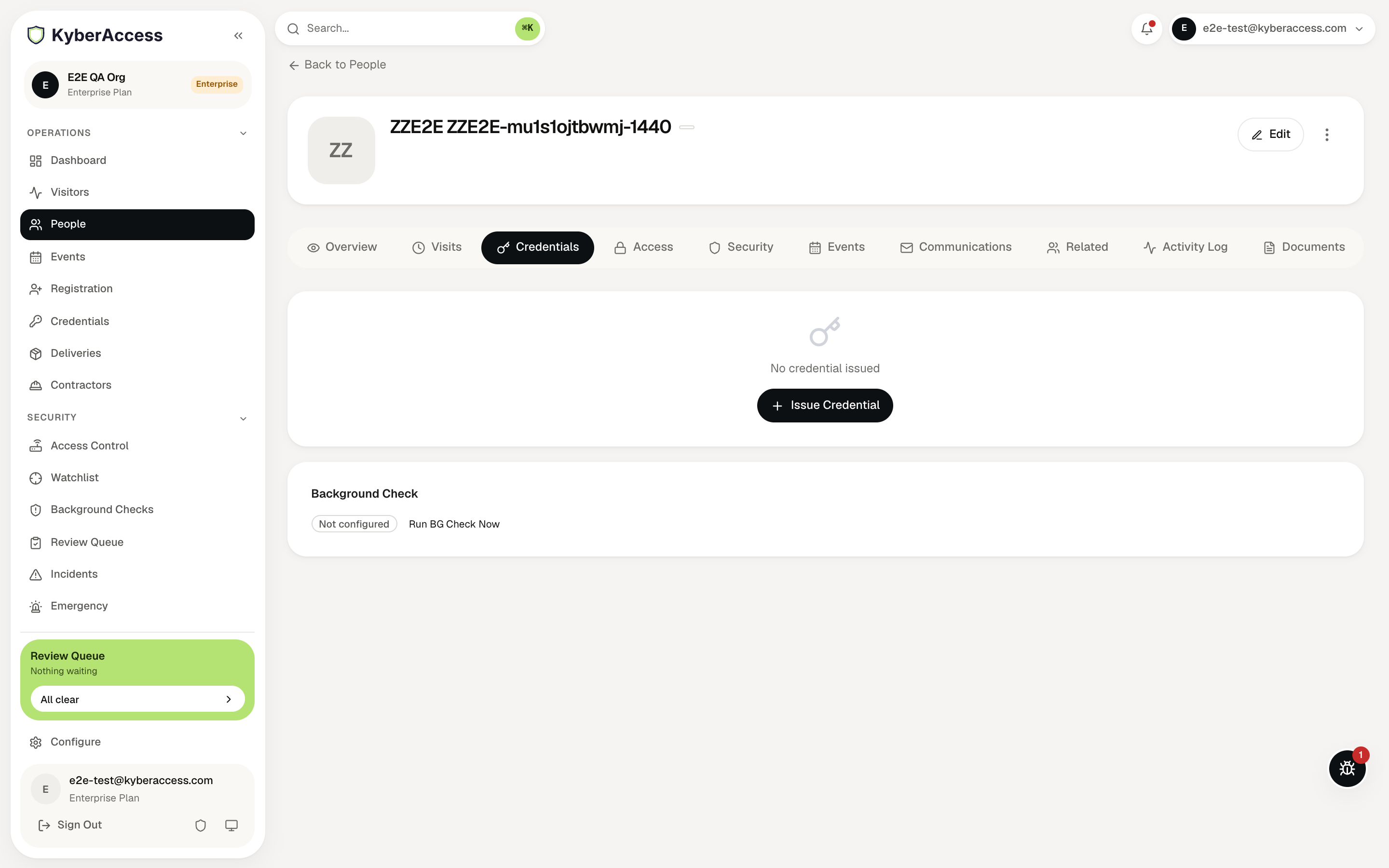
- Open the Credentials tab. If it says No credential issued, select Issue Credential.
- Pick a Credential Type: Visitor, Employee, Contractor, Vendor, Student or VIP.
- Enter the Expiration Date (MM/DD/YYYY), or leave it blank to use New credentials last from Settings › Security & policies › Credentials & screening (classic menu: Configure › Credentials & screening) (12 months unless you changed it).
- Select Issue Credential.
- Close the window and reload the page. The person's Credentials tab now shows the credential card with Issued, Expires, Last used and Type. Select View credential to open it.
Known issue: after step 5 the window may show an error message instead of the QR code, even though the credential was created. Reload before trying again, or you will issue a second credential.
What happens next
- The credential is active immediately. Kiosks, gates and guards accept it until it expires or someone suspends or revokes it.
- No email is sent when you issue from a profile. To send the person their QR code, open Credentials, tick the credential and select Resend Pass (owners and admins only). They get an email with their QR code.
- The credential appears on the Credentials page and in the Activity tab.
- Issuing by hand does not collect an ID or run a background check. The credential shows No ID / "Name only — no ID captured", and the returning-guest fast path will not apply to this person until an ID is on file.
Watch out
- Credentials issued with a blank date before November 17, 2026 never expire. Open one and select Extend to give it a date.
- Don't use the Issue Credential button at the top of the Credentials page. That form (Issue New Credential, with First Name, Last Name, Email and Run Background Check) does not create a credential today; it shows an error. Issue from the person's profile instead.
- The ⋮ menu on a profile also has Issue Credential. It issues straight away with no type and no expiry date. Prefer the Credentials tab button so you can set the date.
- Before issuing, check Credentials › Blocked. People listed there (a credential suspended or revoked for cause) are refused a credential when they register for an event. Issuing by hand does not check this list, so make sure you mean to override it.
Settings that change this
- Default credential validity (months) on Settings › Security & policies › Credentials & screening (classic: Configure › Credentials) applies to credentials issued by events, not to credentials you issue by hand.
- Email holders before their credential expires on Settings › Security & policies › Credentials & screening (classic: Configure › Credentials): optional reminder email before the date you set.
Troubleshooting
- An error appeared after Issue Credential: reload the profile. The credential is usually there. Only issue again if the Credentials tab still says No credential issued.
- Two credentials for one person: revoke the extra one with the reason Data correction / duplicate, which does not block the person.
- The credential shows "No expiry": it was issued with a blank date. Open it, select Extend, and set a date.
- The person never got an email: issuing does not email. Use Resend Pass on the Credentials page.