Give one person access to one zone for a set window, for example a contractor in the boiler room today. It switches itself off at the end time, and every grant and early end is logged. Like all access rules today it's watch-only: it counts in Test access and the observed results, and no turnstile reads it.
Who this is for
Owners and admins.
Before you start
- The person needs a credential. See Issue a credential.
- The zone must exist on Places.
Menus: steps show the app launcher first and the classic menu in brackets. See Find your way around to tell which one you have.
Steps
- Go to Apps › Access › Who can go where (classic menu: Configure › Access control › Who can go where) and find Temporary access.
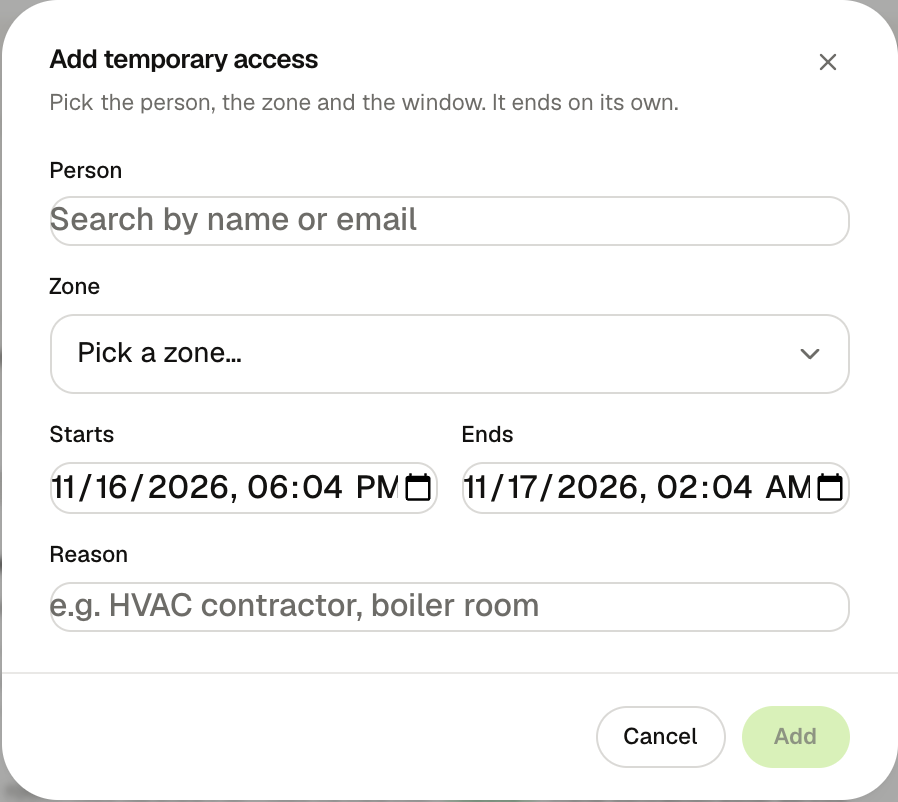
- Click Add temporary access.
- In Person, type at least two letters of a name or email and pick the person. If they have more than one credential, pick one under Credential (an active one is chosen for you).
- Pick the Zone.
- Check Starts and Ends. They default to now and 8 hours from now.
- Type a Reason, for example "HVAC contractor, boiler room". It's required.
- Click Add.
What happens next
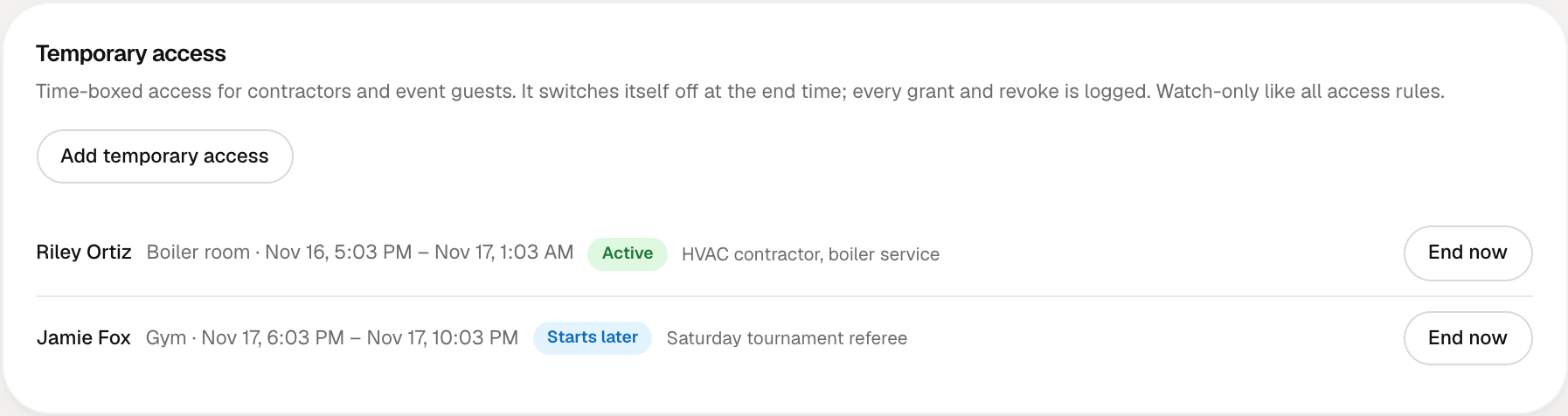
- The grant is listed as Active, or Starts later if the start is in the future.
- It ends on its own at the end time. To end it early, click End now and confirm.
- Ended grants appear under Recently ended.
Limits
- Up to 90 days per grant.
- The end must be after the start and in the future.
- Reason: up to 300 characters.
- Times are in your organization's time zone (shown in the dialog), the same zone as the list, schedules and Test access — even if your computer is set to another one.
Troubleshooting
- "Pick a person with a credential." → the person has no credential → issue one first.
- "End is already in the past" or "End must be after start" → fix the times.
- "At most 90 days" → shorten the window, or put the person in a group instead.
- Test access still says "No access policy" for the zone → temporary access only counts for a credential that has an access policy (credential › Access tab › Add policy).