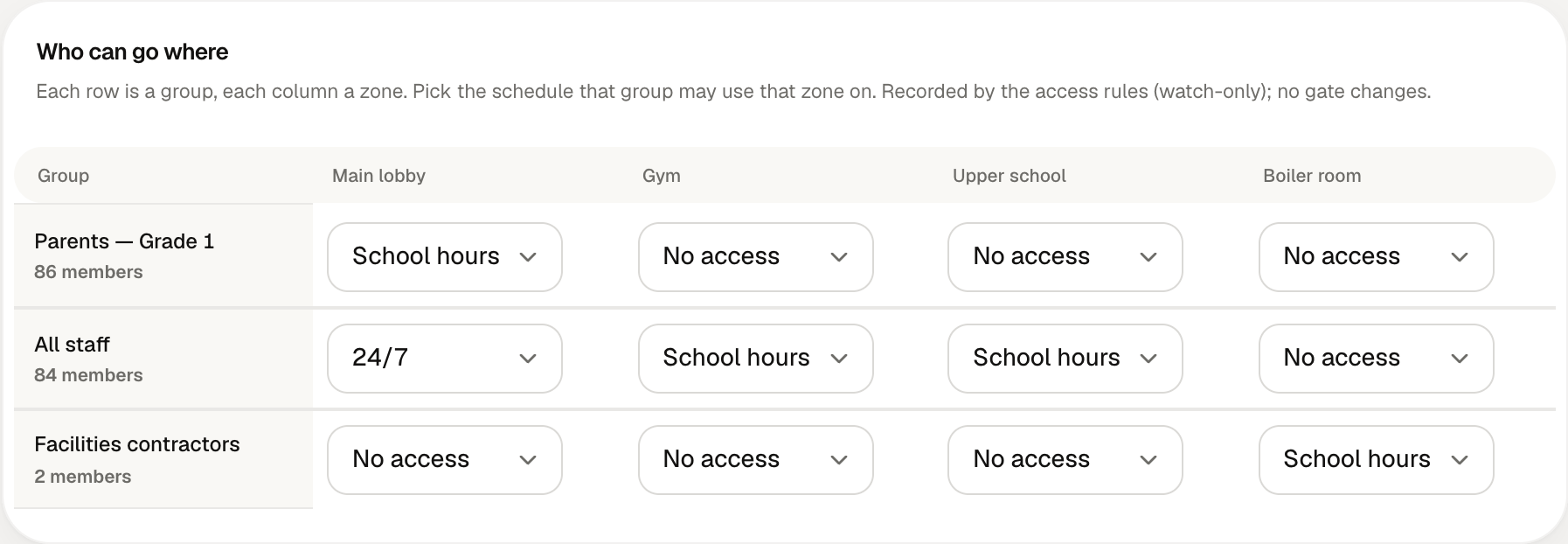
A group says who. Each zone you give the group carries a schedule that says when. The Who can go where grid shows every group against every zone, and you change access by picking a schedule in a cell. Like all access rules today, this is watch-only: it's recorded and shown in Test access and the observed results, and it doesn't change what a turnstile does.
Who this is for
Owners and admins.
Before you start
- Zones on Places (Places and zones).
- At least one schedule (Schedules and holidays).
Menus: steps show the app launcher first and the classic menu in brackets. See Find your way around to tell which one you have.
Steps
Create a group
- Open Apps › Access › Who can go where (classic menu: Configure › Access control › Who can go where) and scroll to Groups.
- Click + Group and type a name, for example "Parents — Grade 1".
- Click the pencil on the new group. Under Membership rules, click + Rule and choose:
- Parents of students in…: pick grades and, optionally, campuses, or tick Everyone in the SIS. Tick Only parents authorized for pickup to leave out other contacts.
- Students in…: pick grades and campuses.
- People of type…: for example staff or contractor.
- Guests of event…: pick an event.
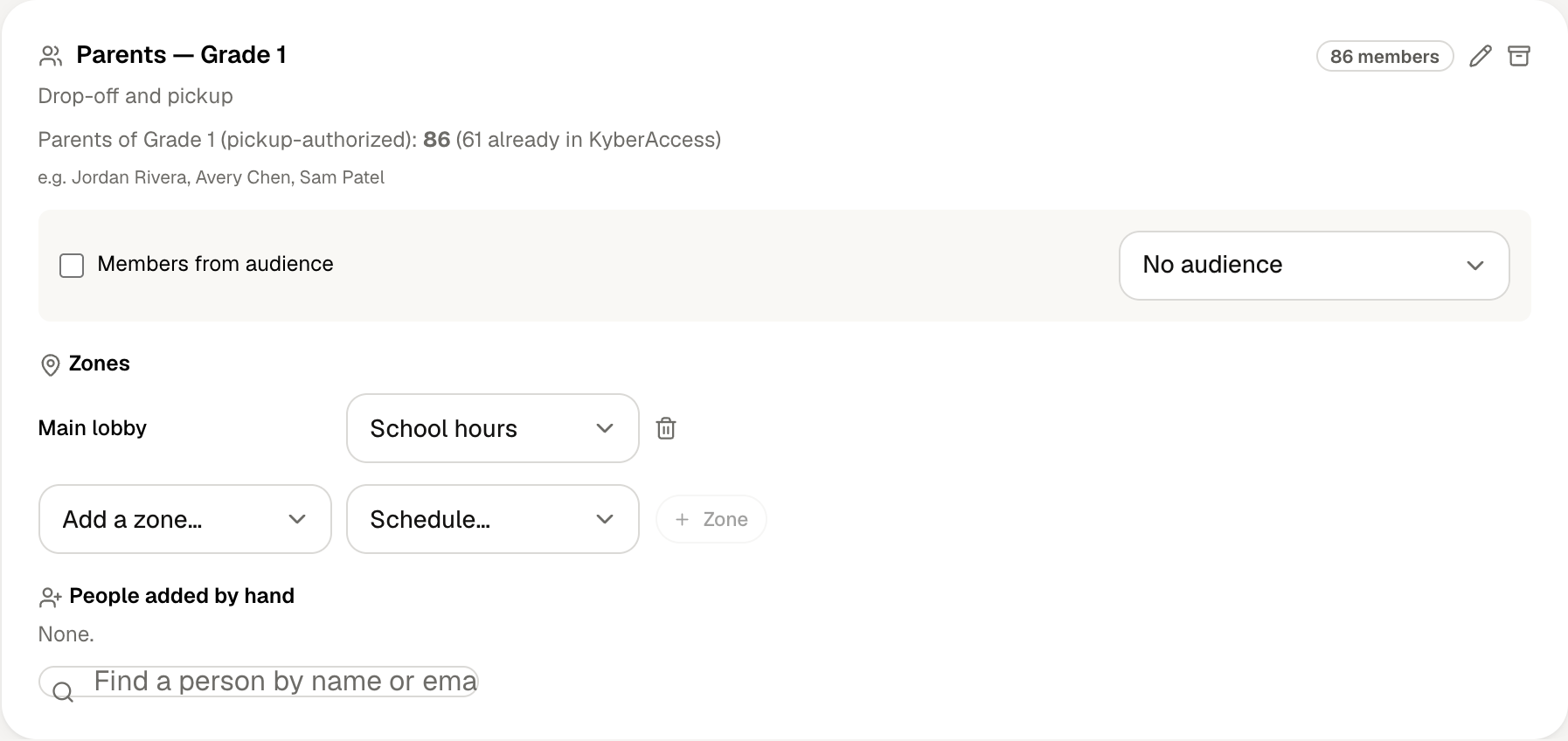
- Click Save. The card shows how many people each rule matches, how many are already in KyberAccess, and a few sample names.
- To add someone by hand, type in Find a person by name or email under People added by hand and pick them.
- Optional: if you've built an audience, tick Members from audience and pick it. The group then takes its members from the audience. People added by hand still count.
Give the group zones
- In the grid at the top, find the group's row and the zone's column. Pick a schedule in that cell. No access removes the zone (you're asked to confirm).
- Or, on the group card under Zones, pick Add a zone… and Schedule…, then click + Zone.
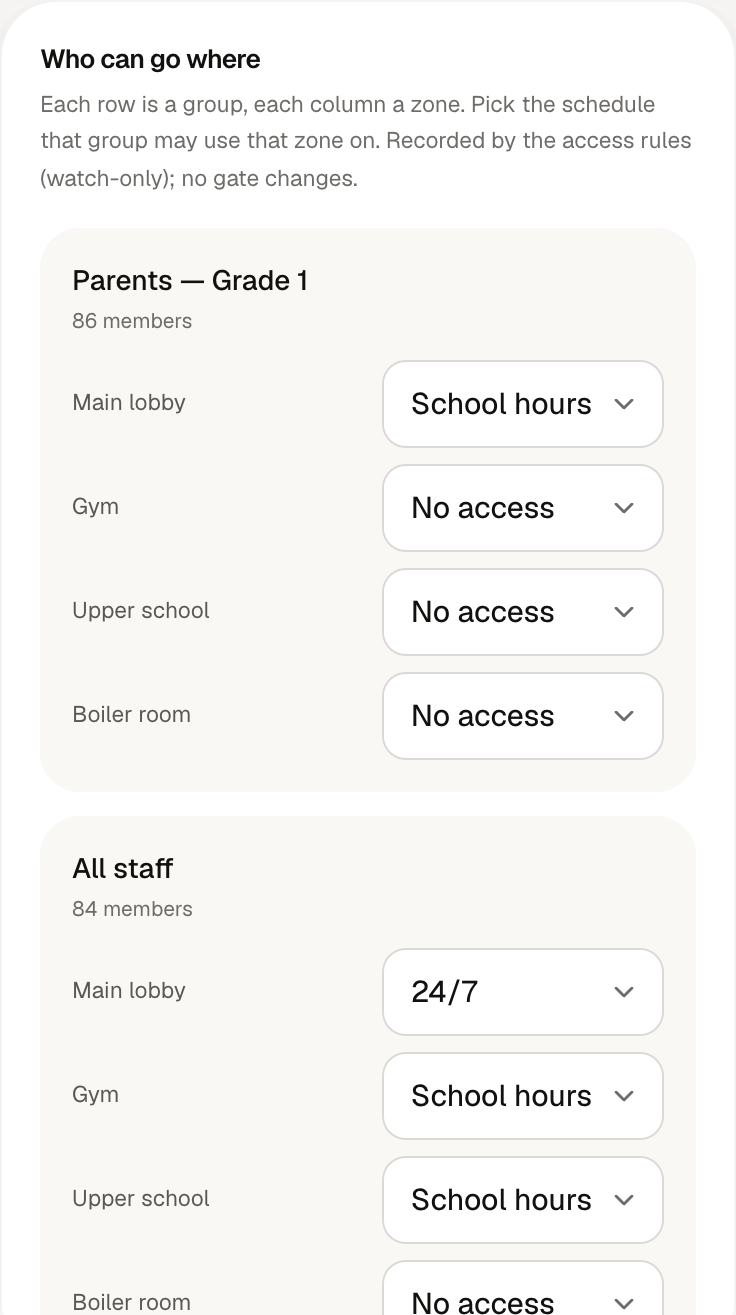
On a phone, the grid shows one card per group with a menu for each zone.
What happens next
- Rule-based membership follows your school data. Parent and student rules are matched against the nightly Veracross guardian sync, so families move between groups on their own.
- The grid and Test access reflect changes straight away.
How a group reaches a person's credential
Everyone the group counts gets its zones — people matched by its rules and people added by hand. You don't need to open each credential.
The access rules judge credentials, so two things still apply: - The person needs a credential in KyberAccess. Parents or students who are only in your school data (not yet a KyberAccess person) are counted but can't hold a credential yet. - The credential needs an access policy for any rule to apply to it. Without one it shows "No access policy — today's gate rules apply". To add one: Credentials (Apps › Access › Credentials; classic menu: Credentials under Operations) › the credential › Access › Add policy › Save policy. Credentials issued by an access program get a policy from the program.
The credential's Access tab lists the groups it's in under Groups ("Member of …"). You can still add a credential to a group there by hand.
If the group takes its members from an audience, audience members get its zones through an access program; people added by hand get them directly.
Settings that change this
| Setting | Where | Default | Effect |
|---|---|---|---|
| Schedule per cell | Who can go where grid | No access | When that group may use that zone |
| Members from audience | Group card | Off | Group takes its members from an audience instead of its rules |
| Only parents authorized for pickup | Parents rule | Off | Leaves out non-pickup contacts |
Troubleshooting
- "Add zones under Places first" → there are no zones yet → create them on Places.
- "No schedules yet: add one under Schedules & holidays" → cells offer only No access until a schedule exists.
- A cell shows "inactive" → its schedule was archived or is missing → pick another schedule. An inactive grant allows nothing.
- "Membership rules could not be read" → edit the group and save it again; until then it matches nobody.
- A parent in the group shows "No access policy" in Test access → their credential has no access policy → add one (see the section above).
- A parent in the group shows "No zone grant" → they're not a KyberAccess person yet, or their grade in your school data doesn't match the rule → check the group card's sample names and the person's record.
- A rule with no grade or campus selected matches nobody → by design. Tick Everyone in the SIS if you mean everyone.