Places is the map that every access rule points at: site › building › zone › door. You give access to zones, not to single doors, so build this map first. Mapping a reader here doesn't change who it lets in.
Who this is for
Owners and admins.
Before you start
- At least one site. Your organization's main location is a site. Add more in Settings › Organization › Sites & places (classic menu: Configure › Organization › Sites).
- Decide your zones. A zone is a group of doors people get access to together, for example Main lobby, Gym, Upper school, Boiler room.
Menus: steps show the app launcher first and the classic menu in brackets. See Find your way around to tell which one you have.
Steps
- Open Settings › Apps › Access › Places, or in Access select Access settings, then Places (classic menu: Configure › Access control › Places).
- On your site's card, click + Building if you want to group zones by building (optional), and type its name.
- Click + Zone on the site, or + Zone next to a building, and type the zone name.
- Under Scan points not on the map yet, pick a zone in Register into zone… for each reader, iPad or intercom. It moves onto the map.
- For a door that has no reader yet, click + Door next to its zone and type a name. It shows as "Door (no reader yet)".
- To move a door later, use Move… on its row. Use the pencil to rename and the box icon to archive.
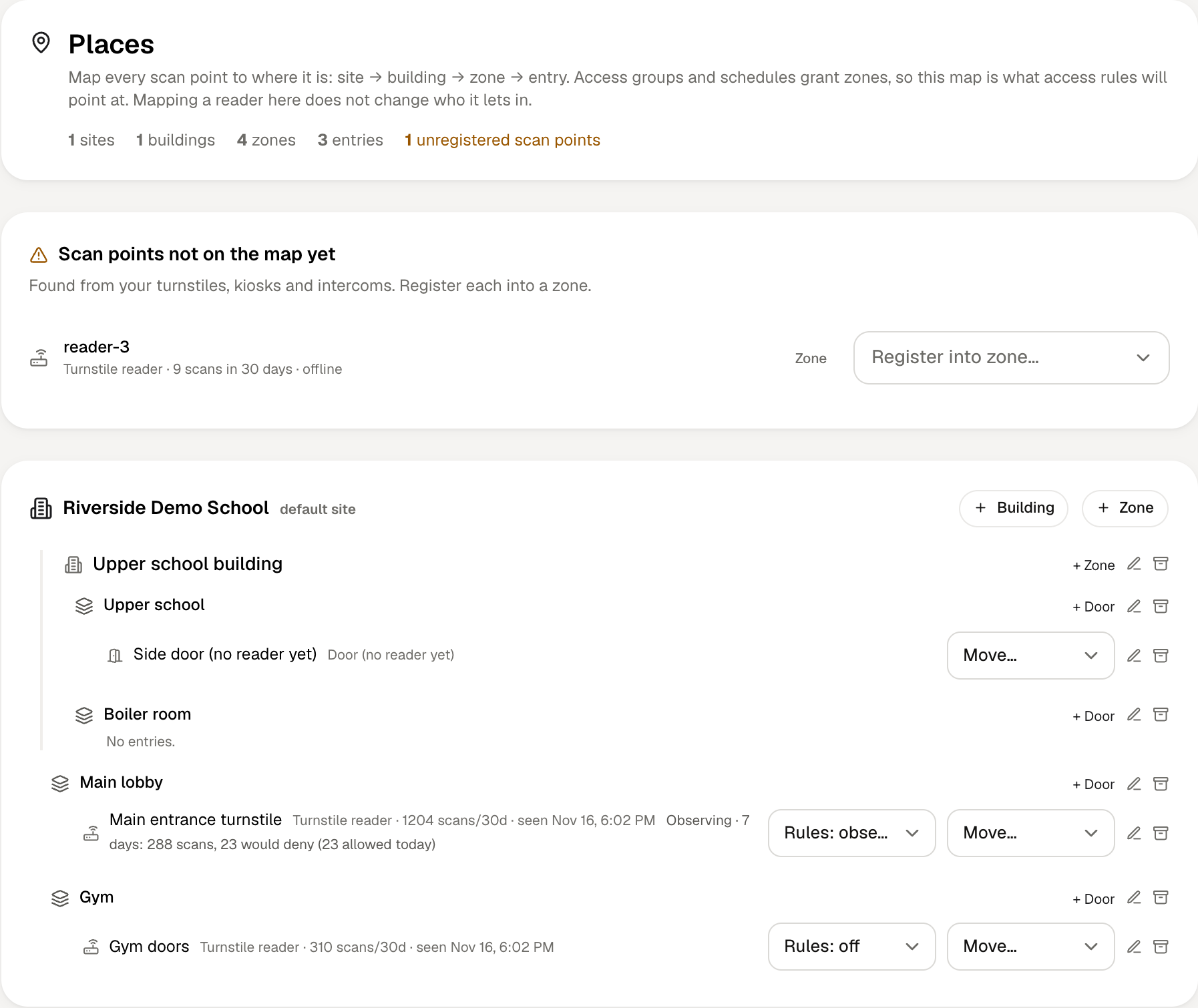
The counts at the top show sites, buildings, zones, entries (doors) and unregistered scan points.
Observe rules at a reader
Each turnstile reader on the map has a Rules: off / Rules: observe menu. - Rules: observe records what your access rules would decide on every real scan at that reader, next to what the gate actually did. The row then shows, for the last 7 days, how many scans were observed and how many the rules would have denied. - The reader's behavior doesn't change. It's off until you turn it on.
What happens next
- New scans at a registered reader show its name and zone in the activity log and reports.
- Zones appear as columns in Who can go where, in temporary access, lockdown plans, alert rules and Test access.
- Archived zones and doors stay in history and can be re-created.
Settings that change this
| Setting | Where | Default | Effect |
|---|---|---|---|
| Rules: off / Rules: observe | Places, per turnstile reader | Rules: off | Records what the rules would decide. Doesn't change the gate. |
Troubleshooting
- "There are no zones to register into yet" → click Create a zone in that banner, then pick it on each row.
- "There are no sites or zones yet" → click Add a site first.
- A door shows "hardware not found" → the reader it was registered from is no longer reported by the gateway → check the reader, or archive the door.
- Someone was refused by the rules with "Entry is not in a zone" → the door has no zone → move it into one.
- An old bookmark to /zones opens Places → the old zones page (clearance levels, occupancy colors) was retired; nothing in access control used it. Zones live here.