Test access answers two questions without anyone scanning: "Where can this person go?" and "Who can enter this zone?", now or at any time you pick. Answers use the same rules the observe-only engine uses. It's read-only: nothing here changes a gate.
Who this is for
Owners and admins.
Steps
- Open Access Control and click Test access (top right on every tab). On Doors & readers, a door's Test access button opens it for that door's zone.
- Optional: set When. Blank means now. Times are in your organization's time zone. You can test up to about 400 days back or ahead.
- Where can this person go?: type a name or email and pick the person. You see each of their credentials with every zone, Allowed or Denied, the reason, and which group or grant allowed it.
- Who can enter this zone?: pick a zone, optionally one entry, and click Check. You see how many credentials with an access policy are allowed and denied, the reasons, and the list of allowed people.
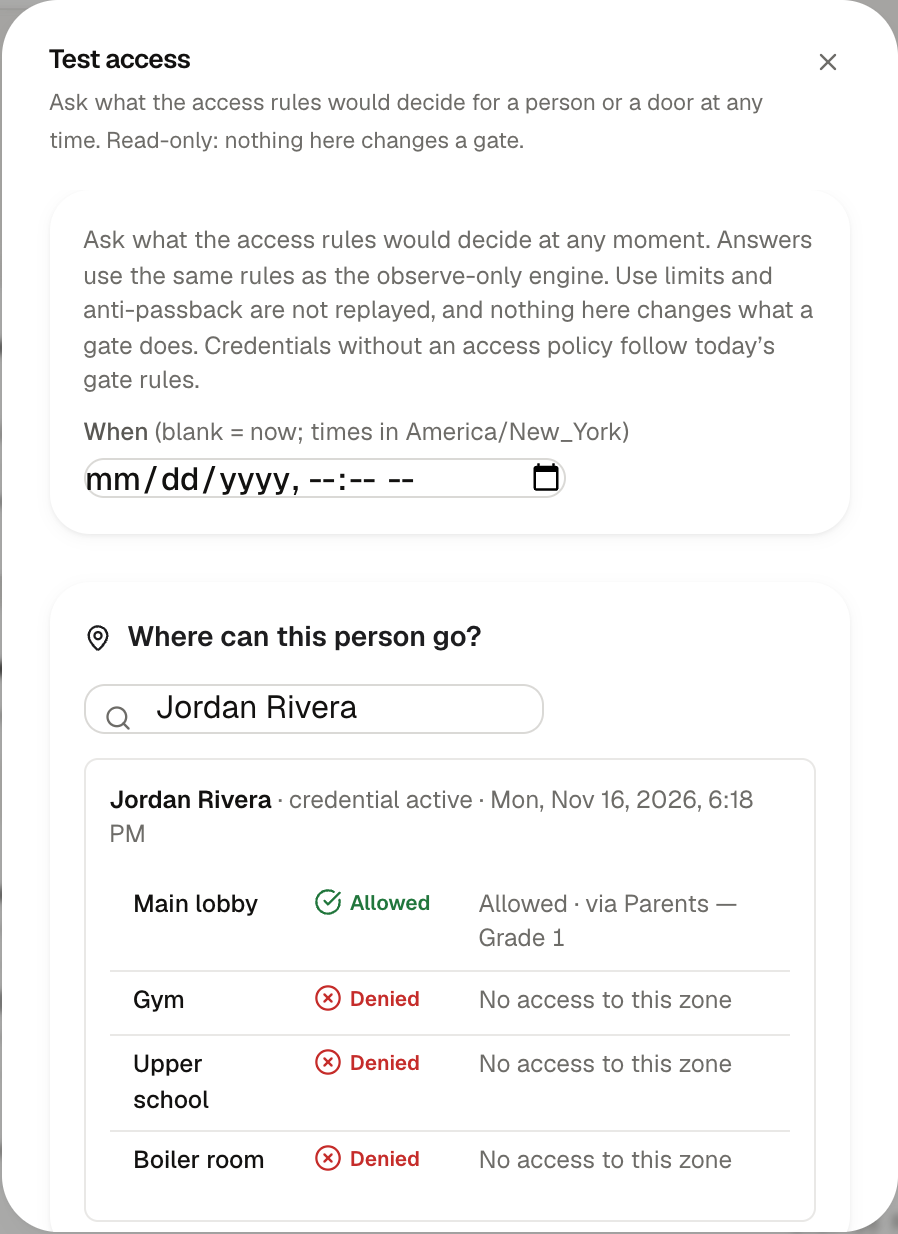
Read the answers
| Answer | Meaning |
|---|---|
| Allowed · via a group name | A group, direct zone, event, temporary access or program gives this zone, and its schedule is open. |
| No access to this zone | Nothing gives this zone to this credential. |
| Outside the zone's schedule | The zone is granted, but not at this time. |
| Credential expired / Credential is not active | The credential itself is refused everywhere. |
| Entry is not in a zone | The door isn't mapped. |
| Today's gate rules / "no access policy" | The credential has no access policy, so the rules don't judge it. Its gates behave as they do today. |
Good to know
- Use limits and anti-passback aren't replayed. They start from zero in a test.
- Tests assume a QR code.
- Only credentials with an access policy are judged. In Who can enter this zone?, the rest are counted as "active credentials have no policy and follow today's gate rules".
Troubleshooting
- " has no credential, so no access rules apply." → issue a credential.
- Everyone shows "no access policy" → no credential has an access policy yet. Add one on the credential's Access tab (see Decide who can go where).
- "No zones set up yet." → create zones on Places.