An audience is a saved list of people, built from rules over what your school data provides: "Guardians of a student where grade is 1", "Staff in the Science department", "Students in grade 8". Saving an audience adds nobody and invites nobody. Access programs use audiences to decide who gets a credential, and an access group can take its members from one.
Who this is for
Owners and admins build and edit audiences. Security staff can view them.
Before you start
- People data from at least one source: Veracross, Infinite Campus, Google Workspace or a CSV import. Check Settings › Apps › Access › Access hardware (classic menu: Configure › Access control › Integrations) (See what your integrations provide). Options your sources don't provide yet are shown locked, with what unlocks them.
Menus: steps show the app launcher first and the classic menu in brackets. See Find your way around to tell which one you have.
Steps
- Open Apps › Access › Audiences from the Access tab row (classic menu: Configure › Access control › Audiences) and click New audience.
- Type a name, for example "Grade 1 parents".
- Under People who are, pick Guardians, Students, Staff, Contractors, Volunteers or Anyone. The number next to each is how many your sources hold. Locked ones show what unlocks them.
- Add conditions:
- For Guardians, the conditions are about the student: "Guardians of a student where…". Pick an attribute (for example Grade), an operator (is, is not, at least, at most for grades; is, is not, is set, is not set for others), and the values.
- Click + Condition to add another (both must match: and).
- Click + OR group for an alternative set of conditions (either matches: or).
- For guardians, choose extras:
- Pickup-authorized only: leave out anyone the school hasn't authorized for pickup (needs a source that sends it).
- Relationship is not: leave out roles such as emergency contacts (selected by default when your source sends relationships).
- Count people as: Each adult (every adult gets their own credential) or One per household.
- Keep up to date: on (Dynamic) re-checks the list after every sync, so new families join on their own. Off (Snapshot) freezes it when saved; later syncs only refresh contact details.
- Watch Live preview on the right, then click Save audience.
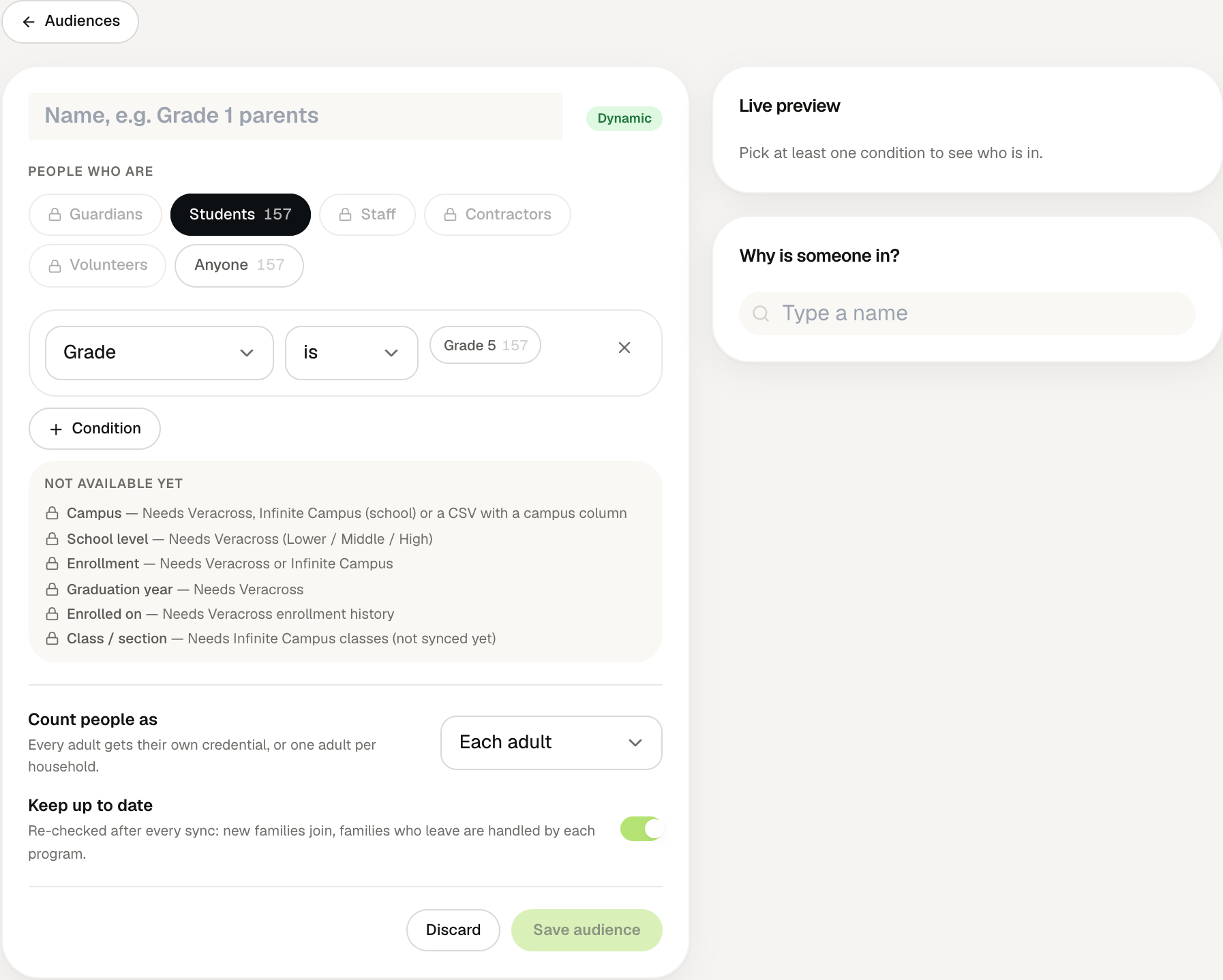
Read the live preview
- people / households / students / already known: who's in, and how many already exist in KyberAccess.
- Can we reach them?: how many have an email, text only, or no contact.
- Gaps: people who match an existing person only by name, or share an email or phone with someone else. Click Review to see them. They're never linked automatically; a program sends them to its exceptions list.
- Why is someone in?: type a name to see why a person is in or out, including the first rule they failed.
After saving
- Open an audience to see its Members tab: filter by Everyone, Email, Text only, No contact or Needs a person, search, and click CSV to export.
- The list shows each audience's counts, Dynamic or Snapshot, and which groups use it.
- To use it in a group, open the group in Who can go where and switch Members from audience on.
- Archive with the bin icon. Programs and groups using it must be switched first.
Troubleshooting
- "No integration has sent people yet, so there is nobody to count." → connect Veracross, Infinite Campus, Google Workspace or import a CSV.
- "Add at least one condition" / "Name the audience" → fill in the missing part before saving.
- "A CSV source can't be re-checked; saved as a snapshot." → CSV data doesn't sync, so the audience is frozen. Re-import to refresh it.
- "Rule broken — includes nobody" on the list → a value it used no longer exists (for example a renamed grade) → open it and fix the condition.
- Preview pill says "Out of date" → the last sync is old → check the integration.