Use this when students, parents or pickup guardians from your student information system (SIS) are missing, out of date, or the sync page says it hasn't run. KyberAccess syncs Veracross and Infinite Campus every night. Other SIS providers listed on the Integrations page don't sync yet.
Menus: steps show the app launcher first and the classic menu in brackets. See Find your way around to tell which one you have.
Who this is for
Owners and admins. SIS integrations need the School & Campus features (Pro or Enterprise).
When the sync runs
| What | When | Providers |
|---|---|---|
| Student roster, then guardians and pickup links, then photos (Veracross) | Every night at about 2:20 AM ET | Veracross, Infinite Campus |
| Directory used by audiences and access groups | Every night at about 4:10 AM ET, after the sync | Veracross, Infinite Campus |
| Manual sync | When you click Sync Now or run School Setup | Veracross, Infinite Campus |
Changes made in your SIS during the day appear the next morning, or right away after a manual sync. Sync Frequency and Auto-sync daily on the Veracross page currently have no effect, and Sync Frequency on the Infinite Campus page doesn't change the time either: the nightly sync always runs once, around 2:20 AM ET.
Check 1: did last night's sync run?
- Go to Settings › Integrations › All integrations (classic menu: Configure › Integrations) and open Veracross (or Infinite Campus). With the app launcher, Settings › Integrations › Student information system lists your SIS too.
- Select Sync Dashboard.
- Read the SIS sync card. Each line is one part of the sync (roster, guardians, photos) with its status (ok, empty or error), last run and last success. A line marked STALE has had no successful run for more than 36 hours.
- Last School Setup Sync shows the student count, contacts, card program and pickup-ready numbers from the last roster sync, and Last sync.
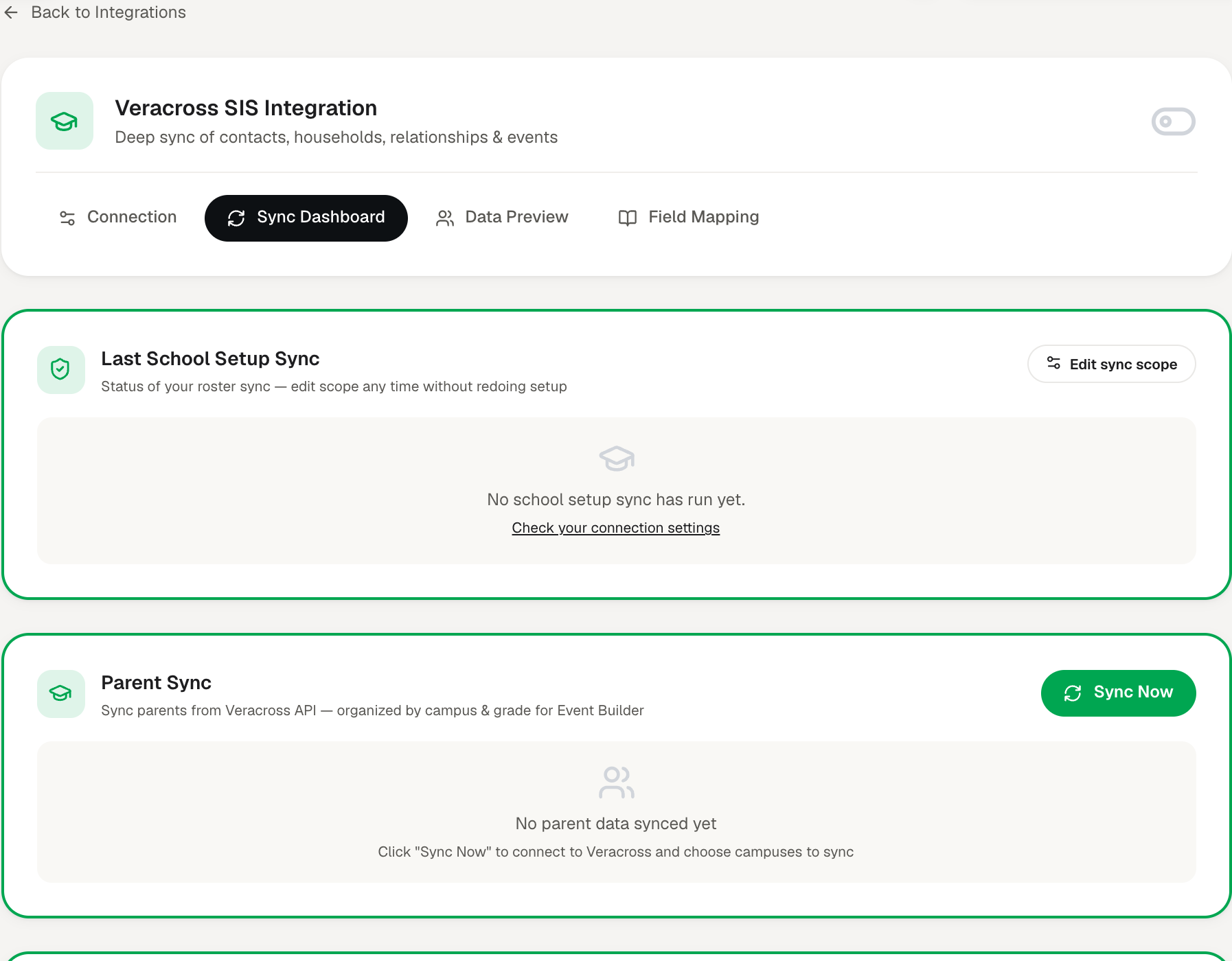
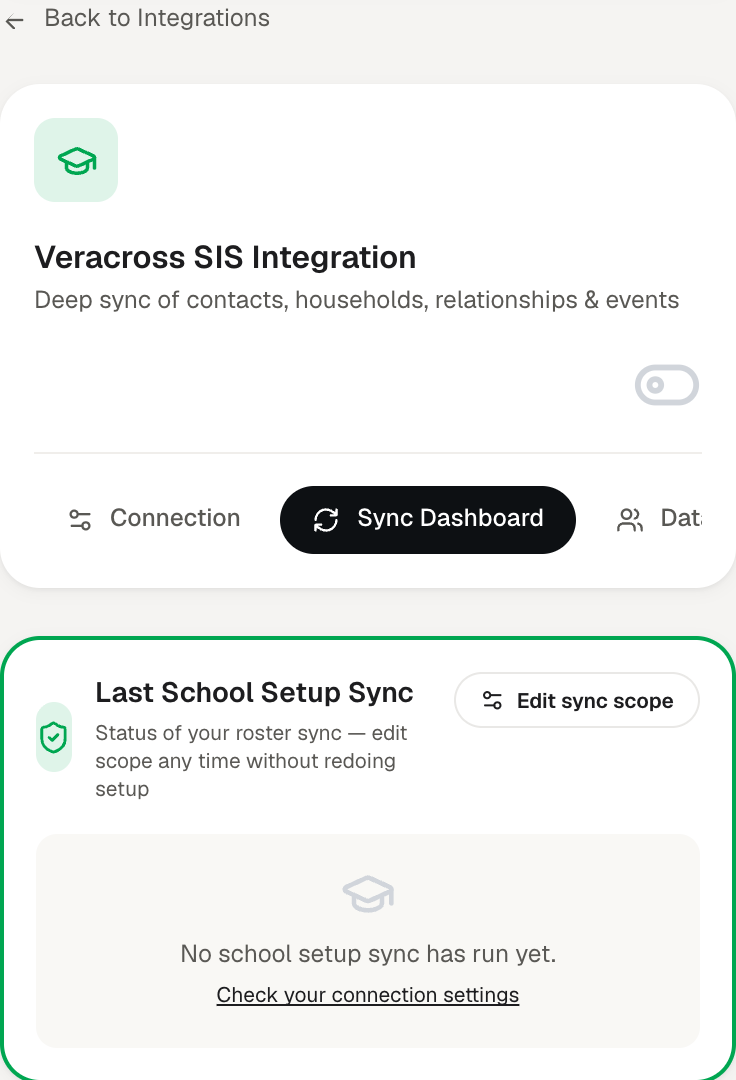
If the SIS sync card says No sync runs recorded yet, the nightly sync has never run for your school. Go to Check 2.
The Last sync time under Sync Controls further down the page only changes when someone runs that card's contact sync by hand. It doesn't show the nightly sync; use the SIS sync card instead.
Check 2: is the nightly sync switched on?
- Infinite Campus: the switch at the top right of the Infinite Campus card and Auto-Sync on Sync Dashboard must both be on, then Save Configuration. The page doesn't show saved values when you come back, so re-enter the connection details and turn both switches on again before saving (see Connect Infinite Campus).
- Veracross: turning the switch on in the page is not enough to start the nightly sync; our team switches it on for your account. If the SIS sync card is empty after a day, contact support and ask for the Veracross nightly sync to be turned on. Until then, run School Setup to refresh by hand (Settings › Apps › Students › School setup; classic menu: School Setup in the sidebar, under Campus).
Check 3: the sync ran but shows "error"
Hover the error text on the SIS sync card to read it. - Sign-in or permission errors: the SIS credentials changed or lost a scope. Open the Connection tab, re-enter them and select Test Connection. - Guardians failed but roster is ok: students are current, but pickup lists may be a day old. It usually clears the next night. If it stays red for two nights, contact support. - Our team gets an alert when a nightly sync fails or goes stale, so we may already be looking at it.
Check 4: the sync is fresh but people are missing or wrong
- A student is missing: they are outside your sync scope (school levels, grades, groups). On Sync Dashboard, select Edit sync scope, widen it and run a sync. Blank means everyone.
- A parent is missing from an event's family list: non-custodial parents are skipped unless you include them in Parent Sync, or the parent is outside your scope.
- Pickup guardians changed back after you edited them: the nightly sync replaces pickup links from the SIS. In School Setup › Pickups, set Guardian link source of truth to KyberAccess to keep your edits.
- A withdrawn student still appears: they are marked withdrawn on the next full sync, not deleted. A sync limited to one campus doesn't withdraw anyone.
- Infinite Campus has no guardians: your district may not publish guardians over OneRoster. Students and staff still sync.
Providers that don't sync yet
PowerSchool, Blackbaud and Clever have pages under Settings › Integrations › All integrations (classic menu: Configure › Integrations), but their sync isn't available yet. Sync Now and Test Connection answer that the sync "is not available yet". Use Veracross, Infinite Campus, or import people by CSV.
Settings that change this
| Setting | Where | Default | Effect |
|---|---|---|---|
| Integration switch | Top of the Veracross / Infinite Campus card | Off | Off stops the nightly sync |
| Auto-Sync | Infinite Campus › Sync Dashboard | Off | Must be on for the Infinite Campus nightly sync |
| Edit sync scope | Sync Dashboard › Last School Setup Sync | Everyone | Which students are imported |
| Guardian link source of truth | School Setup › Pickups | SIS | Whether the nightly sync overwrites pickup links you edited |