School Setup connects your student information system (SIS), imports your roster, picks which students get physical cards, and loads who may pick each child up. It is one guided flow, and it saves your progress after every step, so you can stop and come back.
Who this is for
- Owners and admins. School Setup sits under Settings, which only owners and admins can open.
- Requires the School Campus add-on. Without it, the Students app is not in your Apps panel (owners and admins see it under Get more); in the classic menu, the Campus section of the sidebar shows a lock.
Before you start
- Know which SIS you use. The wizard can drive Veracross and Infinite Campus end to end. Other SIS products (PowerSchool, Blackbaud, Clever, ClassLink) connect under Settings › Integrations › All integrations (classic menu: Configure › Integrations); they do not use this wizard.
- Have your API credentials ready:
- Veracross: School ID, Client ID and Client Secret (Veracross v3 API, OAuth client credentials).
- Infinite Campus: Base URL (the full OneRoster service address from your district), Client ID, Client Secret, and, only if your district gave you one, Token URL (optional).
- Decide which grades or school levels you want in KyberAccess, and which of those carry physical access cards.
Menus: steps show the app launcher first and the classic menu in brackets. See Find your way around to tell which one you have.
Steps
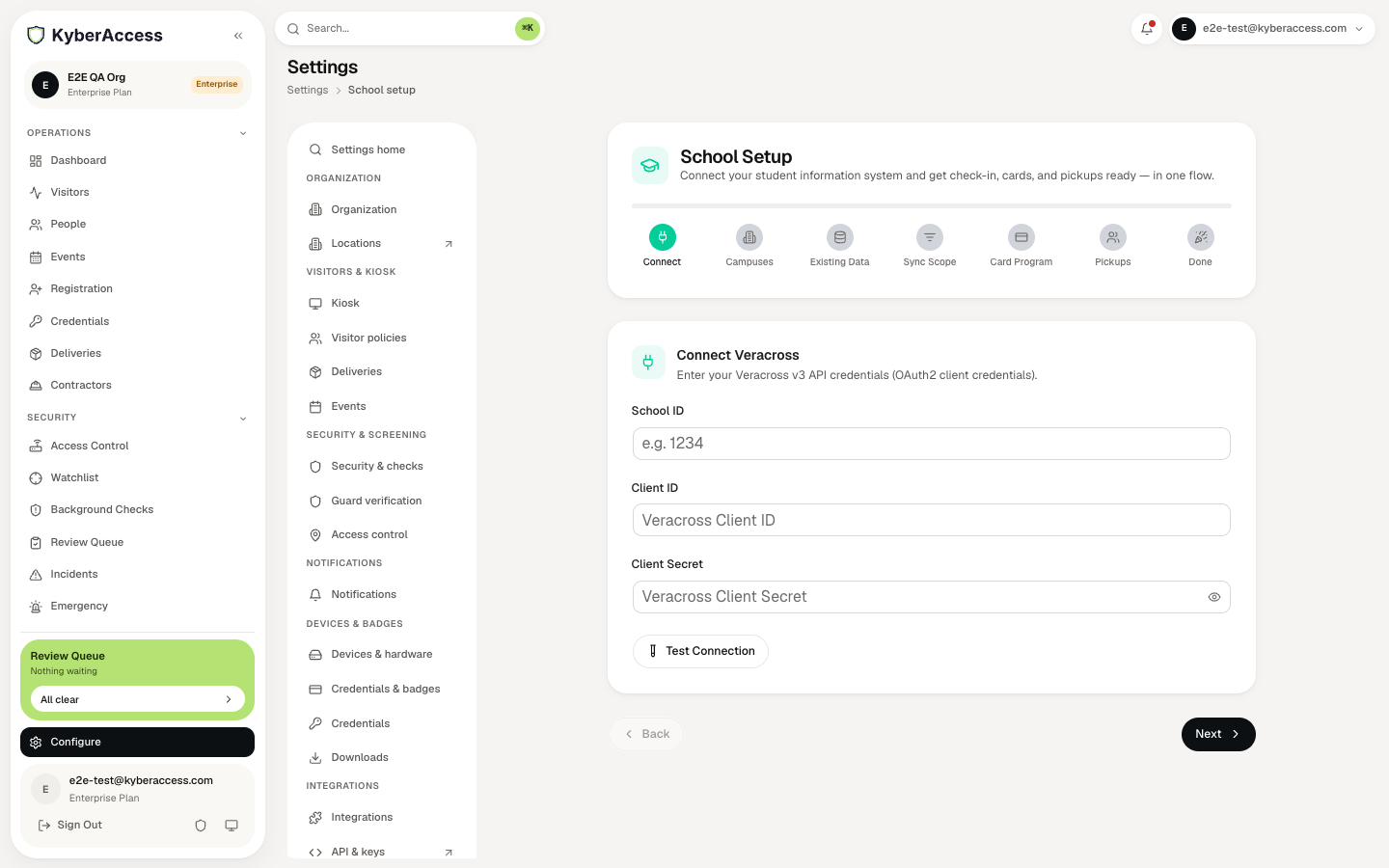
- Open Settings › Apps › Students › School setup; from Students you can also select Students settings, then School setup (classic menu: in the sidebar, go to Campus › School Setup). (You can also reach it from your SIS page under Settings › Integrations › All integrations (classic menu: Configure › Integrations) with Set up school sync.)
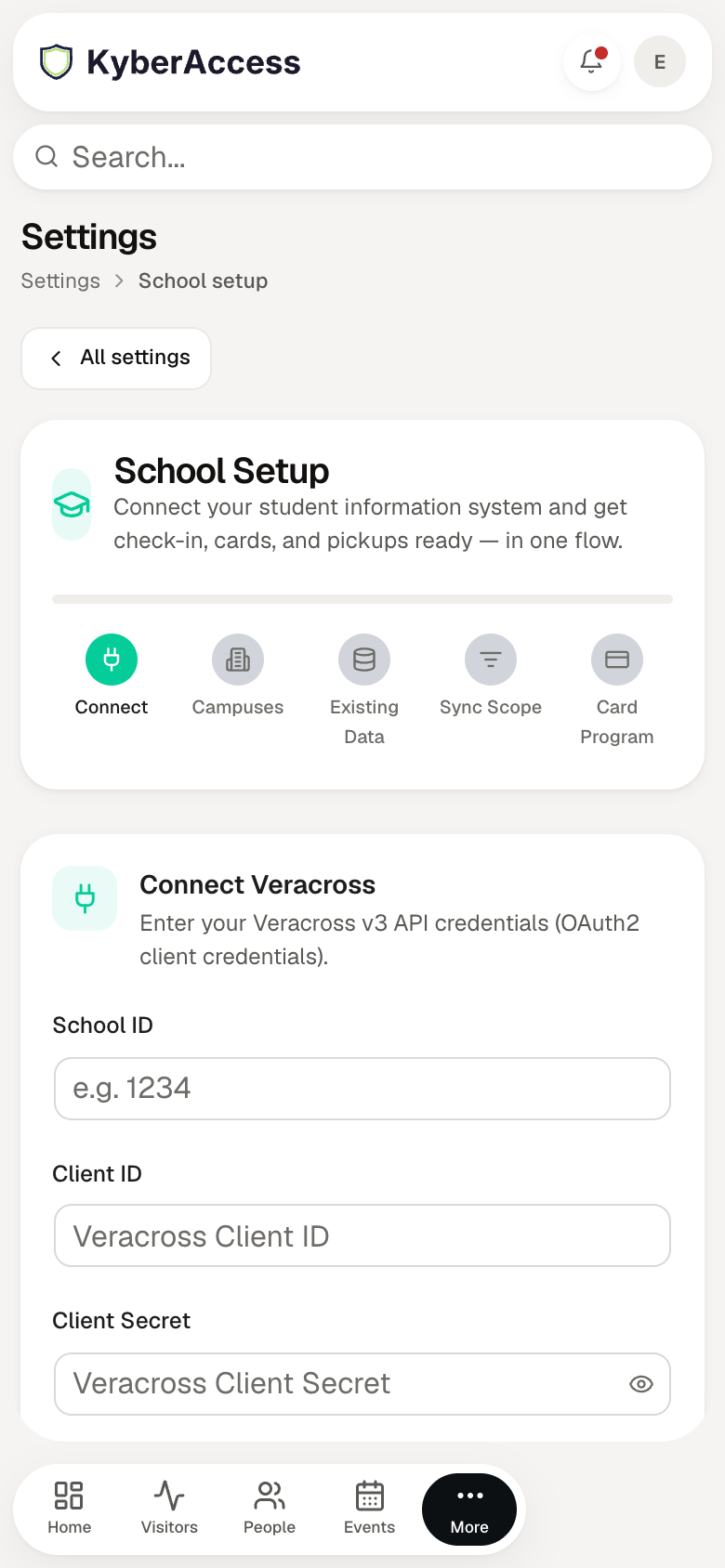
- Connect. Enter your credentials and click Test Connection. Wait for Connected, then click Next.
- Campuses (Veracross only). Pick the campuses to include, or leave the list empty to include all campuses. Click Next.
- Existing Data. If students were already synced from your SIS, choose:
- Keep existing data (recommended). The next sync adds and updates records; nothing is deleted.
- Prune & replace. Deletes the students, contacts and pickup links that came from your SIS, then lets you sync fresh. Pickup people you added by hand in KyberAccess are kept. To go ahead, click Prune existing data… and type DELETE to confirm. This cannot be undone.
- Sync Scope. Under School levels, Grades and Student groups, choose who to import for check-in and attendance. Leave all three empty to import everyone. Click Sync roster now and wait for the counts (added, updated, unchanged, transferred). Click Next.
- Card Program. If any students carry physical access cards, turn on Enable physical card program and pick the Card-program school levels, Card-program grades or Card-program student groups. Students outside the program stay attendance-only. If you turn it on and pick nothing, every synced student is in the program. Click Next.
- Pickups. Load who may collect each student:
- Veracross: click Sync from Veracross to import guardian relationships as authorized pickups. Then choose the Guardian link source of truth (see below).
- Infinite Campus: there is no sync button. Infinite Campus shares contacts but not custody, so it can't say who may collect a child. Add pickups by CSV or by hand.
- Any SIS: under Bulk import guardians (CSV), click Choose CSV file. Columns: a student id column, guardian_name (or guardian_email), and optionally guardian_phone, relationship and pickup_authorized (default yes). Check the preview, then click Import … valid rows.
- Click Finish. The School sync is ready page shows students ready for check-in, students in the card program, and students missing a guardian. Use Go to Students or Go to Student Pickup to carry on.
What happens next
- Your roster syncs nightly from your SIS. Only students inside your Sync Scope are imported as active. A student who falls outside the scope later is marked transferred, not deleted.
- The Card Program choice drives the No card enrolled and Fully set up counters on Dismissal & pickup (classic menu: Student Pickup) and the tap-to-enroll queue there. It does not issue or print cards by itself.
- Students with no authorized pickup person show under Missing guardians on Dismissal & pickup (classic menu: Student Pickup). Fill those in before you rely on pickup verification.
Settings that change this
| Setting | Where | Default | Effect |
|---|---|---|---|
| Sync Scope (levels, grades, groups, campuses) | School Setup, Sync Scope step | empty = everyone | Who the roster sync imports as active. Applies to Veracross syncs. |
| Enable physical card program + card grades/levels/groups | School Setup, Card Program step | off | Who counts as needing a card on Student Pickup. |
| Guardian link source of truth | School Setup, Pickups step (Veracross) | Veracross | Veracross: the nightly sync adds, updates and removes pickup links to match Veracross. KyberAccess: the nightly sync stops touching pickup links, so edits made by your staff stay. |
Troubleshooting
- Test Connection fails → wrong or expired credentials, or (Infinite Campus) the OneRoster app has no student scope → check the values with your SIS administrator and test again.
- The sync imported zero students → the scope is too narrow, or the SIS app can't read students → clear the scope fields and sync again.
- Pickup people I added by hand disappeared overnight (Veracross) → the source of truth is Veracross, so the nightly sync matched links to Veracross → set Guardian link source of truth to KyberAccess.
- There is no "Sync from" button on the Pickups step → you are on Infinite Campus → import pickups by CSV or add them on Student Pickup.
- The wizard says Veracross but we use something else → the wizard only drives Veracross and Infinite Campus → connect your SIS under Settings › Integrations › All integrations (classic menu: Configure › Integrations).