Issue a timed digital hall pass when a student leaves class, see who is out right now, and mark the student back when they return. Passes are kept for the current day only.
Who this is for
- Staff who issue passes, and admins who review the day's passes.
- Requires the School Campus add-on.
- Hall passes in the Students app (classic menu: Campus › Hall Pass in the sidebar) shows for Owner, Admin and Security accounts. Other roles see it only if your custom role includes the Campus permission (see Roles and what each one can do).
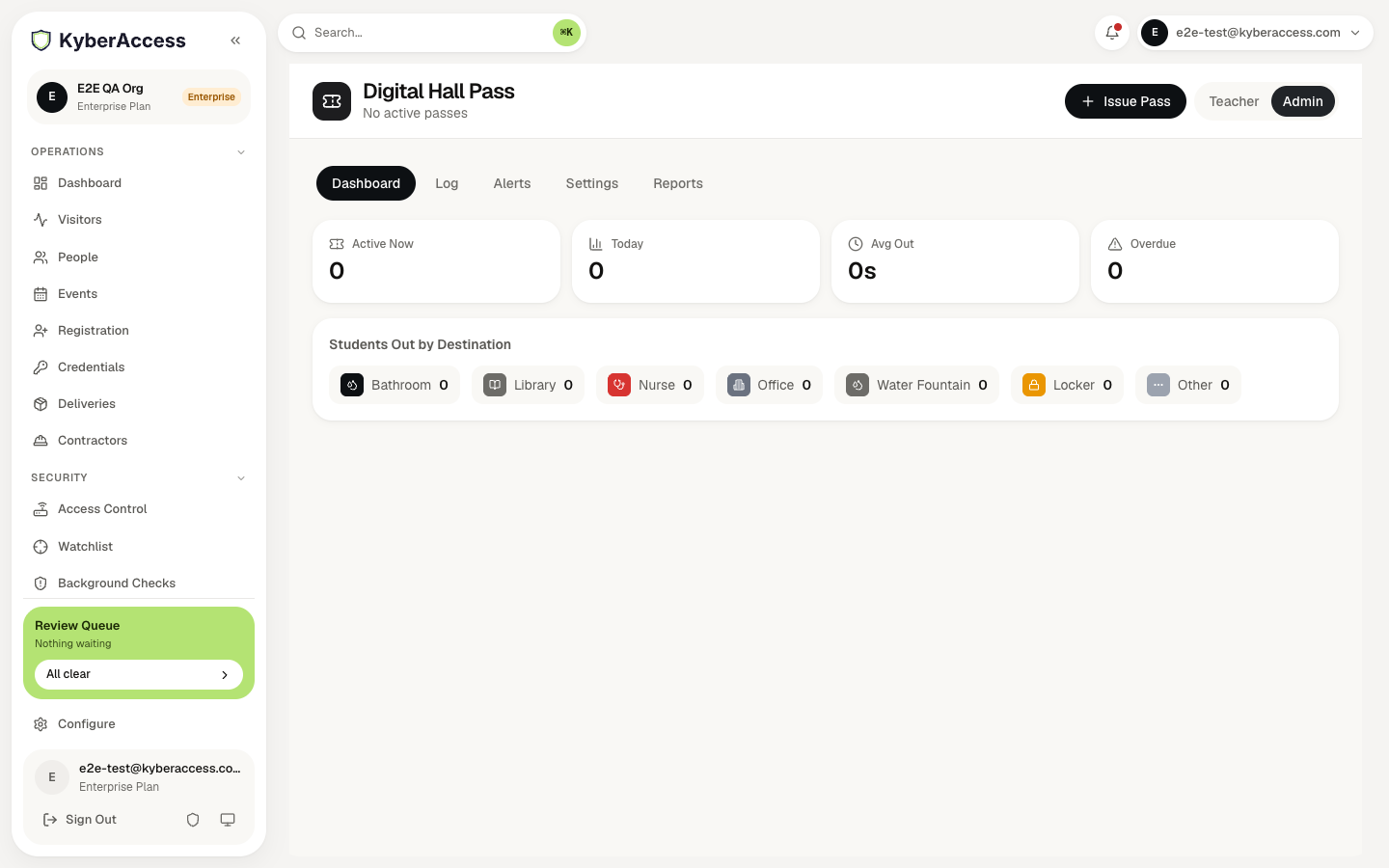
- The Teacher and Admin buttons at the top of the page switch views. They are not permissions: anyone who can open the page can use both views and change the settings.
Before you start
- Import or sync your students so names appear as you type. You can still type any name by hand.
- Timers and colors update while the page is open. Overdue alerts come from KyberAccess itself, so nobody has to keep the page open.
Menus: steps show the app launcher first and the classic menu in brackets. See Find your way around to tell which one you have.
Issue a pass
- Open Apps › Students › Hall passes (classic menu: Campus › Hall Pass). The page is Digital Hall Pass.
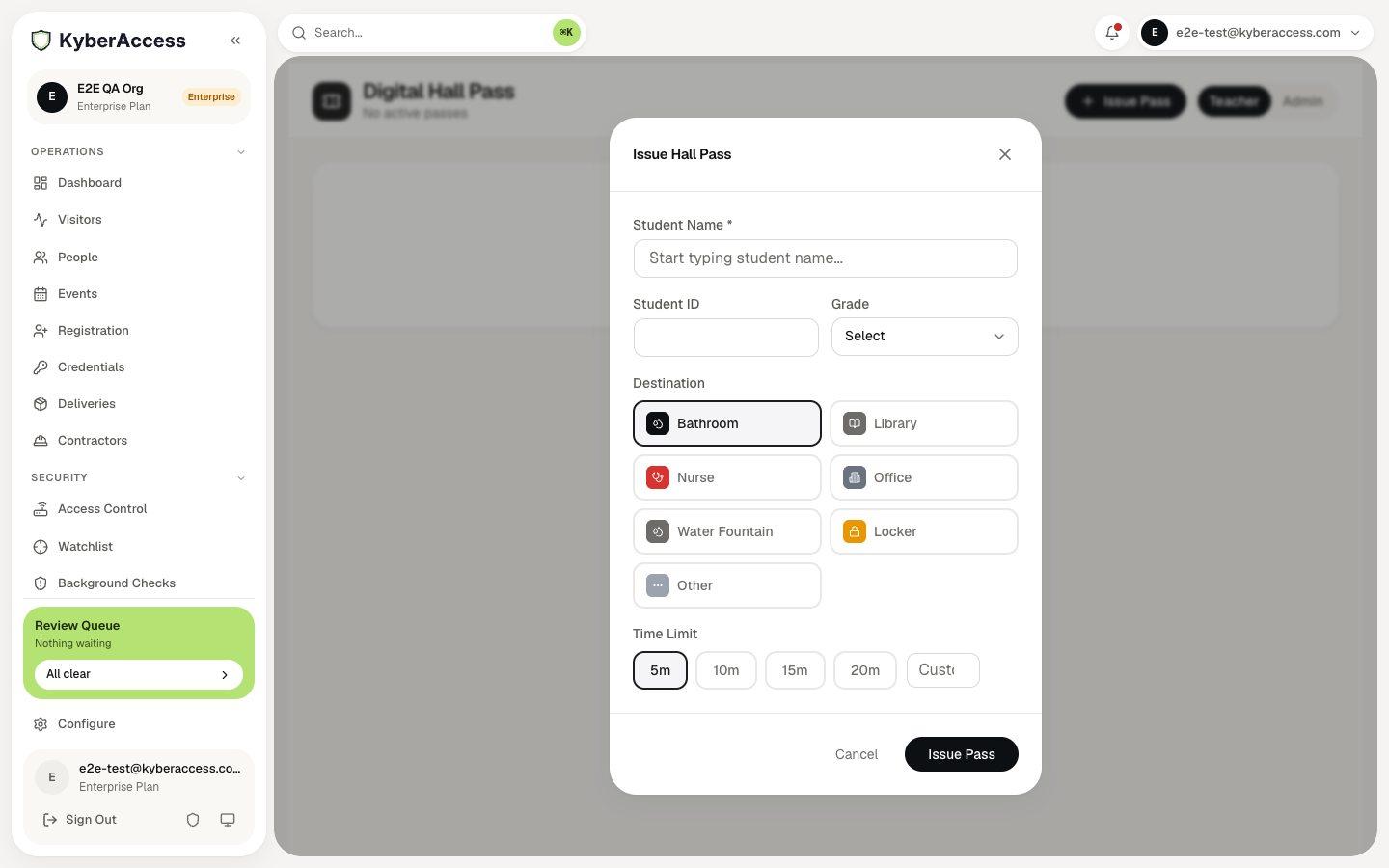
- Click Issue Pass.
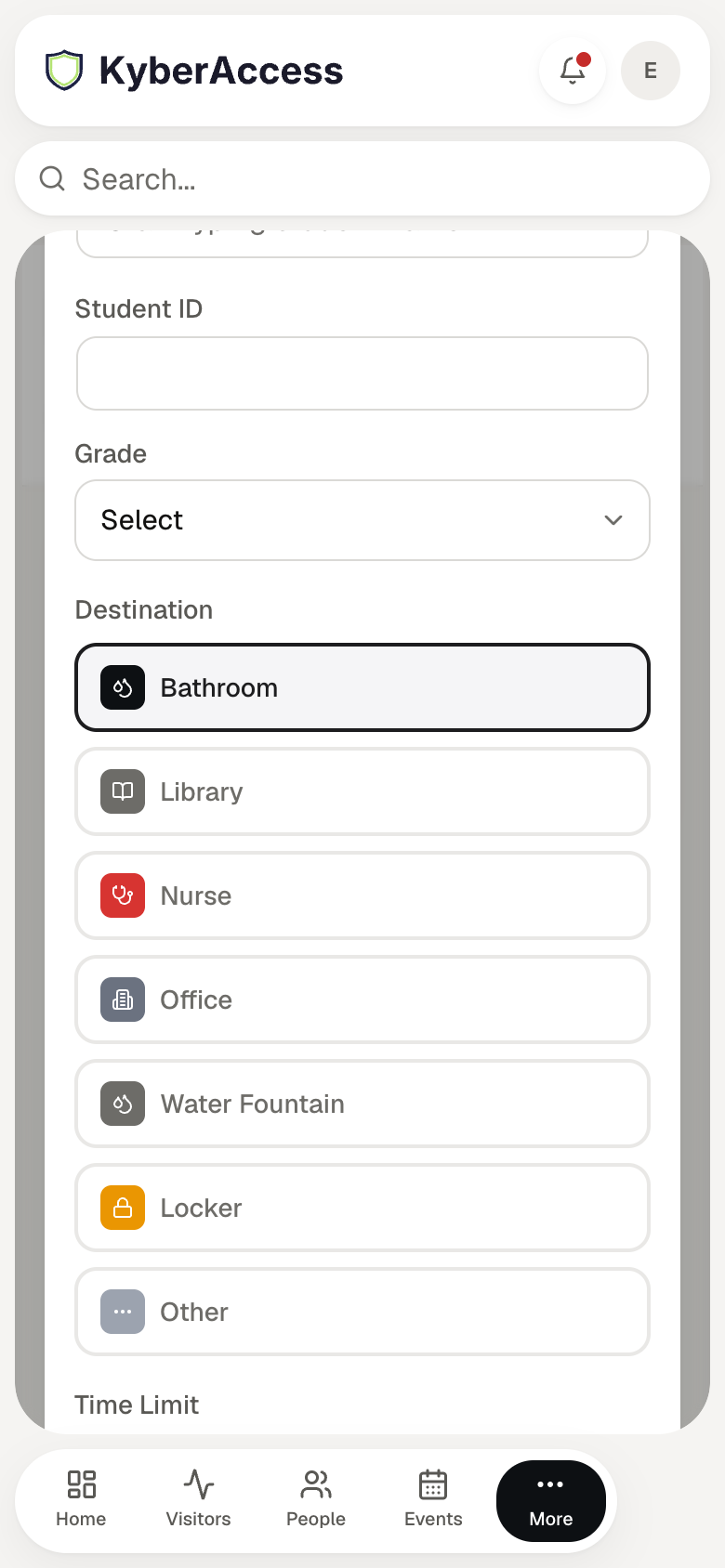
- In Student Name, type at least two letters and pick the student from the list. This fills Student ID and Grade. Or type the name and fill those fields yourself. Student Name is required.
- Pick a Destination: Bathroom, Library, Nurse, Office, Water Fountain, Locker or Other. The time limit changes to that destination's default.
- Change the Time Limit if needed: 5m, 10m, 15m, 20m, or type minutes in Custom.
- Click Issue Pass. KyberAccess refuses the pass during a Blocked Time, when the student already has a pass out, or when the teacher already has the maximum number of students out.
Mark a student back
- In the Teacher view each active pass shows as a card with a countdown ring. Click Student Returned when the student is back.
- In the Admin view, click Return next to the pass on Dashboard or Alerts.
- A pass returned before its time runs out is marked On-Time. A pass returned after is marked Late.
What happens next
- The countdown ring is green, turns yellow when half the time is left, and red when less than a fifth is left.
- When time runs out, the card turns red and the pass shows as Overdue on the Dashboard and Alerts tabs. It stays open until someone marks the student back, so the real return time is recorded and the pass is marked Late.
- When a pass has been out for Admin Alert After minutes (and is past its time limit), KyberAccess posts one alert to the notification bell for owners, admins and security staff.
- Students can mark themselves back on the self-return screen: open
/hallpass/<your organization id>on a classroom or hallway device, type or scan the student ID, tap Look Up, then I'm Back. - The page shows today's passes only. At midnight (your device's time) the lists start fresh.
Review the day (Admin view)
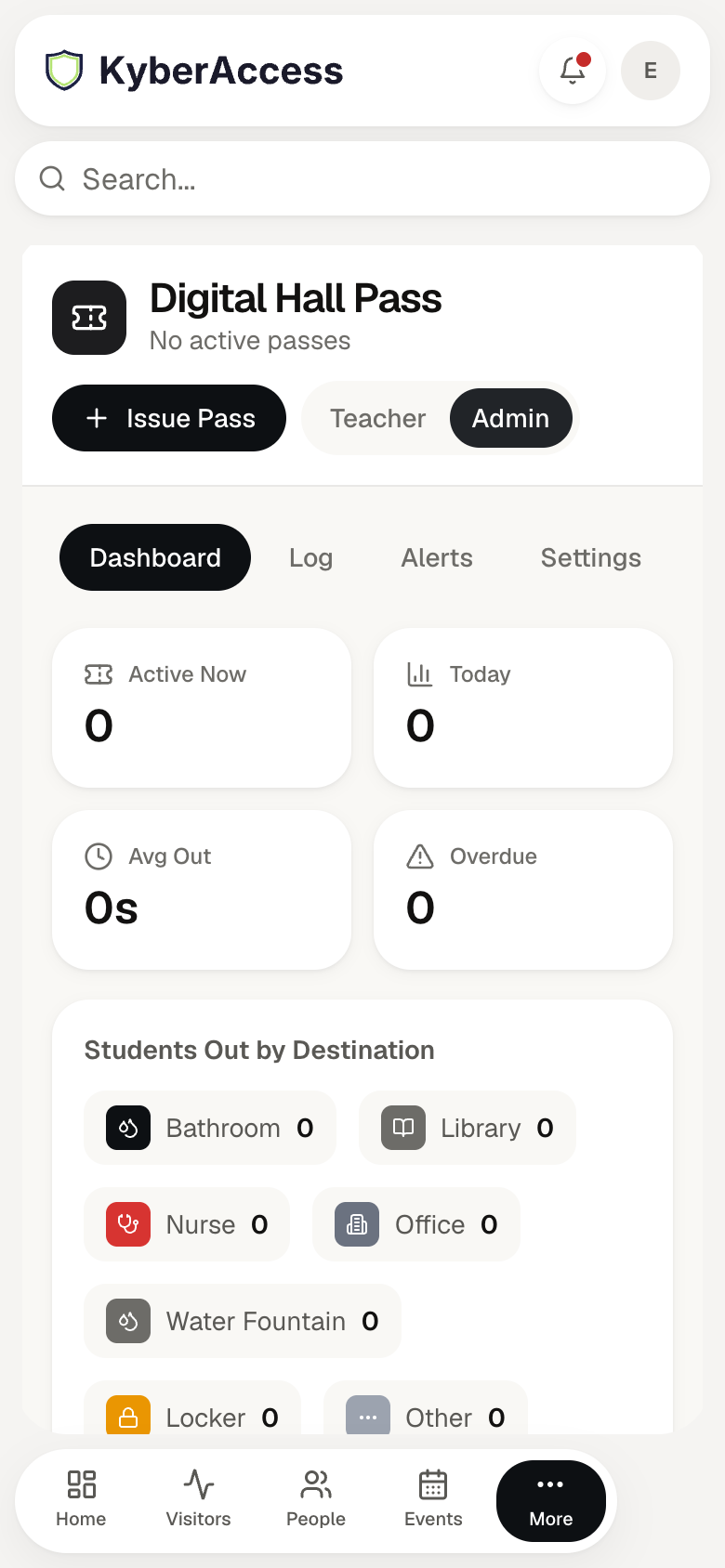
Click Admin, then use the tabs: - Dashboard: Active Now, Today, Avg Out (returned passes only) and Overdue, plus Students Out by Destination and the list of active passes. - Log: every pass issued today with Time Out, Student, Grade, Teacher, Destination, Duration and Status. Search by student, or click Filters for teacher, destination and grade. Click CSV to download the filtered list. For a pass still out, Duration counts from when it was issued. - Alerts: overdue passes, and Frequent Flyers (3+ passes today). Frequent flyers are counted by student name. - Reports: Passes by Destination (Today) and Most Passes (Today).
Settings that change this
Open Admin › Settings, change values, then click Save Settings.
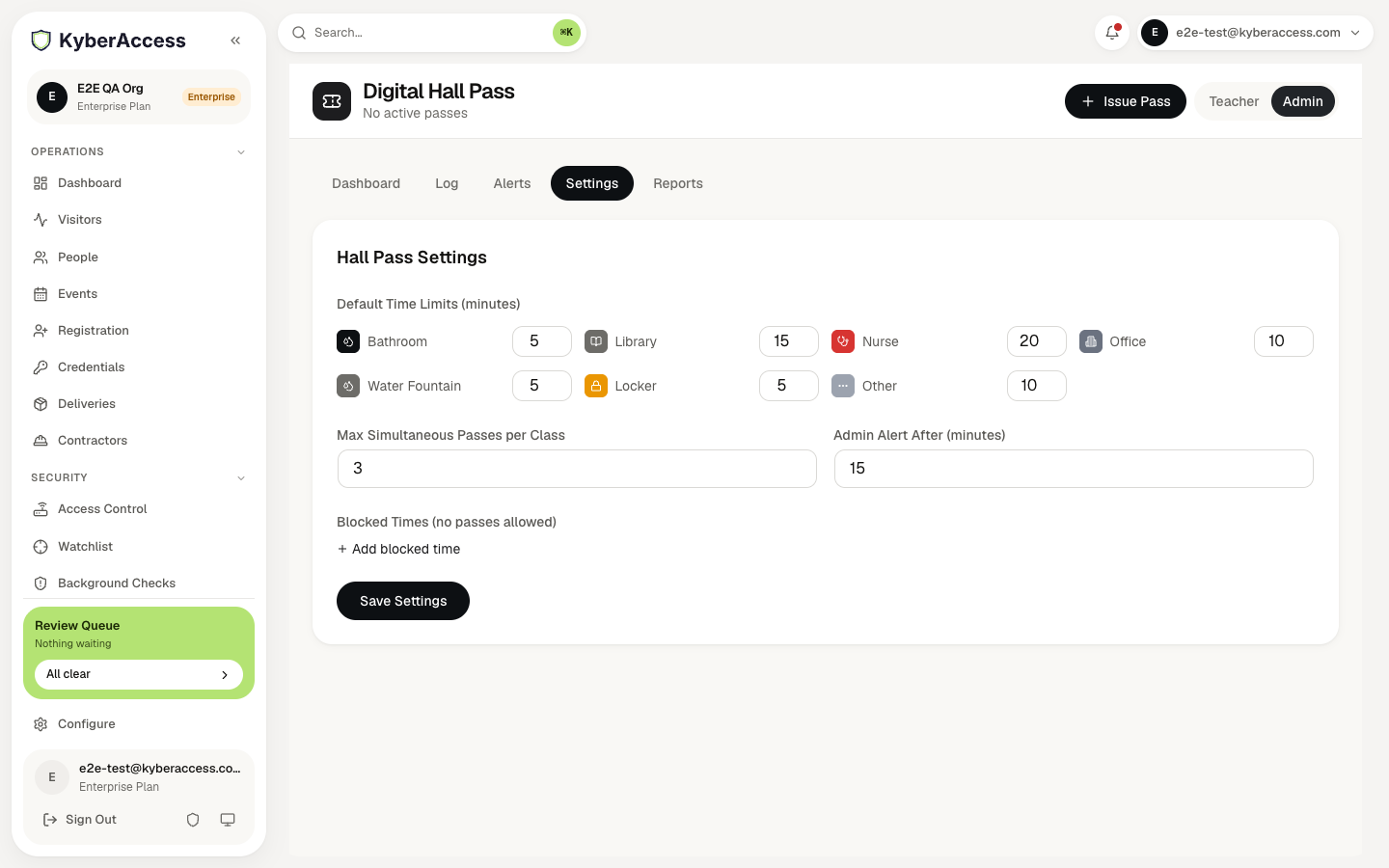
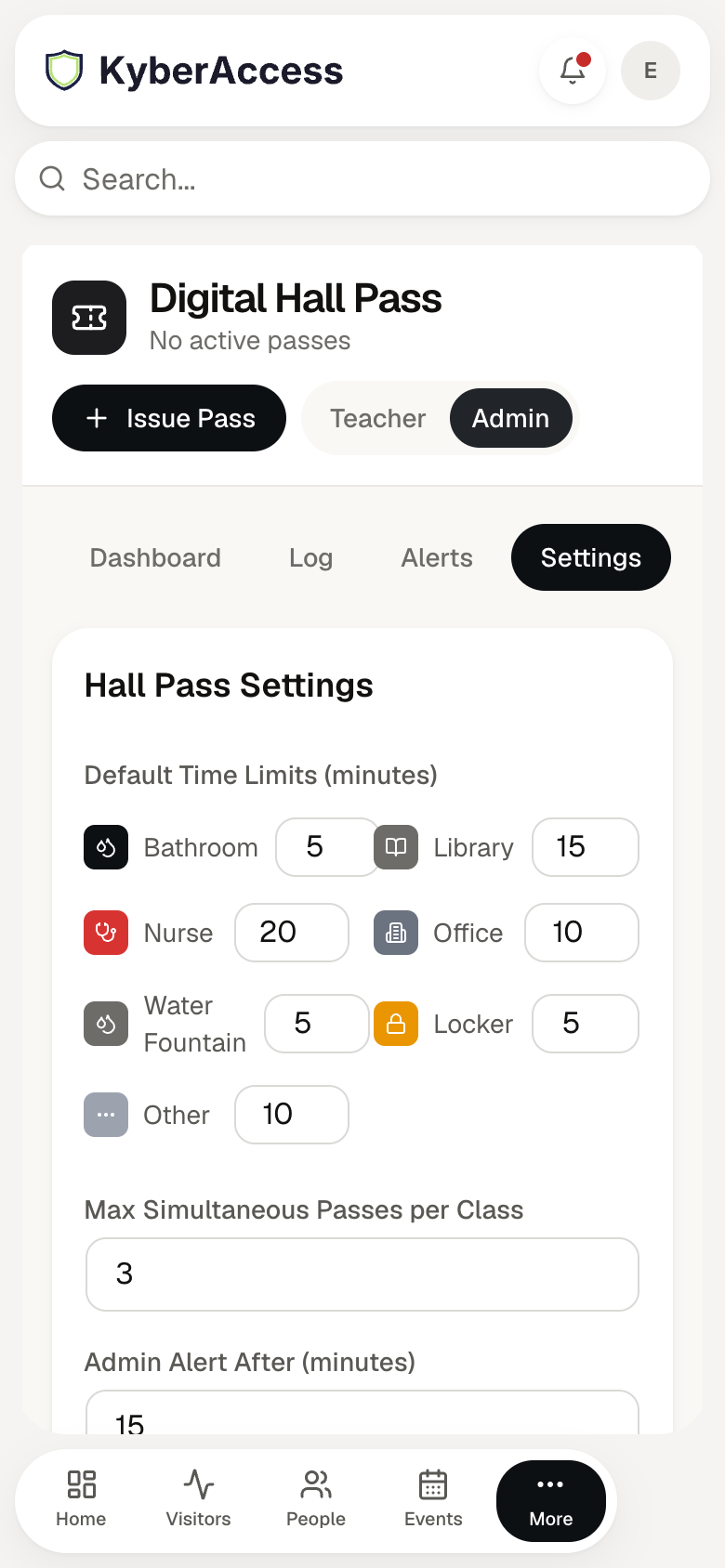
- Default Time Limits (minutes) · one per destination · Bathroom 5, Library 15, Nurse 20, Office 10, Water Fountain 5, Locker 5, Other 10 · sets the time limit picked when you choose that destination.
- Max Simultaneous Passes per Class · default 3 · the most students one teacher can have out at once (counted by the teacher named on the pass). One more is refused with "This class already has 3 students out".
- Admin Alert After (minutes) · default 15 · minutes after a pass is issued before an overdue pass rings the notification bell (once per pass).
- Blocked Times (no passes allowed) · start and end times in your organization's time zone · no pass can be issued inside a blocked time.
Troubleshooting
- Student's name doesn't appear as I type → the student isn't in your active student list, or you typed fewer than two letters → type the full name by hand, or add the student in School Setup.
- "This class already has 3 students out" → that teacher already has the maximum out → mark a student back, or raise Max Simultaneous Passes per Class.
- "No passes during …" → it is inside a Blocked Time → wait, or change the blocked times.
- A pass is red and says Overdue → its time ran out → find the student and click Student Returned; it is recorded as Late.
- Yesterday's passes are gone → the page only keeps today → download CSV from Log before the end of the day if you need a record.
- Nobody got an alert for an overdue student → the alert goes to the notification bell (not email) after Admin Alert After minutes → check the bell, and that the person is an owner, admin or security member.