Students (or the parent who brings them in late) sign in on a kiosk, and KyberAccess marks anyone signed in after your school's start time as tardy. This article covers turning the student kiosk on, setting the tardy time, editing what the kiosk asks, and reading the results on Student Check-In.
Who this is for
- Owners and admins set it up (Settings).
- Front desk and staff read the Student Check-In page and handle late arrivals.
- Requires the School Campus add-on.
Before you start
- Your students are in KyberAccess. Use Set up your school, or Add Student / Import on Student Check-In.
- You have an iPad or tablet for the lobby. The student kiosk runs in the browser (Safari or Chrome) and in the KyberAccess Kiosk iPad app.
Menus: steps show the app launcher first and the classic menu in brackets. See Find your way around to tell which one you have.
Turn on the student kiosk
- Go to Settings › Apps › Front Desk › Kiosk features (classic menu: Configure › Kiosk › Features).
- Open the Student Check-In section and turn on Student Check-In Mode.
- Set the options:
- Show button on main kiosk screen: adds a student button to the visitor kiosk.
- Allow manual name lookup: lets a student or parent search by name when there is no card or QR code.
- Start with parent name (late arrival) / Start with parent name (early pickup): the kiosk asks for the adult's name first.
- Default kiosk mode (bare /kiosk link): what your plain kiosk link opens: Visitor kiosk, Student check-in or Parent check-in (Parent check-in needs manual name lookup on).
- Show student photo and Play sound on scan.
- Tardy after (school start time): see the next section.
- Click Save Changes.
- On the lobby device, open the kiosk link. The quickest way: on Apps › Students › Roster & attendance (classic menu: Student Check-In in the sidebar, under Campus), click Launch Kiosk and scan the QR code with the iPad. No sign-in is needed on the device.
Set the tardy time
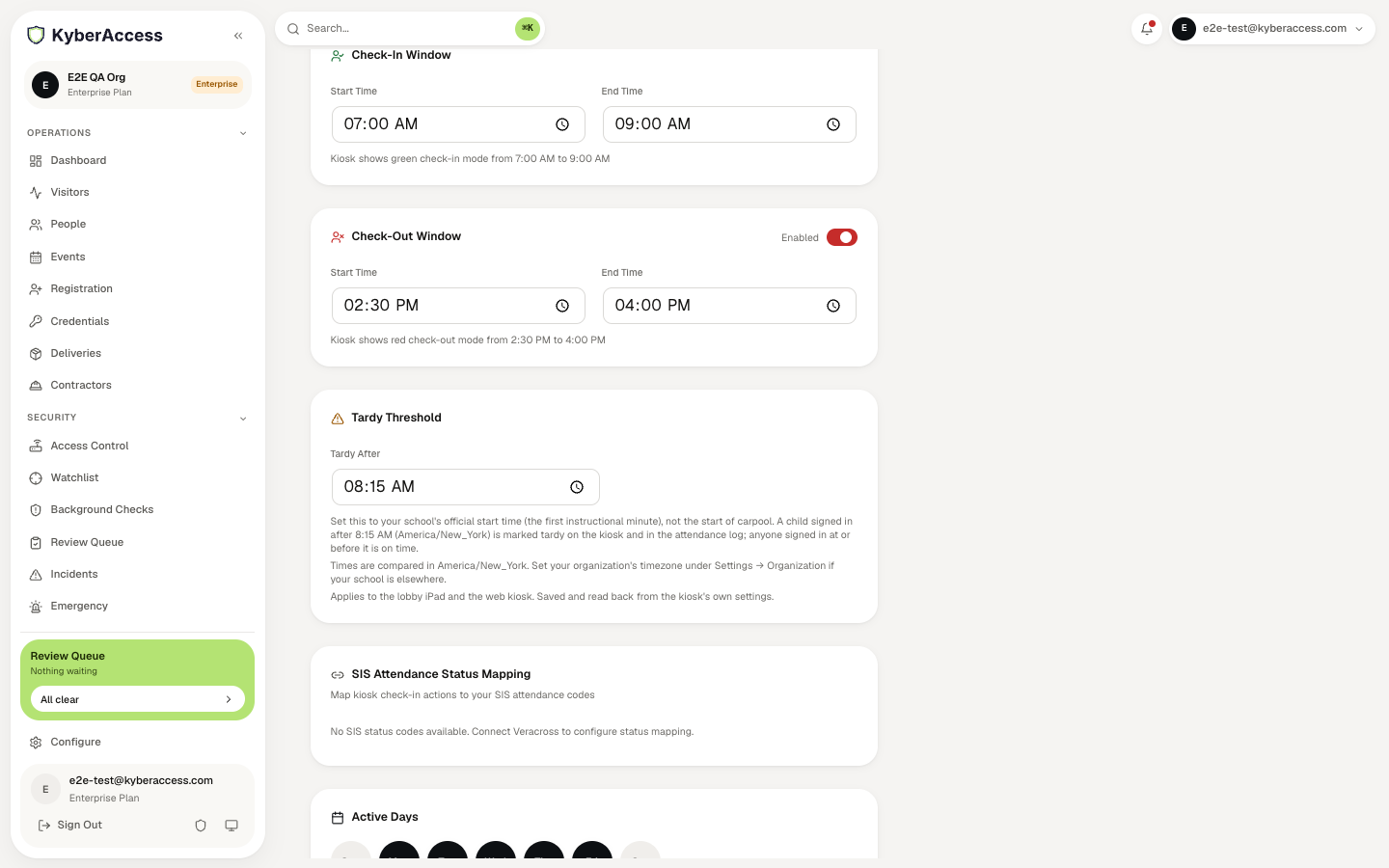
The tardy time is a clock time, not "minutes late". A child signed in after that minute is marked tardy; anyone signed in at or before it is on time. Times use your organization's time zone (set under Settings › Organization › General, classic menu: Configure › Organization; Eastern time if none is set). If no time is set, KyberAccess uses 8:15 AM.
You can set it in either place; both save the same value: - Settings › Apps › Front Desk › Kiosk features › Student Check-In › Tardy after (school start time) (classic menu: Configure › Kiosk › Features › Student Check-In › Tardy after (school start time)), or - Apps › Students › Roster & attendance › Settings › Tardy Threshold › Tardy After (classic menu: Campus › Student Check-In › Settings › Tardy Threshold › Tardy After), then Save Schedule.
Set it to your official start time (the first instructional minute), not the start of carpool.
Edit what the kiosk asks (Student flow)
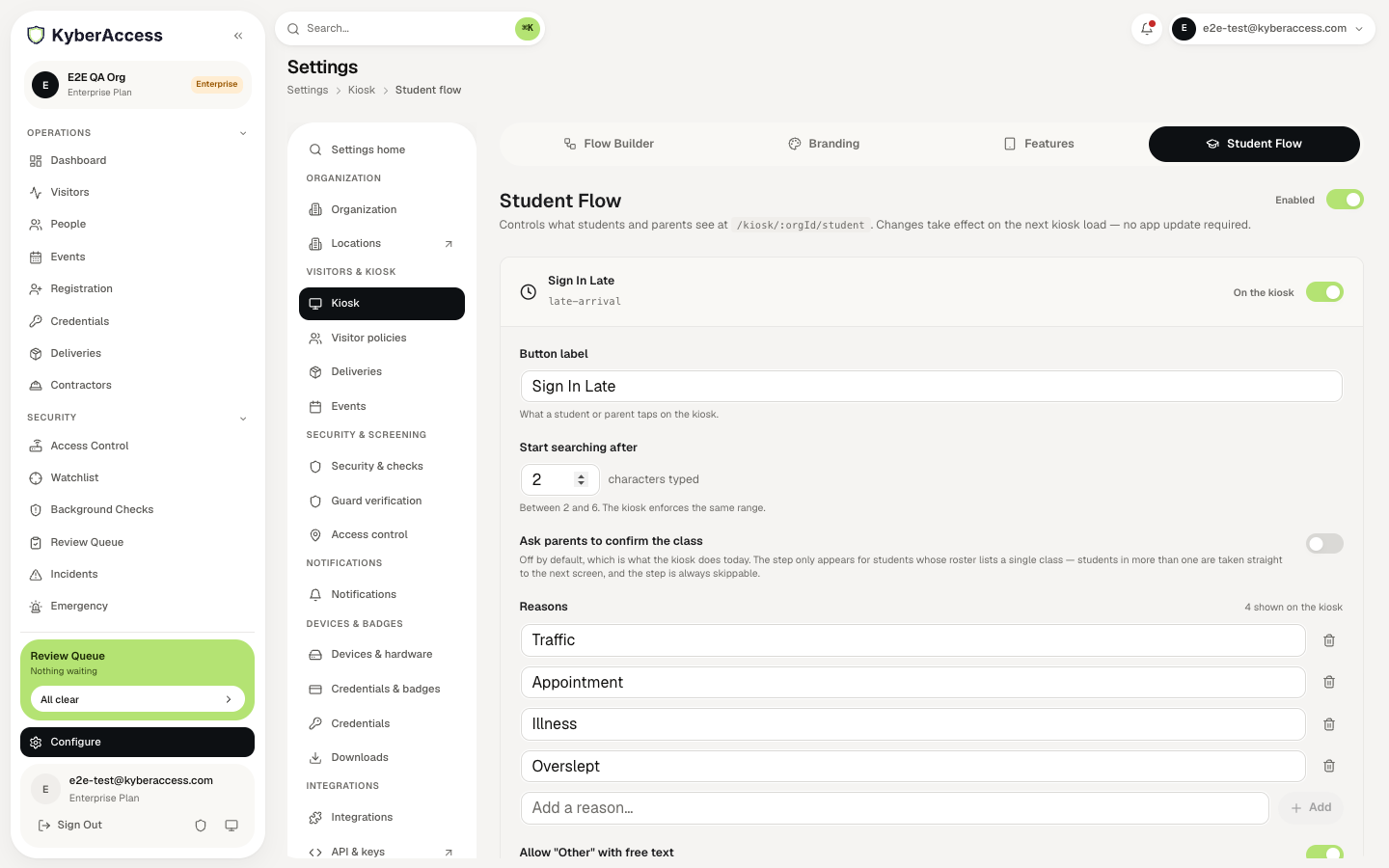
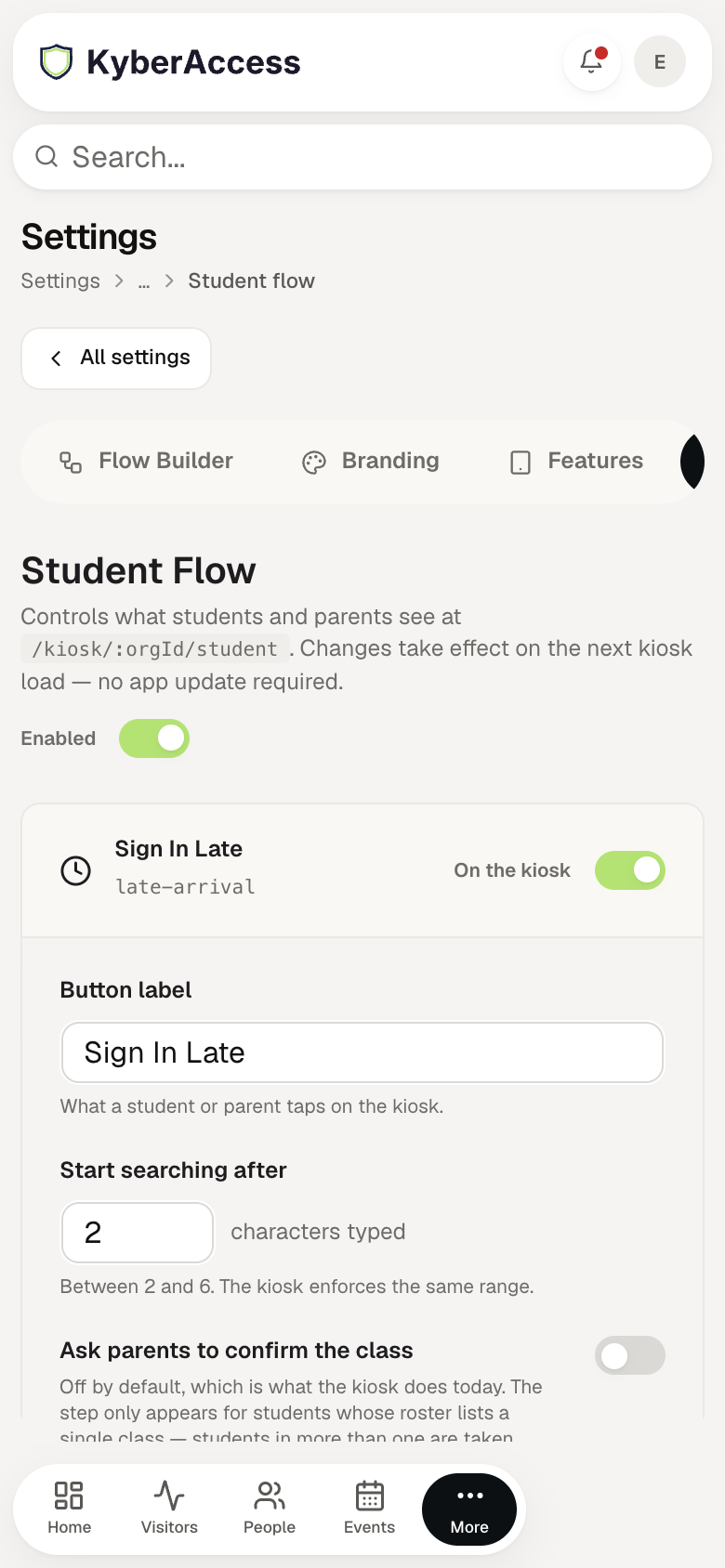
- Go to Settings › Apps › Students › Student kiosk (classic menu: Configure › Kiosk › Student Flow).
- Leave Enabled on. There are two buttons on the kiosk: Sign In Late and Early Pickup. Use On the kiosk to hide one (for example, turn off Early Pickup for a term).
- For each one you can change the Button label, Start searching after (2 to 6 characters typed), Ask parents to confirm the class, the Reasons list (default for late: Traffic, Appointment, Illness, Overslept), and Allow "Other" with free text.
- Save. Changes reach the kiosk the next time it loads; no app update is needed.
What happens at the kiosk
- The student scans their QR code or card, or types their name (if manual lookup is on).
- For Sign In Late, the kiosk asks for a reason from your list (or "Other").
- KyberAccess records the check-in with the time, the reason and, if given, the adult's name, and shows a success screen. After the tardy time, the record is marked Tardy.
- If the same student is signed in again within 2 minutes, nothing new is recorded and the kiosk says the student "already checked in moments ago". This stops a double tap from creating a second tardy.
Early Pickup on the same kiosk does not release anyone. It sends a request to the office. See Student pickup and early dismissal.
Read the results
Go to Apps › Students › Roster & attendance (classic menu: Student Check-In in the sidebar, under Campus): - The cards at the top show Total Students, Present Today (or Checked In Today), Absent (or Checked Out Today) and Tardy. - Attendance Log lists each check-in and check-out with time, tardy flag and reason. - Analytics shows attendance over time. - For reports by date range, go to Apps › Insights › Reports (classic menu: Reports in the sidebar, under Insights), category Campus: Student Attendance, Tardy Report, Absent Report and Attendance Trends. Each can be exported.
If your school keeps attendance in your SIS and uses KyberAccess only for late arrivals and early pickups, ask KyberAccess support to set your account to that mode. The page then shows Checked In Today and Checked Out Today instead of an absent count and attendance rate, because KyberAccess can't know who is absent.
Veracross schools: each kiosk check-in is also written to Veracross attendance. If your Veracross account has status codes, map them under Student Check-In › Settings › SIS Attendance Status Mapping. Infinite Campus attendance is not written back.
Settings that change this
| Setting | Where | Default | Effect |
|---|---|---|---|
| Student Check-In Mode | Settings › Apps › Front Desk › Kiosk features (classic: Configure › Kiosk › Features) | off | Turns the student kiosk on. |
| Tardy after (school start time) | Kiosk › Features, or Student Check-In › Settings | 8:15 AM | After this minute, a check-in is tardy. |
| Allow manual name lookup | Kiosk › Features | off | Name search on the kiosk. |
| Sign In Late / Early Pickup options | Settings › Apps › Students › Student kiosk (classic: Configure › Kiosk › Student Flow) | both on | Buttons, labels and reasons on the kiosk. |
| SIS Attendance Status Mapping | Student Check-In › Settings | Veracross default code | The Veracross attendance code written for check-ins and tardies. |
| Check-In / Check-Out Window, Active Days | Student Check-In › Settings | 7:00–9:00 AM, Mon–Fri | When the iPad app shows check-in or check-out mode. |
What the Student Check-In › Settings tab controls. Tardy After and SIS Attendance Status Mapping apply everywhere. Check-In Window, Check-Out Window, Active Days and the Kiosk Options switches (Allow Manual Lookup, Play Sound, Show Student Photo) are read by the KyberAccess Kiosk iPad app; the browser kiosk uses Settings › Apps › Front Desk › Kiosk features (classic menu: Configure › Kiosk › Features) instead. Turnstile hours, grace and absent thresholds, attendance mode, bell schedule, nightly auto-sync and SIS writeback mode are no longer shown on this tab because nothing used them.
Troubleshooting
- The kiosk says "Kiosk Not Found" → Student Check-In Mode is off → turn it on under Settings › Apps › Front Desk › Kiosk features (classic menu: Configure › Kiosk › Features) and save.
- A child who arrived on time is marked tardy → the tardy time or your organization time zone is wrong → check both; the helper text under Tardy After names the zone in use.
- The kiosk shows "no results" while typing a name → search starts after the number of characters you set (at least 2), and Allow manual name lookup must be on.
- A student shows twice on the log → the two sign-ins were more than 2 minutes apart → mark one excused in your SIS; the kiosk only blocks repeats within 2 minutes.
- Absent count looks far too high → your school doesn't check every student in → the Absent card is meaningful only if every arrival is signed in.