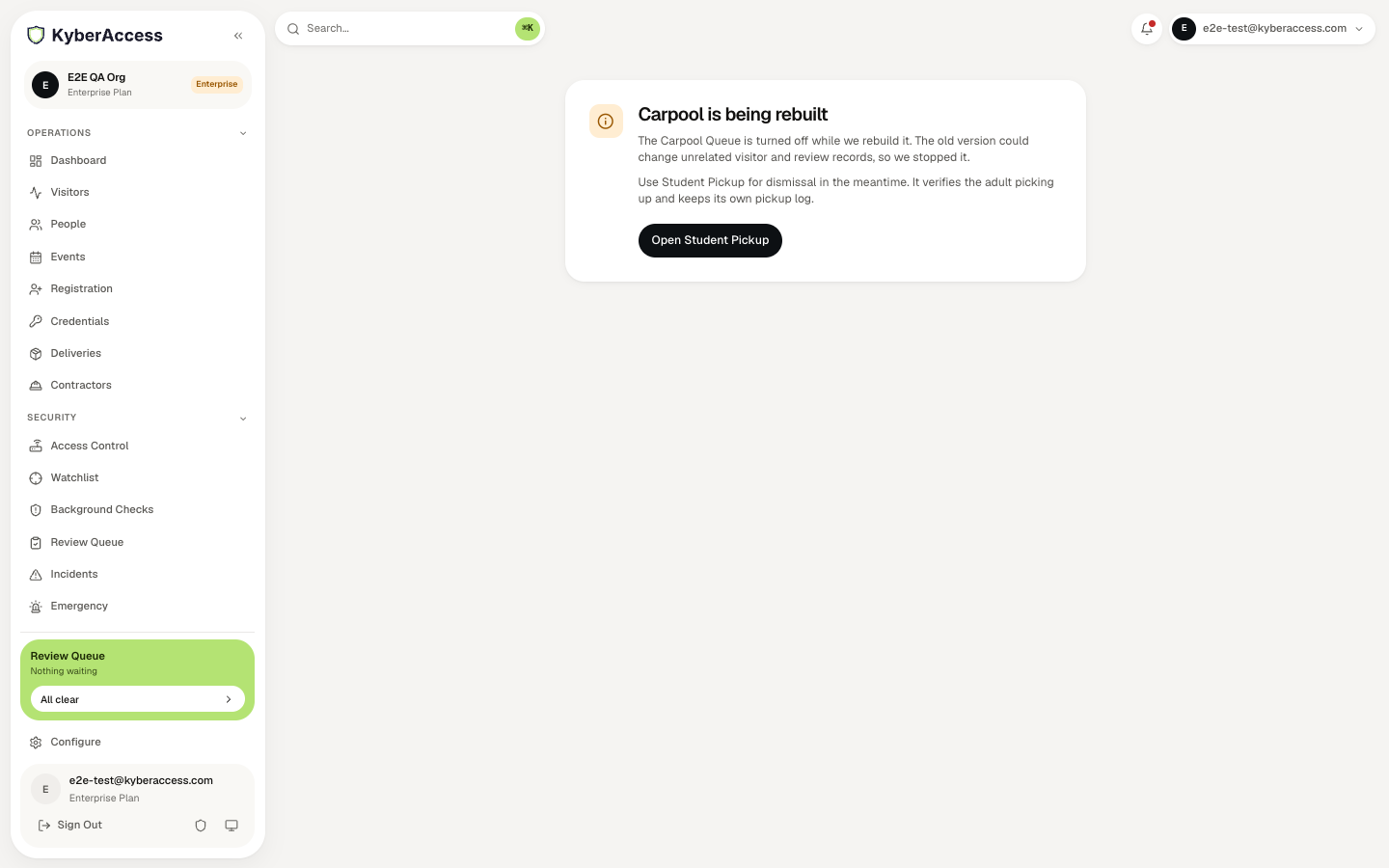
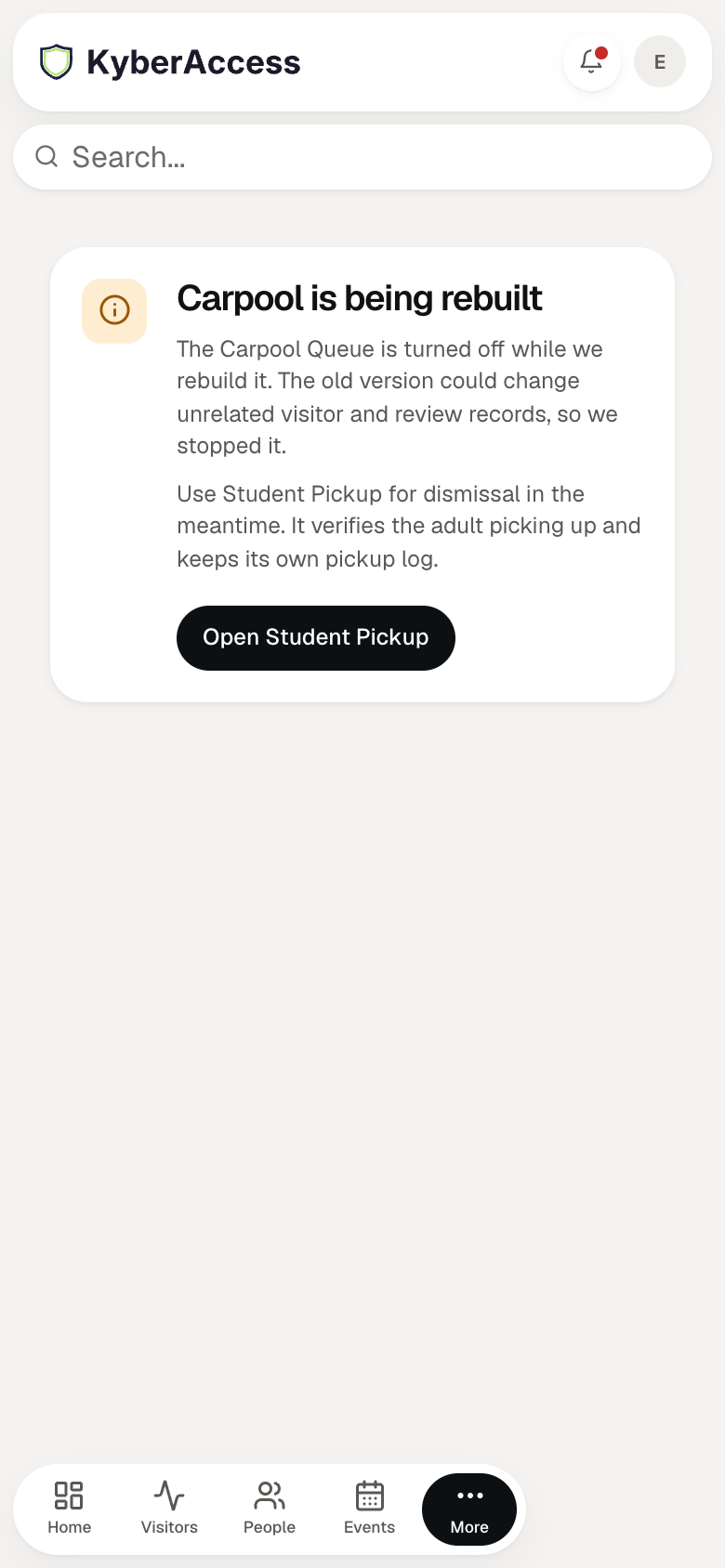
Run the afternoon car line on Campus › Carpool Queue: each family gets a car tag, staff type the tag as the car pulls up, announce the students, and release them. Carpool keeps its own tag list and session history; it never changes your visitors, Vehicle Registry or review queue.
Who this is for
- Staff who run afternoon dismissal, and the admins who set it up.
- Campus › Carpool Queue appears with the Carpool module (School Campus add-on).
Before you start: car tags
- Open Campus › Carpool Queue and click Setup, then Car Tags.
- Add tags one at a time (Tag Number, Parent Name, students, car details), or click Bulk Generate for a numbered range, or Import CSV.
- Print or hand out the tag numbers to families.
Steps
Run dismissal
- Click Start Session (one session per school day).
- As each car arrives, type or scan its tag number and press Enter. The car joins the queue with its students.
- Click Announce on a car. The on-screen message is your PA Announcement Template with the tag and students filled in; read it out.
- Click Release when the students are in the car.
- When dismissal is over, click End Session. The session's car count and average wait are saved.
What happens next
- Setup › Reports lists past sessions with cars processed and average wait.
- A tag that isn't registered can still be added; the queue shows it without students.
Settings that change this
Open Setup › Settings and click Save Settings. - Max Cars in Queue · default 50 · a car beyond this is refused until cars are released. - PA Announcement Template · "Now calling car #{tag}. Please send {students} to the carpool lane." · the text shown when you click Announce.
Troubleshooting
- "No active session. Start a session first." → click Start Session.
- "The queue is full" → release cars, or raise Max Cars in Queue.
- "Car #… is already in the queue" → that car hasn't been released yet.