Plan which substitute covers which teacher each day, check them in when they arrive, and keep a roster of approved substitutes. Everything on this page is stored on its own: it never changes People or student attendance.
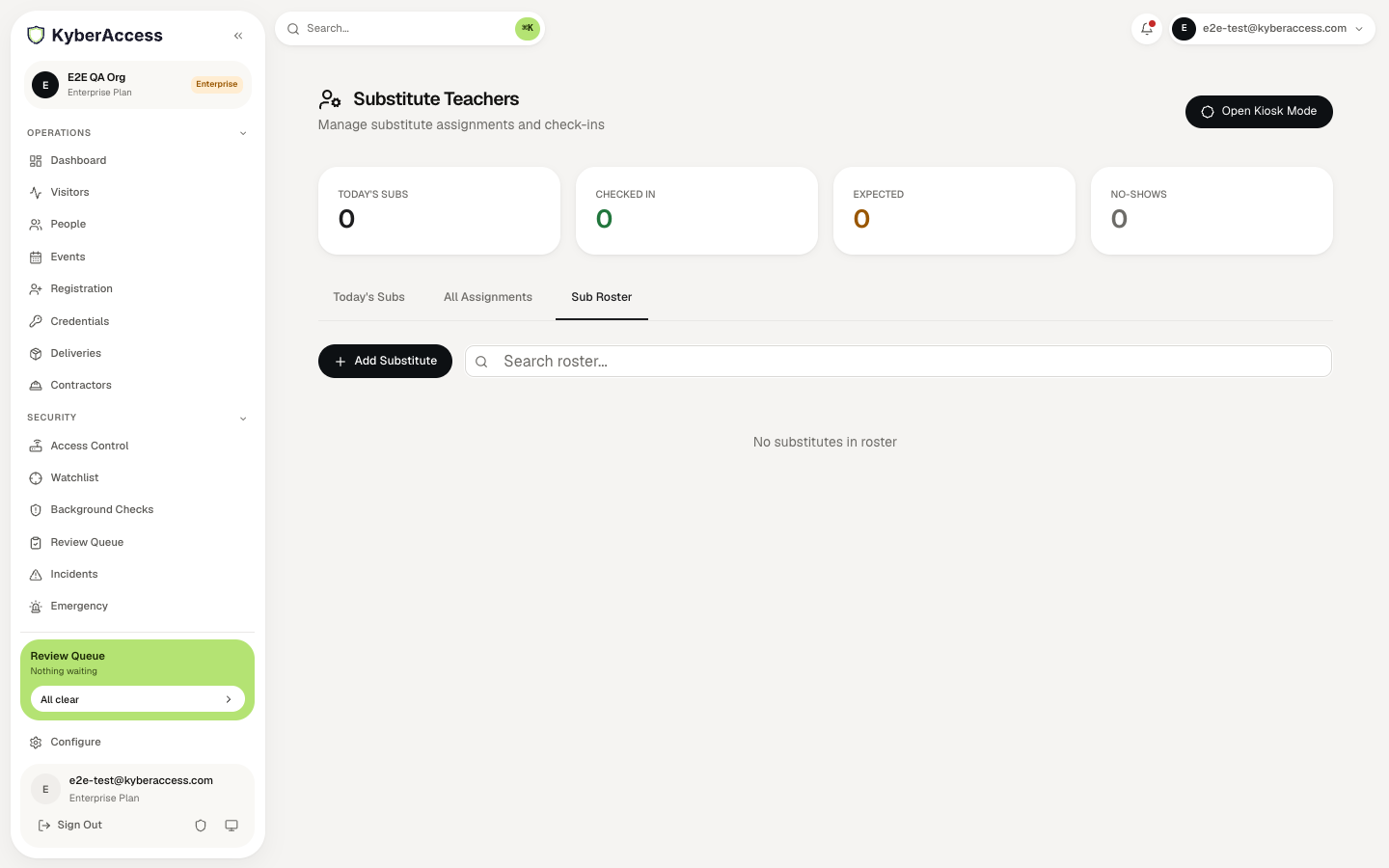
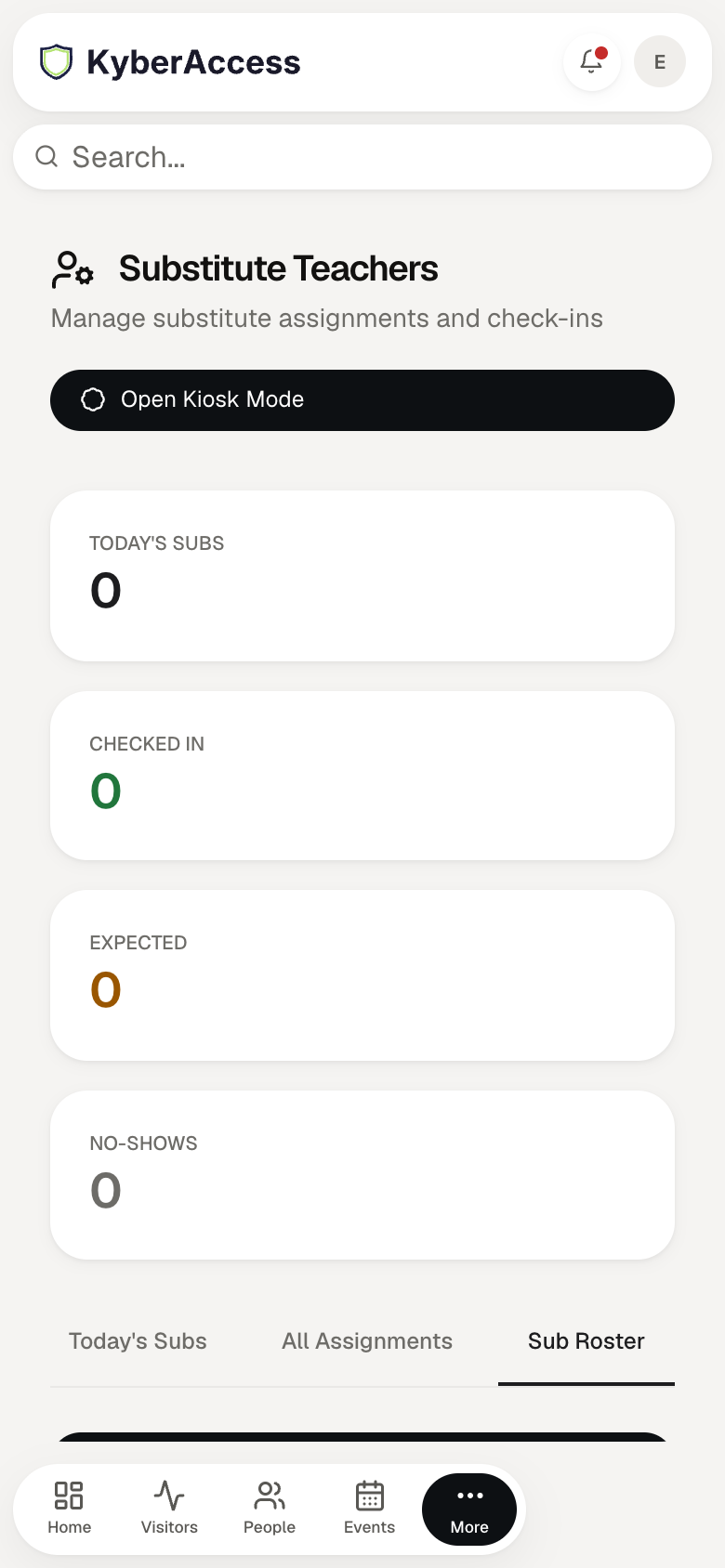
Menus: steps show the app launcher first and the classic menu in brackets. See Find your way around to tell which one you have.
Who this is for
- Front desk staff and admins who receive substitute teachers.
- With the app launcher, open Apps › Front Desk › Substitutes. In the classic menu the page is not in the sidebar; it opens at app.kyberaccess.com/substitutes.
Keep a substitute roster
- Open Apps › Front Desk › Substitutes (classic menu: open app.kyberaccess.com/substitutes) and click Sub Roster.
- Click Add Substitute. Enter First Name, Last Name, and optionally email, phone and credentials. Tick Approved and ID on File as needed. Save.
- To take someone off the roster, click the trash icon on their card and confirm. Only the roster entry is removed.
Plan an assignment
- Click All Assignments, then New Assignment.
- Pick the date, the substitute, the teacher being covered, the room, subject, periods and times. Save.
- Today's assignments appear on Today's Subs with the status Expected.
Check a substitute in
- At the desk: on Today's Subs, click Check In on the assignment. Mark No-Show or Completed the same way.
- Self check-in: click Open Kiosk Mode on a device that is signed in to KyberAccess. The substitute types their name and confirms the assignment.
Troubleshooting
- "No assignment found for today" on the self check-in screen → there is no Expected assignment for that name today → check the date and name on All Assignments.
- The self check-in screen shows nothing on a lobby iPad → it needs a device signed in to KyberAccess → sign in on that device first, or check the substitute in from Today's Subs.
- The substitute also needs a visitor badge → check them in as a visitor too. See Check in a visitor at the front desk.