Release a student only to an adult who is on file as allowed to collect them. KyberAccess gives you two paths: Student Pickup, a two-phase check for dismissal (identify the adult, then match the student), and the early dismissal queue, where a parent's request from the kiosk waits for a staff decision.
Video: Early dismissal and pickup
Chapters: How it works (0:00), Set it up (0:22), At the kiosk (0:45), The office decides (1:07), At the door: Pickup Mode (1:41). The video shows the web student kiosk.
Who this is for
- Front desk, guards and staff run pickups and decide early dismissal requests.
- Owners and admins maintain the list of who may pick up each child and the pickup settings.
- Requires the School Campus add-on.
Before you start
- Each student needs at least one authorized pickup person. Load them with Set up your school (Veracross sync or CSV) or add them by hand (below).
- For card-based pickup, parents and students need enrolled cards. A USB card reader that types the card number (a "keyboard wedge" reader) works with the scan boxes.
Menus: steps show the app launcher first and the classic menu in brackets. See Find your way around to tell which one you have.
Add or check who may pick up a student
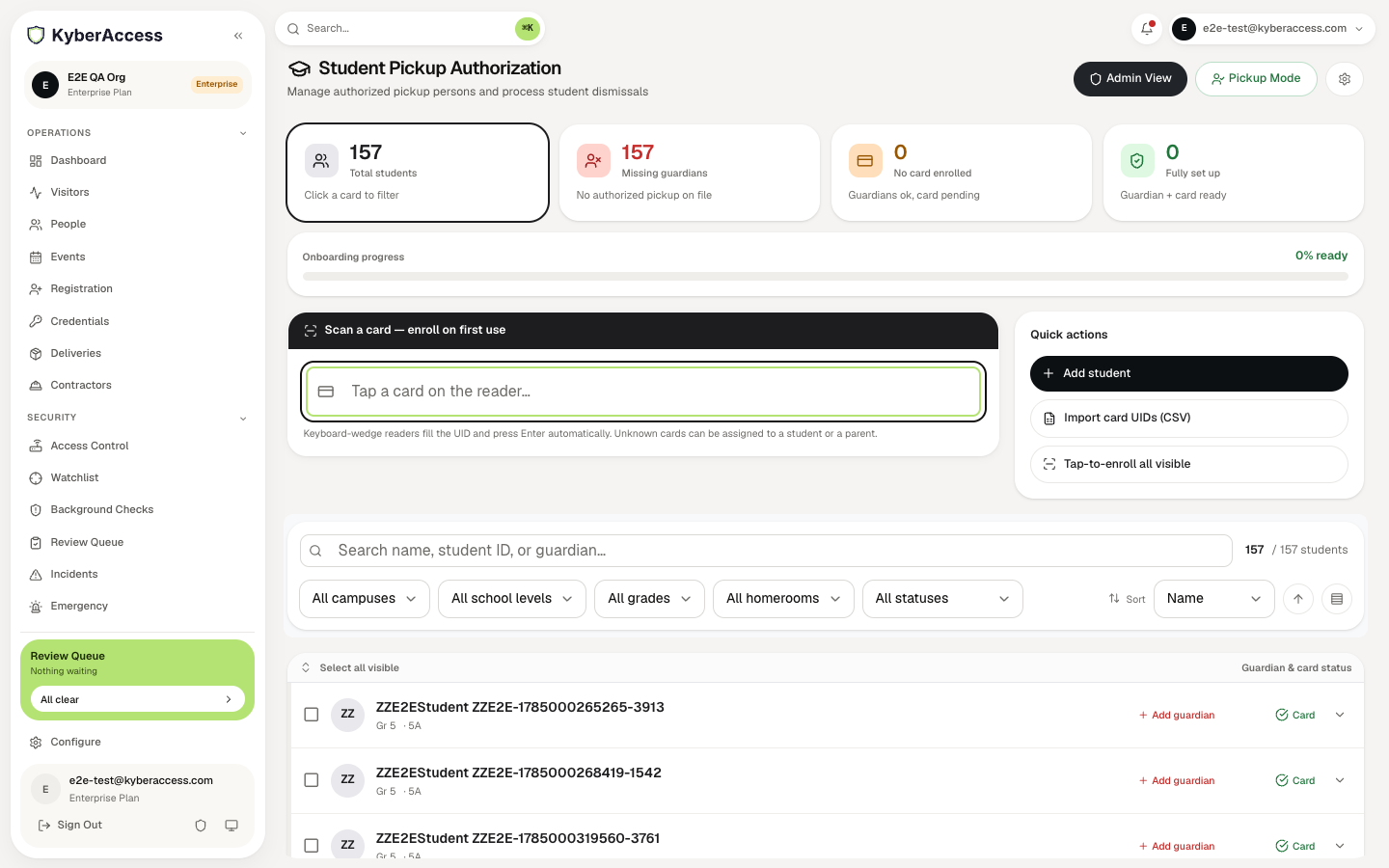
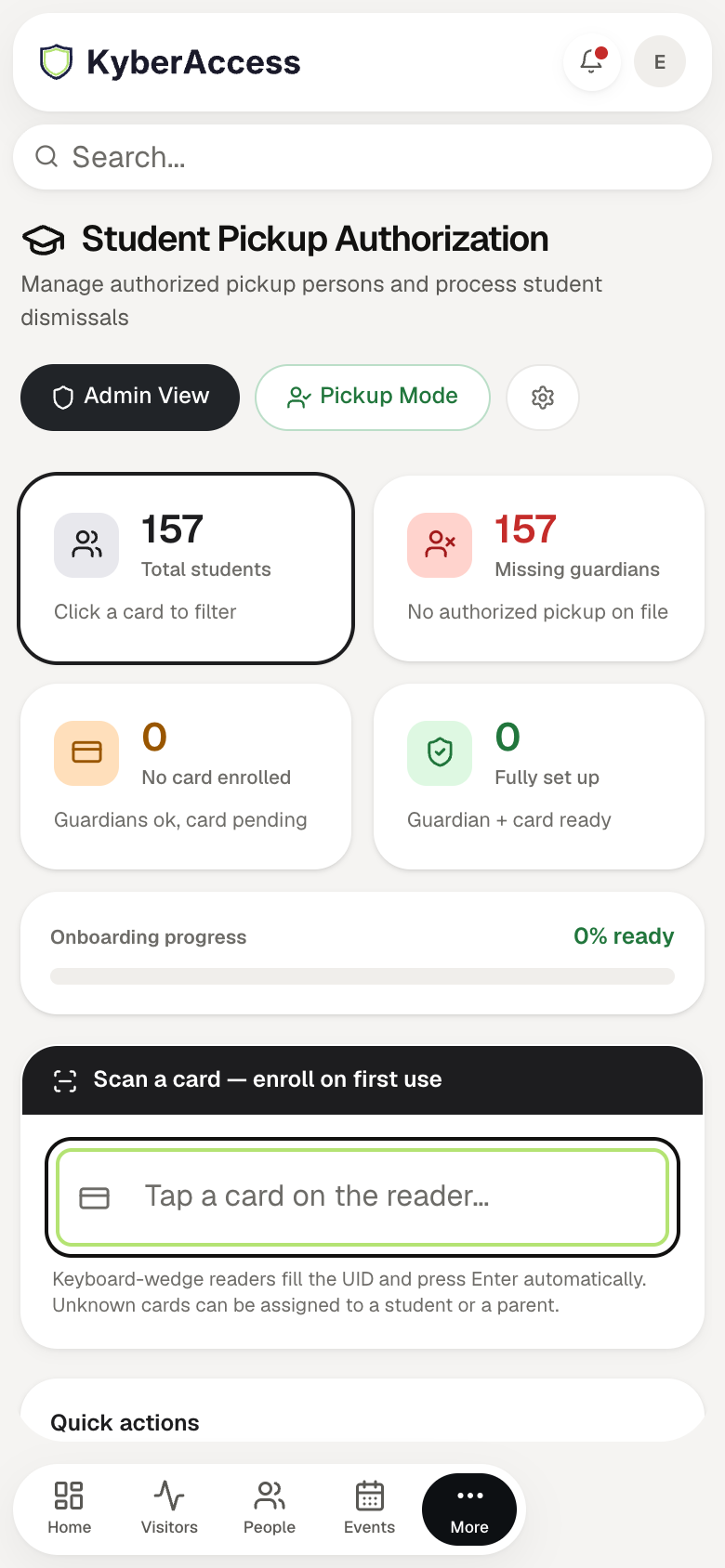
- Open Apps › Students › Dismissal & pickup (classic menu: Campus › Student Pickup) and click Admin View.
- The counters show Total students, Missing guardians (no authorized pickup on file), No card enrolled and Fully set up. Click a counter to filter the list.
- Open a student row. Under Authorized pickup persons, add a person with Full Name, Relationship (Parent, Guardian, Grandparent, Nanny, Sibling or Other), phone, email and, after you check their photo ID, ID on file (photo ID has been verified) and ID Number. You can also enroll their card here.
- For a one-off pickup by someone without a card (a friend or relative), click Add ad-hoc authorization. Enter the Pickup person name, Relationship, Validity (One-time or Date range with an end date), and optionally a phone and Note (for example "Grandmother, driving a blue sedan").
To enroll cards quickly: tap an unknown card in Scan a card — enroll on first use and choose Assign to a student or Assign to a parent, use Import card UIDs (CSV) (columns student_id, card_uid), or use Tap-to-enroll to work through the visible list one card at a time.
Release a student at dismissal (two-phase)
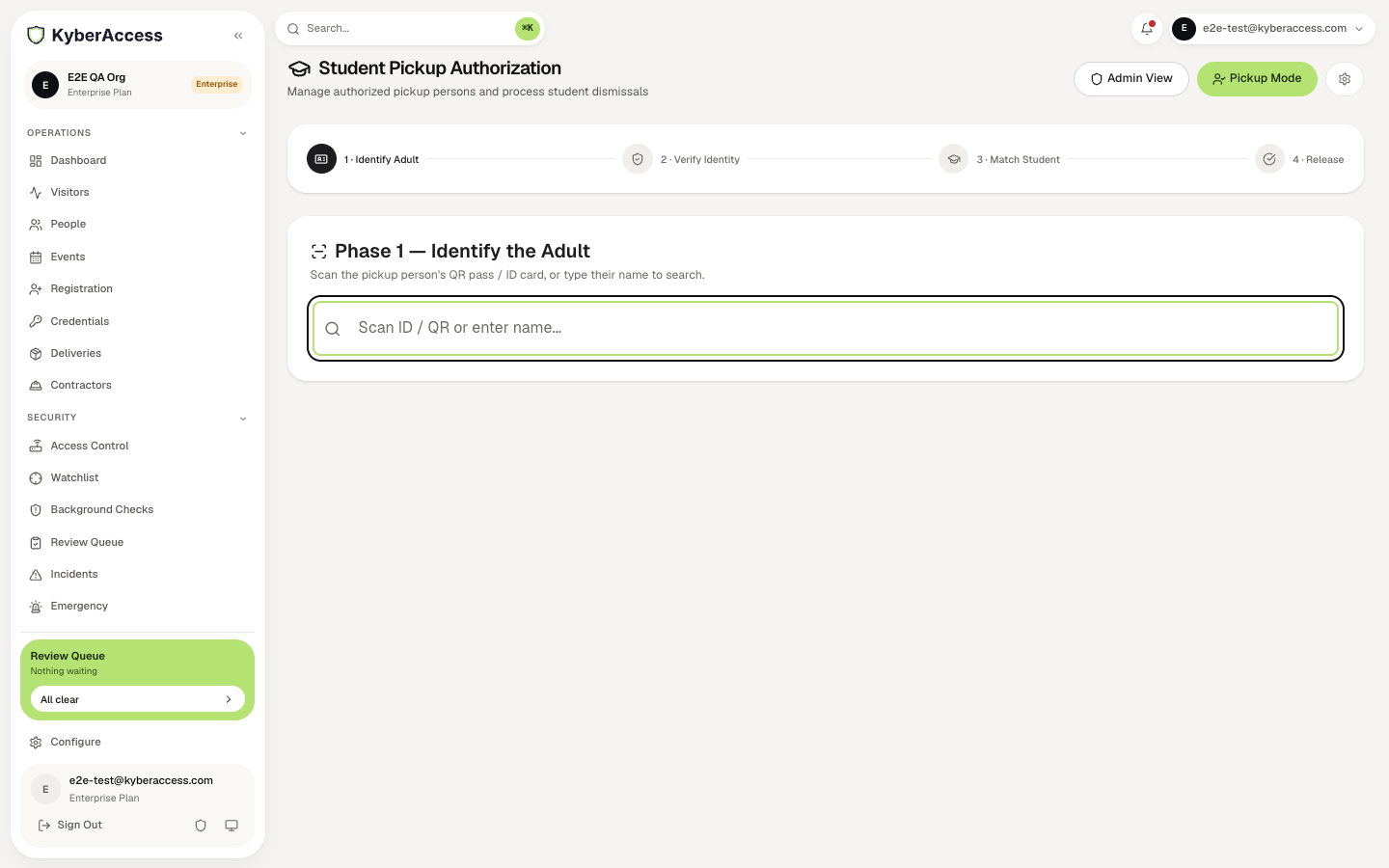
- Open Apps › Students › Dismissal & pickup (classic menu: Campus › Student Pickup) and click Pickup Mode. Guards can use the same screen in guard mode under Pickup.
- Phase 1 — Identify the Adult. Scan the adult's QR pass or card, or type their name, and pick them from the results.
- Verify Identity. Compare the person in front of you with the details shown, then click to confirm. (An admin can turn this step off; see Settings.)
- Match Student. Scan the student's card or QR code, or tap a name in the list of students this adult is authorized for.
- Read the result:
- RELEASE APPROVED: the adult is authorized for this student. Release the child.
- NOT AUTHORIZED: do not release. The attempt is logged, an in-app alert goes to staff, and owners, admins and security staff get an email. If the adult isn't linked to any student, the screen says so; do not release, verify by phone, or use Flag to log the attempt.
- Click Next pickup (or wait for the automatic reset).
For an ad-hoc authorization, find the student and click Release to this person on the grant. A one-time grant can be used once; a date-range grant stops working after its end date.
Decide an early dismissal request
A parent who comes to take a child out early taps Early Pickup on the student kiosk, finds the child, gives their own name and a reason, and taps Notify the Office. The kiosk tells them "A staff member will come to the front desk to confirm this pickup." The kiosk never releases a child by itself.
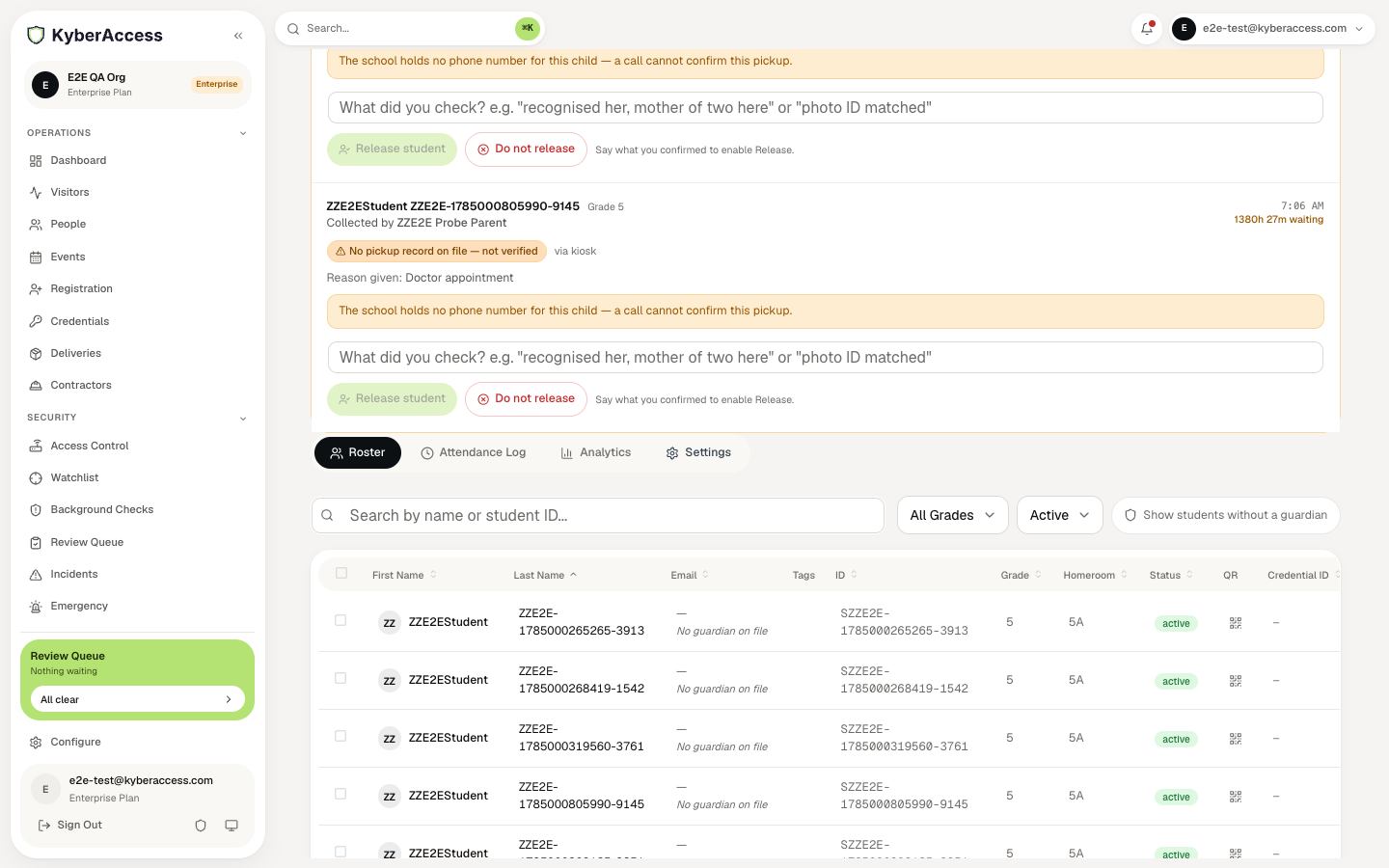
- Open Apps › Students › Roster & attendance (classic menu: Campus › Student Check-In). Waiting requests appear at the top under … parents waiting at the front desk. The list refreshes every 30 seconds.
- Each request shows the student, the adult, the time, how long they have waited, the reason given, and a verification label:
- Authorized for pickup on file
- Listed as a contact only — pickup authority NOT verified
- No pickup record on file — not verified
- NOT authorized for pickup — do not release (with a red warning) It also shows the contacts the school holds for the child, or warns when there is no phone number to call.
- Check the adult (photo ID, a call to a guardian on file). In What did you check?, write what you confirmed, for example "photo ID matched".
- Click Release student, or Do not release. Release student stays disabled until you write what you checked; Do not release never needs a reason.
- Click Show today's handled to see decided requests.
What happens next
- Every release and denial in Pickup Mode is recorded with the student, the adult, the relationship and the staff member. Today's entries show in Today's Pickup Log in Admin View.
- Student Pickup Log in Apps › Insights › Reports (classic menu: Insights › Reports › Student Pickup Log) lists every release and denial: card scans, Pickup Mode on the web and in guard mode, ad-hoc releases and decided early dismissals.
- A released early dismissal records the student as checked out, with the staff member and what they checked.
- When a parent submits an early dismissal request, KyberAccess emails owners, admins and security staff (up to 50 people) and posts an in-app alert.
Settings that change this
Open Apps › Students › Dismissal & pickup (classic menu: Campus › Student Pickup) and click the gear button (Pickup settings). Only owners and admins should change these.
| Setting | Default | Effect |
|---|---|---|
| Default view when opening Student Pickup | Pickup Mode | Which view opens first. |
| Auto-return to next pickup after RELEASE (seconds) | 8 | 0 = guard taps Next pickup. |
| Auto-reset after a DENY (seconds) | 0 | 0 = the denial stays on screen until the guard moves on (recommended). |
| Require "Identity confirmed" step | on | Off = go straight from the adult to the student. |
| Require scanning the student card | off | On = the guard must scan the student; off = they can tap a name from the authorized list. |
| Play sound on release | on | A chime plays on the guard's device when a release is approved, and a low buzz when it is denied. |
Other settings: - Guardian link source of truth (School Setup, Veracross schools): whether the nightly sync may change pickup links. - Start with parent name (early pickup) (Settings › Apps › Front Desk › Kiosk features; classic: Configure › Kiosk › Features) and the Early Pickup reasons (Settings › Apps › Students › Student kiosk; classic: Configure › Kiosk › Student Flow) change what parents see on the kiosk.
Troubleshooting
- "This person is not linked to any active student" → no authorized pickup link for this adult → do not release; add them under Admin View only after a guardian confirms.
- Scanning the student card finds nothing → the card isn't enrolled → tap a name from the authorized list, then enroll the card in Admin View.
- Pickup people we added keep disappearing (Veracross) → the nightly sync is the source of truth → change Guardian link source of truth to KyberAccess in School Setup.
- An ad-hoc release is denied → the one-time grant was already used, or the date range has ended → add a new authorization.
- Nobody got the early dismissal email → only active owners, admins and security members with an email address receive it → check roles under Team.