Connect Infinite Campus over OneRoster so KyberAccess imports your students and staff every night. Guardian contacts come through too, but OneRoster does not say who may pick a student up, so you add authorized pickups yourself.
Who this is for
Owners and admins.
Before you start
- In Infinite Campus, go to System Administration › OneRoster, turn on the OneRoster API (1.1 or 1.2) and create OAuth 2.0 credentials. Note the Client ID, Secret and the full OneRoster Base URL, for example
https://district.infinitecampus.org/campus/api/ims/oneroster/rostering/v1p2. - If your district gave you a specific OAuth token URL, have it ready. Most districts don't need one.
Menus: steps show the app launcher first and the classic menu in brackets. See Find your way around to tell which one you have.
Steps
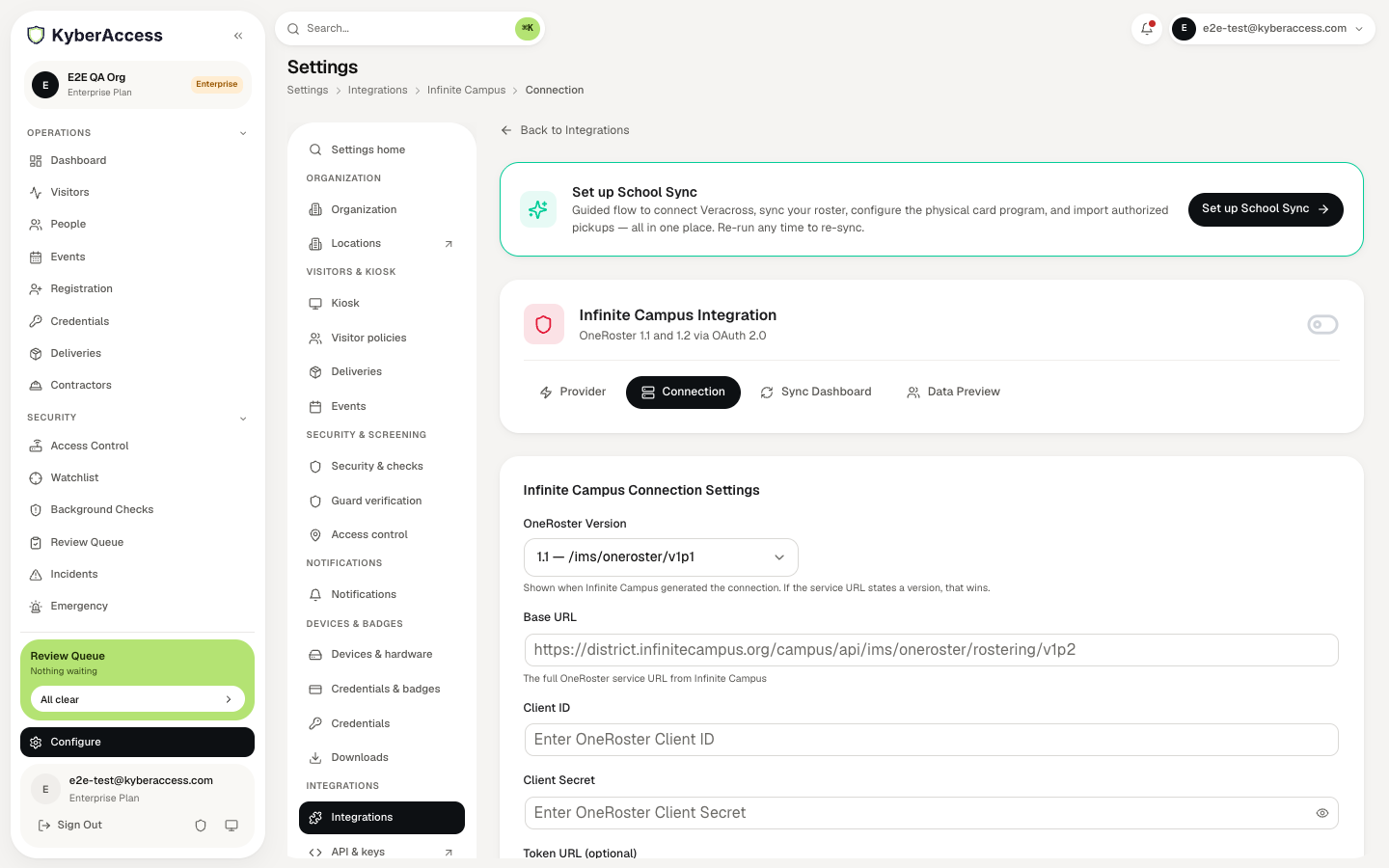
- Open Settings › Integrations › All integrations and select Infinite Campus (classic menu: Configure › Integrations › Infinite Campus). The page opens with Infinite Campus already picked as the provider.
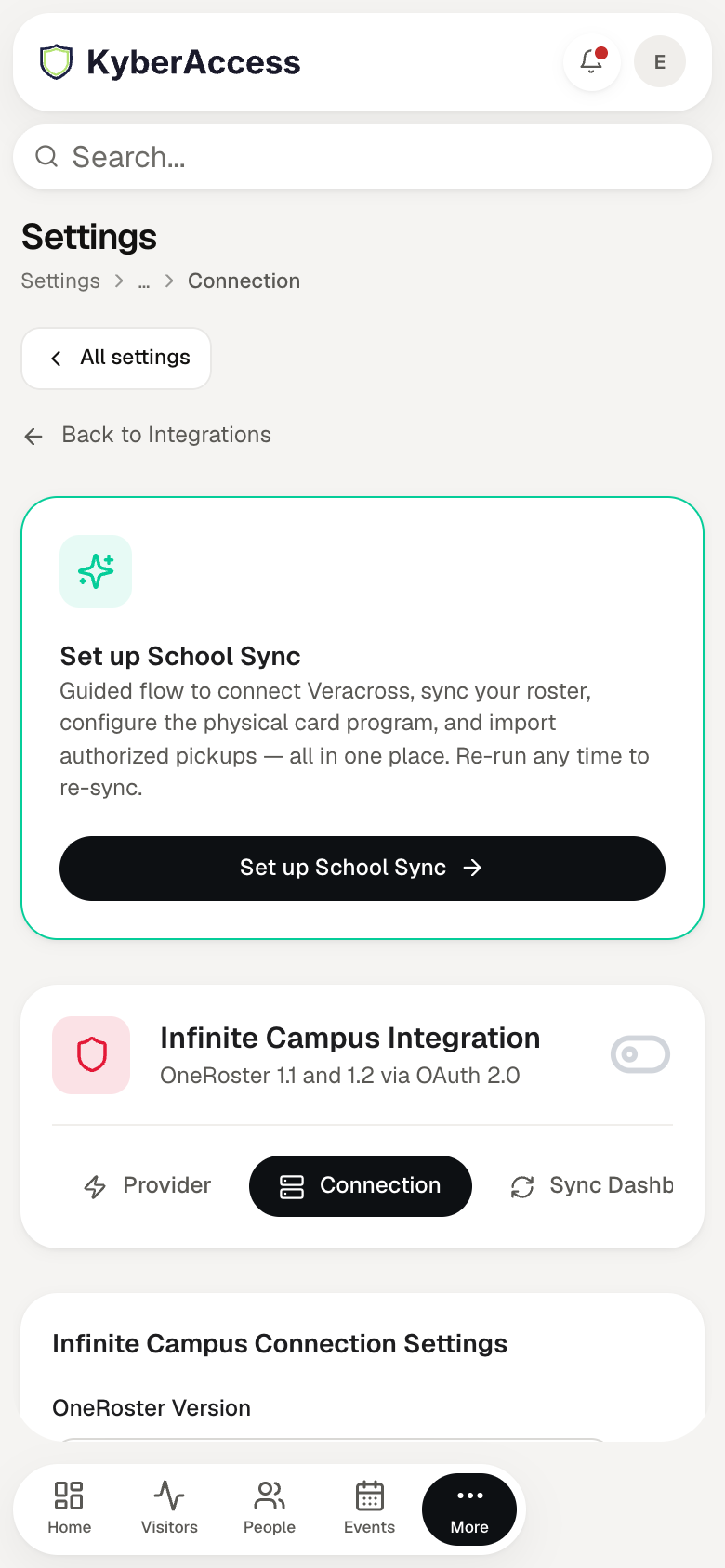
- On the Connection tab, choose the OneRoster Version (1.1 or 1.2). If the Base URL names a version, the URL wins.
- Enter Base URL, Client ID and Client Secret. Fill in Token URL (optional) only if your district supplied one.
- Select Test Connection. KyberAccess saves the settings and signs in to Infinite Campus.
- Select Check roster data. This reads your district's roster without importing anything and tells you whether it is usable, including whether guardian records are published. You should see Roster looks usable.
- Turn on the switch at the top right of the Infinite Campus card, turn on Auto-Sync, and select Save Configuration.
- Run the guided setup: open Settings › Apps › Students › School setup (classic menu: in the main sidebar under Campus, select School Setup) (or Set up School Sync at the top of this page). It covers Connect, Existing Data, Sync Scope, Card Program, Pickups and Done and runs the first roster sync.
- Add authorized pickups in School Setup › Pickups, by hand or with Bulk import guardians (CSV) (columns student_sis_id, guardian_name, guardian_email, guardian_phone, relationship, pickup_authorized).
What happens next
- With the integration and Auto-Sync on, KyberAccess syncs every night at about 2:20 AM ET: the roster first, then guardians. A failed night raises an alert to our team within the hour.
- Students appear in Dismissal & pickup in the Students app (classic menu: Student Pickup) and People, with QR credentials if you turned on the card program. Staff appear in People.
- Settings › Apps › Access › Access hardware (classic menu: Configure › Access control › Integrations) shows what Infinite Campus provides (grade, enrollment status, guardian links) and when it last confirmed.
- KyberAccess only reads from Infinite Campus. Nothing is written back.
Settings that change this
| Setting | Where | Default | Effect |
|---|---|---|---|
| Enable switch | Top of the Infinite Campus card | Off | Off stops the nightly sync. |
| Auto-Sync | Sync Dashboard | Off | Must be on for the nightly sync. |
| Sync Frequency | Sync Dashboard | Nightly | The sync runs once a night, around 2:20 AM ET. |
| Edit sync scope | School Setup › Sync Scope | Everything | Narrows which students are imported. |
Troubleshooting
- Test Connection fails → Base URL, Client ID or Secret is wrong, or the token URL is different for your district → copy the values again from Infinite Campus; fill in Token URL (optional) if your district uses a custom one.
- Check roster data says guardian records are missing → your district doesn't publish guardians over OneRoster → students and staff still sync; add pickups by hand or by CSV.
- Save Configuration is greyed out, or a message says saved settings are still loading → the page is still reading your saved settings → wait a moment. If it stays that way, reload the page; nothing is saved until your settings have loaded, so your credentials are never overwritten with a blank form.
- The Client Secret shows only dots → that is the saved secret, masked → leave it as is to keep it, or type a new one to replace it.
- Nothing synced overnight → the integration switch or Auto-Sync is off → turn both on and select Save Configuration.