KyberAccess can't sync from PowerSchool, Blackbaud, Clever or ClassLink yet. Their pages in the app say so. Today KyberAccess syncs from Veracross and Infinite Campus only. This article explains what you'll see on those pages and what to do instead.
Who this is for
Owners and admins whose school runs PowerSchool, Blackbaud, Clever or ClassLink.
Before you start
Nothing to prepare. Don't create API apps or OAuth credentials in those systems for KyberAccess yet.
Menus: steps show the app launcher first and the classic menu in brackets. See Find your way around to tell which one you have.
What you'll see
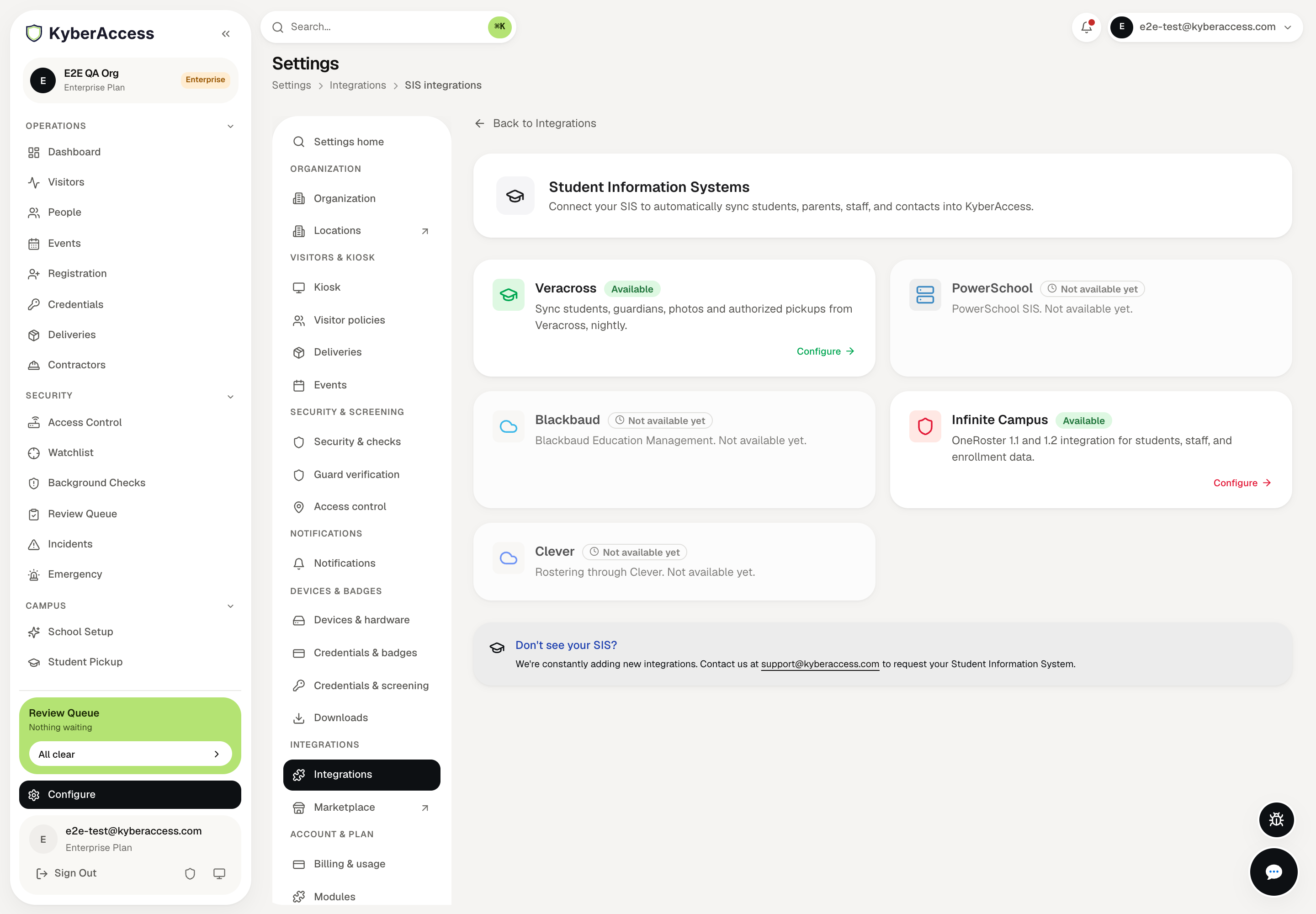
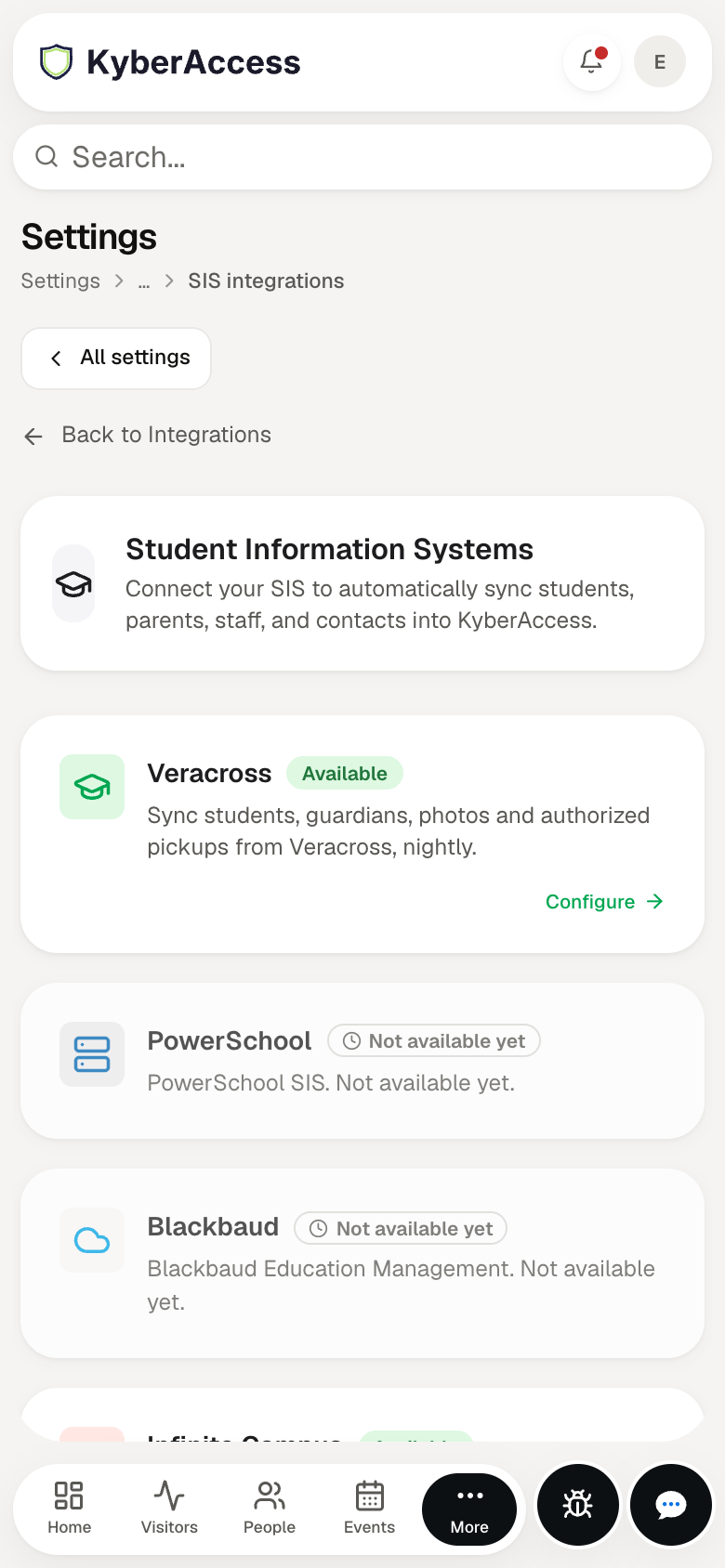
- Settings › Integrations › Student information system (classic menu: Configure › Integrations › SIS integrations) shows PowerSchool, Blackbaud and Clever as Not available yet. You can't open them.
- Opening the PowerSchool, Blackbaud, Clever or ClassLink page directly shows …isn't available yet, with what to use instead. There are no fields to fill in.
- On the SIS page's provider list, PowerSchool and Clever are marked Not available yet and can't be picked.
What to do instead
- If your SIS publishes OneRoster (PowerSchool, Skyward and others often can), ask your SIS admin for a OneRoster 1.1 or 1.2 base URL with OAuth credentials and contact support. The Infinite Campus connector is a standard OneRoster client; we can tell you whether it works with your district's endpoint.
- If your staff and students are in Google Workspace, connect it to import people by organizational unit. See Connect Google Workspace.
- For staff sign-in, use single sign-on with Google Workspace, Microsoft Entra ID or Okta, not ClassLink. See Set up single sign-on.
- For students and pickups, use School Setup › Pickups › Bulk import guardians (CSV) (Settings › Apps › Students › School setup; classic menu: Campus › School Setup), or add people in People.
- Email support@kyberaccess.com to ask for your SIS. Requests decide what we build next.
What happens next
Nothing syncs from these four systems. When a connector ships, this article will be updated with real steps.
Settings that change this
None.
Troubleshooting
- You saved PowerSchool, Clever or ClassLink settings before → they were never used and nothing synced → use one of the options above.