Connect your Google Workspace directory so KyberAccess imports students, faculty and staff by organizational unit (OU). It uses a Google service account with read-only access to users and OUs. Setup takes about 10 minutes.
Who this is for
Owners and admins, working with someone who is a super admin in Google Workspace and can use Google Cloud console.
Before you start
You need, from Google:
- A Google Cloud project with the Admin SDK API enabled.
- A service account with domain-wide delegation, and its JSON key file.
- In Google Admin › Security › API Controls › Domain-wide Delegation, the service account's Client ID authorized for exactly these two scopes:
https://www.googleapis.com/auth/admin.directory.user.readonly, https://www.googleapis.com/auth/admin.directory.orgunit.readonly
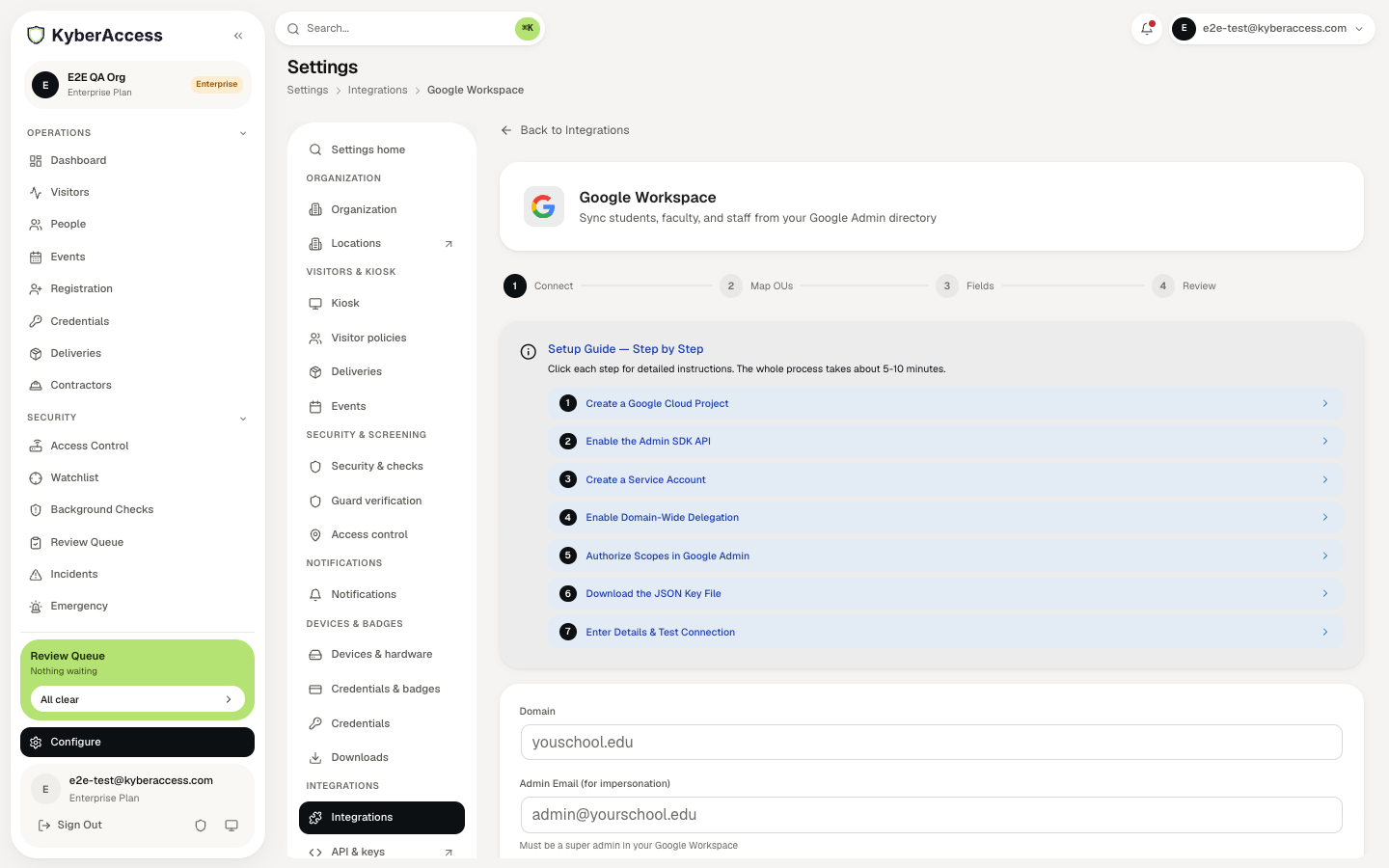
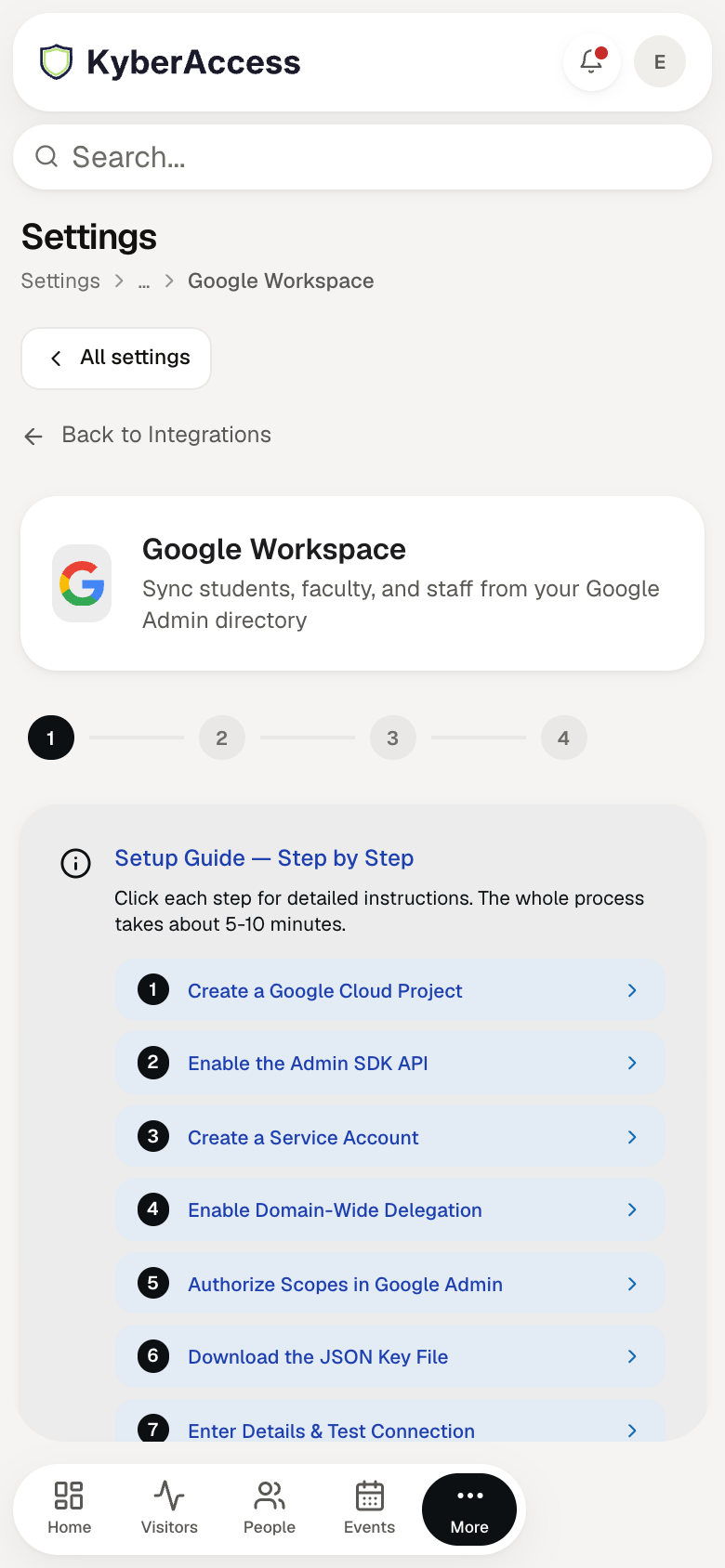
The page's Setup Guide — Step by Step walks through each of these in seven expandable steps.
Menus: steps show the app launcher first and the classic menu in brackets. See Find your way around to tell which one you have.
Steps
- Open Settings › Integrations › All integrations and select Google Workspace (classic menu: Configure › Integrations › Google Workspace). The setup has four steps: Connect, Map OUs, Fields, Review.
- Connect: enter your Domain (for example yourschool.edu) and Admin Email (for impersonation), which must be a super admin. Select Upload JSON and choose the key file. Select Test Connection.
- Map OUs: for Students, Faculty and Staff, tick the organizational units that hold those people. Select Continue.
- Fields: optionally map extra Google fields (for example Employee ID, Department, Grade) to KyberAccess fields, or choose Don't import. Select Continue.
- Review: check the summary and select Connect & Sync. The first sync runs immediately.
What happens next
- People in the mapped OUs are added to People with the role student, faculty or staff. Someone who already exists with the same email or Google ID is updated, not duplicated.
- The sync does not run on a schedule (the connected page says Runs only when you click Sync under Last Sync). To pick up new hires or new students, open the page and select Sync All (or Students Only, Faculty Only, Staff Only) under Sync. Last Sync Results shows how many were added.
- Students imported this way are not added to Dismissal & pickup or Roster & attendance in the Students app (classic menu: Student Pickup or Student Check-In) and don't get student QR credentials. For that, use Connect Veracross or Connect Infinite Campus.
- KyberAccess only reads your directory. It never changes Google accounts.
- Settings › Apps › Access › Access hardware (classic menu: Configure › Access control › Integrations) lists Google Workspace with the OU, job title and department it provides.
Settings that change this
| Setting | Where | Effect |
|---|---|---|
| OU mapping | Sync Mapping on the connected page | Which OUs count as students, faculty or staff. |
| Field mappings | Fields step | Extra Google fields copied onto each person. |
| Disconnect Google Workspace | Danger Zone | Removes the connection. People already synced stay in KyberAccess. |
Troubleshooting
- "Invalid service account key JSON" → you uploaded the wrong file → download a new JSON key from the service account's Keys tab.
- Test Connection fails with an authorization error → domain-wide delegation isn't set, or the scopes don't match exactly → in Google Admin, re-enter the service account Client ID with both scopes, comma-separated. Changes can take a few minutes.
- "No organizational units found" → the admin email isn't a super admin, or the OU scope is missing → use a super admin and check both scopes.
- New staff aren't in KyberAccess → there is no automatic sync → select Sync All.