Connect your gateway, give every reader a name and a zone, and confirm scans arrive. The Set up wizard walks you through five steps and remembers where you stopped.
Who this is for
Owners and admins.
Before you start
- A KyberAccess Gateway (the small box that connects turnstile readers to the internet), plugged in on the same network as the readers. Order or set one up from Order or set up a gateway in step 1.
- At least one zone, or be ready to create one (see Places and zones).
Menus: steps show the app launcher first and the classic menu in brackets. See Find your way around to tell which one you have.
Steps
- Open Apps › Access › Overview (classic menu: Access Control in the sidebar, under Security), then click Set up.
- 1. Connect gateway: the gateway appears within a minute of its first heartbeat, marked Online.
- 2. Discover readers: each reader the gateway reports is listed. Any marked Not registered needs a name and a zone. Click Name and assign zone.
- In the dialog, type a Name (for example "Main entrance turnstile"), pick a Zone, and click Save. The name is saved on the door, so it survives gateway restarts.
- 3. Assign zones: if you have no zones, click Create zones in Places. Then assign any registered reader that still has no zone.
- 4. Pick a schedule: add a schedule (School hours, 24/7…) and fill in Who can go where.
- 5. Test a scan: scan any badge or pass at a registered reader. The step shows the time of the latest scan, and the scan appears in the live feed.
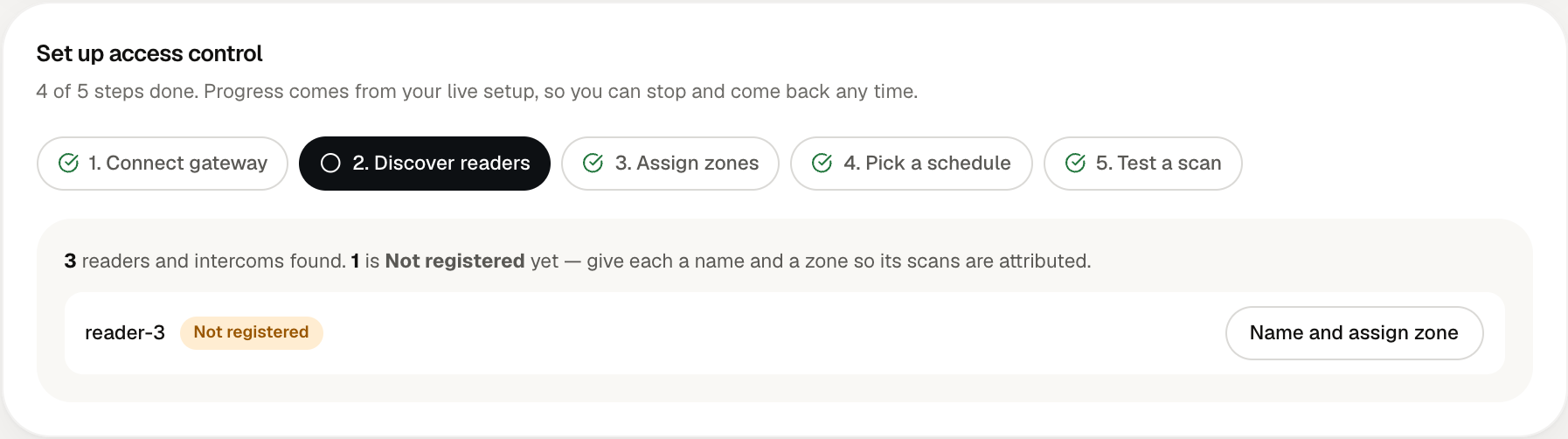
You can stop at any point. Progress comes from your live setup, so the wizard opens on the first step that isn't done.
The Doors & readers page
Apps › Access › Doors & readers (classic menu: Configure › Access control › Doors & readers) shows one card per reader, check-in iPad, Alta intercom or door. The page refreshes every 15 seconds.
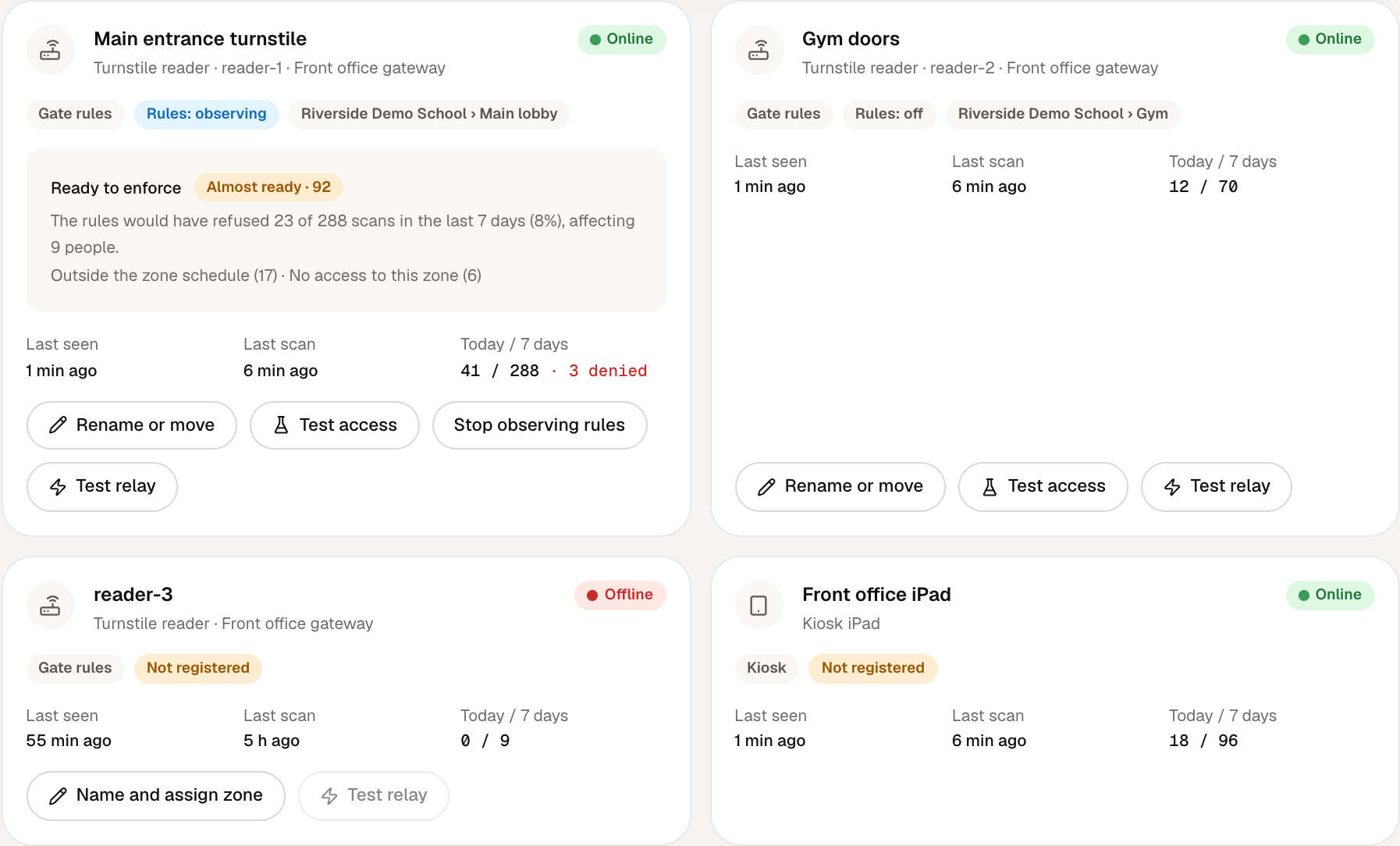
| On the card | Meaning |
|---|---|
| Online / Offline / No heartbeat / Missing | Health. A reader is online while its gateway checks in. Missing means the hardware is no longer reported. |
| Gate rules | A turnstile reader. It decides with today's gate rules. |
| Watch-only / Unlocks | An Alta intercom: reports a decision and opens nothing, or opens the door on a granted scan. |
| Kiosk | A check-in iPad. It doesn't open a door. |
| Rules: observing / Rules: off | Whether access rules are being recorded alongside at this door. |
| Zone pill, or Not registered / No zone | Where the door sits on your map. |
| Ready to enforce | Shown when rules are observed: how many scans in the last 7 days the rules would have refused. Informational only. |
| Last seen · Last scan · Today / 7 days | Activity, with denials in red. |
Buttons on each card: - Rename or move / Name and assign zone: change the name or zone. Moving a door doesn't change who it lets in. - Test access: opens the read-only simulator for this door's zone. - Stop observing rules: turns rule observation off. The door keeps working exactly as before. - Test relay: queues a 3-second relay pulse for that reader on the gateway's next heartbeat. The turnstile physically releases. Only enabled while the reader is online.
To start observing rules at a reader, use the Rules: off / Rules: observe menu next to it on Places (Settings › Apps › Access › Places; classic menu: Configure › Access control › Places).
What happens next
Scans at registered readers show the door name and zone in the live feed, the activity log and reports. Unregistered readers still log scans, shown as "Not registered".
Troubleshooting
- Step 1 says no gateway has checked in → the gateway isn't online yet → check power and network; it appears within a minute of its first heartbeat.
- A reader shows Offline → its gateway stopped checking in, or the reader is disconnected → check the reader's cable and network. Turn on reader health alerts to hear about it.
- Test relay is grayed out → the reader is offline, or it isn't a turnstile reader.
- A kiosk iPad has no Rename button → iPads are named in Settings › Devices & hardware › Kiosks (classic menu: Configure › Devices & hardware); they don't open doors.