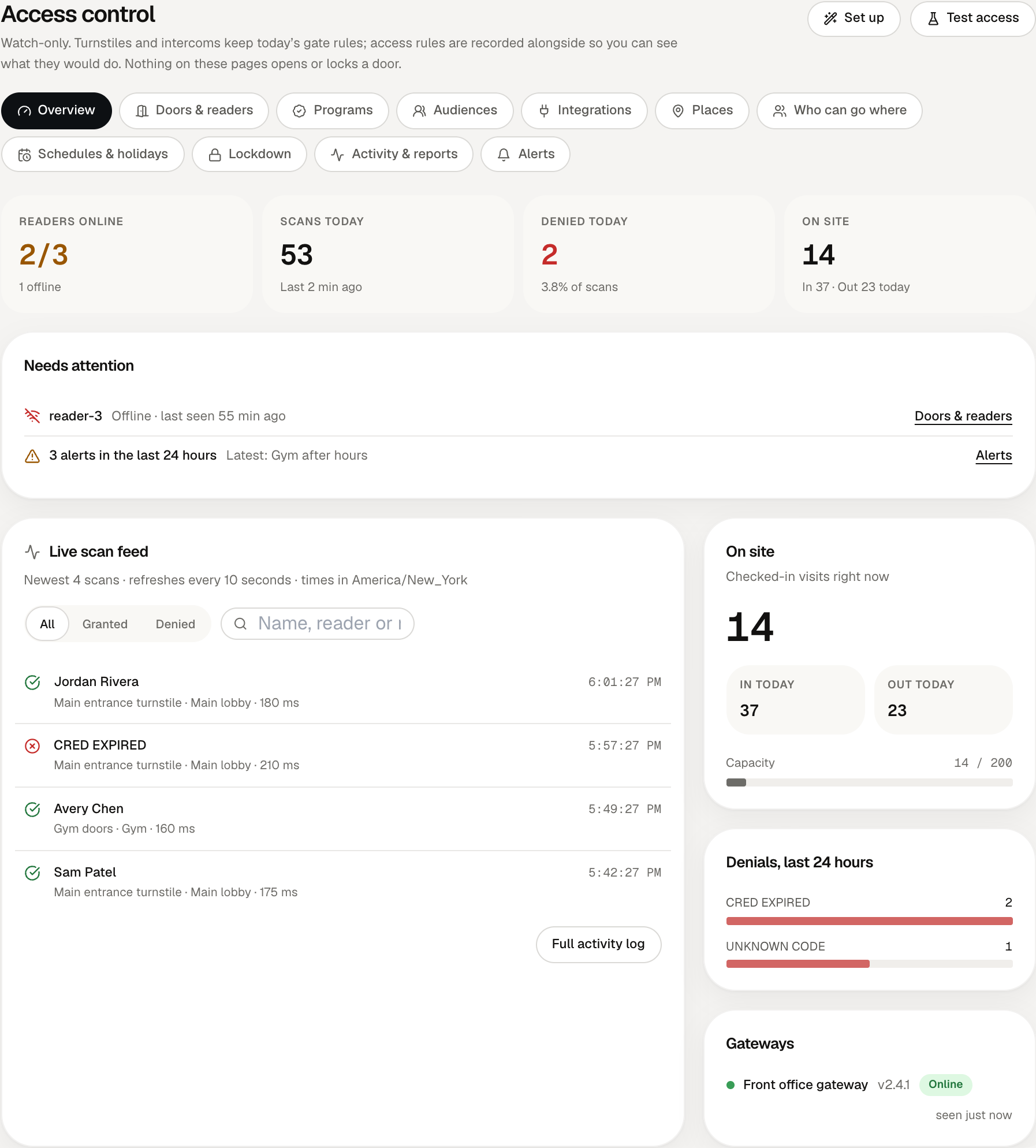
Access control is where you map your doors, decide who should be allowed where and when, and watch every scan your turnstiles record. Today it is watch-only: your turnstiles and intercoms keep deciding with their current gate rules, and the access rules you set up here are recorded alongside so you can see what they would do. Nothing on these pages opens or locks a door.
Who this is for
Owners and admins. These pages live in Settings, which only owners and admins can open. Other roles can't see or change them.
Before you start
- Your organization needs at least one scan point to see live data: a KyberAccess Gateway with turnstile readers, a check-in iPad, or an Avigilon Alta intercom.
- Open Apps › Access (classic menu: Access Control in the sidebar, under Security, or Configure › Access control). With the app launcher, Overview, Programs, Doors & readers, Who can go where, Activity and Lockdown are pages in the Access app; Places, Schedules & holidays, Alerts and Access hardware (classic: Integrations) are in Settings › Apps › Access.
Menus: steps show the app launcher first and the classic menu in brackets. See Find your way around to tell which one you have.
What "watch-only" means
| Today | Not yet |
|---|---|
| Turnstiles admit any active, unexpired credential or valid pass, as they always have. | Zones, groups, schedules, temporary access and lockdown plans don't change what a turnstile does. |
| Every scan is logged with who, where, when and why it was denied. | Lockdown doesn't lock a door. In an emergency, use your door system. |
| You can turn on Rules: observe for a reader and see how many scans the rules would have refused. | Alerts are not sent by email, text or webhook. They show in the app. |
The tabs
| Tab | What it's for |
|---|---|
| Overview | Readers online, scans and denials today, people on site, the live scan feed (refreshes every 10 seconds), and anything that needs attention. |
| Doors & readers | Every reader, iPad and intercom with its health. Name each one and put it in a zone. Set up walks you through it. |
| Programs | Give a whole group a credential for a set period. Needs the Enterprise plan or the add-on for Pro. |
| Audiences | Saved lists of people from your school data, like "Grade 1 parents". |
| Integrations | What each connected system (Veracross, Infinite Campus, Google Workspace, CSV) provides. |
| Places | Your map: site, building, zone, door. |
| Who can go where | Groups, the zones each group may use, and on which schedule. Also Temporary access. |
| Schedules & holidays | When: school hours, after-school, 24/7, holidays and exception days. |
| Lockdown | Entry states and lockdown plans, recorded and audited (planning only). |
| Activity & reports | Every scan, with Why? on denials, plus reports. |
| Alerts | Reader health alerts and alert rules. |
Two buttons sit above the tabs on every page: Set up (the guided setup) and Test access (ask what the rules would decide for a person or a zone).
Suggested order
- Set up doors and readers.
- Build places and zones.
- Add schedules and holidays.
- Decide who can go where.
- Test who would get in, then watch Activity.
What happens next
Once readers are registered, every scan shows up in the live feed and the activity log within seconds. Turning on Rules: observe for a reader starts collecting "would the rules allow this?" results, shown as Ready to enforce on Doors & readers. That score is informational only.
Troubleshooting
- Readers online shows "—" → no gateway has checked in → see Set up doors and readers.
- I set a group to "No access" but the person still got through the turnstile → expected: rules are watch-only. To stop someone today, suspend or revoke their credential.
- I can't see Access control → it's in Settings, which is for owners and admins only.