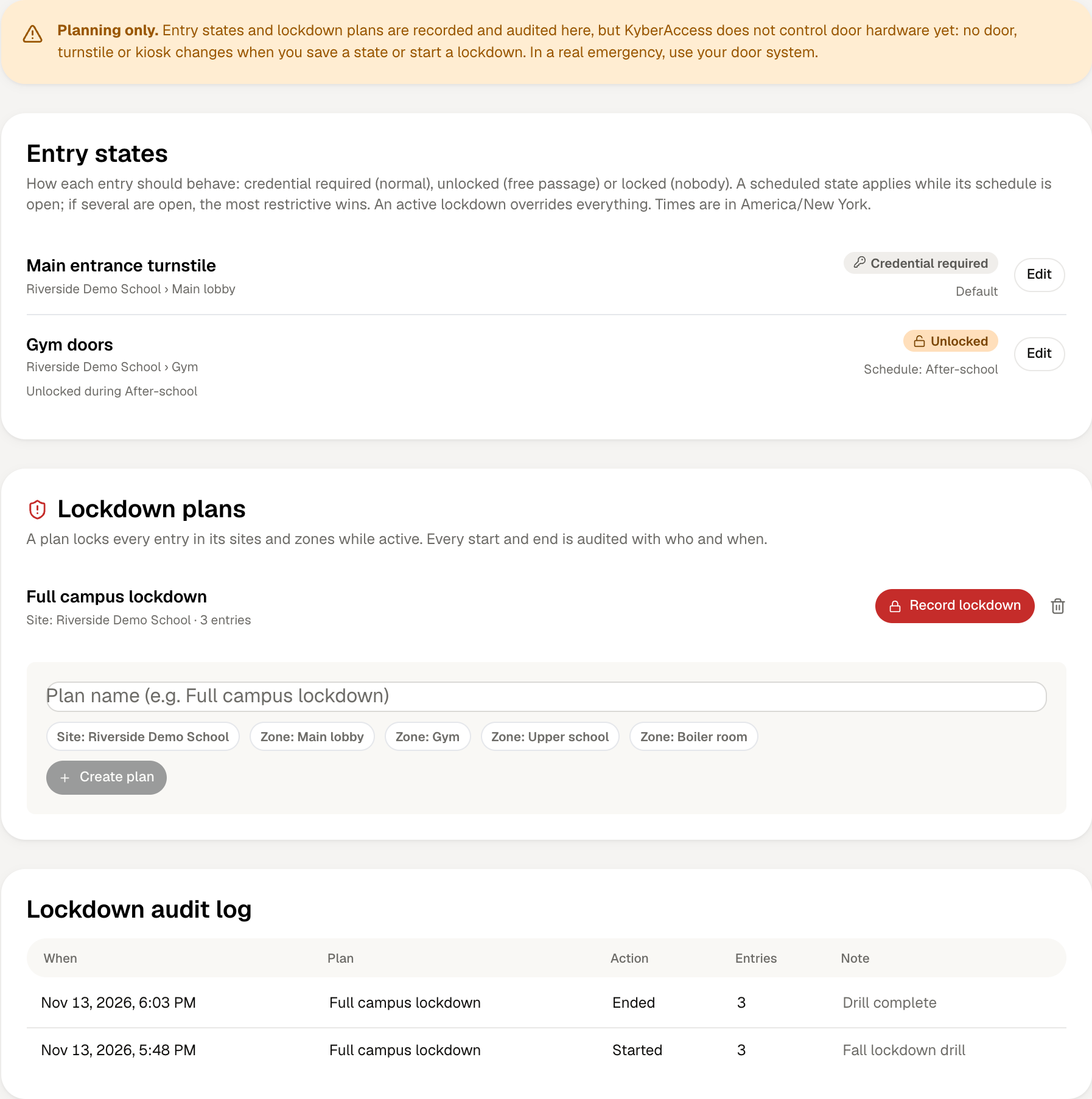
Planning only. On Lockdown you set how each door should behave (credential required, unlocked or locked), schedule those states, and keep lockdown plans with a full audit log. KyberAccess doesn't control door hardware yet: no door, turnstile or kiosk changes when you save a state or start a lockdown. In a real emergency, use your door system.
Who this is for
Owners and admins set states and plans. Security staff can read this article to know what the page does and doesn't do.
Before you start
- Doors registered on Places (Places and zones). A door that isn't in a zone isn't covered by any lockdown plan.
- Schedules, if you want scheduled states (Schedules and holidays).
Menus: steps show the app launcher first and the classic menu in brackets. See Find your way around to tell which one you have.
Steps
Set a door's state
- Open Apps › Access › Lockdown (classic menu: Configure › Access control › Lockdown).
- Under Entry states, click Edit on a door.
- Choose its Default: Credential required (normal), Unlocked (free passage) or Locked (nobody).
- Optional: click + Scheduled state, pick a state and a schedule, for example Unlocked during After-school.
- Click Save.
Each door shows its current state and why: Default, Schedule: or Lockdown: . If several scheduled states are open, the most restrictive wins. An active lockdown overrides everything.
Create a lockdown plan
- Under Lockdown plans, type a Plan name (for example "Full campus lockdown").
- Click the sites and zones it covers.
- Click Create plan. The plan shows how many doors it covers.
Record a lockdown
- Click Record lockdown on the plan. Add an optional note and confirm. The plan shows ACTIVE since .
- When it's over, click End lockdown and add an optional note.
What happens next
- Every start and end goes into Lockdown audit log with the time, plan, number of doors and note.
- Use it to record drills and real events, and to plan door states before hardware control arrives.
- To run an evacuation and roll call, use Apps › Security › Emergency & drills instead (classic menu: Emergency in the sidebar, under Security).
Troubleshooting
- "No entries yet. Register scan points under Places first." → register your readers into zones.
- A door says "Not in a zone — no lockdown plan covers it" → move it into a zone on Places.
- "stored config unreadable, shown as credential required" → open the door, set its state again and save.
- I recorded a lockdown and the doors didn't lock → expected today. Lock doors with your door system.
- Create plan is grayed out → type a plan name first.