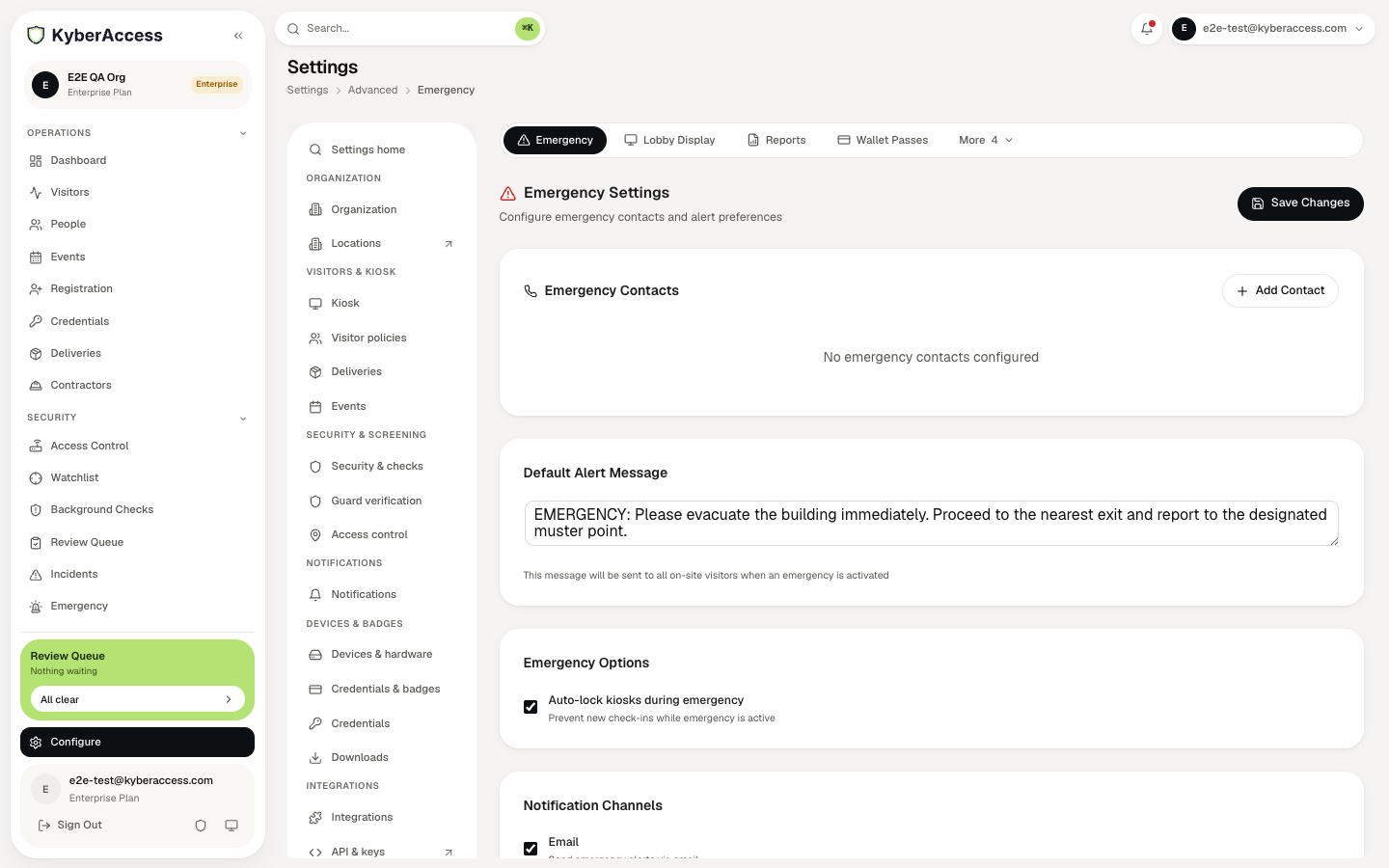
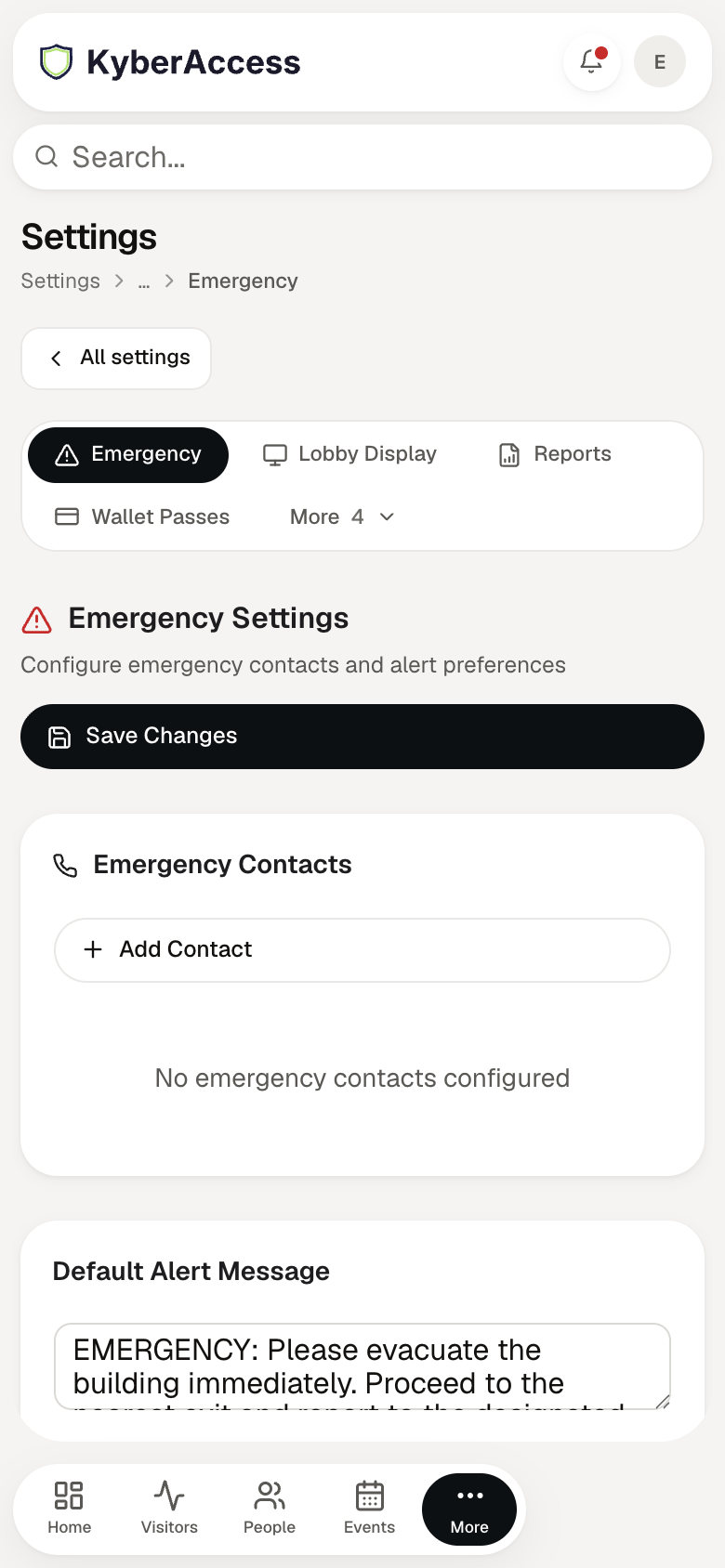
Settings › Apps › Security › Emergency (classic menu: Configure › Advanced › Emergency) holds your list of emergency contacts, the alert message and which channels to use. During an active emergency, Send Alert › Send Now on the Emergency page emails (and, if switched on, texts) these contacts with your alert message. Kiosks are not locked automatically during an emergency.
Who this is for
- Owners and admins. Needs the Pro or Enterprise plan; on Free the tab shows an upgrade notice.
Before you start
- Have each contact's name, role, phone and email ready (for example your fire warden, facilities manager or district safety office).
Menus: steps show the app launcher first and the classic menu in brackets. See Find your way around to tell which one you have.
Steps
Add emergency contacts
- Open Settings › Apps › Security › Emergency, or in Security select Security settings, then Emergency (classic menu: click Configure in the sidebar footer, then Advanced › Emergency).
- Under Emergency Contacts, click Add Contact.
- Enter Name (required), Role, Phone and Email.
- Click Add Contact under the form. Repeat for each person.
- Click Save Changes at the top. Contacts aren't kept until you save.
Remove a contact
- Click the × next to the contact.
- Click Save Changes.
What happens next
- Contacts appear under Emergency Contacts on the Emergency page (Apps › Security › Emergency & drills; classic menu: Security › Emergency), with their role, phone and email, so you can call them during a roll call.
- During an active emergency, Send Alert › Send Now emails them, and texts them if Text message (SMS) is on. See Run an evacuation and roll call.
Settings that change this
- Emergency Contacts · this page · empty · listed on the Emergency page and contacted by Send Alert › Send Now. Nobody is notified automatically when an emergency starts.
- Default Alert Message · this page · "EMERGENCY: Please evacuate the building immediately…" · The text Send Now emails and texts to your emergency contacts. It is not sent to on-site visitors.
- Notification Channels: Email, Text message (SMS), Slack / Microsoft Teams · this page · Email on, others off · which channels Send Now uses. Slack/Teams needs a channel set up in Settings › Integrations (classic menu: Configure › Integrations) (Send alerts to Slack or Microsoft Teams); channels with Emergency started on also get a post automatically when an emergency starts.
Troubleshooting
- My contacts aren't on the Emergency page → Save Changes wasn't clicked → add them again and save.
- Nobody got the alert message during the emergency → it is sent only when someone clicks Send Alert › Send Now during an active emergency, and only to contacts with an email (or a phone, with SMS on) → check the contacts and the channel switches.
- Visitors could still check in during the emergency → kiosks aren't locked automatically → have the front desk pause check-ins, or turn the kiosk off.
- The Slack box is ticked but nothing reached Slack → no channel is set up, or its Emergency started event is off → set it up under Settings › Integrations (classic menu: Configure › Integrations).