Post visitor arrivals, held check-ins, watchlist or screening flags, deliveries and emergencies into a Slack or Microsoft Teams channel. You paste the channel's incoming webhook URL into KyberAccess; no app install is needed.
Who this is for
- Owners and admins add, change and remove channels.
- Security can open the page and see channels and activity, but not change them.
- Included with Pro and Enterprise (and during a trial).
Before you start
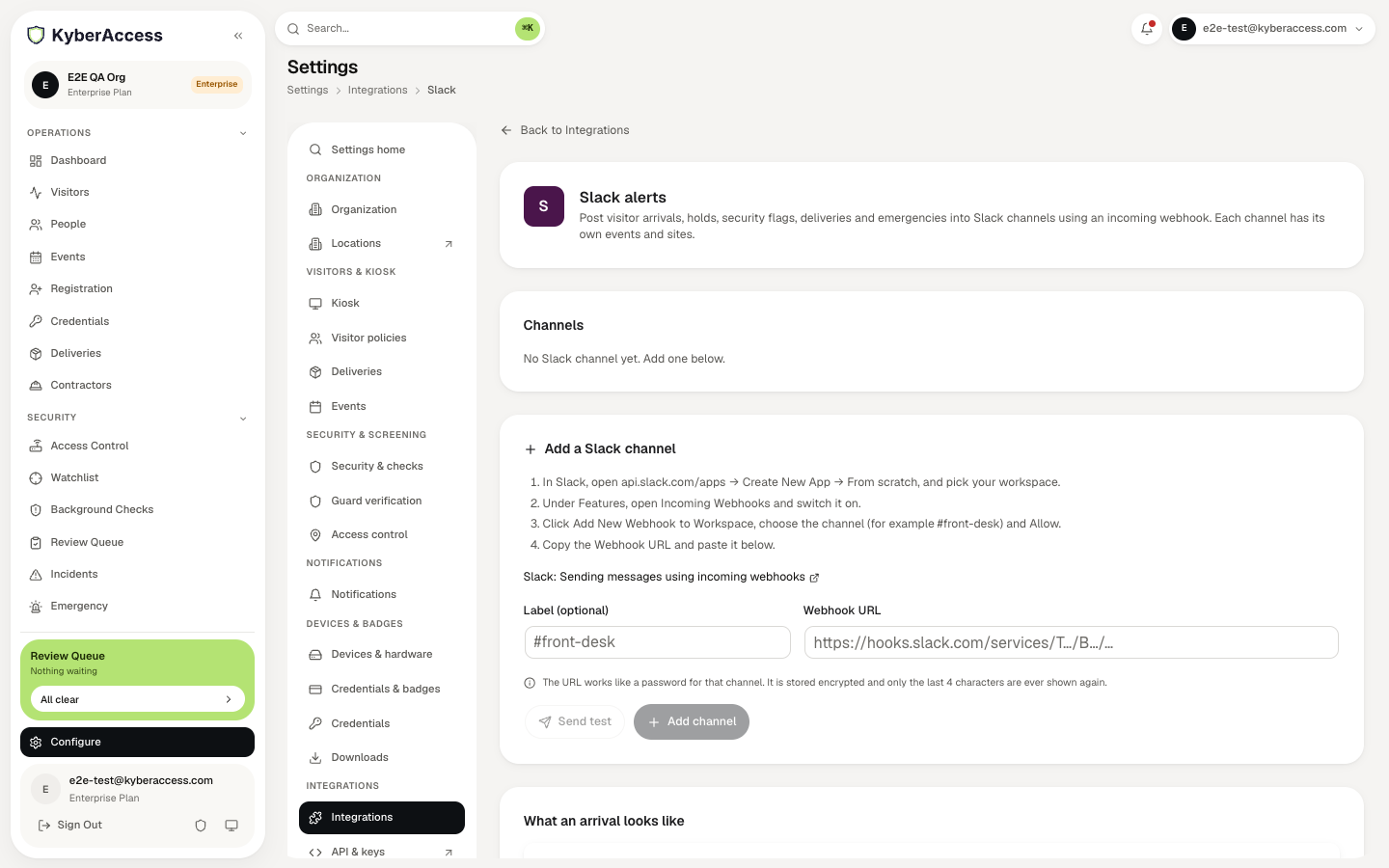
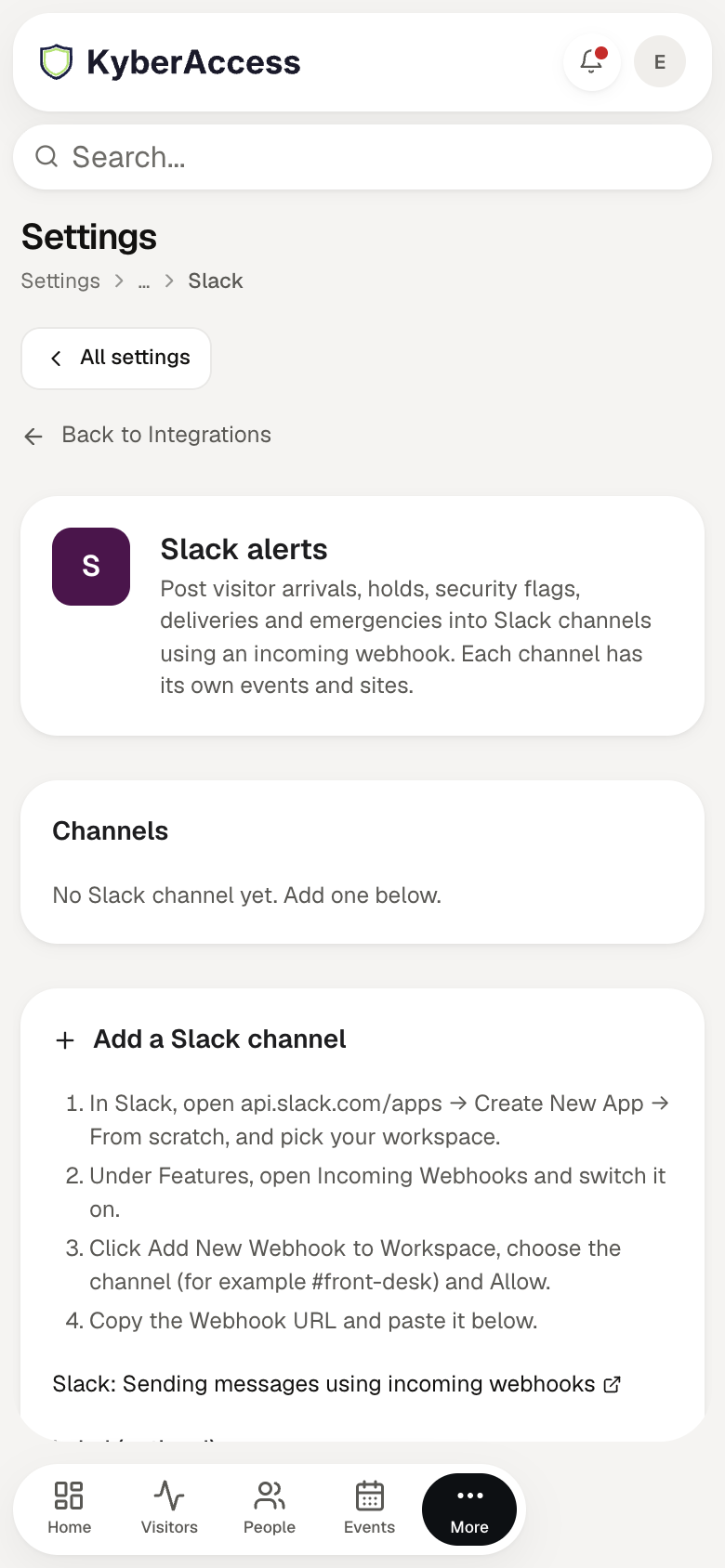
For Slack, create an incoming webhook: 1. Open api.slack.com/apps › Create New App › From scratch, and pick your workspace. 2. Under Features, open Incoming Webhooks and switch it on. 3. Select Add New Webhook to Workspace, choose the channel (for example #front-desk) and Allow. 4. Copy the Webhook URL (it starts with https://hooks.slack.com/services/).
For Microsoft Teams, create a Workflows webhook: 1. In the Teams channel, select ••• › Workflows. 2. Pick Post to a channel when a webhook request is received. 3. Name it (for example KyberAccess alerts), confirm the team and channel, and select Add workflow. 4. Copy the URL Teams shows. Classic "Incoming Webhook" connector URLs also work.
Menus: steps show the app launcher first and the classic menu in brackets. See Find your way around to tell which one you have.
Steps
- Go to Settings › Integrations › Slack or Settings › Integrations › Microsoft Teams (classic menu: Configure › Integrations › Slack or Microsoft Teams).
- Under Add a Slack channel (or Add a Microsoft Teams channel), type a Label (optional), for example #front-desk, and paste the Webhook URL.
- Select Send test. A sample "arrived" message should appear in the channel.
- Select Add channel.
- In the new channel's box, under Send these events, switch each event on or off.
- If you have more than one site, pick Sites for this channel. None selected means every site.
What happens next
Each switched-on event posts a message within seconds: | Event | Default | When it fires | |---|---|---| | Visitor arrived | On | A visitor checks in at the kiosk, with a pass or credential QR, or from a registration. Name, visitor type, host and site. Never a photo. | | Visitor needs review | On | A check-in is held for an admin, with a link to the Review Queue item. | | Watchlist / screening flag | On | A watchlist match or background-check flag, with a link to review it. | | Delivery received | Off | A delivery is logged: recipient, carrier and package count. | | Emergency started | On | Sent to every channel with this on, whatever its site filter. | | Emergency ended | On | Includes the headcount accounted for. |
Denied access scan is shown but can't be turned on yet; door decisions aren't enforced.
The Activity list shows each message with Delivered, Retrying or Failed. Failed messages are retried. After 3 "not found / forbidden" answers in a row, the channel is switched off and admins get a notification.
Settings that change this
| Setting | Where | Effect |
|---|---|---|
| On/off switch | Each channel | Off stops all messages to that channel. |
| Send these events | Each channel | Which events post there. |
| Sites | Each channel (2+ sites) | Limits to those sites. Emergencies always go out. |
| Replace URL | Each channel | Paste a new webhook URL, for example after someone deleted the old one. |
Up to 10 channels per app. The URL works like a password; it is stored encrypted and only its last 4 characters are shown again.
Troubleshooting
- "Slack alerts are included with Pro and Enterprise." → your plan doesn't include them → upgrade or contact us.
- Send test fails with HTTP 404 or 403 → the webhook was deleted or the channel archived → create a new webhook and use Replace URL.
- A channel switched itself off → three rejected deliveries in a row → fix the webhook in Slack or Teams, then switch the channel back on.
- "Too many test messages. Wait a minute and try again." → more than 6 tests in a minute → wait.
- Hosts want a direct message, not a channel → per-host Slack messages aren't available yet → use host email or text notifications.