Security › Emergency & drills (classic menu: Security › Emergency) gives you a live roll call during an evacuation. When you activate an emergency, KyberAccess takes a list of everyone checked in on site right now. You then mark each person Safe as they reach the assembly point, and the headcount shows who is still missing. KyberAccess does not sound alarms, lock doors or text anyone. Use your alarm and PA system first, then run the roll call here.
Who this is for
- Owners and admins can activate, run and end an emergency.
- Guard and Front Desk / Security accounts can open this page from the Emergency button on Command home and run the roll call.
- Needs the Pro or Enterprise plan. On the Free plan, Emergency shows an upgrade screen.
Before you start
- The roll call covers only people who are checked in: visitors, contractors and students who signed in at the kiosk or front desk and haven't checked out. Staff who don't check in, and anyone who walked in without checking in, won't be on it. Take your own staff and class lists outside as usual.
- Optional: add Emergency Contacts in Settings › Apps › Security › Emergency (classic menu: Configure › Advanced › Emergency). They are listed on the Emergency page so you can call them (Emergency settings).
- Optional: connect Slack or Microsoft Teams to post a message when an emergency starts and ends (Send alerts to Slack or Microsoft Teams).
Menus: steps show the app launcher first and the classic menu in brackets. See Find your way around to tell which one you have.
Steps
Start the roll call
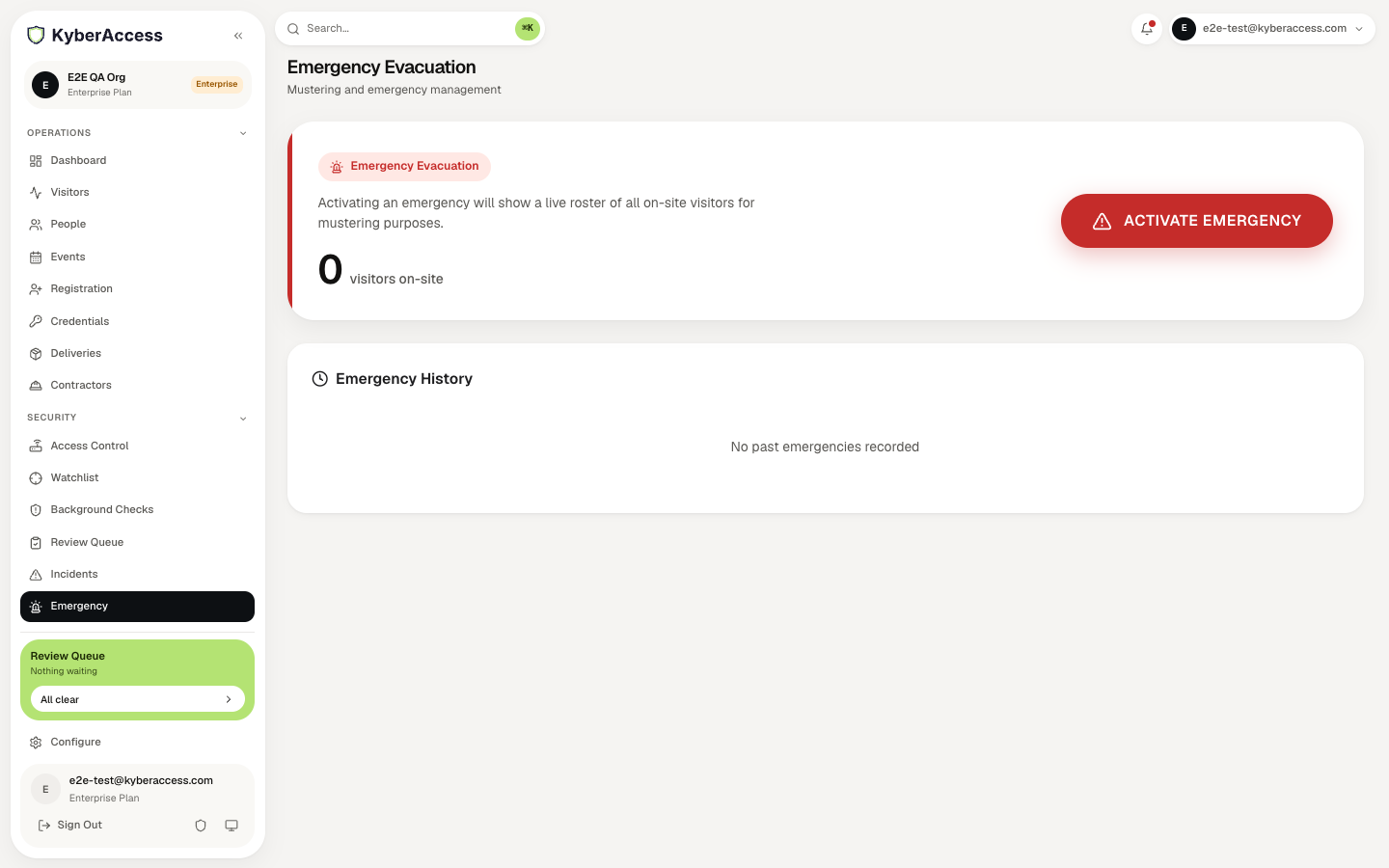
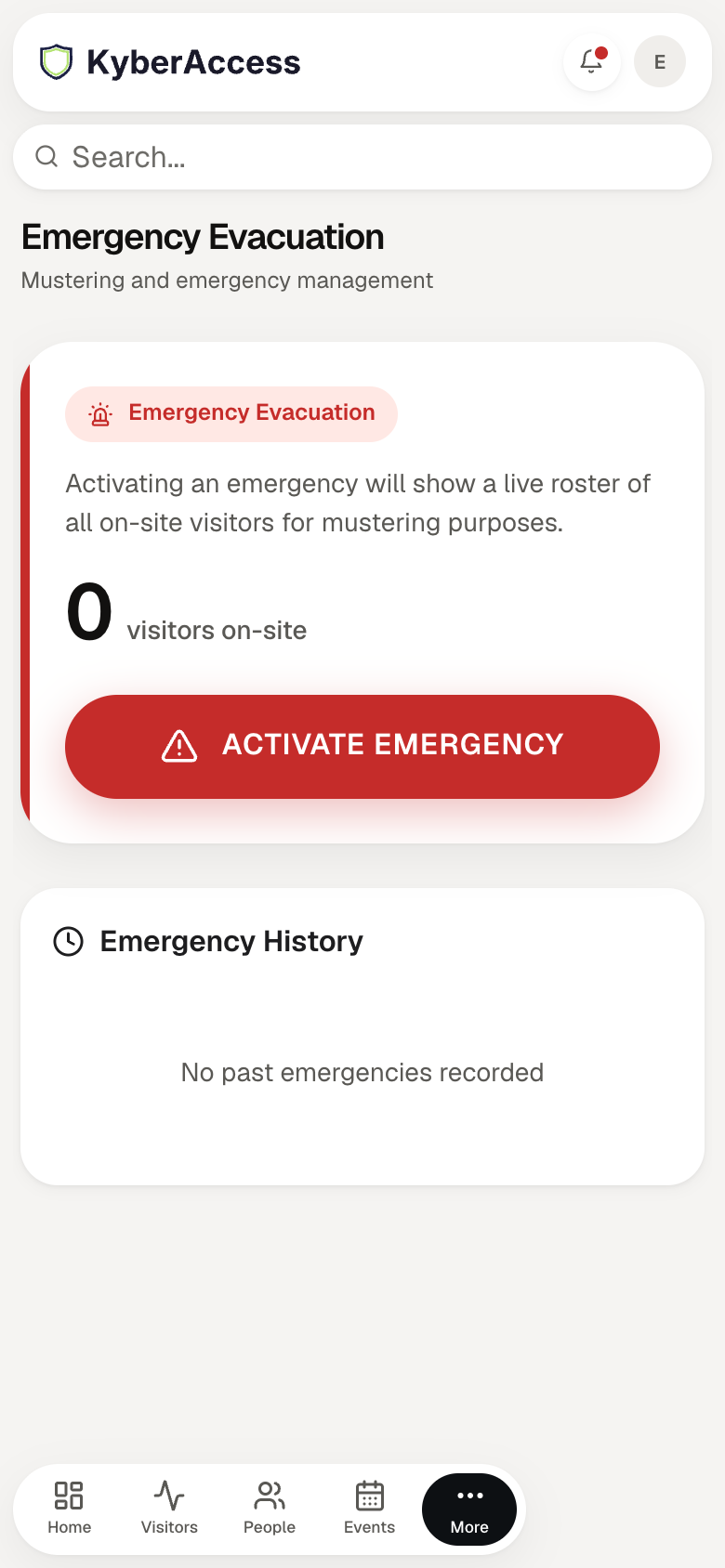
- Open Apps › Security › Emergency & drills (classic menu: Emergency in the sidebar, under Security). You can also use the Start emergency quick action on the Security tile in the Apps panel. The page is Emergency Evacuation and shows how many visitors on-site there are right now.
- Click ACTIVATE EMERGENCY.
- In Activate Emergency?, click Confirm Activation. This starts a live roll call. To practice, use Practice drills instead (Plan and log drills).
The page switches to the full-screen roll call, with Emergency active and who started it at the top.
Account for people
- Under Who's on-site right now, click Mark Safe next to each person who reaches the assembly point. The button changes to ✓ Safe. Click it again to undo.
- Watch the headcount: safe / total accounted for with a percentage, and a red N missing pill. People not yet marked are listed first.
- The pills under the headcount split the count by the building each person checked in at. They are not assembly points.
You can run the roll call from a phone, and several people can mark at once on different devices: each tap is saved for that one person. Other devices pick up the changes within about 15 seconds.
Alert your emergency contacts
- Click Send Alert. The Send Emergency Notifications box lists your emergency contacts.
- Click Send Now. Each contact with an email gets an email with your alert message. If you turned on Text message (SMS) in emergency settings, each contact with a phone number also gets a text. If you turned on Slack / Microsoft Teams, connected channels with Emergency started on also get a post.
- The confirmation says exactly what went out, for example Emergency alert sent: 2 emails, 2 texts, Slack/Teams. Contacts with no email or phone are named in a separate message.
You can send again after 30 seconds. Send Alert works only while an emergency is active.
End the emergency
- When everyone is accounted for, or the all-clear is given, click End Emergency and confirm. The confirmation says how many people are still not marked safe.
- The page returns to normal and the event appears under Emergency History with Date, Initiated By, Duration, On-Site and Accounted (for example 12/12).
What happens next
- Who is on the list is fixed when you activate. Anyone who checks in after that is not added. Checking someone out does not remove them.
- Slack or Microsoft Teams: if a channel has Emergency started or Emergency ended turned on, it gets a message at the start (who started it and how many were on site) and at the end (how many were accounted for). Emergency messages go to every such channel, whatever its site filter.
- Weekly digest: the Monday digest email for owners, admins and security staff lists the week's emergencies under Drills & emergencies with the accounted count.
- Emergency contacts are only contacted when you click Send Alert › Send Now. Visitors and staff get no email, text or push message from KyberAccess. Kiosks keep accepting check-ins.
Settings that change this
- Emergency Contacts · Settings › Apps › Security › Emergency (classic menu: Configure › Advanced › Emergency) · none · listed on the Emergency page and contacted by Send Alert › Send Now.
- Default Alert Message and the Email / SMS / Slack notification switches · Settings › Apps › Security › Emergency (classic menu: Configure › Advanced › Emergency) · the default evacuation message; Email on, SMS and Slack/Teams off · the text and channels Send Now uses.
- Emergency started / Emergency ended · Slack or Teams channel settings · on when you add a channel · posts the start and end messages.
- Auto-lock kiosks during emergency on the same page currently has no effect.
Troubleshooting
- The page shows 0 visitors on-site but people are in the building → only checked-in people are counted → use your paper lists for everyone else, and remind visitors to check in at the kiosk.
- Someone who left is still on the roll call → they weren't checked out before you activated → mark them Safe once confirmed and note it in your report.
- A contact didn't get the alert → check their email and phone in Settings › Apps › Security › Emergency (classic menu: Configure › Advanced › Emergency), and that the matching channel switch is on. Text messages need a US or full international number.
- "There is no active emergency to send an alert for" → Send Alert only works during an active emergency → activate the emergency first.
- "An alert was just sent" → wait 30 seconds before sending again.
- A guard can't open Emergency → check the account's role includes the Emergency permission (Roles and what each one can do).
- A mark disappeared → another device saved over it in the same moment → mark the person again. One person per group avoids this.
- The emergency ended too early → it can't be reopened → activate a new one if you still need a roll call. Both appear in Emergency History.