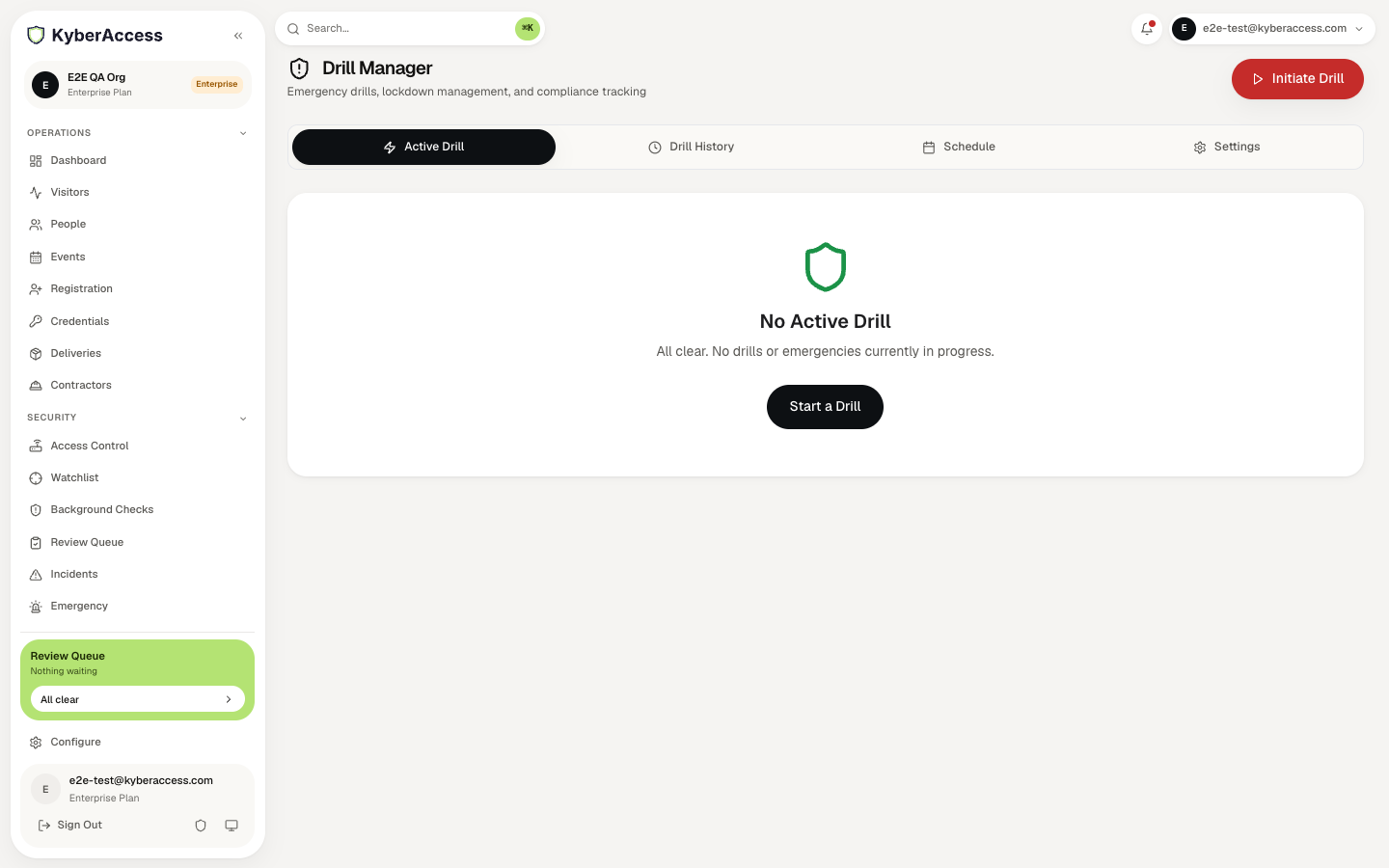
Run a practice drill on Security › Emergency › Practice drills (the Drill Manager page): time it, have staff report each part of the building as clear, and keep a dated history with a short report. Drills are practice only: they send no alerts and lock nothing.
Who this is for
- Owners, admins and security staff run drills and read the history.
- Needs the Pro or Enterprise plan (the same as Emergency).
Before you start
- Decide the zones staff will report in for (for example Main building, Gym, Field). You type them when you start the drill.
- For a real emergency, don't use Drill Manager: use Security › Emergency (Run an evacuation and roll call).
Steps
Run a drill
- Sound the drill with your own alarm or PA system.
- Go to Security › Emergency and click Practice drills.
- Click Initiate Drill, pick the type (Fire, Lockdown, Shelter-in-Place, Evacuation, Active Threat or Weather), and type one zone per line under Zones to report in. Click Start Drill.
- As each zone reports in, click Clear or Need Help on its card. The timer shows elapsed time against the target for that drill type.
- When the drill is over, click End Drill and confirm.
Read the drill history
- Open the Drill History tab. Each row shows the date, type, duration and Zones clear (the share of zones marked clear).
- Click View for the saved report, for example "Fire Drill: 2m 30s (target 3 min, met). 1 of 2 zones reported clear. Needed help: Gym."
- Copy what you need into your safety binder or state report.
Plan upcoming drills
On the Schedule tab, click Schedule Drill, pick the type, date and how often it repeats, and save. Planned drills are listed there. KyberAccess does not send drill reminders.
What happens next
- Only one drill can run at a time. Ending it saves the report to Drill History.
- Drills don't appear in Emergency History and send no Slack, Teams, email or text messages.
Settings that change this
- The Procedures tab lists each drill type's built-in target time and assembly points. They aren't editable.
Troubleshooting
- "A drill is already running. End it first." → a drill is still active → open Active Drill and click End Drill.
- Zones clear shows "No zones" → the drill was started without zones → type zones when you start the next one.
- I need a real roll call of visitors → use Security › Emergency, not a drill.