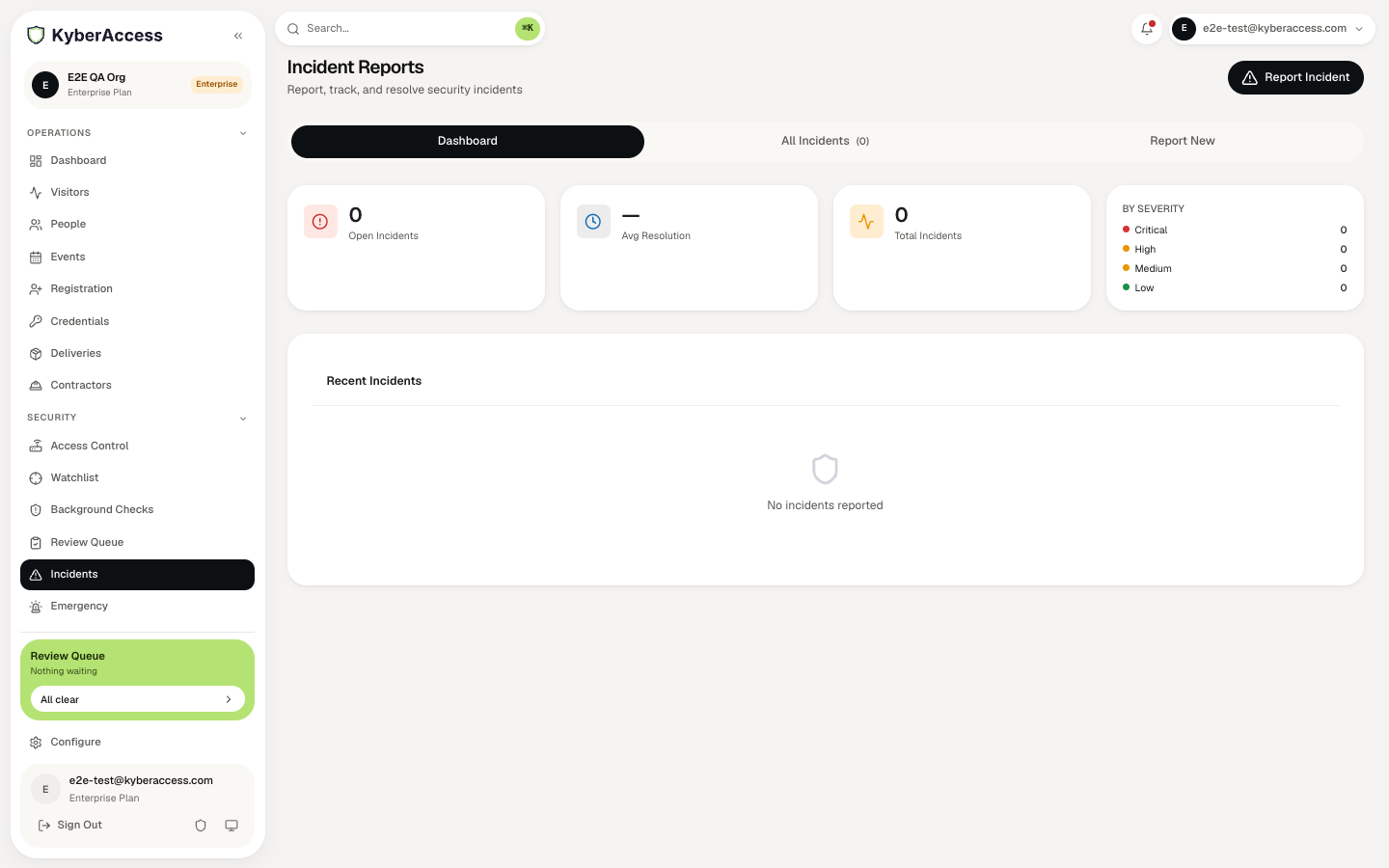
Security › Incidents is where you keep a full record of a security, safety or medical incident: what happened, where, who was involved, how serious it was, and what you did. Then you track it from Open to Closed with follow-up notes. Reports stay in your account and nobody is notified automatically.
Who this is for
- Owners and admins file, update and close reports on this page.
- Guard and Front Desk / Security accounts work in guard mode and can't open this page. They can leave a quick note from guard mode, which goes to the activity history and not here (Report an incident from guard mode). Their supervisor files the full report.
- Available on every plan.
Before you start
- Collect the basics while they're fresh: time, place, names of people involved and witnesses, what was done. Photos help.
Steps
File a report
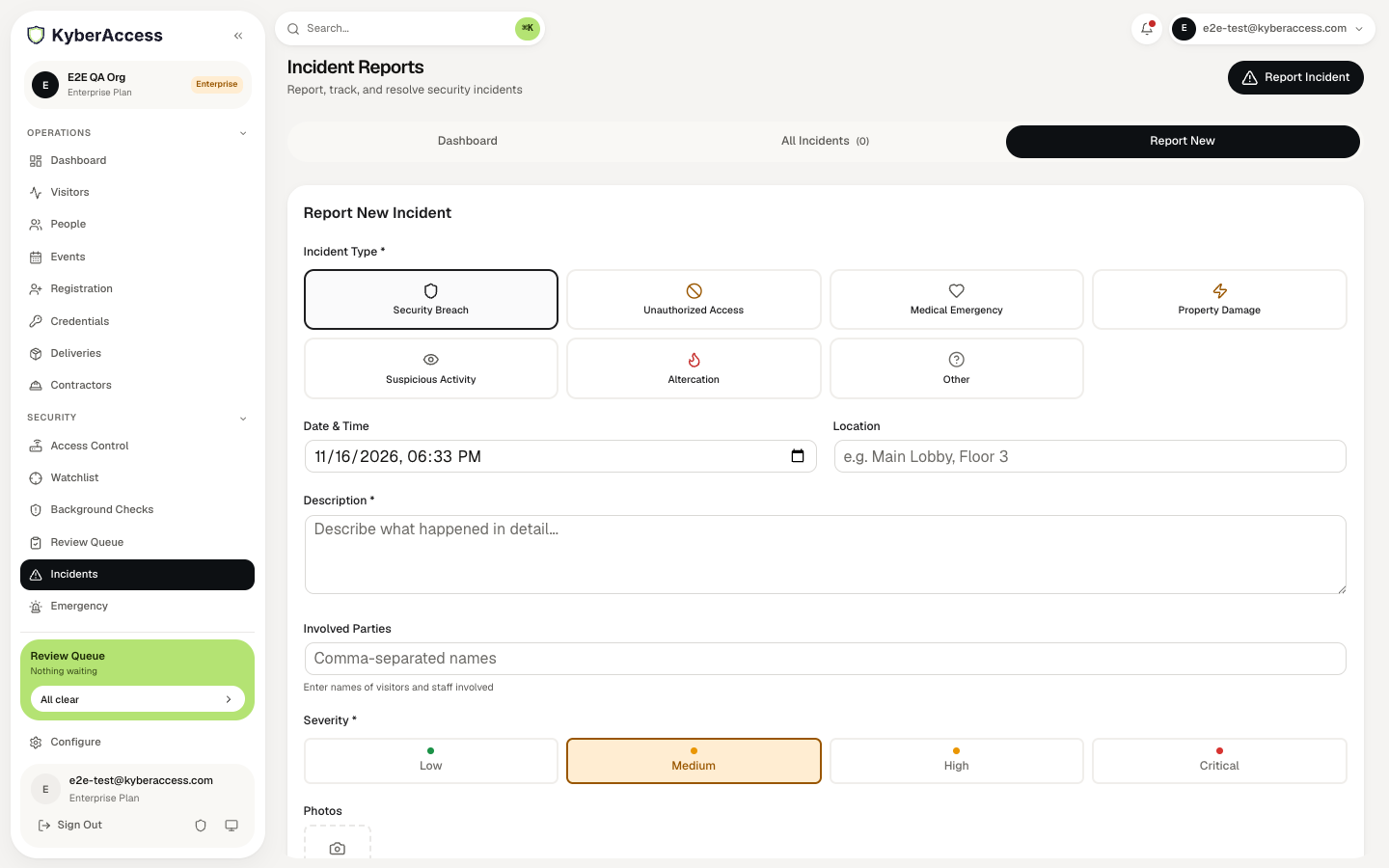
- Go to Security › Incidents. The page is Incident Reports.
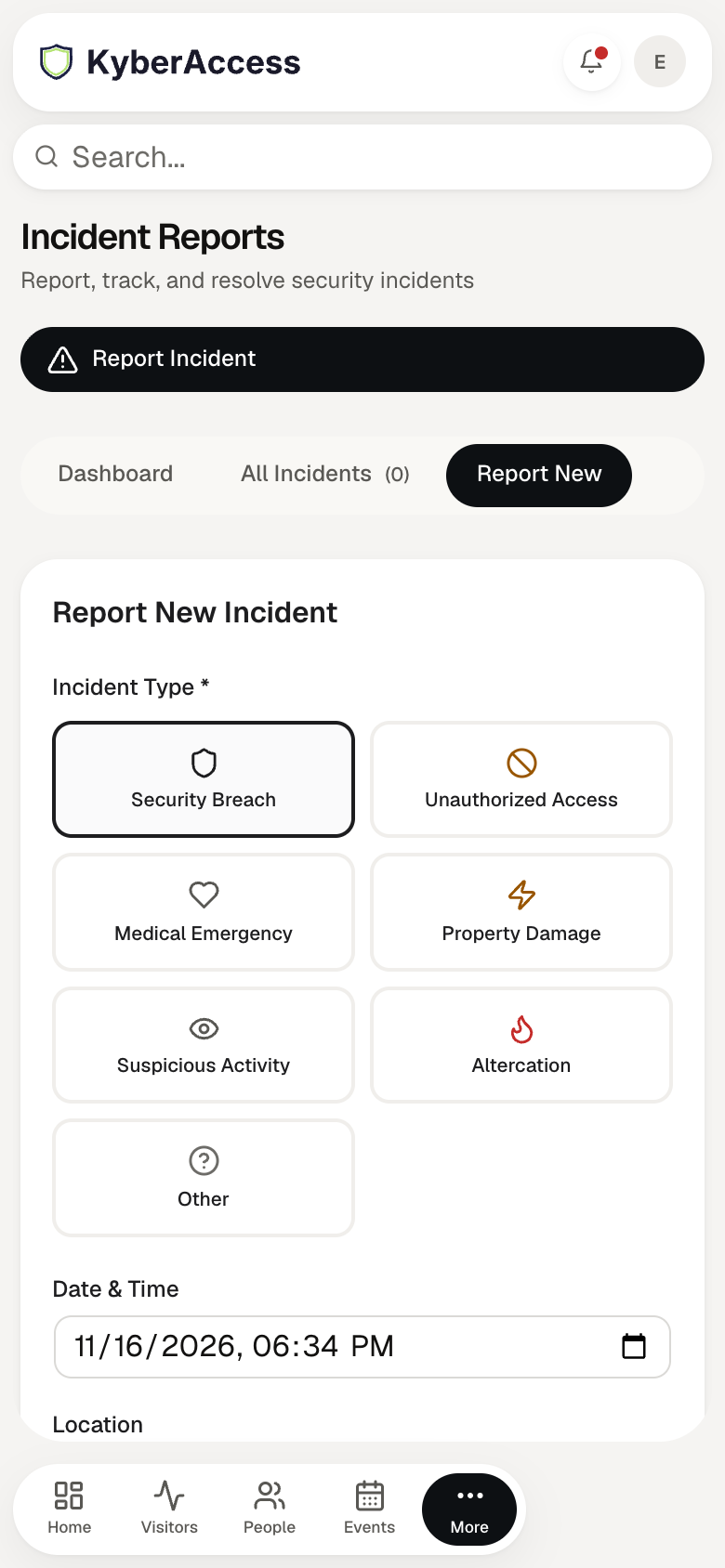
- Click Report Incident (or the Report New tab).
- Choose an Incident Type: Security Breach, Unauthorized Access, Medical Emergency, Property Damage, Suspicious Activity, Altercation or Other.
- Check Date & Time (it starts at now) and enter a Location, for example "Main Lobby".
- Write what happened in Description. This is the only required text.
- Add Involved Parties and Witness Names, separated by commas.
- Pick a Severity: Low, Medium (the default), High or Critical.
- Optional: under Photos, click Add to attach pictures from your device.
- Describe your response in Actions Taken.
- Click Submit Report. The report starts as Open, with your name as the reporter.
- The report appears in the list straight away.
Follow up and close
- Open the All Incidents tab and click a report to expand it.
- To add a note, type in Add a follow-up note... and click Add. Each note is kept with your name and the time; add as many as you need.
- To move the report on, click Change Status, pick Open, Investigating, Resolved or Closed, and click Update Status.
- When you choose Resolved or Closed, write a Resolution Summary. It shows in green on the report.
- For a full page view with Notes, Timeline and Involved People tabs, click Open full incident.
Find a report
On All Incidents, search by words in the description or location, or filter by All Types, All Severity and All Status.
What happens next
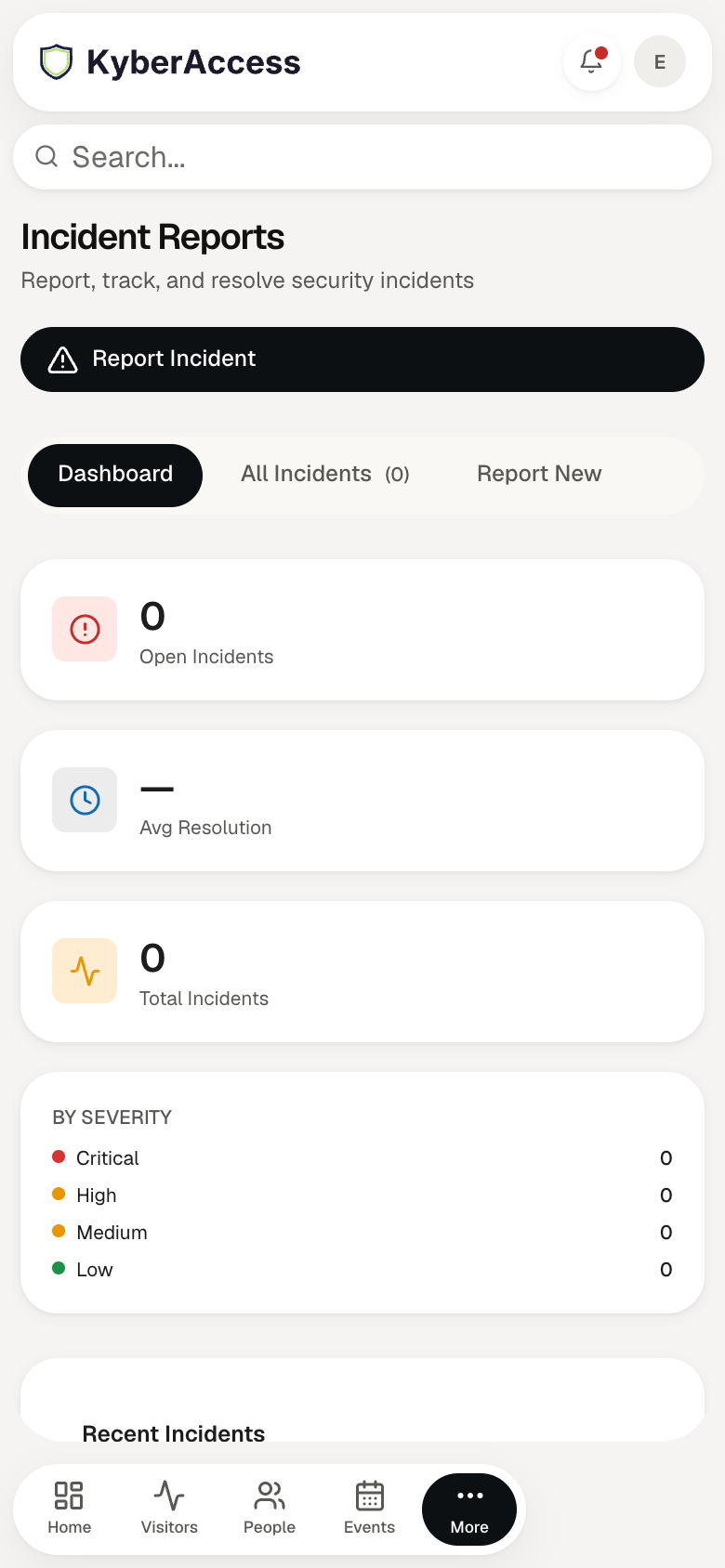
- The Dashboard tab counts Open Incidents and Total Incidents, shows a By Severity breakdown and the ten most recent reports.
- Avg Resolution is an estimate: the time from filing to the last change on resolved or closed reports. Adding a note to a closed report makes it longer.
- No email, text or alert goes out when a report is filed or changes status, whatever the severity. Call your supervisor for anything urgent.
Settings that change this
- Team roles decide who can open Incidents in the dashboard (Roles and what each one can do).
Troubleshooting
- My resolution text is missing → the summary box was empty when you changed the status → change the status again with the summary filled in.
- A guard's report isn't here → guard-mode notes go to the activity history → re-enter it here if it needs follow-up.