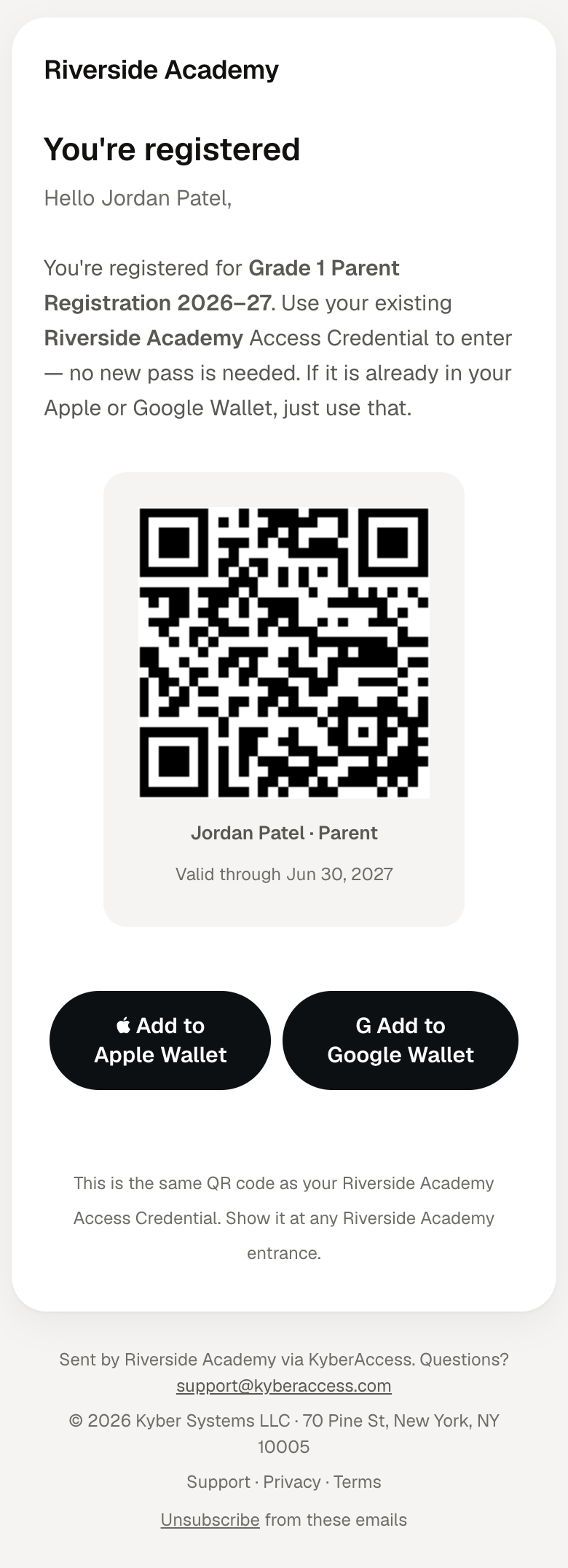
A credential holder can keep their KyberAccess QR code in Apple Wallet or Google Wallet. The pass shows the same QR code as their email, so gates, kiosks and guards read it the same way.
Menus: steps show the app launcher first and the classic menu in brackets. See Find your way around to tell which one you have.
Who this is for
- Parents and visitors who hold a credential and want it on their phone.
- Owners and admins who want to know when holders get the buttons and how the pass looks.
How holders get the Add to Wallet buttons
The Add to Apple Wallet and Add to Google Wallet buttons appear: - in the confirmation email when a guest registers for, or is approved for, an event that gives a Permanent Credential; - in the "You're registered" email and page when a credential holder registers for another event; - on the RSVP page and event page when an invited guest already holds an active credential ("Your KyberAccess credential … Add it to Apple Wallet or Google Wallet so you always have it.").
The email sent by Resend Pass (on the Credentials page) contains the QR code only, with no Wallet buttons. The holder can still save a screenshot of the QR code.
Steps for parents and visitors
iPhone (Apple Wallet)
- Open the email from your school or organization on your iPhone.
- Tap Add to Apple Wallet.
- Tap Add in the top-right corner.
Android (Google Wallet)
- Open the email on your Android phone.
- Tap Add to Google Wallet.
- Sign in to Google if asked, then tap Save.
At the entrance, open the pass and hold the QR code up to the scanner or guard.
What the pass shows
- Your organization's name, logo and colors.
- Pass title Access Credential, your name, the credential type, the date issued and the expiry date.
- The QR code.
- Never your date of birth or ID number.
What happens next
- When a credential is suspended, revoked or expired, its Wallet link stops working ("This credential pass is no longer available. Please contact the organization that issued it."), and a pass already saved on a phone is refused at the entrance.
- When a credential is renewed, the QR code is the same. The old expiry date stays printed on a saved pass. On Android, adding it again creates a pass with the new dates.
- A reissued credential has a new QR code. The holder needs the new email and must add the new pass.
Settings that change this (owners and admins)
Settings › Apps › Access › Wallet passes (classic menu: Configure › Advanced › Wallet passes) shows whether Apple Wallet and Google Wallet are enabled, and sets Background Color, Text Color, Label Color, Pass Title and Logo Override with a Live Preview.
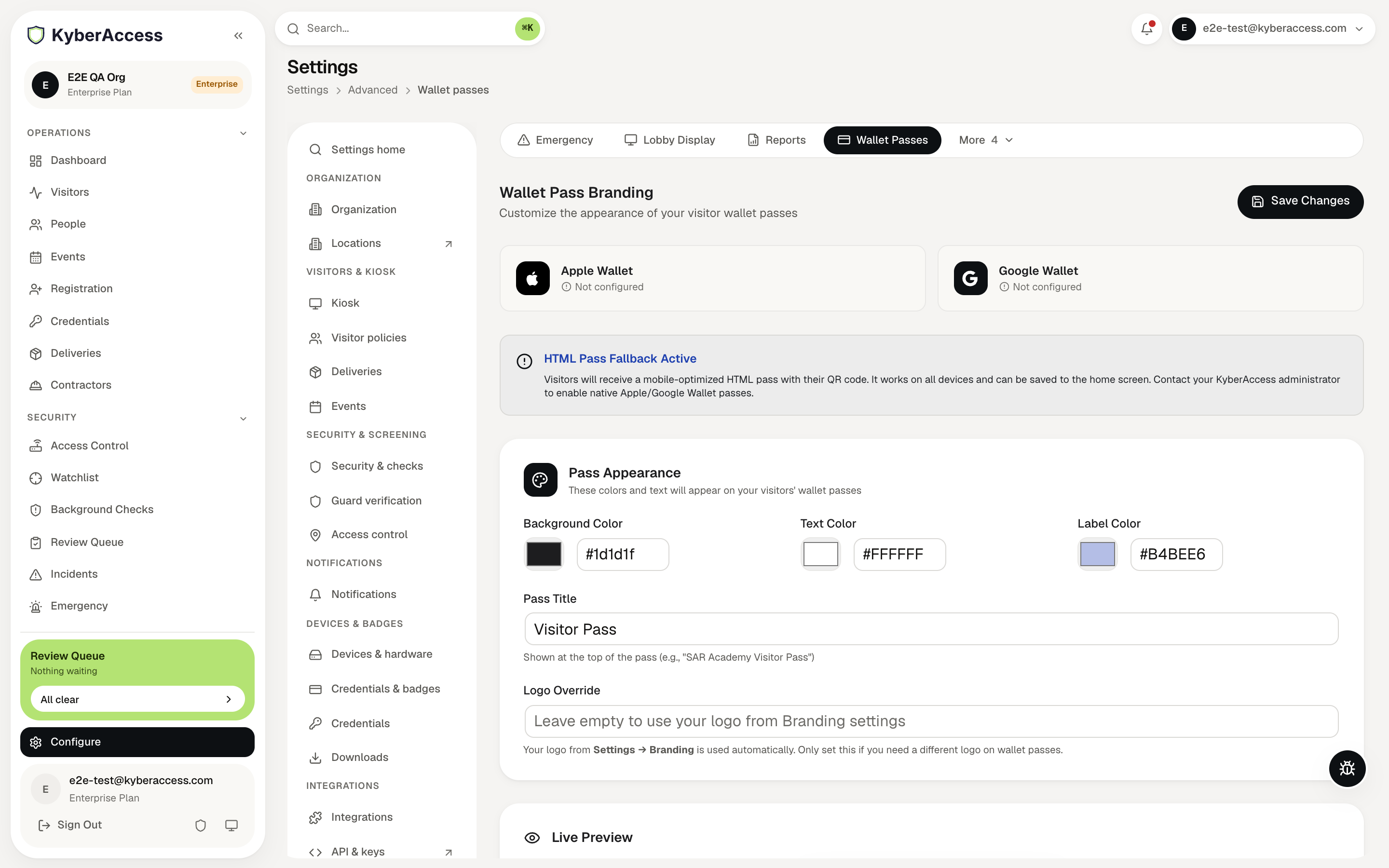
Note: today the colors, Pass Title and Logo Override saved on this page are not applied to passes. Passes use the logo and main color from your organization's Branding settings (Settings › Organization › Branding; classic menu: Configure › Organization › Branding) and the title Access Credential. To change how passes look, update your branding there. The Apple Wallet / Google Wallet status on this page can also read Not configured even when Wallet passes work.
The Wallet Passes tab on a credential's own page currently always says "No wallet passes generated for this credential". Use the email buttons instead.
Troubleshooting
- "Apple Wallet is not available right now. Your QR code in the email still works at the entrance.": a temporary problem on our side. Use the QR code in the email; try again later.
- "This credential pass is no longer available": the credential was suspended, revoked or has expired. Contact the organization.
- Nothing happens on a computer: Wallet passes are for phones. Forward the email to your phone, or open it there.
- No Wallet buttons in my email: some emails contain the QR code only. Show the QR code from the email, or ask the organization to send your credential confirmation again.