Push the expiry date of many credentials later in one go, for example every parent credential that ends on June 30, before the new school year starts.
Who this is for
Owners, admins and Front Desk / Security members. Credentials need the Pro plan or higher.
Before you start
- Pick the new date (e.g. 06/30/2028) or the number of months to add. The new date can be at most 60 months from today.
- Only active and expired credentials can be renewed. Suspended and revoked credentials never appear here, and nor do credentials with no expiry date.
Menus: steps show the app launcher first and the classic menu in brackets. See Find your way around to tell which one you have.
Steps
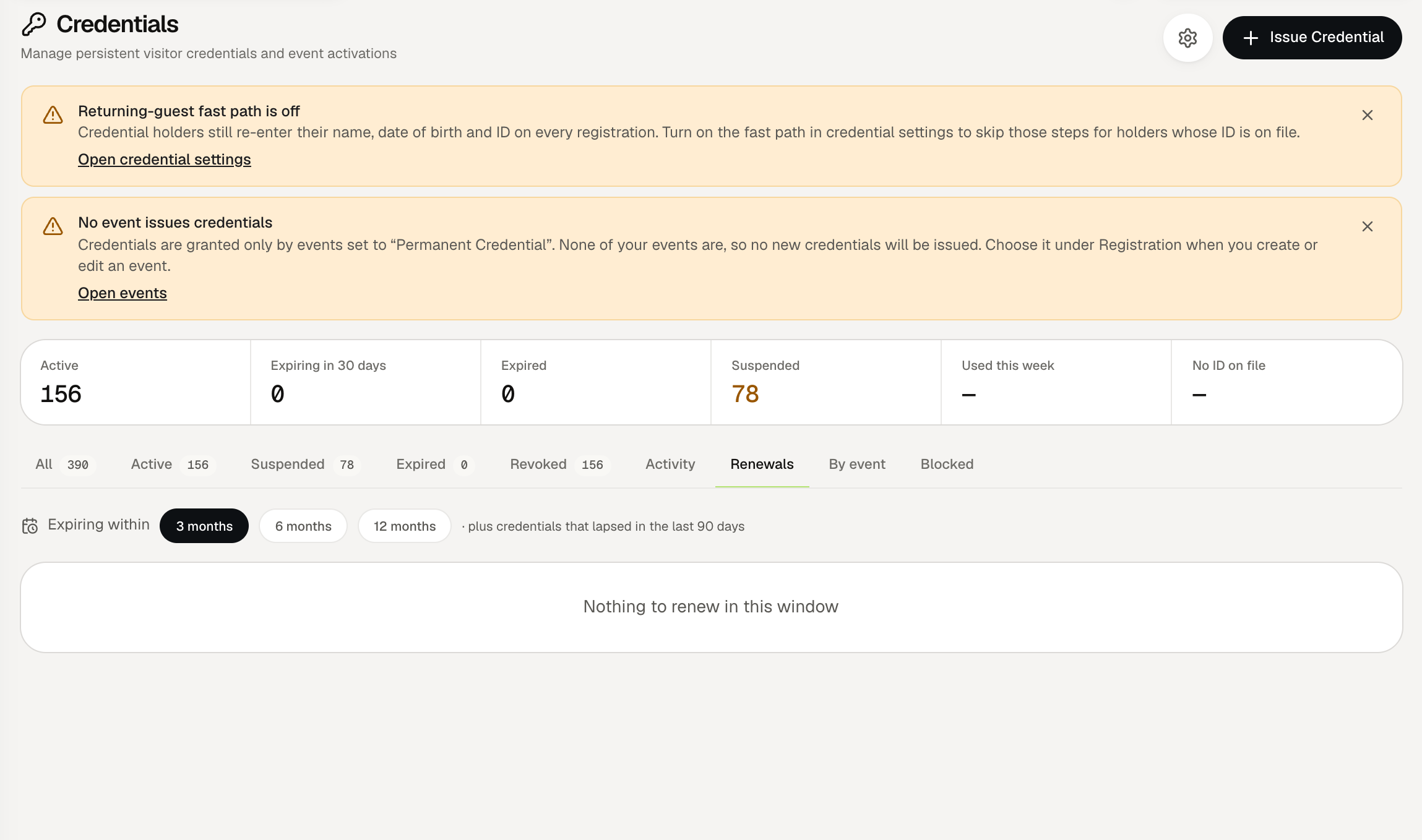
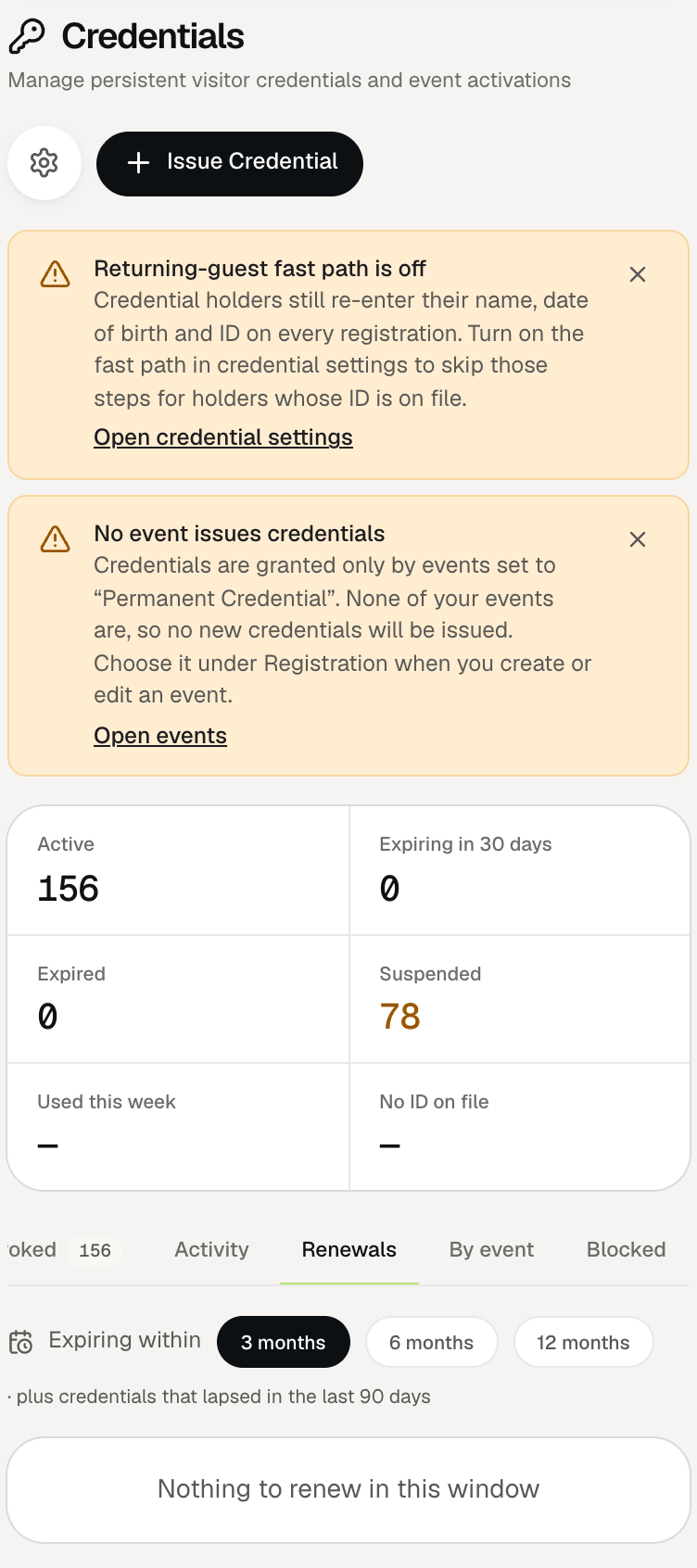
- Open Apps › Access › Credentials (classic menu: Credentials in the sidebar, under Operations) and select the Renewals tab.
- Next to Expiring within, choose 3 months, 6 months or 12 months. The list is grouped by the month each credential expires. Credentials that lapsed in the last 90 days are listed first, under Lapsed (last 90 days).
- Tick a month's checkbox to select everyone in it, or tick people one by one. Select a name to open that credential.
- In the Renew box, choose one:
- Add [12] months to each (from today or its current expiry, whichever is later), or
- Valid until a date, typed as MM/DD/YYYY.
- Enter a Reason (it is written to each credential's history), e.g. "2027–28 school year".
- Select Renew. A counter shows progress. Failed rows stay selected so you can see what didn't apply.
Other ways to renew
- Any selection on the main list: on Credentials, tick rows (up to 200), then select Extend in the bar at the bottom. Enter New expiry, MM/DD/YYYY and a reason.
- One credential: select its row, then Extend (or Renew if it has expired). Or open the full credential and select Extend / Renew.
What happens next
- The new date applies immediately. An expired credential that you renew becomes active again and works at kiosks, gates and guards.
- Renewing never shortens a credential. Anyone already valid past the new date is skipped and counted in the result.
- Each renewal is recorded as Renewed on the credential's Timeline and on Credentials › Activity, with the old and new dates.
- If expiry reminder emails are on, renewed holders are reminded again before their new date.
- No email is sent to holders about the renewal. Their QR code doesn't change, so nothing needs re-sending. A Wallet pass already on their phone keeps the old date printed on it until they add it again.
Settings that change this
- Settings › Security & policies › Credentials & screening › Default credential validity (months) (classic menu: Configure › Credentials & screening › Default credential validity (months)) sets the months suggested in Extend and the length of new event credentials. Blank = 12.
- Settings › Security & policies › Credentials & screening › Email holders before their credential expires (classic menu: Configure › Credentials & screening › Email holders before their credential expires): reminder email 30, 14 or 7 days before expiry.
Troubleshooting
- "Nothing to renew in this window": widen Expiring within, or the credentials have no expiry date (they show No expiry on the list).
- "Months must be a whole number from 1 to 60" / "The new expiry can be at most 60 months away": choose a closer date.
- "Nothing to renew — N skipped": everyone selected is already valid past the new date, or is suspended or revoked.
- A credential is missing from Renewals: it lapsed more than 90 days ago. Find it on the Expired tab and use Renew on the row.