When someone loses their pass, cancel the old one so it stops working and give them a new one. How you do it depends on whose pass it is: a student, or a visitor, parent or staff member with a credential.
Who this is for
- Students: guards, front desk, security, owners and admins (Lost Pass Recovery); owners and admins also from Student Check-In.
- Credentials (parents, visitors, staff): owners and admins, from Credentials.
Student passes need the Campus add-on; credentials need the Pro plan or higher.
Before you start
- Confirm who you are talking to. For a student, compare them with the photo on screen. For an adult, check a photo ID.
Menus: steps show the app launcher first and the classic menu in brackets. See Find your way around to tell which one you have.
A student lost their pass
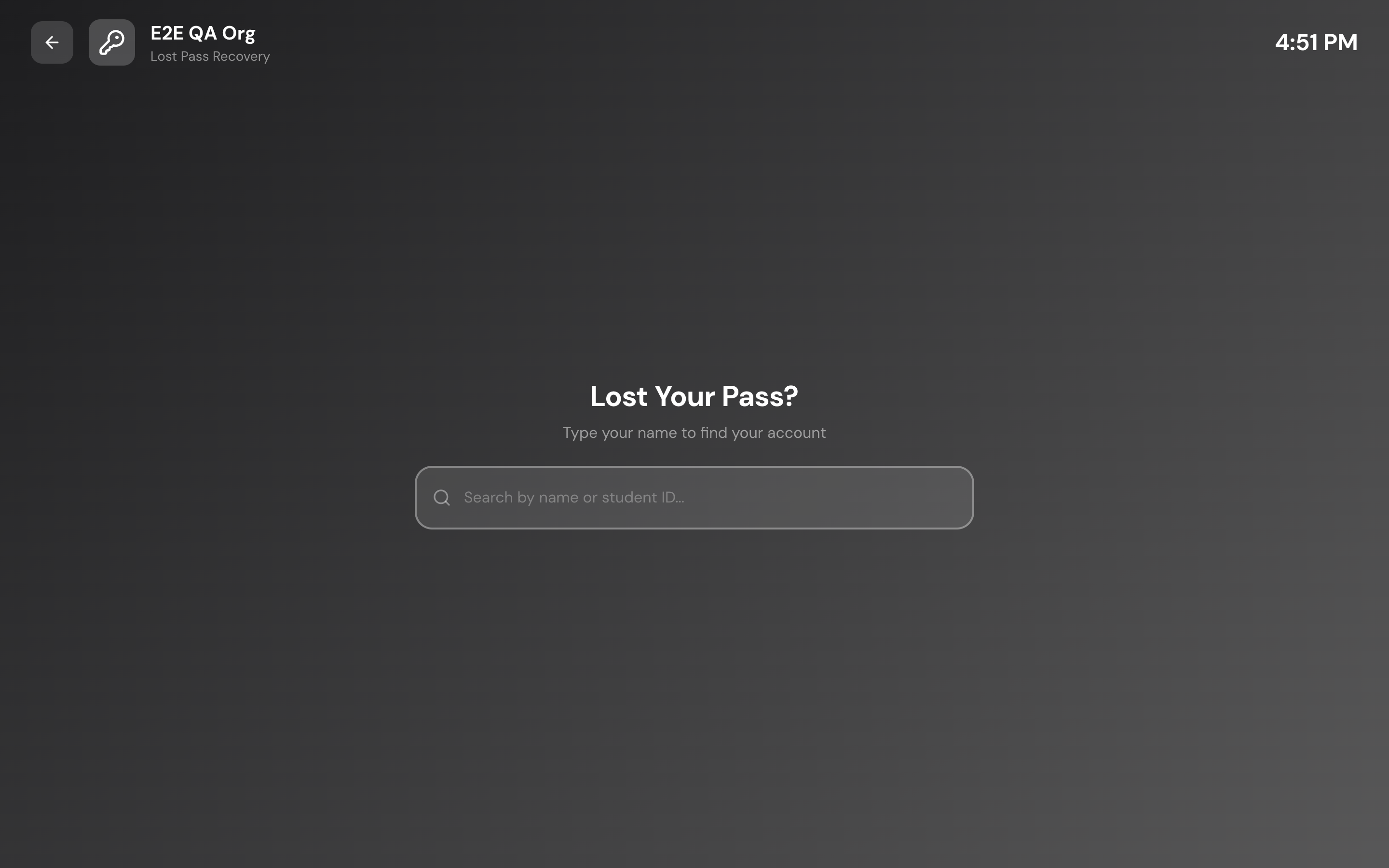
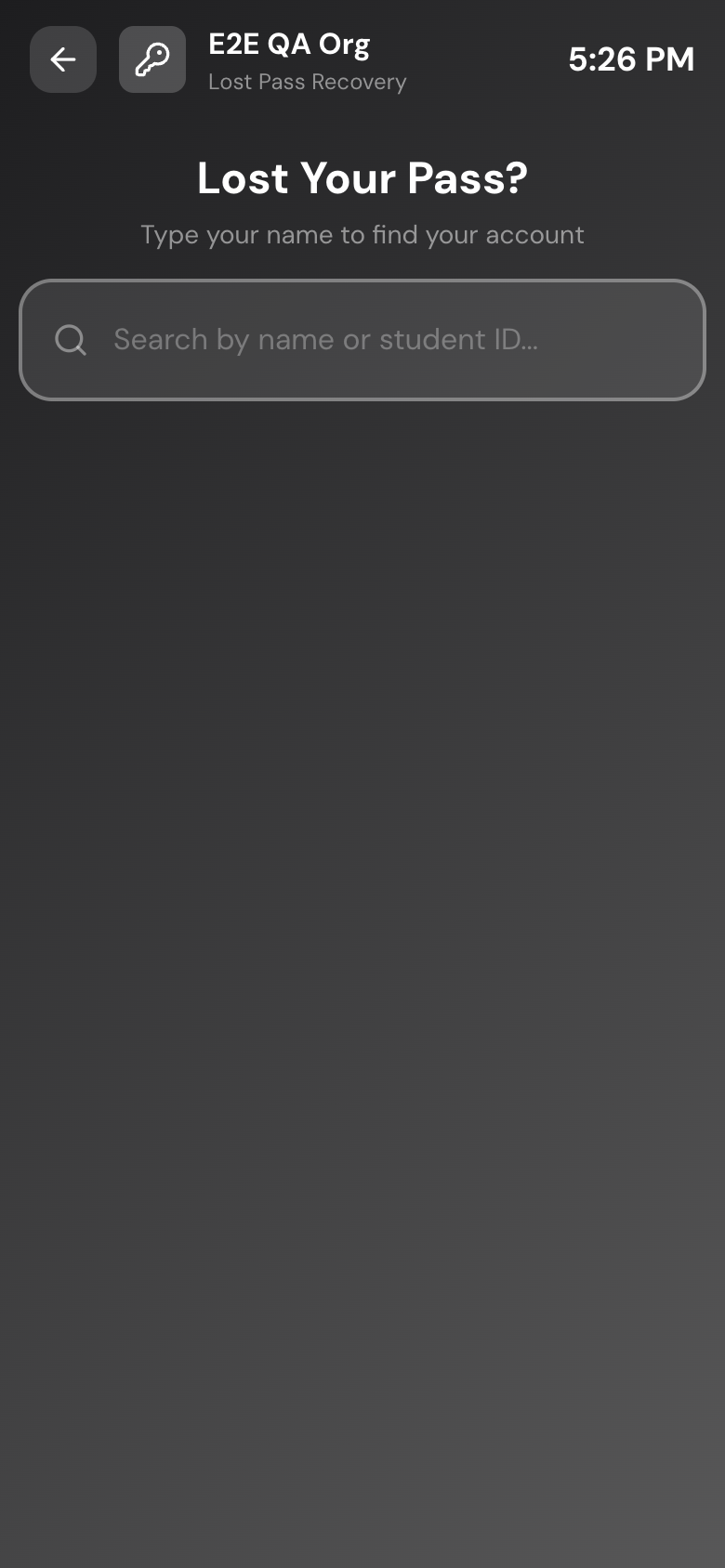
- In guard mode, click Lost pass in the left menu. On a phone, or outside guard mode, go to app.kyberaccess.com/guard/lost-pass (the page is Lost Pass Recovery).
- In Lost Your Pass?, type at least 2 letters of the student's name or their student ID.
- Click the student. Check the large photo on Verify Identity ("Confirm this is the correct student").
- Click Issue New Pass.
- On New Pass Issued!, have the student scan the new QR code with their phone, or click Print Pass. Click Done.
Admins can do the same from Student Check-In: open the student, click Replace Pass, pick a Reason (Lost, Stolen, Damaged, Compromised or Other), add notes and confirm.
A parent, visitor or staff member lost their credential
- Go to Credentials and search for the person.
- Open the credential and click Revoke. Enter a reason such as "Lost pass". Revoking is final.
- Issue a new credential: on the person's profile in People, use ⋮ › Issue Credential, or click Issue Credential on the Credentials page. Set an expiry date; if you leave it blank the new credential never expires.
- Issuing does not email the pass by itself. To send it, open the new credential and click Resend pass, or tick it on the Credentials list and click Resend Pass (owners and admins, up to 50 at a time). The email carries their own QR code.
If they think they will find it, use Suspend instead of Revoke. Reactivate brings it back.
What happens next
- Student, Lost Pass Recovery: the old pass stops working at once, the replacement is recorded in the student's history as Pass Replaced, and owners, admins and security staff get an email.
- Student, Replace Pass: the student gets a new pass code and the change is recorded in the student's history. It does not cancel other credentials the student holds, scans of the old pass are not flagged, and no email is sent. For a stolen pass, use Lost Pass Recovery (which emails your security team) or revoke the student's other credentials in Credentials.
- Credential: a revoked credential is refused at the kiosk, the door scan page and the turnstile. Revoking a lost pass does not block the person from future events.
Settings that change this
- Settings › Security & policies › Credentials & screening › default validity (classic menu: Configure › Credentials & screening › default validity): how long a new credential lasts when issued from an event. Blank expiry on Issue Credential means no expiry.
Troubleshooting
- "No students found" → the student is inactive or the spelling differs → try the student ID, or check Student Check-In.
- The old student pass still opens the turnstile → the replacement updates the student's pass and adds a new student credential, but a credential the student held from an event is only cancelled if it was linked to their student record → revoke any other credential for that student in Credentials.
- A guard gets "Not Found / Invalid organization" → the page was opened while signed out → sign in first, then open the page again.
- A parent can't find the new pass email → it went to the email on their profile → fix the email in People, then click Resend pass on the credential.