A guest says they registered but never received a QR code or credential. Usually one of four things happened: they are waiting for a staff decision, the event doesn't issue codes, the email didn't reach them, or they registered in a way that never issues a code. Work through the checks below.
Who this is for
Owners, admins and event staff (Event Managers, Event Coordinators). Deciding screening holds needs Owner, Admin or Front Desk / Security.
Before you start
Have the guest's name and email address, and know which event (or visitor registration) they used.
Menus: steps show the app launcher first and the classic menu in brackets. See Find your way around to tell which one you have.
Check 1: where is the guest in the event?
- Open Events, open the event and select Guest Management.
- Find the guest and read their status.
| Status | What it means | What to do |
|---|---|---|
| QR Issued | A code was issued and emailed. | Go to Check 4 (email). |
| Registered / Approved | Registration finished, but no code was issued yet. | Go to Check 2. |
| Flagged | Screening found a possible match, or could not run. Nothing is issued until someone decides. | Go to Check 3. |
| RSVP'd / Invited | They said yes or were invited, but didn't finish registration. | Ask them to open their invitation again: the page shows Registration Incomplete with Complete Registration. Or resend the invitation. |
| Not on the list | They used a different event's link, or a different email address. | Search People for their name. |
Check 2: does the event issue codes?
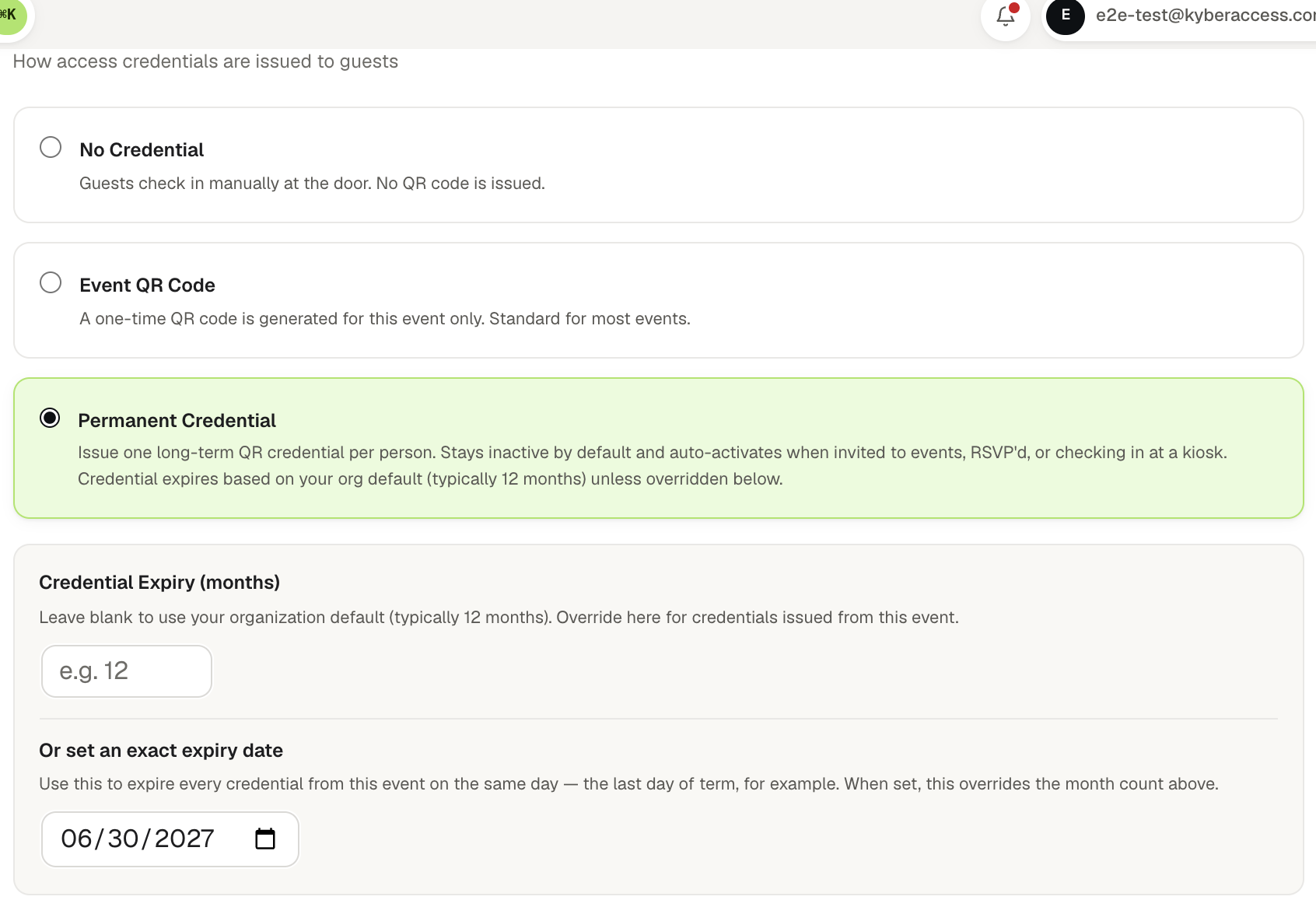
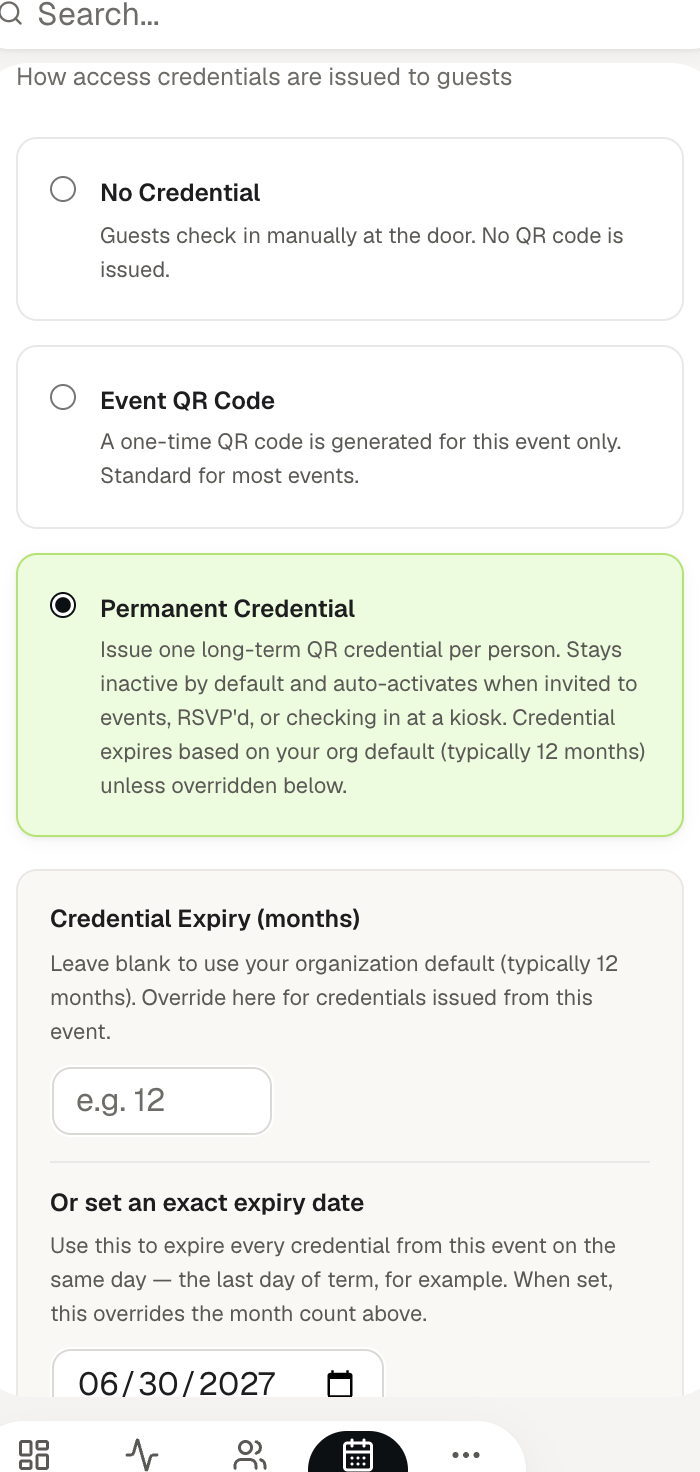
On the event's Registration tab, look at Credential Policy: - No Credential: nobody gets a QR code. Staff check guests in by name. Change it if guests need a code. - Event QR Code or Permanent Credential: guests who register online and pass screening get a code straight away.
Guests you added yourself (by hand, CSV or from People) don't get a code until you send one. Select them and use Issue QR Codes (see Issue QR codes to event guests).
Check 3: the guest is waiting in Review Queue
- Open Apps › Security › Review queue (classic menu: Review Queue in the sidebar, under Security).
- Open the guest, compare the ID photo, selfie and possible match.
- Choose Approve, Approve without screening (with a reason) or Deny.
On a Permanent Credential event, approving issues the credential and emails it. On an Event QR Code event, go back to the event afterwards and use Issue QR Codes for that guest. While they wait, the guest's page says Registration Received ("you'll receive your QR code via email once confirmed").
Check 4: the email didn't arrive
- In Guest Management, open the guest and read their Email Timeline. Or open Email Tracking (under Insights) and search their email address.
- Bounced: the address is wrong. Fix it on the guest and issue the code again.
- Sent or Delivered: ask them to check spam and promotions folders, and to search for "KyberAccess". Emails come from an address at send.kyberaccess.com.
- Nothing listed: no email was sent. Issue the code again from the event.
See Invitation or pass emails are not arriving for more.
Check 5: did they register a way that never sends a code?
- The person's profile › Issue Credential creates a credential without sending any email. Send it from Credentials (Apps › Access › Credentials; classic menu: Credentials in the sidebar, under Operations): tick the credential and select Resend Pass (owners and admins).
- Credentials › Issue Credential (the button at the top of the Credentials page) currently does not create a credential. Issue it from the person's profile instead (see Issue a credential).
- Visitor registration (Registration page): a pre-registered visitor isn't sent a QR code. They check in at the kiosk with their name and ID when they arrive.
Check 6: the guest is blocked
If the guest's credential is suspended or revoked, issuing is blocked and nothing is sent. The message after Issue QR Codes counts them under blocked, and they appear on Credentials › Blocked. Reinstate or reissue the credential first (see Suspend, reinstate, revoke or reissue a credential).
Settings that change this
| Setting | Where | Default | Effect |
|---|---|---|---|
| Credential Policy | Event › Registration | Event QR Code | Whether registering issues a code, and which kind |
| Require Background Check | Event › Registration | On | Possible matches wait in Review Queue with no code |
| Combine RSVP & Registration | Event › Registration | On | Off: saying yes doesn't register; guests need the separate registration email |
Require Approval does not hold online registrations: a cleared guest gets their code at once. It only limits who Issue QR Codes sends to in bulk.