This walks through what a parent or guest sees after you invite them: the RSVP page, registration (ID, selfie and screening when the event needs it), and the result. Share it with families if they have questions.
Who this is for
Event staff who want to know what guests experience, and parents or guests who received an invitation.
Before you start (staff)
The guest must be on the guest list and invited (see Send invitations and reminders). Guests who register from your public link see a different page (see Share a public registration link).
Menus: steps show the app launcher first and the classic menu in brackets. See Find your way around to tell which one you have.
What the guest sees, step by step
- The invitation email. It has the event name, date, time and place, and a button to respond. If the guest already holds a KyberAccess credential, the email also shows it.
- The RSVP page. It opens with You're Invited! (or your own wording from Settings › Apps › Events › Page text; classic menu: Configure › Events › Page text) and the event details.
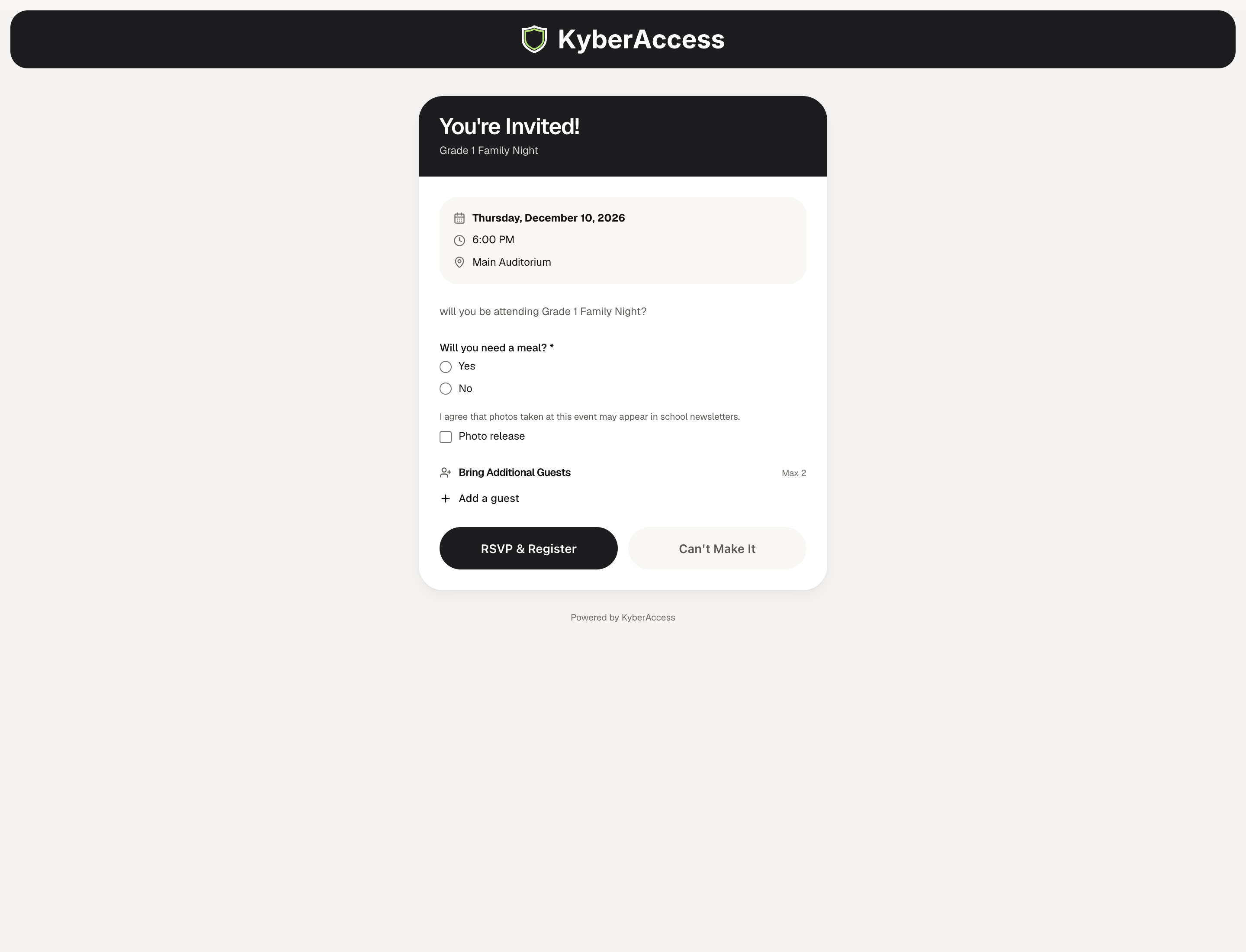
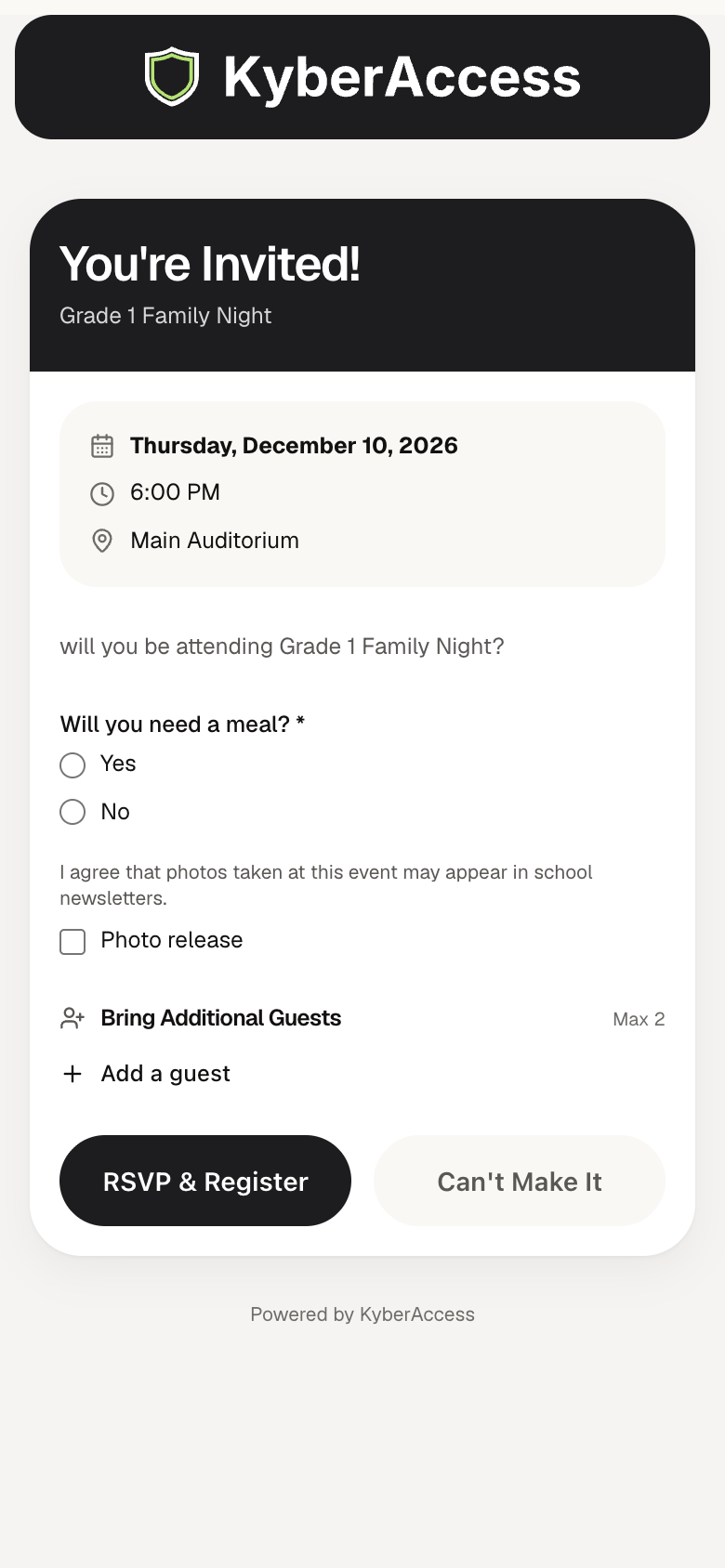
- Questions. The guest answers any questions you added, can tick Household Members (Veracross schools, when on) and add people under Bring Additional Guests (when on).
- Answering. The guest selects RSVP & Register (when Combine RSVP & Registration is on) or Yes, I'll Be There. Can't Make It declines. If the event takes payments, the guest picks an amount; nothing is charged on this page and the amount is recorded as a pledge for you.
- If the event has Require Approval on, a "yes" shows RSVP received ("waiting for the organizer's approval"). The guest gets their QR code by email after you approve them.
- If the event is full or registration is closed, a "yes" shows the reason. Can't Make It always works.
- Registration (when the event collects identity). The page Verify Your Identity asks the guest to:
- Scan your government-issued photo ID (photo of the front, and back if asked). Name and date of birth are read from it.
- Take a Selfie.
- Wait a few seconds while Running background verification... if screening is on. This takes about 2 minutes on a phone.
- The result. One of three screens:
- You're Registered! with the QR code, and an email with the same QR code and Apple / Google Wallet buttons.
- Registration Received: "you'll receive your QR code via email once confirmed". The guest is waiting for a staff decision; nothing is issued yet.
- We couldn't complete your registration: the guest is not registered and should contact the school.
Guests who already hold a credential
- If the guest has an active credential and your organization turned on Skip ID re-entry for credential holders, they skip the ID step. Often they are registered as soon as they say yes, and see their existing QR code. Their credential is linked to this event.
- If a returning guest is recognized by email, the page may say Welcome Back! and only ask them to confirm their date of birth.
Registration links sent separately
When Combine RSVP & Registration is off, saying yes shows You're In! ? and "You may receive a separate registration email before the event." The guest then finishes registration from the Registration Request email.
What happens next (staff)
- The guest's status moves to RSVP'd, then Registered or QR Issued in Guest Management.
- A held guest appears in Review Queue. Approving them sends the QR code by email.
Troubleshooting
- "Link Not Found." The link was copied incorrectly or the guest was removed. Resend the invitation.
- "RSVP Deadline Passed." The link stops working one hour after the event ends, or when Registration Closes on the event, whichever is first.
- "Registration Incomplete" with a Complete Registration button. The guest said yes but didn't finish. Selecting the button continues where they left off.
- "Already Registered." The registration link was already used. The guest's QR code is in their confirmation email.
- The ID photo won't read. Ask the guest to use good light and fill the frame. If reading fails, the registration still goes through and staff check it.