Charge for an event (a ticket price), accept donations, or ask for a custom amount when people register. Payments go straight to your school's own Stripe account.
Who this is for
- Connecting Stripe: Owners and Admins.
- Turning on payments for an event: Owners, Admins, Event Managers and Event Coordinators.
Before you start
- You need a Stripe account (you can create one while connecting).
- Payment is taken only on the public registration page (see Share a public registration link). Guests who RSVP from an invitation choose an amount that is recorded as a pledge; they are not charged online. See the note below.
- Authorize.Net is not supported for event payments yet. Use Stripe.
Menus: steps show the app launcher first and the classic menu in brackets. See Find your way around to tell which one you have.
Steps
1. Connect Stripe (once)
- Open Settings › Integrations › Stripe (classic menu: select Configure, then Integrations, and open Stripe).
- Select Connect Stripe Account and finish the steps on Stripe's site. You return to KyberAccess afterwards.
- Wait until the status shows Connected & Active with Charges Enabled and Payouts Enabled. If it shows Connected — Setup Incomplete, select Complete Setup on Stripe.
2. Turn on payments for an event
- Open the event and select the Registration tab.
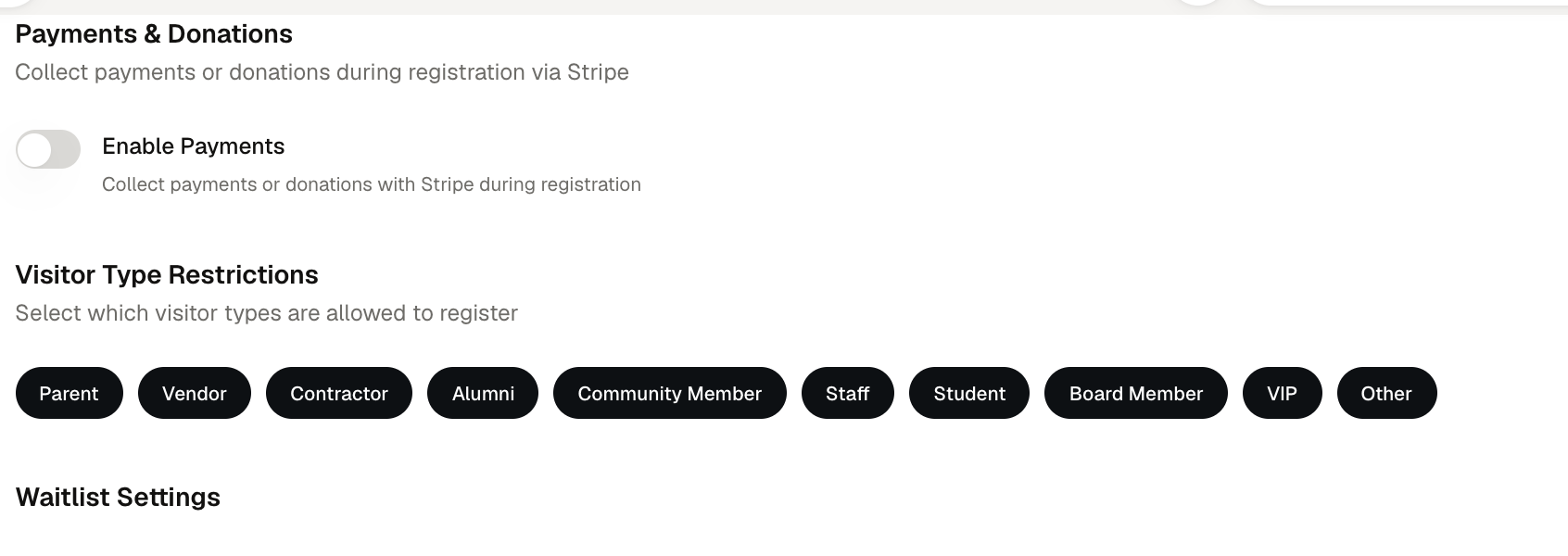
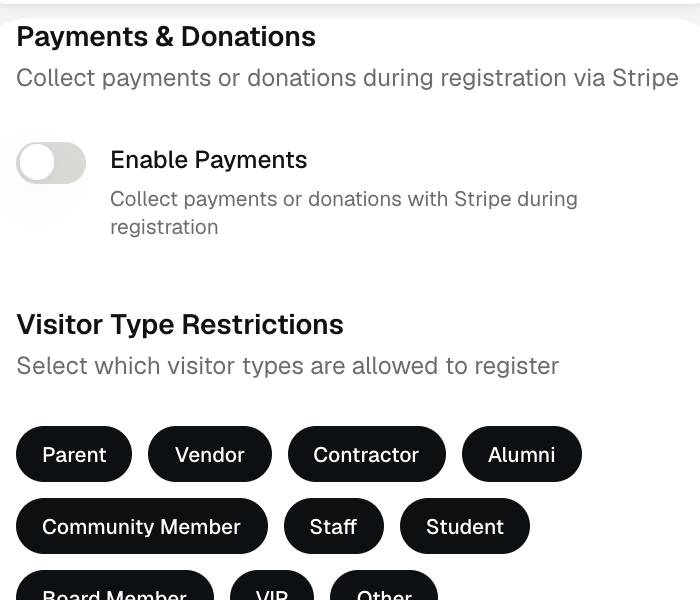
- Under Payments & Donations, turn on Enable Payments.
- Choose a Payment Mode:
- ticket: a fixed Ticket Price in dollars.
- donation: Donation Presets (for example
10, 25, 50, 100) and, optionally, Allow Custom Amount. - custom: the guest types the amount.
- Enter a Payment Label (for example "Ticket" or "Donation") and an optional Payment Description.
- Make sure Event Visibility on Details is Public, then save and publish.
What happens next
- On the public page the button reads Register & Pay $amount. The guest is registered first, then sent to Stripe's secure checkout. Card payments go to your Stripe account.
- When the guest returns from Stripe, the page confirms the payment ("Payment received — thank you.") and the guest shows Paid on the guest list.
- If they cancel at Stripe, they stay registered and see "Payment was cancelled". The guest shows Unpaid.
- If Stripe isn't connected or the checkout can't open, the guest is still registered and sees "Registration complete but payment setup failed. Contact the organizer."
- Payments, refunds and receipts are managed in your Stripe dashboard (View in Stripe Dashboard on the Stripe page).
Invitations (RSVP page)
When payments are on, invited guests see the price or donation choice on the RSVP page. Nothing is charged there: the amount they pick is saved as Pledged on their row in Guest Management, and the page tells them you will explain how to pay. Collect it however you like, or send those guests the public link to pay by card.
Settings that change this
| Setting | Where | Default | Effect |
|---|---|---|---|
| Stripe connection | Settings › Integrations › Stripe (classic: Configure › Integrations › Stripe) | Not connected | Required for online payment. |
| Enable Payments | Event › Registration | Off | Shows the payment step. |
| Payment Mode | Event › Registration | ticket | Fixed price, donation or custom amount. |
Troubleshooting
- "Registration complete but payment setup failed." Stripe isn't fully connected. Open Settings › Integrations › Stripe (classic menu: Configure › Integrations › Stripe) and finish setup (Charges Enabled must show).
- Where do I see who paid? Guest Management › Progress shows Paid, Pledged or Unpaid next to each guest; hover for the amount. Refunds are only visible in Stripe.
- A guest registered but cancelled the payment. They stay registered. Follow up from your Stripe dashboard or the guest list.
- Veracross schools: Export Donations CSV on the event's Integrations tab exports payment records formatted for Veracross. It lists guests whose card payment was recorded as Paid.