A public registration link lets anyone sign up for an event without an invitation, for example an open house you post on your website or newsletter. They fill in a short form and get a QR code straight away.
Who this is for
Owners, Admins, Event Managers and Event Coordinators.
Before you start
- The event must be Published with Event Visibility set to Public (on the Details tab). Drafts never open from the link.
- Know the difference from invitations: the public page does not collect an ID, a selfie or run a screening. If guests must be screened, invite them instead (see Send invitations and reminders).
Steps
- Open the event on the Details tab and check Event Visibility is Public.
- Under Registration Link, select the copy button. The link looks like
https://app.kyberaccess.com/event/…/register.
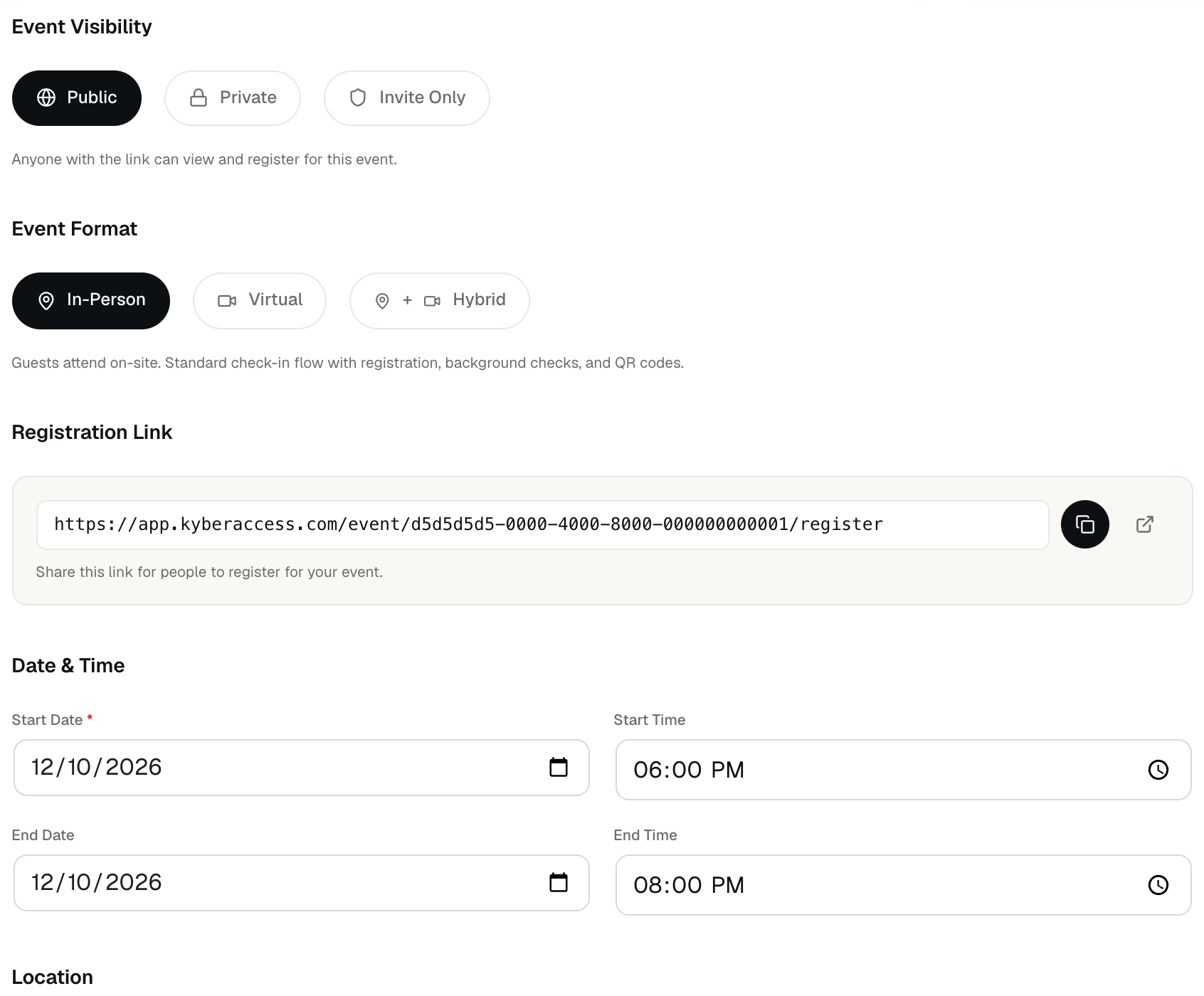
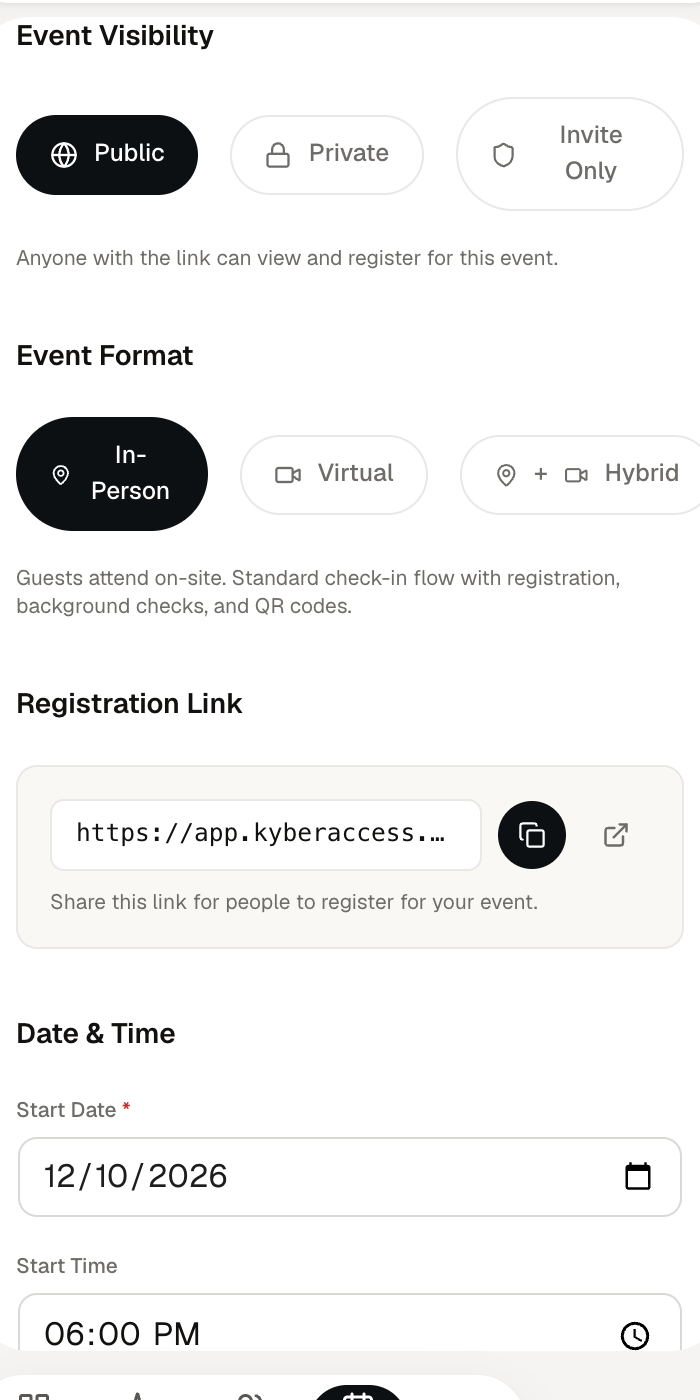
- You can also copy it with Share at the top of a published event, or ⋮ › Copy Reg Link on the Events page.
- Select Preview to open the page yourself.
- Paste the link into your email, newsletter or website.
What guests see
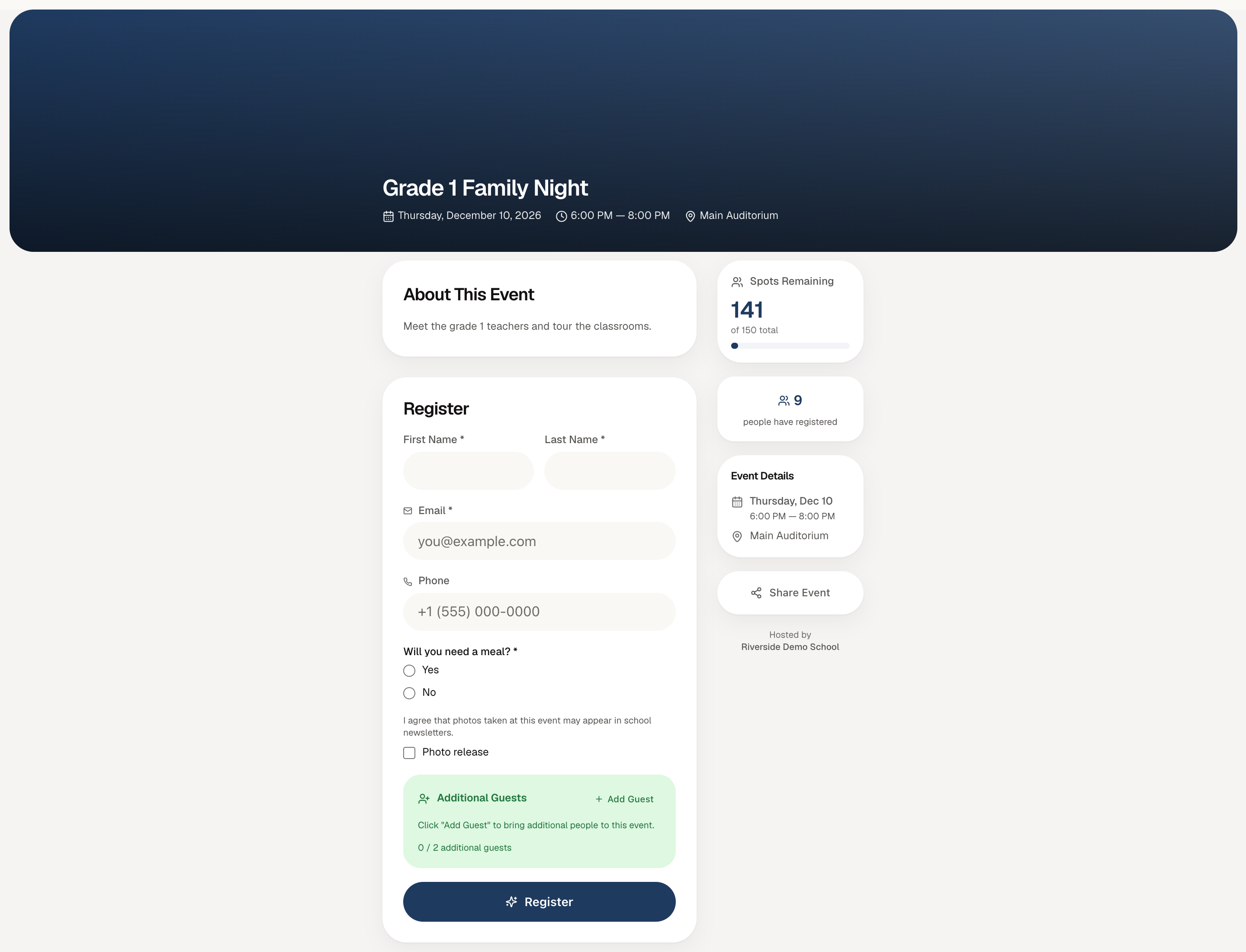
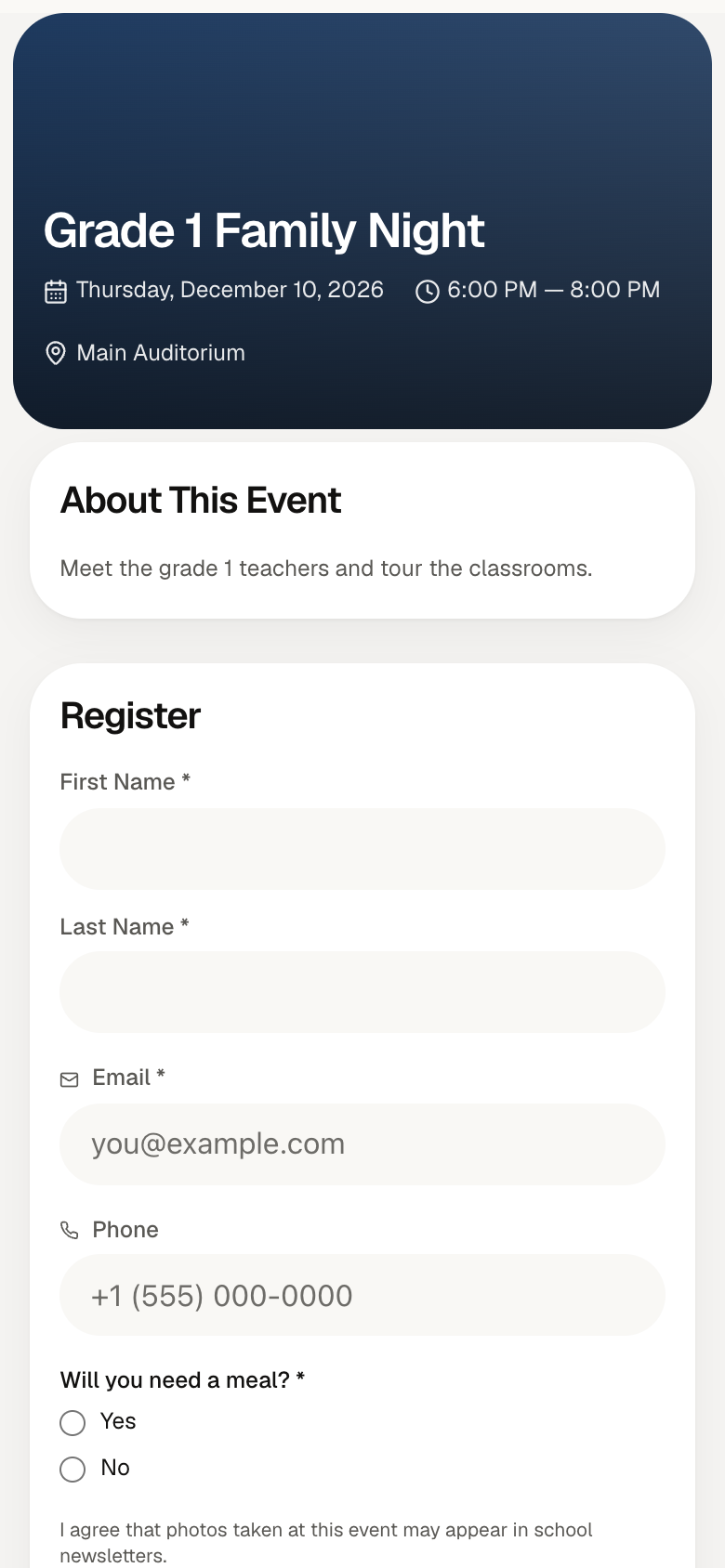
- The event name, date, time, place, Hosted by, and Spots Remaining when you set a capacity.
- A form: first and last name, email, the contact fields you turned on, and your guest form questions.
- Additional Guests when Allow Additional Guests is on (up to 10).
- Register. Then You're Registered! with their QR code and your Registration Confirmation Message. If the event has Require Approval on, they see Registration received instead and get their QR code after you approve them.
What happens next
- The guest appears in Guest Management with status QR Issued and source form. Additional guests are added with status RSVP'd.
- People are matched to existing people by name. If the person already holds an active credential, it is reused: the page tells them to keep using the QR code they have, and no new code is shown.
- A person with a suspended or revoked credential is refused with "We could not issue a credential for this registration. Please contact the event organizer."
- On a Permanent Credential event, a first-time guest gets a long-term credential.
- Registering twice with the same email does not add a second guest.
Settings that change this
| Setting | Where | Default | Effect |
|---|---|---|---|
| Event Visibility | Event › Details | Public | Only Public events open from this link. |
| Max Capacity | Event › Details › Additional Settings | blank | Shows spots remaining and refuses registrations when the guest list is full (everyone who said yes, registered or has a QR code counts). |
| Registration Window | Event › Registration | No limit | Refuses sign-ups before it opens and after it closes. |
| Require Approval | Event › Registration | Off | Sign-ups wait as Pending Review with no QR code until approved. |
| Credential Policy | Event › Registration | Event QR Code | Kind of QR code issued. |
| Allow Additional Guests | Event › Registration | Off | Lets registrants add others. |
| Enable Payments | Event › Registration | Off | See Collect payments with registration. |
Note: the link opens only for Published events. Invite only events have no public page; guests register through their personal RSVP link.
Troubleshooting
- "Event Not Found." The event is not Public, is still a draft, or the link was cut off.
- "Registration opens …" / "Registration for this event has closed." Check Registration Window.
- "Event is full." Max Capacity was reached. Raise it, or remove guests who are not coming (see Waitlists and capacity).
- I need everyone screened. Don't share this link. Invite guests so they go through ID and screening.