Set a maximum number of guests for an event so sign-ups stop when it's full. Capacity counts the guest list itself, so invitations, RSVPs and public sign-ups all share the same seats.
Who this is for
Owners, Admins, Event Managers and Event Coordinators.
Before you start
Decide the most people the room holds.
Steps
- Open the event on the Details tab.
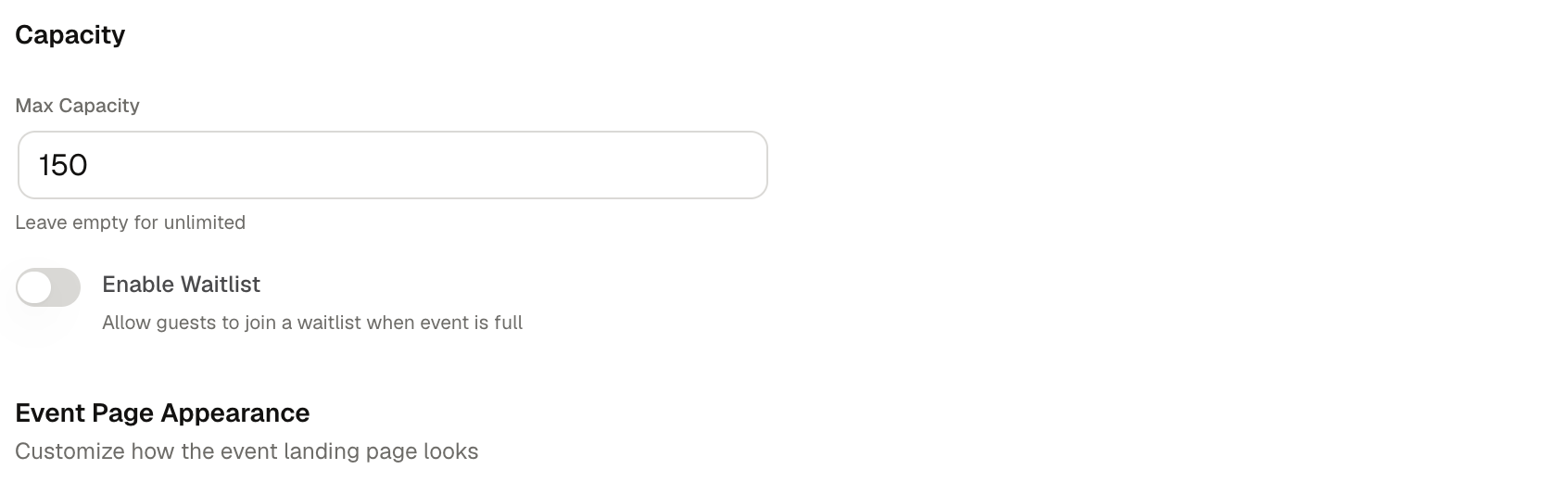
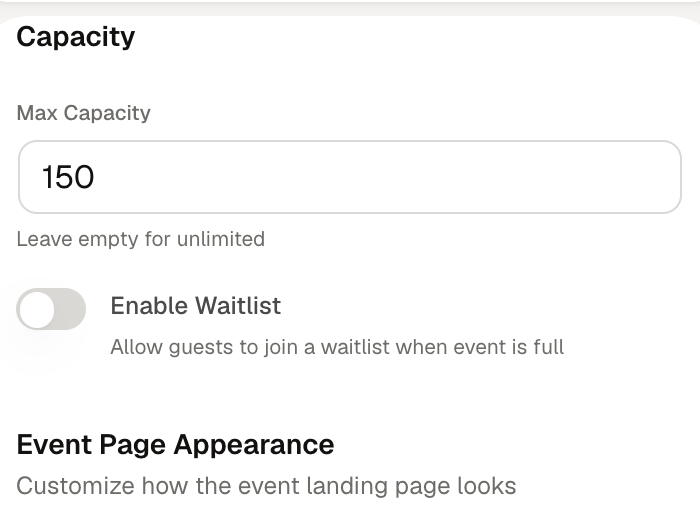
- Open Additional Settings and find Capacity.
- Enter Max Capacity. Leave it empty for no limit.
- Select Save Draft or Publish.
You can also set Max Capacity in the first-time setup (Registration step).
What counts as a seat
Every guest on the list who has said yes, registered, is waiting for approval, has a QR code or has checked in. Guests who are only Added or Invited, and anyone who declined, do not take a seat. Additional guests a registrant brings are on the list and count too.
What happens next
- The Events page shows seats taken against capacity on each event card (for example 9 / 150) with a bar that turns amber at 70% and red at 90%.
- The public registration page shows Spots Remaining. When it reaches zero, sign-ups are refused with "Event is full".
- An invited guest who answers "yes" when the event is full sees "Sorry, this event is full." A guest who already had a seat can still change their answer.
- Removing a guest (⋮ › Remove from Event) frees their seat straight away.
- You can still add and invite guests yourself when the event is full; only new "yes" answers and sign-ups are refused.
There is no waitlist
When an event is full, people can't register. Raise Max Capacity or remove guests who are not coming to open seats.
Settings that change this
| Setting | Where | Default | Effect |
|---|---|---|---|
| Max Capacity | Event › Details › Additional Settings | empty (no limit) | Stops sign-ups and RSVP "yes" answers when the guest list is full. |
Troubleshooting
- The event shows full but I expected room. Check Guest Management: guests who said yes or registered take seats even if they haven't been issued a QR code. Remove anyone not coming.
- I raised capacity but the page still says full. Refresh the public page after saving.