White label puts your own name, logo and colors on KyberAccess, including the sign-in page at your own web address. It's part of the Enterprise plan.
Who this is for
- Owners and admins on the Enterprise plan. Other plans see an Upgrade to Enterprise screen on this page.
Before you start
- Set up your web address first: Use your own web address. The sign-in page changes only at that address, not at app.kyberaccess.com.
- Have your logo (PNG, SVG or JPG), a favicon, and your brand colors.
Menus: steps show the app launcher first and the classic menu in brackets. See Find your way around to tell which one you have.
Steps
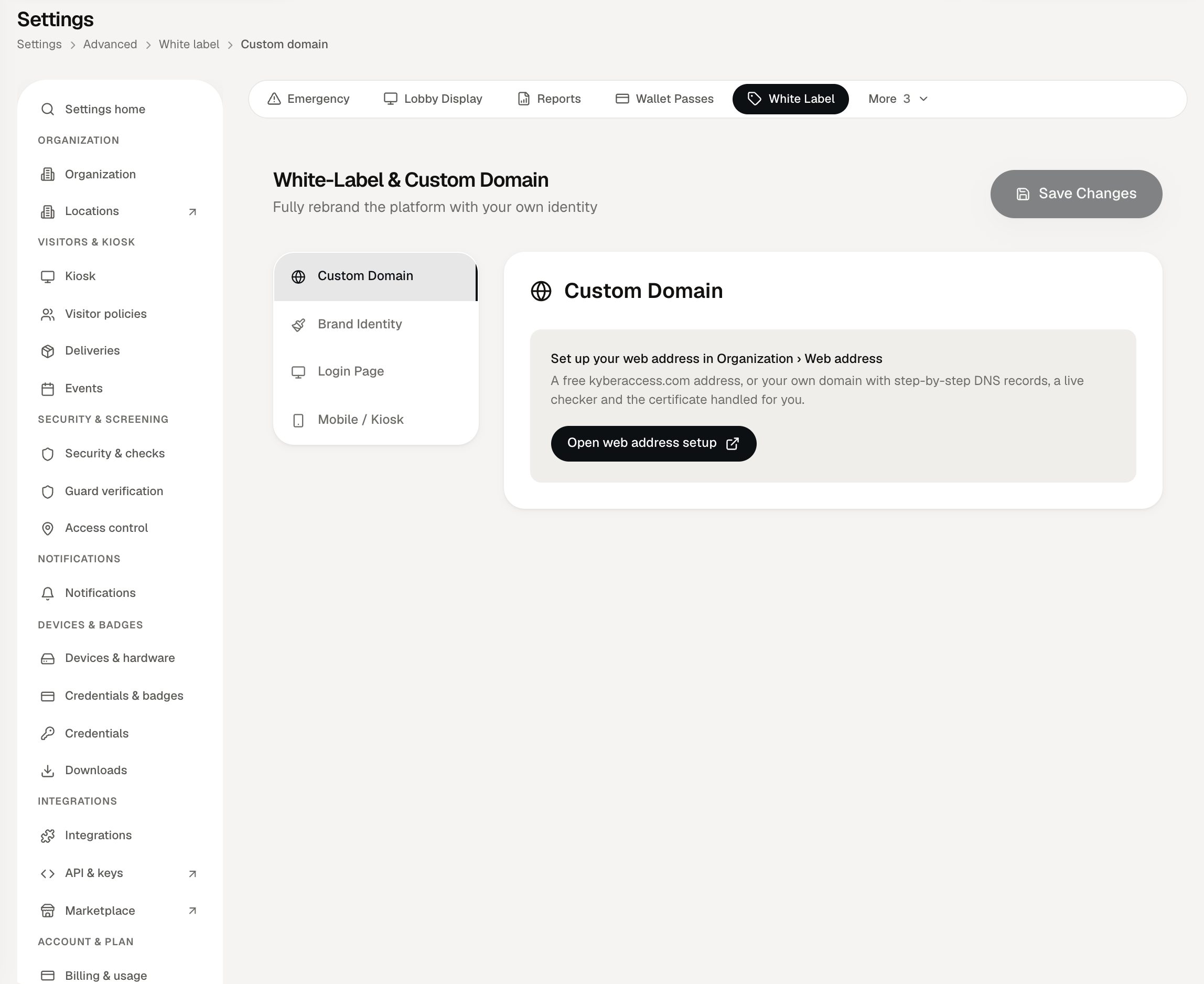
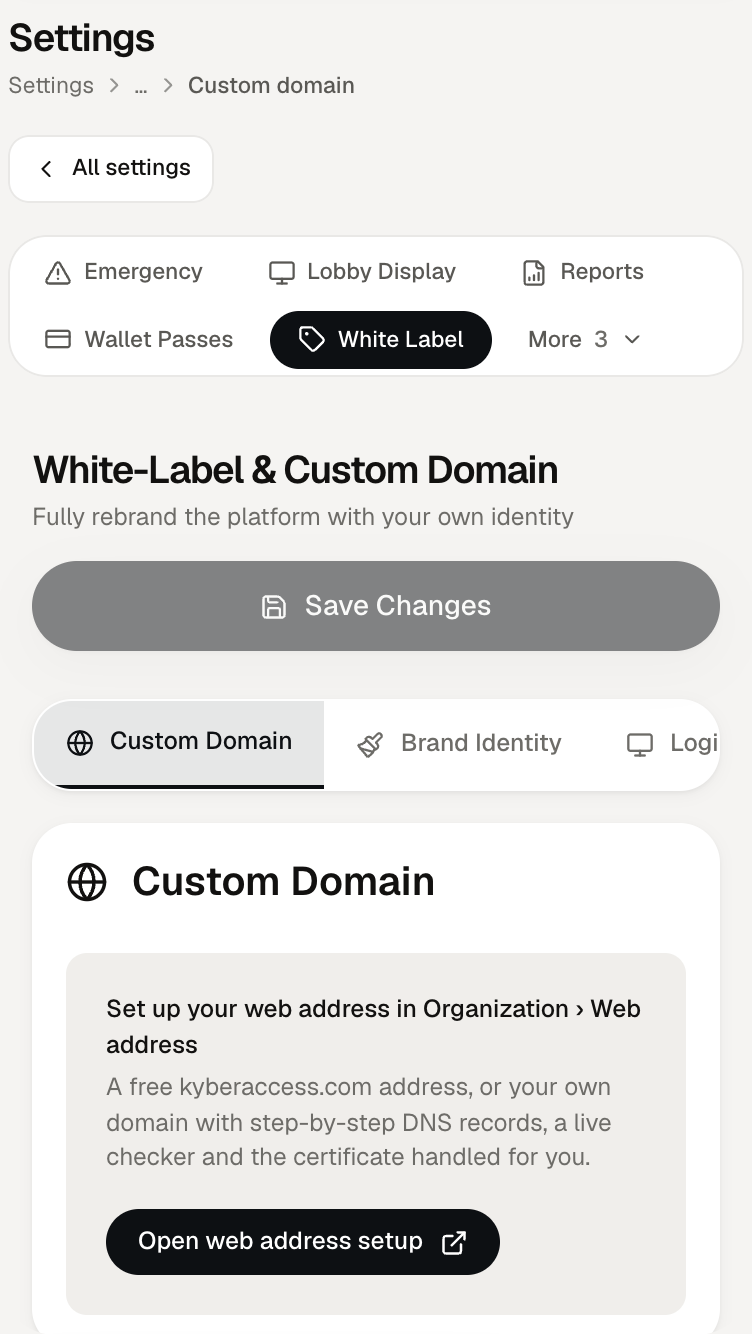
- Open Settings › Organization › White label (classic menu: Configure, then Advanced › White label). The page is titled White-Label & Custom Domain.
- Custom Domain: click Open web address setup. This takes you to Settings › Organization › Web address (classic menu: Configure › Organization › Web address).
- Brand Identity: enter Platform Name, upload Logo and Favicon, and pick Primary Brand Color and Secondary Brand Color.
- Login Page: choose a Background (Solid Color or an image), type a Welcome Message, and optionally turn on Hide "Powered by KyberAccess". Add Support URL, Terms of Service URL and Privacy Policy URL if you want those links on the sign-in page.
- Mobile / Kiosk: set PWA App Name, PWA Icon (512×512) and Splash Screen Color for staff who add KyberAccess to their phone's home screen.
- Click Save Changes at the top. Use Preview to see the sign-in page and home-screen icon before saving.
What happens next
- At your own web address (for example riverside.kyberaccess.com): the sign-in page shows your logo, colors, welcome message and links; the browser tab shows your favicon and name; "Powered by KyberAccess" is hidden if you turned that on. Changes can take up to 5 minutes to show.
- Inside the app: if you set a Platform Name, your logo leads in the sidebar instead of the KyberAccess logo.
- Emails, guest pages and Wallet passes use the logo and Primary Brand Color saved here. A logo uploaded before November 17, 2026 may be stored inside the page and not reach passes; upload it again.
- At app.kyberaccess.com the sign-in page stays KyberAccess-branded.
Settings that change this
| Setting | Where | Default | Effect |
|---|---|---|---|
| Web address | Settings › Organization › Web address (classic: Configure › Organization › Web address) | Not set up | Where your branded sign-in page lives |
| Platform Name | Settings › Organization › White label › Brand Identity (classic: Configure › Advanced › White label › Brand Identity) | Organization name | Browser tab title; makes your logo lead in the sidebar |
| Logo, colors | Settings › Organization › White label › Brand Identity (classic: Configure › Advanced › White label › Brand Identity) | KyberAccess | Sign-in page, sidebar, emails, passes |
| Login page fields | Settings › Organization › White label › Login Page (classic: Configure › Advanced › White label › Login Page) | KyberAccess defaults | Sign-in page at your web address only |
| PWA fields | Settings › Organization › White label › Mobile / Kiosk (classic: Configure › Advanced › White label › Mobile / Kiosk) | Platform name and primary color | Home-screen app name and icon when added from your web address |
Troubleshooting
- The sign-in page still looks like KyberAccess → you're on app.kyberaccess.com → open your own web address instead. If it isn't live yet, finish Use your own web address.
- My changes don't show at my address → the branding is cached for up to 5 minutes → wait and reload.
- The page shows "Talk to us about Enterprise" → white label is Enterprise only → click it, or contact sales@kyberaccess.com.
- Emails still show "via KyberAccess" in the sender name → that's added to every sender name to keep mail out of spam folders → it can't be removed.
- "File too large" → the logo must be under 500 KB, the favicon under 100 KB, the login background under 2 MB and the app icon under 1 MB → compress the image and upload again.
- "Upload failed. Try again." → the image couldn't be stored → check your connection and upload again.