Give staff a sign-in address with your school's name, such as riverside.kyberaccess.com or visit.riversideacademy.org. The sign-in page at that address shows your logo. Your current address, app.kyberaccess.com, keeps working the whole time.
Who this is for
- Owners and admins. Other roles see "Only owners and admins can set up the school's web address."
- Free kyberaccess.com address: Pro, Enterprise and active trials.
- Your own domain: Enterprise only.
Before you start
- Decide on the name. Letters, numbers and single dashes, 3–40 characters. Your school's name works best.
- For your own domain only: pick a subdomain such as
visit.yourschool.org(notyourschool.orgitself, which stays pointed at your website), and know who manages your domain's DNS. It is usually where the domain was bought, or your IT person.
Menus: steps show the app launcher first and the classic menu in brackets. See Find your way around to tell which one you have.
Steps
Option A: a free kyberaccess.com address (about a minute)
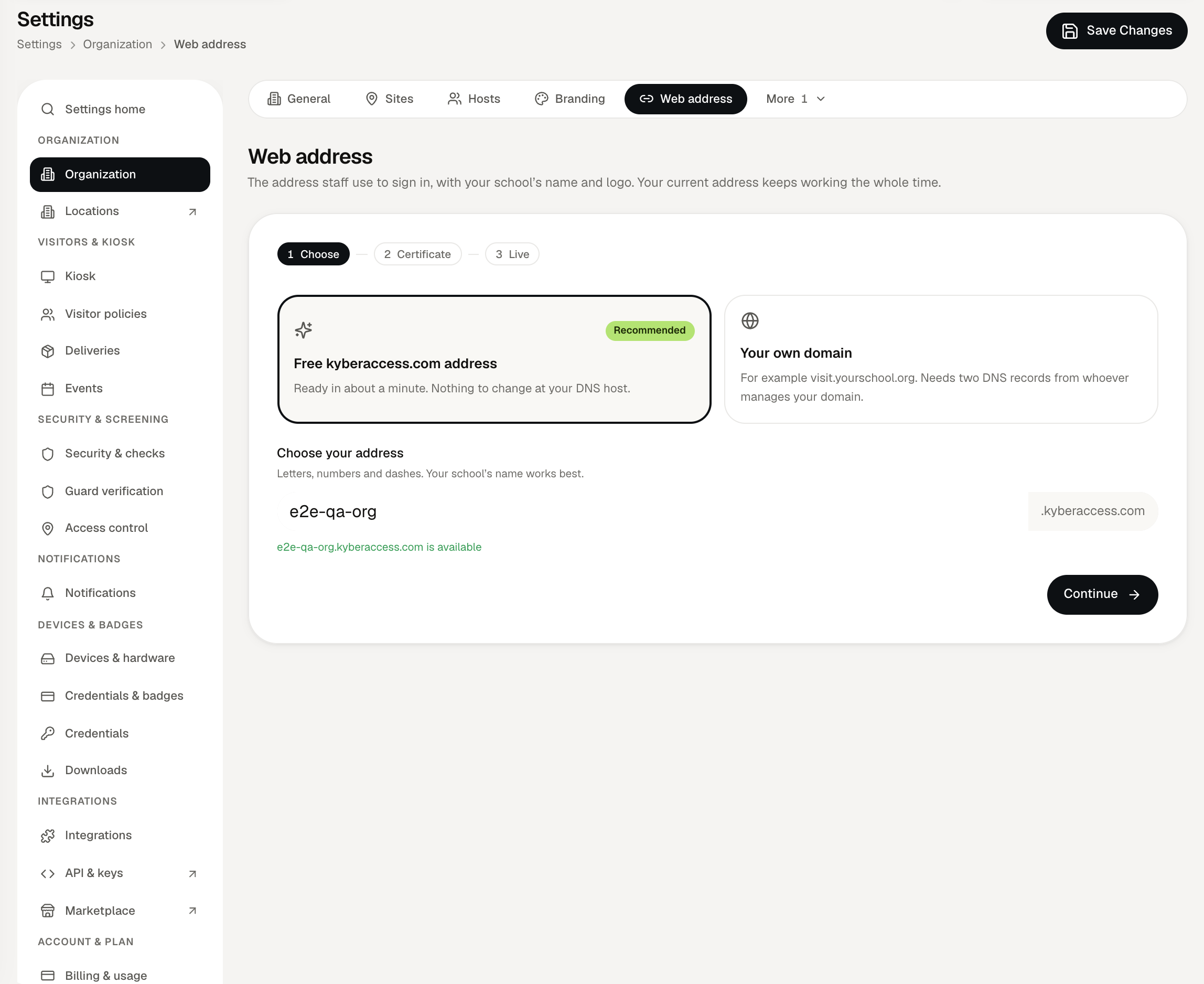
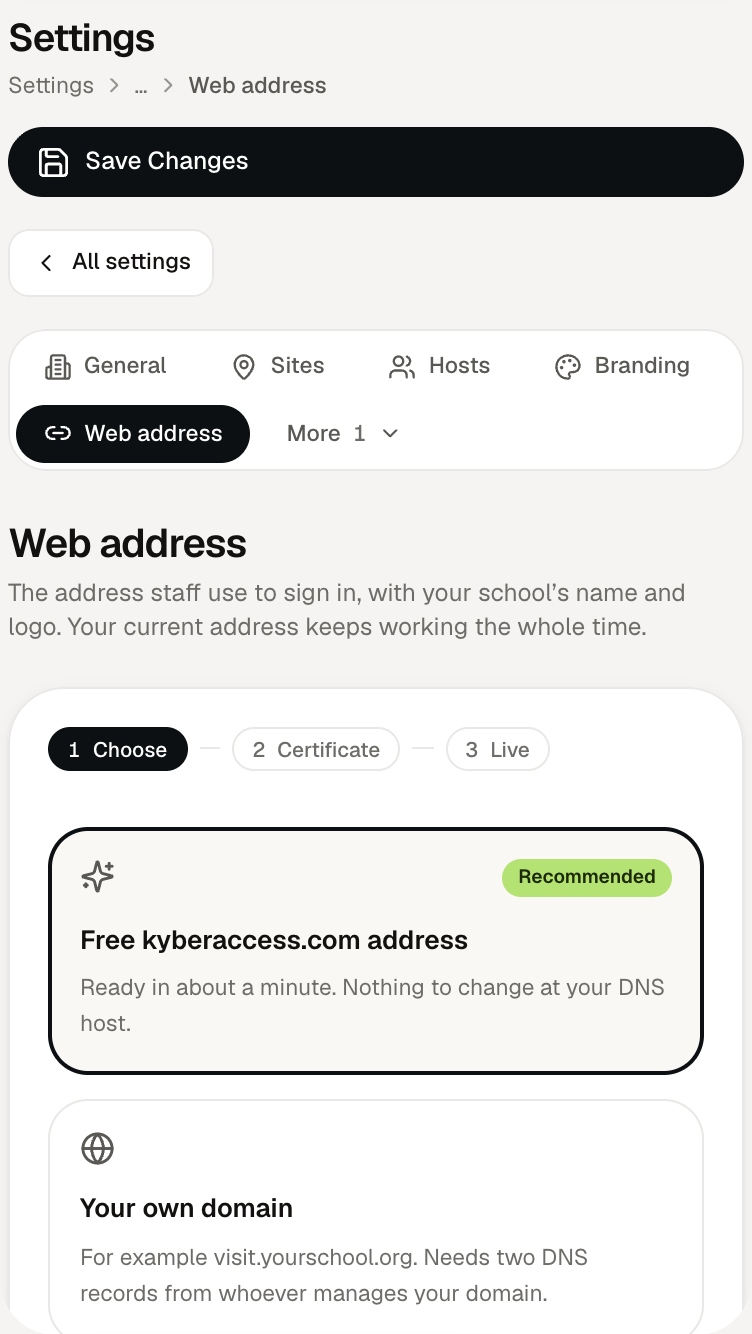
- Open Settings › Organization › Web address (classic menu: Configure, then Organization › Web address; on a narrow screen, Web address is under More).
- Leave Free kyberaccess.com address selected.
- Under Choose your address, type the name. KyberAccess suggests one from your organization name. Green text says "… is available".
- Click Continue. The page moves to Certificate ("Securing …"), then to Your address is live, usually within a minute or two.
- Click Copy to copy the address and share it with staff.
Option B: your own domain
- Go to Settings › Organization › Web address (classic menu: Configure › Organization › Web address) and select Your own domain.
- Under Your address, type the subdomain, for example
visit.yourschool.org. Click Continue. - The DNS records step shows two records to add where your domain's DNS is managed:
- a TXT record (host starts with
_kyberaccess, value starts withka-verify=). It proves your school controls the address. - a CNAME record pointing to
custom.kyberaccess.com. It sends visitors to KyberAccess. Use Copy next to each Host and Value. Pick your DNS provider under Where is your domain's DNS? for short instructions (GoDaddy, Cloudflare, Namecheap, Squarespace, Microsoft 365 and others). - If someone else manages DNS, click Email these instructions to my IT person, enter their email and an optional note, and send. Replies come to you.
- When the records are added, click I've added them.
- The Check step looks the records up. Each record shows Found, Not yet or Wrong value: we see …. Click Check now to look again at any time.
- Once both records are found, KyberAccess issues the security certificate. You see Your address is live.
You can close the page at any step. Your progress is saved, and another admin can pick it up.
What happens next
- While the Check or Certificate step is open, the page re-checks by itself (every 15 seconds at first, then less often).
- After you close the page, KyberAccess keeps checking every 5 minutes for up to 30 days. When the address goes live you get an in-app notice: Your address is live.
- Until then, owners and admins see a banner such as "Finish setting up visit.yourschool.org: 2 DNS records left". Dismiss hides it for 7 days.
- Staff sign in at the new address with their usual email and password. app.kyberaccess.com keeps working.
- New DNS records usually show up within minutes. Some providers take a few hours.
Settings that change this
| Setting | Where | Default | Effect |
|---|---|---|---|
| Web address | Organization › Web address | Not set up | The address staff can sign in at |
| Logo shown on that sign-in page | Organization › Branding or Advanced › White label › Brand identity | KyberAccess logo | See White label |
Troubleshooting
- "That name is reserved" or "not available" → someone else has it, or it's a system name → try your full school name, or add your town.
- "Use a subdomain such as visit.yourschool.org" → you entered your main domain → add a prefix such as
visit.orcheckin.. - A record still says "Not yet" after a few hours → it was saved under a different host, or with a typo → compare Host and Value with what your DNS provider shows. Some providers add your domain to the host automatically, so enter only the part shown under Host.
- A record says "Wrong value" → an older record with the same host exists → delete the old record and keep only the one KyberAccess shows.
- "Your own domain" shows an Enterprise label → own domains are Enterprise only → use the free kyberaccess.com address, or contact sales.
- Still stuck → click Need help? on the page. It sends our team the address and the check results, and we reply by email.