Save your organization's standard guest questions, reusable question templates, the wording at the top of the RSVP page, and your consent wording, so every new event starts the same way.
Who this is for
Owners and Admins (the settings pages are under Settings › Apps › Events; classic menu: under Configure).
Before you start
Know which questions you ask at most events (for example, photo release and emergency contact).
Menus: steps show the app launcher first and the classic menu in brackets. See Find your way around to tell which one you have.
Steps
- Open Settings › Apps › Events, or in Events select Events settings (classic menu: select Configure, then Visitors & kiosk › Events; you can also select the settings icon on the Events page).
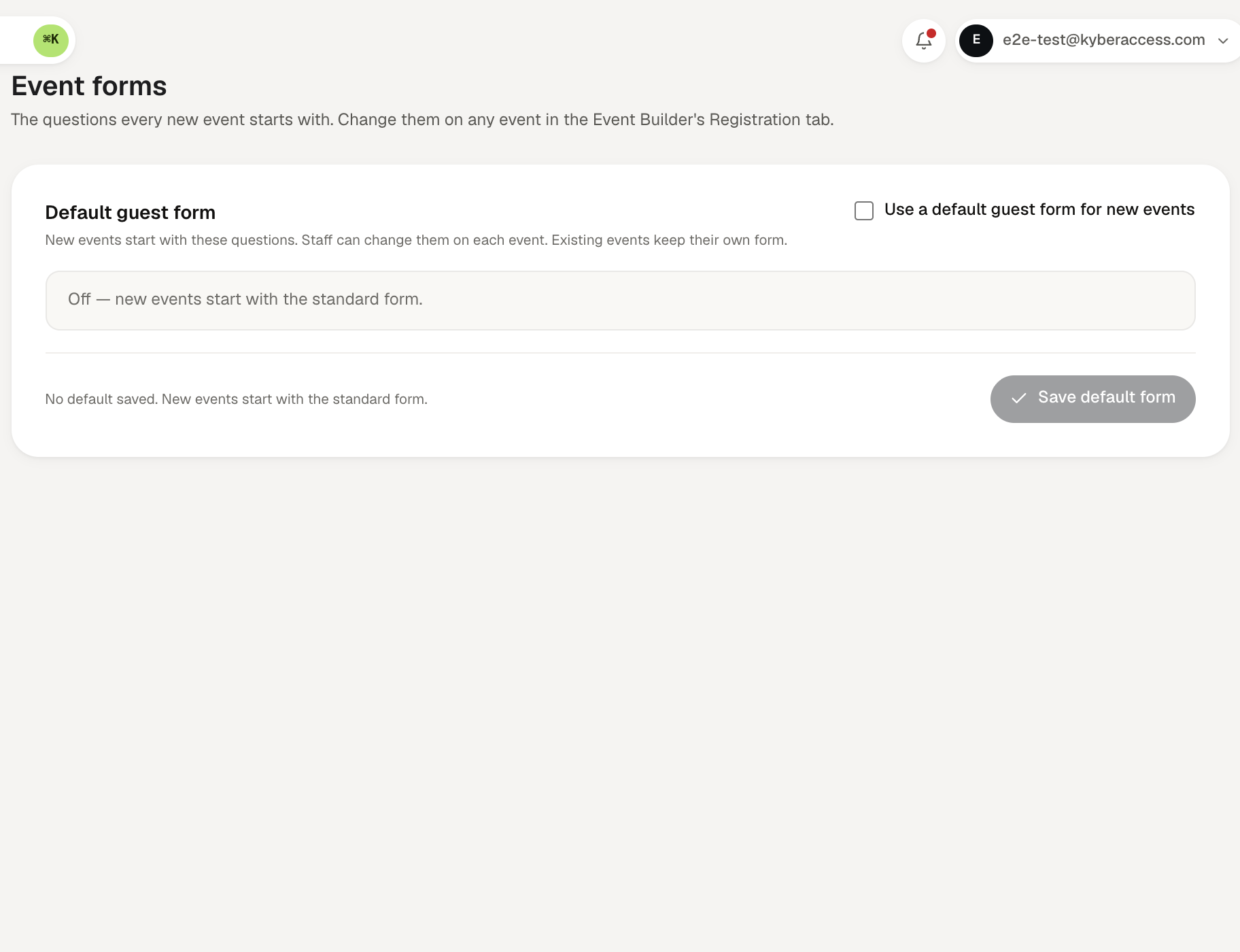
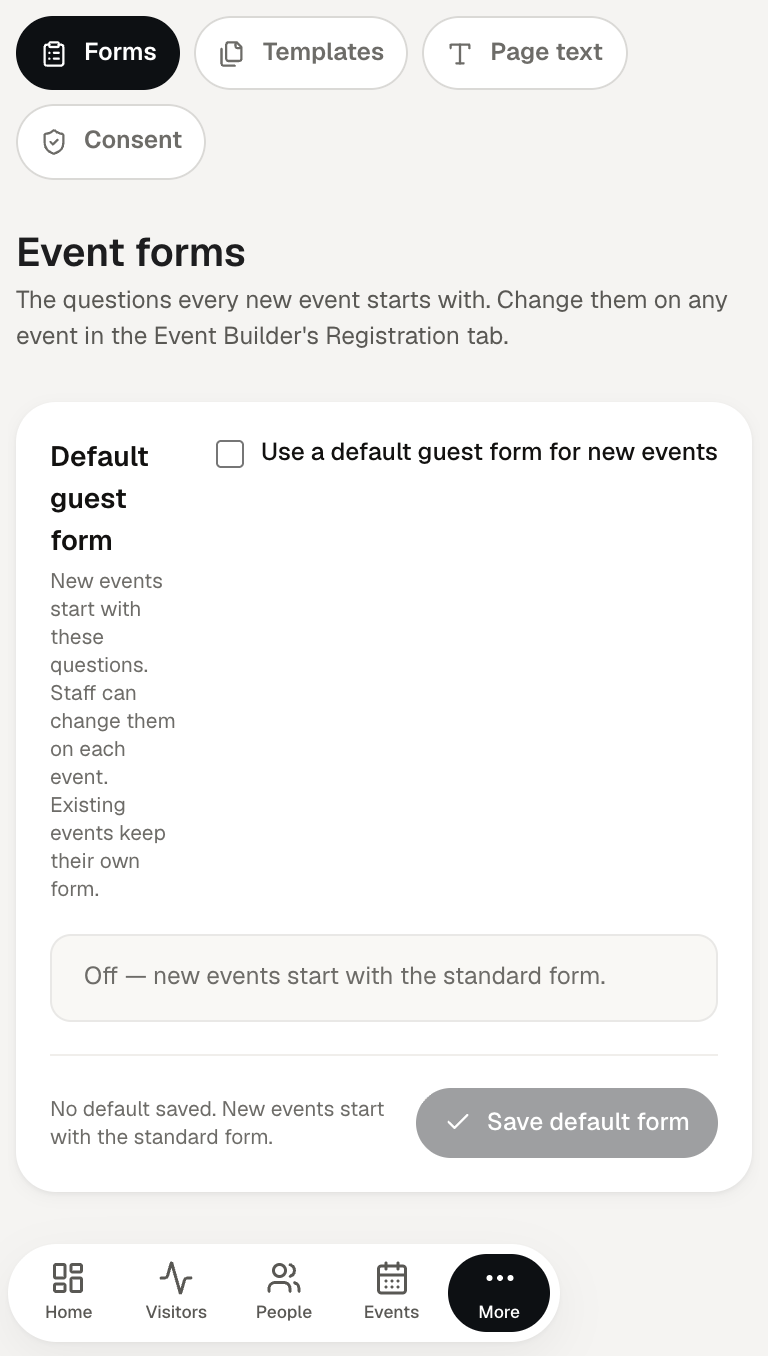
- Guest forms (classic menu: Forms): tick Use a default guest form for new events, add questions the same way as on an event (see Build the guest form), and select Save default form.
- Form templates (classic menu: Templates): select New template, give it a Template name, add questions and select Save templates. Up to 30 templates. Staff choose one in Start this event's guest form from when they create an event.
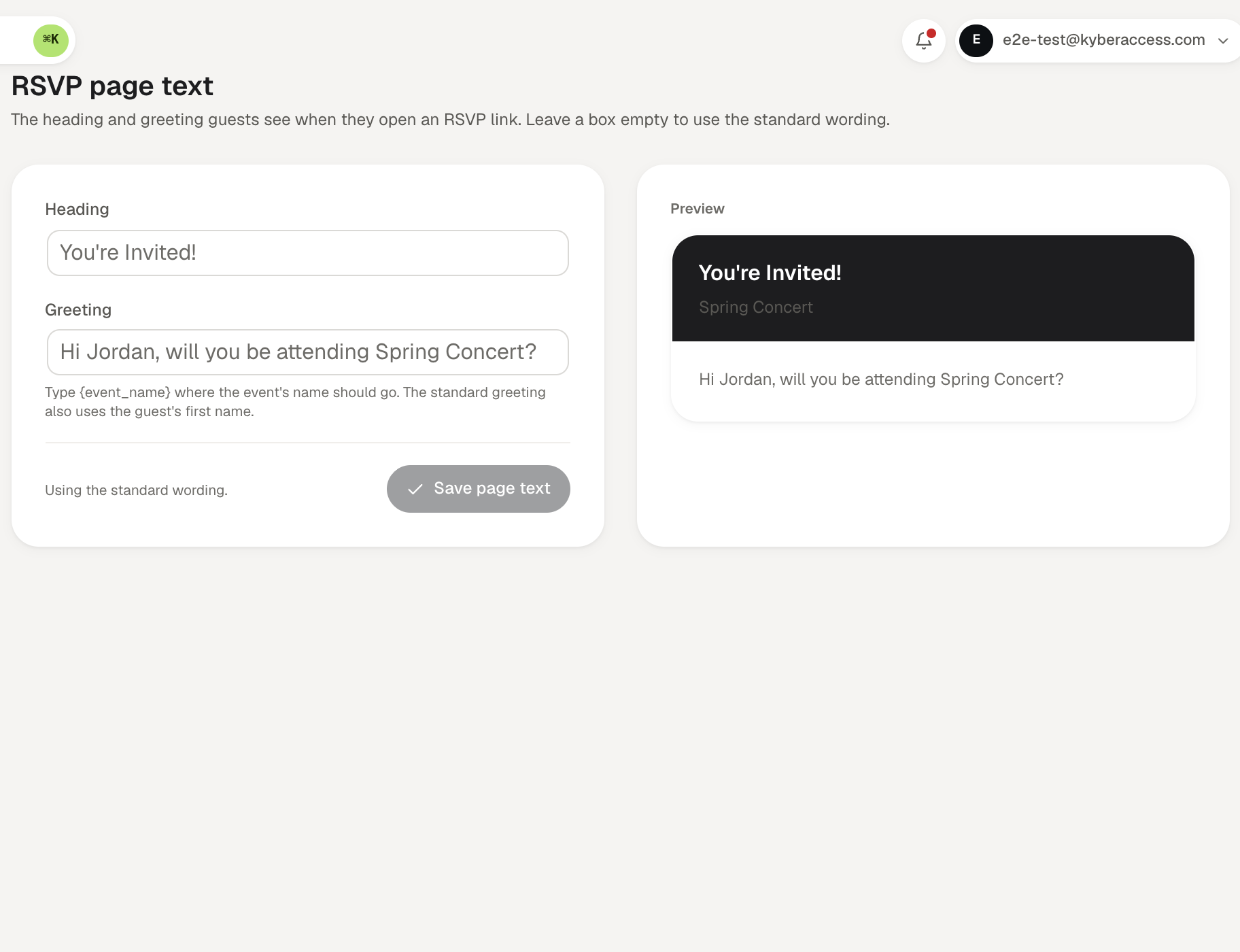
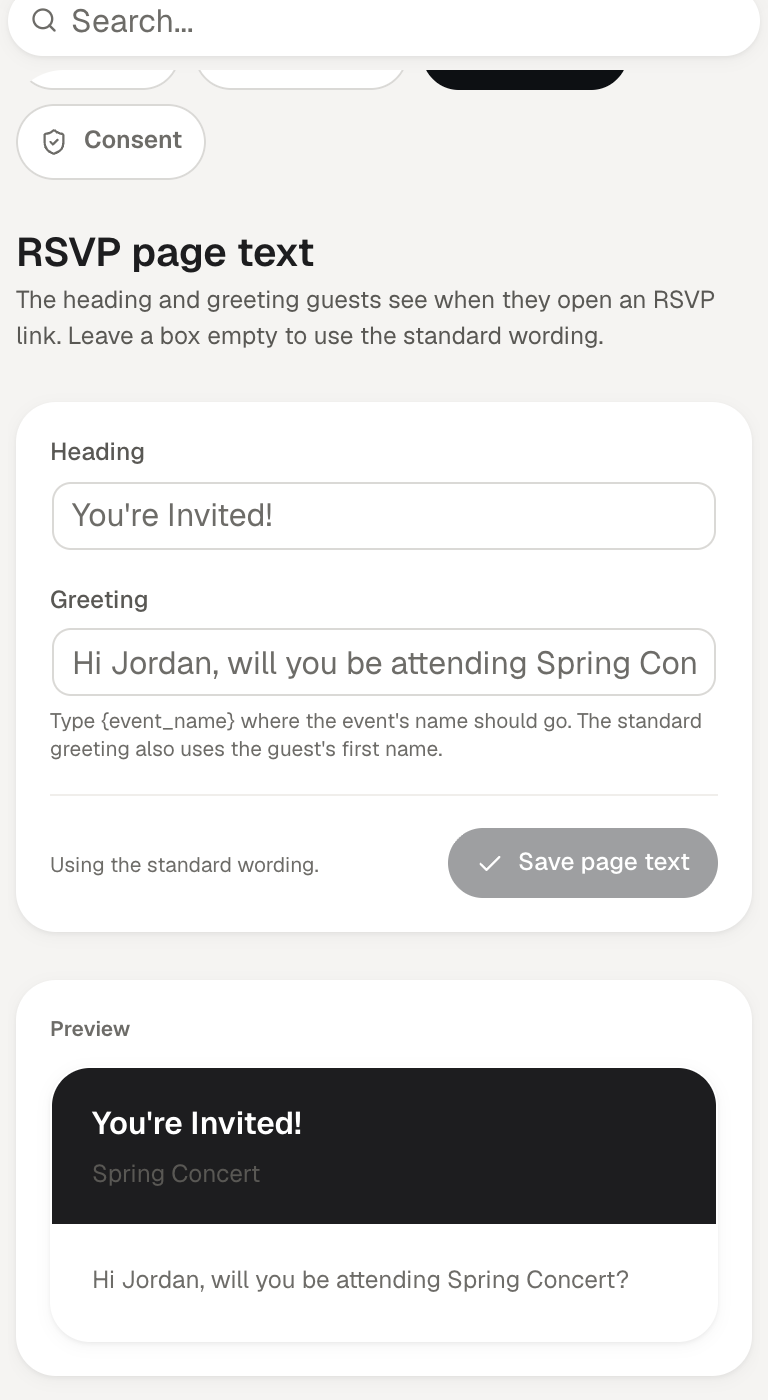
- Page text: enter a Heading (up to 120 characters, default "You're Invited!") and a Greeting (up to 300 characters) for the top of the RSVP page. Type
{event_name}where the event's name should go. Check the Preview and select Save page text. Leave them empty for the standard wording.
- Consent: enter your Agreement text (for example, a photo release) and select Save consent text. New Consent / agreement questions start with this text.
What happens next
- New events start with the default form, or the template staff pick. Questions are copied once.
- Existing events keep their own form. On an event, a banner shows how it differs from the default, and Reset to organization default replaces its questions.
- Page text shows on every RSVP page in your organization straight away.
- Each time you change the consent wording, its version goes up by one. Existing consent questions keep their text; staff can select Use organization text to switch to the latest.
Settings that change this
| Setting | Where | Default | Effect |
|---|---|---|---|
| Default guest form | Settings › Apps › Events › Guest forms (classic: Configure › Events › Forms) | none | New events start with these questions. |
| Templates | Settings › Apps › Events › Form templates (classic: Configure › Events › Templates) | none | Offered when creating an event. |
| Heading / Greeting | Settings › Apps › Events › Page text (classic: Configure › Events › Page text) | standard wording | Top of every RSVP page. |
| Agreement text | Settings › Apps › Events › Consent (classic: Configure › Events › Consent) | none | Starting text for consent questions. |
Troubleshooting
- I changed the default and my event didn't change. By design. Open the event and select Reset to organization default.
- "Fix the templates marked "Needs attention" to save." A template has a problem, such as a choice question with no options or a duplicate name.
- Events page has no settings icon. You need an Owner or Admin role.