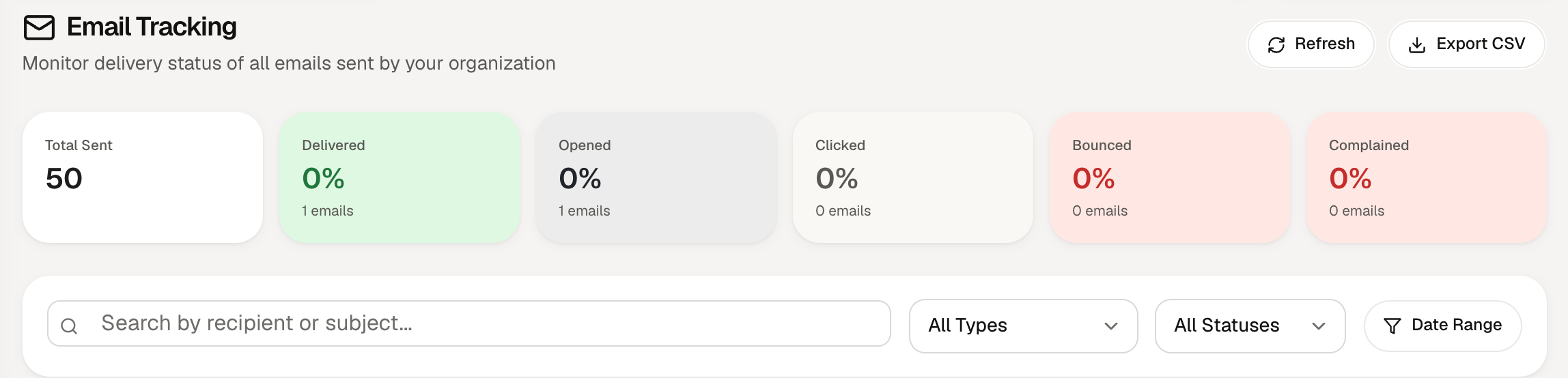
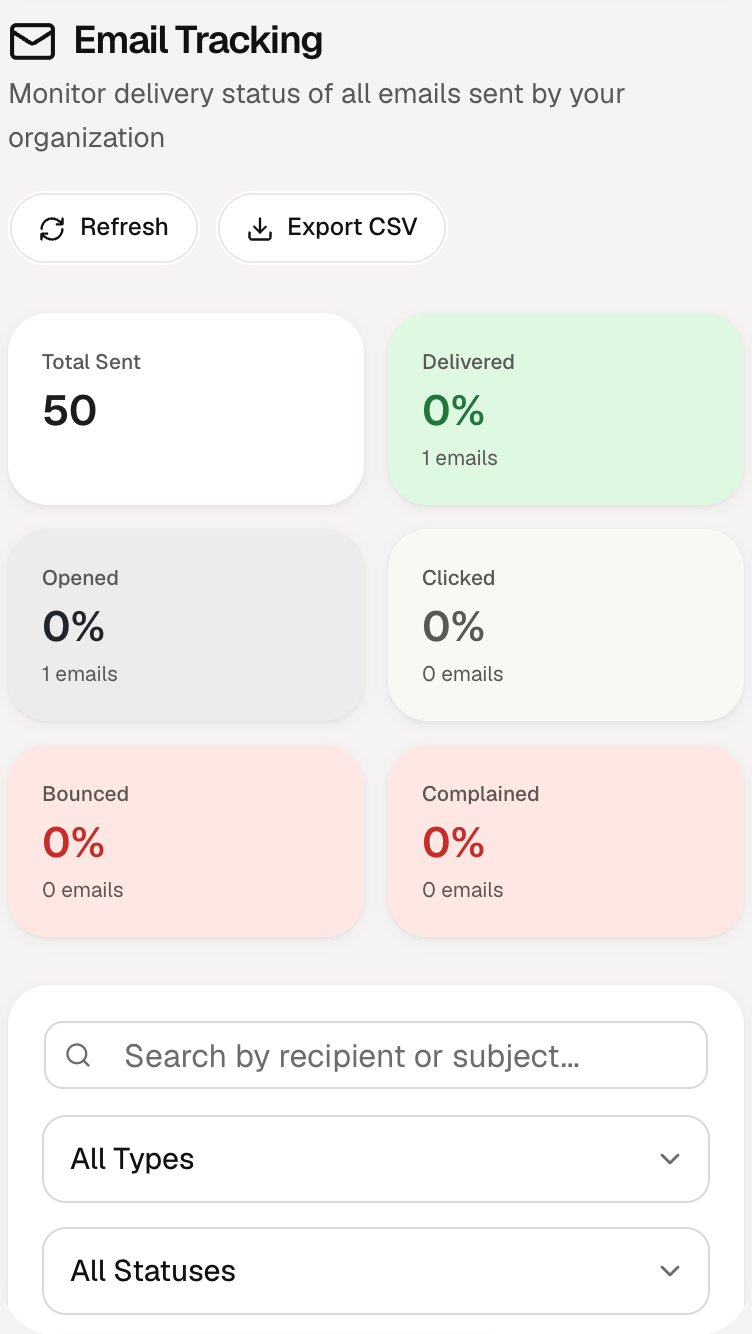
Email Tracking lists every email KyberAccess sent for your organization (invitations, passes, reminders, host alerts, digests and more) with its delivery status. Use it to answer "did the parent get the email?" before you resend.
Who this is for
Owners, admins and event staff see Email delivery in the Insights app (classic menu: Email Tracking under Insights). It needs the Pro or Enterprise plan.
Before you start
- Statuses come from our email provider and arrive within seconds to minutes of the send.
- Opens and clicks are recorded from November 6, 2026. Some mail apps open every message automatically, so treat Opened as a hint and Delivered or Bounced as the answer to "did it arrive?".
Menus: steps show the app launcher first and the classic menu in brackets. See Find your way around to tell which one you have.
Steps
- Open Apps › Insights › Email delivery (classic menu: in the sidebar, under Insights, click Email Tracking).
- Optional: narrow with All Types (for example Invitation, Visitor Pass, Reg Reminder, Credential Issued), All Statuses and Date Range. These filters search every email, not only the ones on screen.
- Type an address or subject in Search loaded emails by recipient or subject.... Search covers the emails already loaded; click Load More to search further back.
- Read the Status column for the email you care about.
- Click the arrow at the end of a row to see the timeline of that email, and the bounce reason if it bounced.
- Click Load More at the bottom for older emails (50 at a time), and Refresh for the latest.
- Optional: click Export CSV to download the rows you have loaded and filtered.
What the statuses mean
| Status | Meaning | What to do |
|---|---|---|
| Sent | Handed to the email provider, or still waiting in our send queue | Wait a few minutes and click Refresh |
| Delayed | The receiving server asked us to try later | Usually clears itself within hours |
| Delivered | The recipient's mail server accepted it | If they can't find it, ask them to check spam or junk |
| Opened / Clicked | The recipient opened it or clicked a link | — |
| Bounced | The address doesn't exist or refused mail | Fix the email address on the person, then resend |
| Complained | The recipient marked it as spam | Don't resend; contact them another way |
The tiles at the top count the last 30 days and show each status as a percentage of all emails sent.
What happens next
New sends appear at the top within seconds. Statuses only move forward (Sent, then Delivered, then Opened), except Bounced and Complained, which replace them.
Settings that change this
| Setting | Where | Default | Effect |
|---|---|---|---|
| Plan | Settings › Billing & modules › Plan & invoices (classic: Configure › Billing & usage) | — | Email Tracking needs Pro or Enterprise |
| Sender name and reply-to | Settings › Organization › Branding (classic: Configure › Organization › Branding) | Your organization name | What recipients see in the From line |
Troubleshooting
- The tiles say "Loaded emails only" → the 30-day totals couldn't load, so the tiles count the emails on screen. Click Refresh.
- Opened shows "—" for an email I know was read → the mail app blocked open tracking (common with images turned off), or the email was sent before November 6, 2026. Treat Delivered as success.
- A row stays at Sent for hours → It may still be queued. If it hasn't changed after an hour, resend from where you sent it (event, credential or registration).
- The email isn't in the list at all → It was never sent. Some buttons only show a "sent" message without sending; check the article for the feature you used, for example Send invitations and reminders.