Log every package that arrives at the front desk, tell the recipient by email (and text, if you turn it on), and record who picked it up. Packages left on the shelf can trigger reminders and, later, an alert to staff.
Menus: steps show the app launcher first and the classic menu in brackets. See Find your way around to tell which one you have.
Video: Log a delivery and notify the recipient
Chapters: Why it helps (0:00), Log a package (0:20), The recipient is told (0:46), Pick-up and sign-off (1:04), History (1:30). Smaller file for phones: 720p video. In the app, the Watch link on the Deliveries page opens the same video.
Who this is for
Front desk staff log and hand out packages. Owners and admins change the delivery settings. Deliveries are included in the Pro and Enterprise plans.
Log a package
- Open Apps › Deliveries (classic menu: Deliveries in the sidebar, under Operations).
- Click Log delivery.
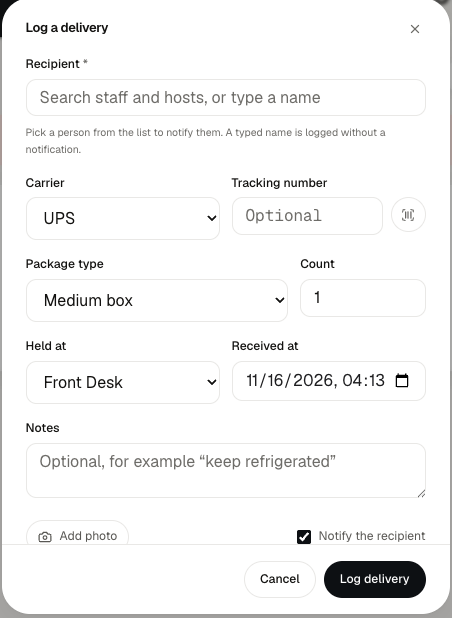
- In Recipient, start typing and pick the person from the list (staff and hosts). A typed name that is not picked from the list is logged but nobody is notified.
- Choose the Carrier (UPS, FedEx, USPS, Amazon, DHL, OnTrac, LaserShip, Courier, Internal, Other). Type the Tracking number, or tap the barcode button to scan the label with the camera.
- Choose Package type (Envelope, Small box, Medium box, Large box, Oversized) and Count.
- Check Held at (where the package is waiting) and Received at.
- Optional: add Notes ("keep refrigerated") and Add photo.
- Leave Notify the recipient ticked, then click Log delivery.
Hand a package out
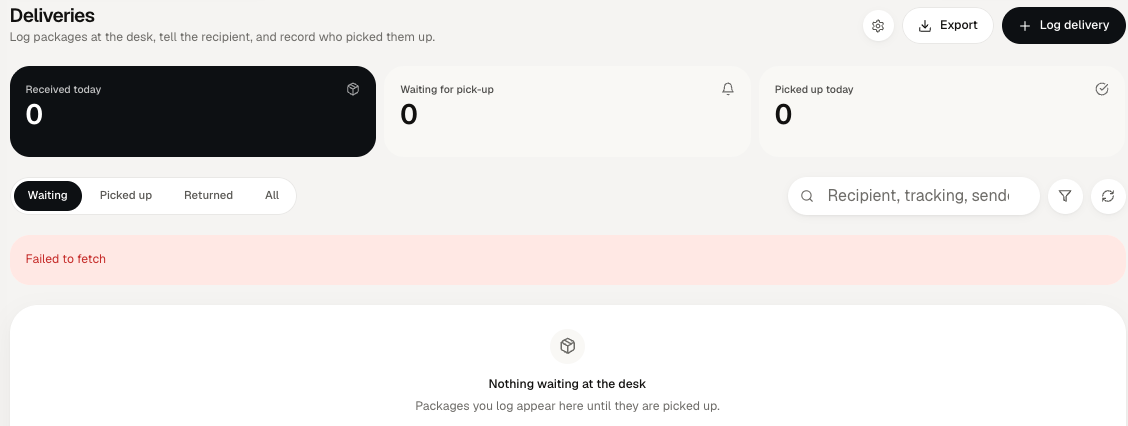
- On Deliveries, the Waiting tab lists every package not yet collected.
- Click the check mark (Mark picked up) on the row.
- Enter Picked up by. If signatures are required, have them sign in the box.
- Click Confirm pick-up. The package moves to Picked up.
Other actions, from a package's details: Notify again, Return to sender, and a History of every step.
Turn on reminders and escalation (admins)
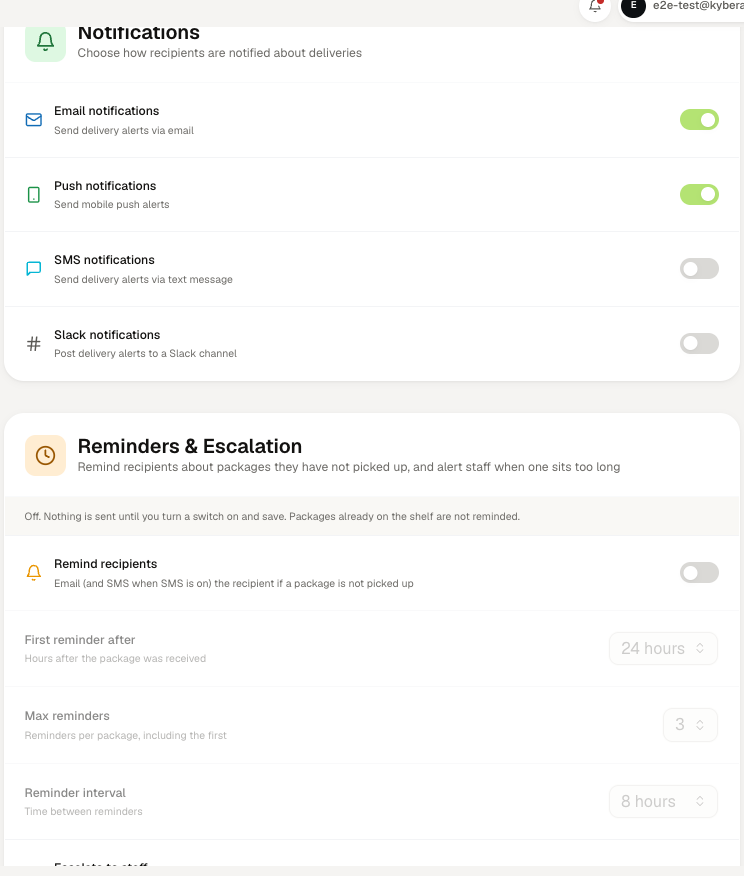
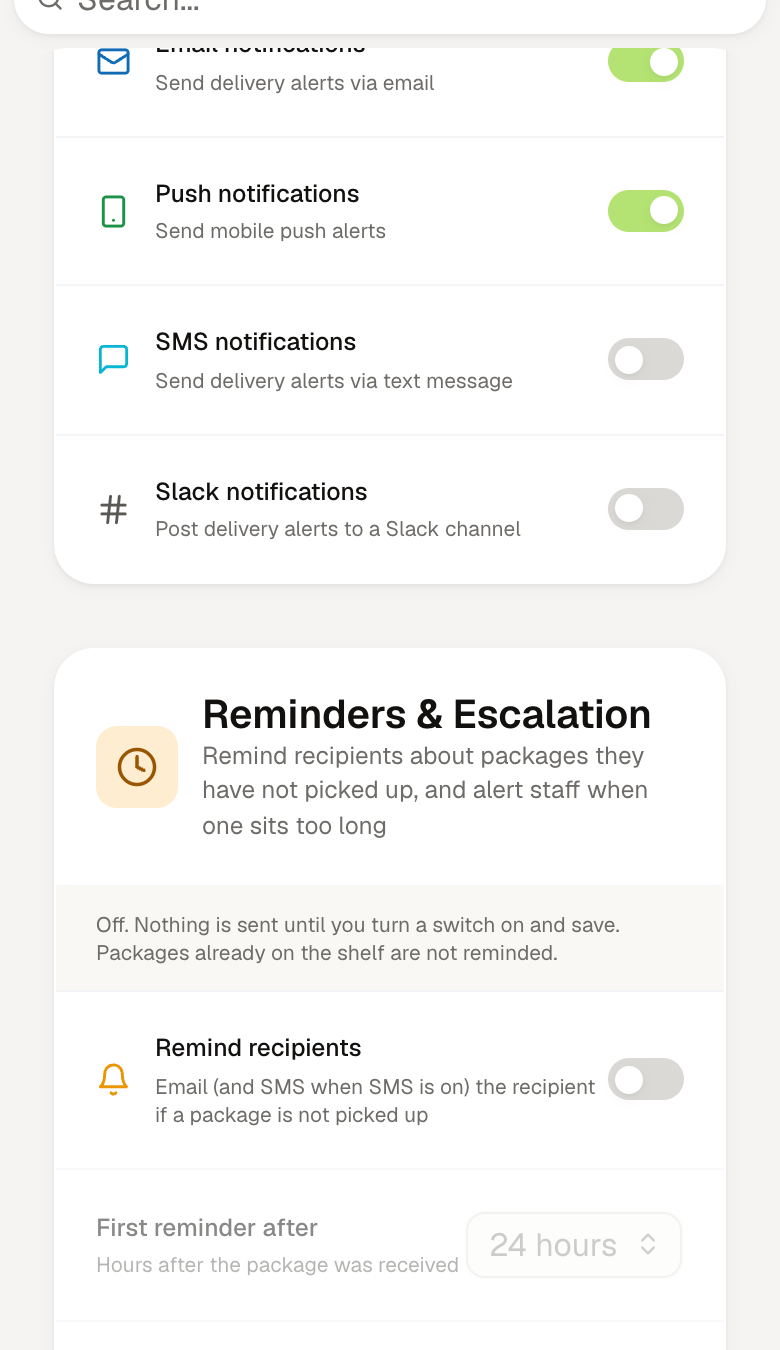
- On Deliveries, click the gear (Delivery settings), or go to Settings › Apps › Deliveries › Deliveries (classic menu: Configure › Deliveries).
- Under Notifications, choose Email notifications (on by default) and SMS notifications (off by default).
- Under Reminders & Escalation:
- Turn on Remind recipients, then set First reminder after (4–48 hours, default 24), Max reminders (default 3, including the first) and Reminder interval (default 8 hours).
- Turn on Escalate to staff, then set Escalate after (24–96 hours, default 48) and Escalate to (Front desk team or one staff member). Also alert owners and admins is on by default.
- Quiet hours (on by default, 9:00 PM to 7:00 AM in your organization's time zone): nothing is sent in this window.
- Under Pickup Locations, add each place packages can be held ("Mailroom", "Loading Dock").
- Click Save Changes.
What happens next
- The recipient gets an email (and a text, if SMS is on and they have a mobile number) as soon as you log the package.
- Reminders and escalations are checked every 15 minutes. Only packages received after you turned a switch on are reminded; the shelf is not backfilled. Packages older than 14 days are never reminded.
- An escalation is sent once per package.
Settings that change this
| Setting | Default | Effect |
|---|---|---|
| Email notifications | on | Email the recipient when a package is logged, and for reminders |
| SMS notifications | off | Also text the recipient |
| Require signature | off | Mark picked up needs a signature |
| Remind recipients | off | Sends reminders as set above |
| Escalate to staff | off | One alert to staff after the set hours |
| Pickup Locations | Front Desk | The Held at choices |
Settings › Apps › Deliveries › Deliveries (classic menu: Configure › Deliveries) shows only the settings that work: email and SMS alerts, Require signature, pickup locations, and reminders / escalation / quiet hours. The barcode button on the log form is always available.
Troubleshooting
- "No one was notified (no contact on file)". The recipient was typed, not picked, or has no email or phone. Pick them from the list, or add an email to their host or staff record, then use Notify again.
- "Notifications are off in Settings". Turn on Email notifications or SMS notifications in Settings › Apps › Deliveries › Deliveries (classic menu: Configure › Deliveries).
- Reminders never arrive. Remind recipients must be on and saved. Packages logged before you turned it on are not reminded.
- Nothing is sent at night. That is Quiet hours. Reminders resume when quiet hours end.
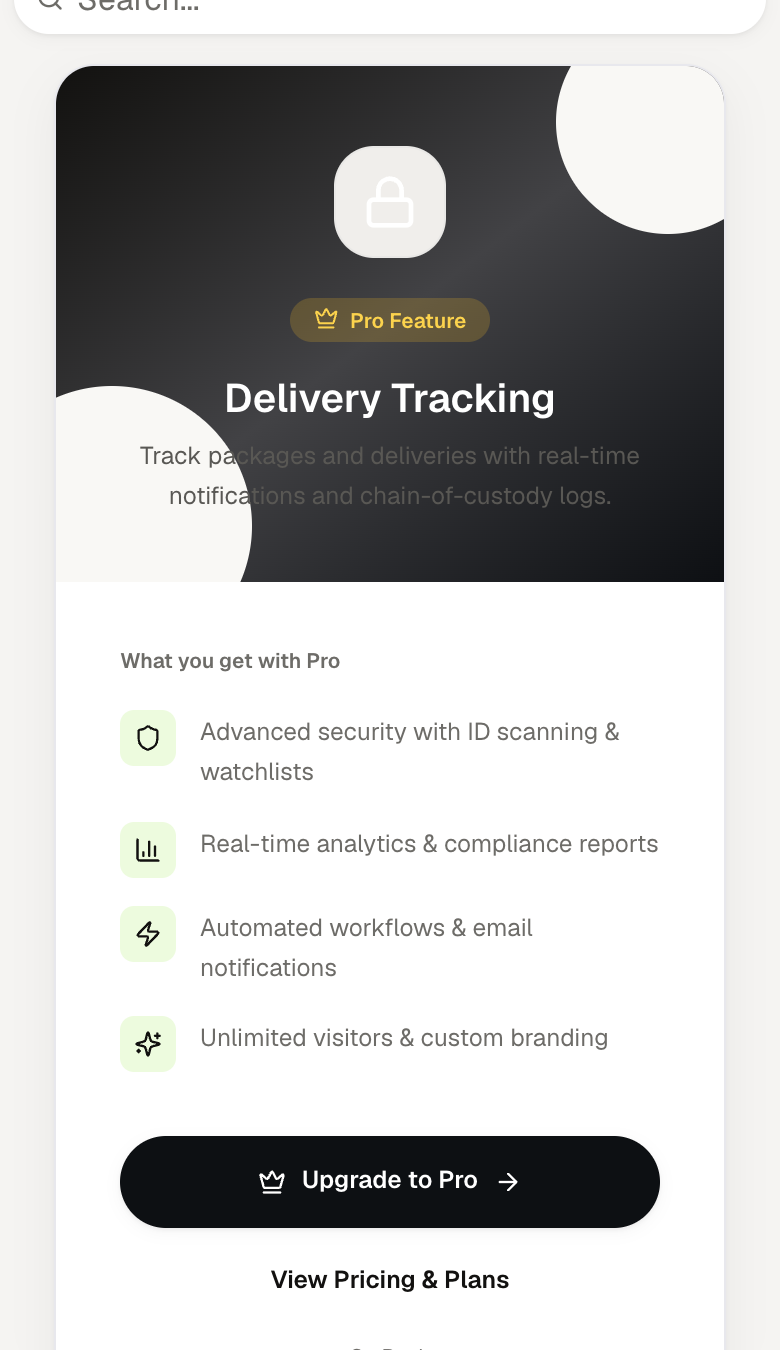
- The Deliveries page shows a lock. Deliveries are not included in your plan.
- Can couriers drop packages off at the iPad kiosk? Not in the current iPad app. Log packages at the front desk on Deliveries.
Related articles
- Notify hosts when their visitor arrives
- Roles and what each one can do