KyberAccess emails your team, and adds a bell notification, when someone is held at check-in and waiting for a decision in Review queue (Apps › Security › Review queue; classic menu: Review Queue under Security). It is on by default for all owners and admins. You choose who gets it, how often, and quiet hours.
New to the queue? Watch Review Queue: approve or deny (3 minutes, captions on). Chapter 5, Keeping the queue clear (2:18), covers what alerts are for. Full chapter list in Review and decide held visitors.
Who this is for
Owners and admins can change these settings. Anyone can unsubscribe themselves from the email using the link in its footer.
Before you start
- Recipients must be active team members with an email address, or one of up to 5 extra addresses you add.
- Know your organization's time zone (Settings › Organization › General; classic menu: Configure › Organization). Digest time and quiet hours use it.
Menus: steps show the app launcher first and the classic menu in brackets. See Find your way around to tell which one you have.
Steps
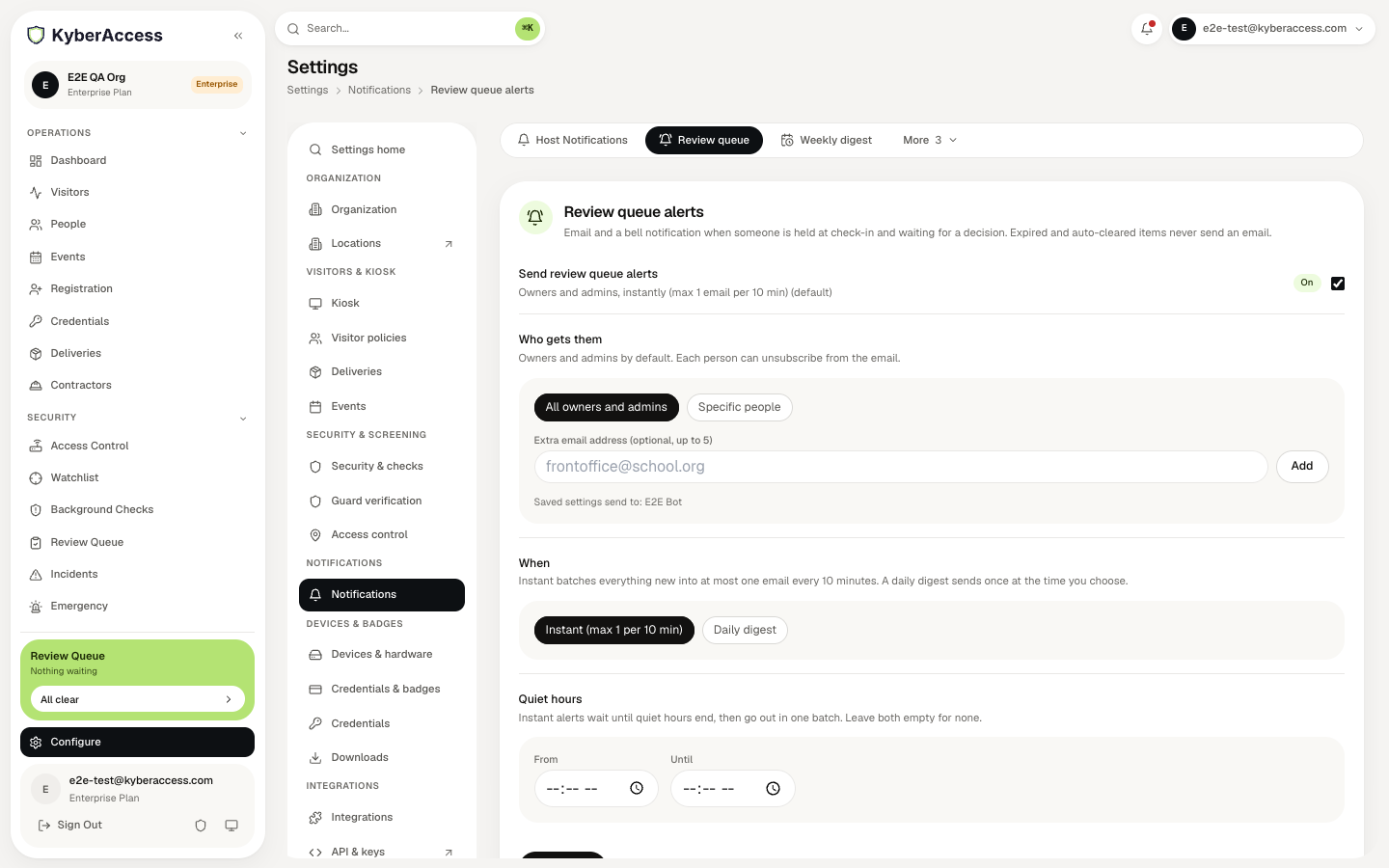
- Open Settings › Apps › Security › Review alerts (classic menu: Configure › Notifications › Review queue alerts). From Security you can also select Security settings, then Review alerts.
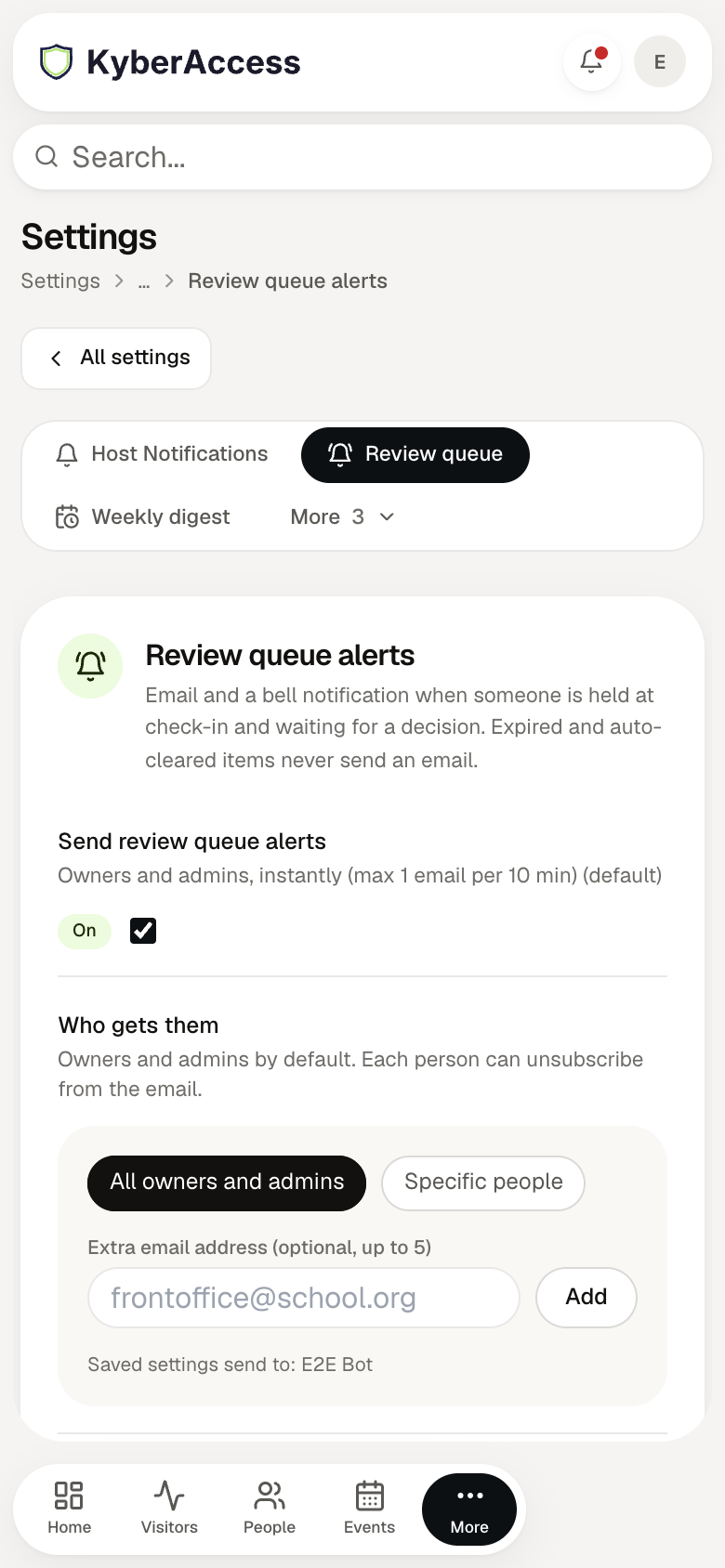
- Leave Send review queue alerts ticked. The line under it summarizes the current setup, with "(default)" if nobody has saved it yet.
- Under Who gets them, choose:
- All owners and admins, or
- Specific people, then tick each team member.
- Optional: type an address in Extra email address (optional, up to 5) and select Add, for example a shared front-office inbox.
- Under When, choose:
- Instant (max 1 per 10 min): new holds are batched into at most one email every 10 minutes.
- Daily digest: one email a day at the time in Send at (your timezone) (default 8:00 AM), listing everyone still waiting.
- Optional: under Quiet hours, set From and Until (for example 10:00 PM to 6:00 AM). Leave both empty for none.
- Select Save. The line Saved settings send to: shows who will receive the email.
What happens next
- KyberAccess checks for new holds every 5 minutes. With Instant, an email goes out within about 5–15 minutes of someone being held.
- Each email names who is waiting, why they were held (for example "Screening match" or "Screening unavailable"), how long they have waited and where, with a Review now button.
- Each person is included in one instant email only. If they are still waiting the next morning, a daily digest would list them again.
- During quiet hours instant emails wait, then go out together when quiet hours end. Quiet hours do not apply to the daily digest.
- People who are approved, denied, auto-cleared or expired before the email goes out are left out.
- When you first turn alerts on, people already held for more than an hour are not emailed, so you are not sent an old backlog.
- With Send review queue alerts off, nobody is emailed. The Review queue count in the Security app sidebar (classic menu: the Review Queue card in the sidebar) still shows.
Settings that change this
- Send review queue alerts · on by default.
- Who gets them · All owners and admins by default. Security team members are only included if you pick them under Specific people.
- When · Instant (max 1 per 10 min) by default; digest at 8:00 AM.
- Quiet hours · none by default.
Troubleshooting
- A team member gets no emails. They may have unsubscribed from the email footer, have no email on their team record, or not be an owner/admin while All owners and admins is selected.
- Emails arrive late at night. Set Quiet hours.
- An email named someone who was already dealt with. It was sent before the decision. Open Review queue (classic menu: Review Queue) › Resolved to see who decided.
- Only owners and admins can change review alerts. Ask one of them.