Turn on sex offender registry screening so KyberAccess checks visitors at the kiosk and when they register online. People who come back with a possible match, or who could not be screened, wait in Review Queue for a staff decision.
Who this is for
Owners and admins. Background checks are part of the Pro and Enterprise plans and of free trials. On the Free plan the page shows an upgrade prompt.
Before you start
- Decide what the kiosk should do when someone matches: hold them for review (most schools), turn them away, or let them in and only alert staff.
- Make sure the people who decide on held visitors have the Owner, Admin or Security role. Only those roles can approve or deny in Review Queue.
Menus: steps show the app launcher first and the classic menu in brackets. See Find your way around to tell which one you have.
Steps
- Open Settings › Security & policies › Screening provider (classic menu: Configure › Security & checks › Background checks).
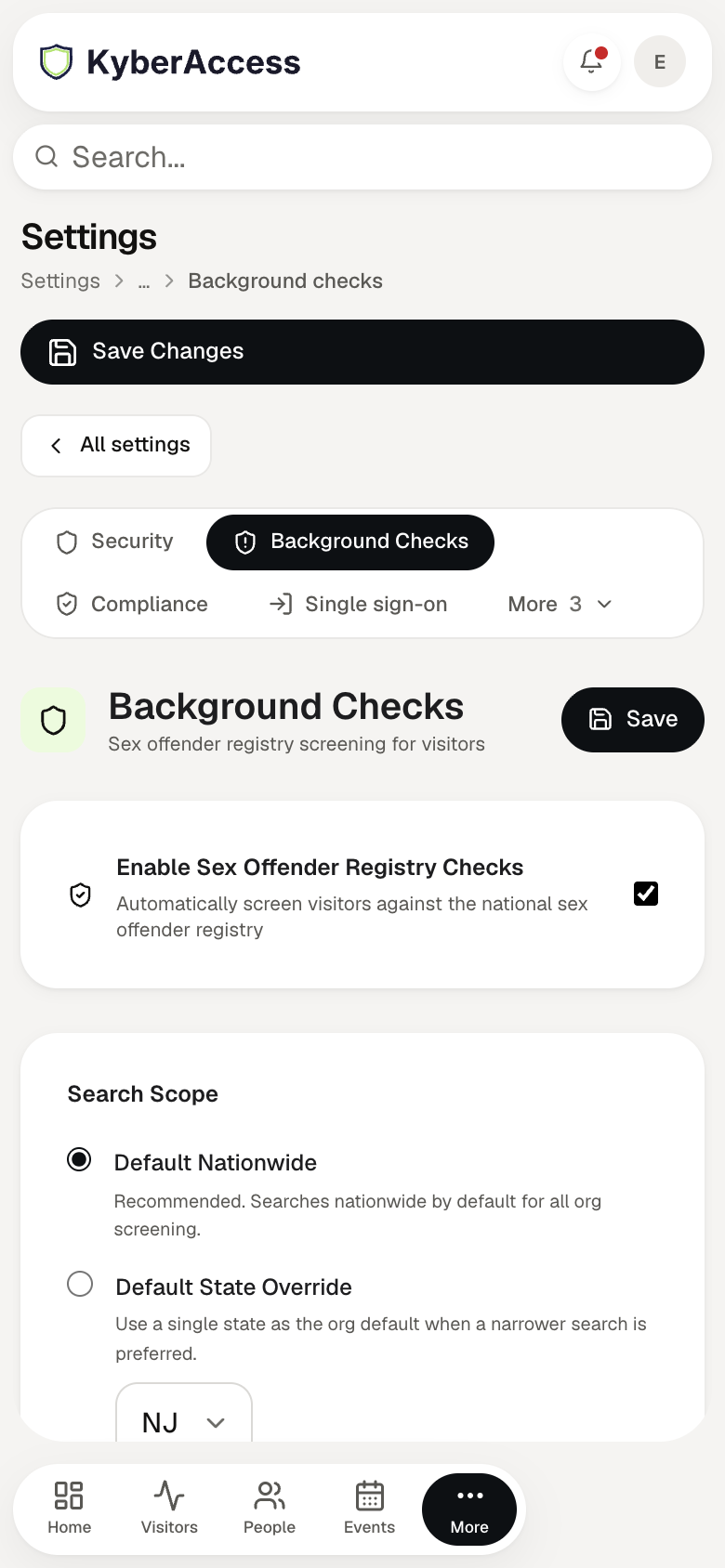
- Tick Enable Sex Offender Registry Checks. The rest of the settings appear.
- Under Search Scope, leave Default Nationwide selected unless you want a narrower search. Also set the state drop-down to your own state, even with Nationwide selected (see Settings that change this).
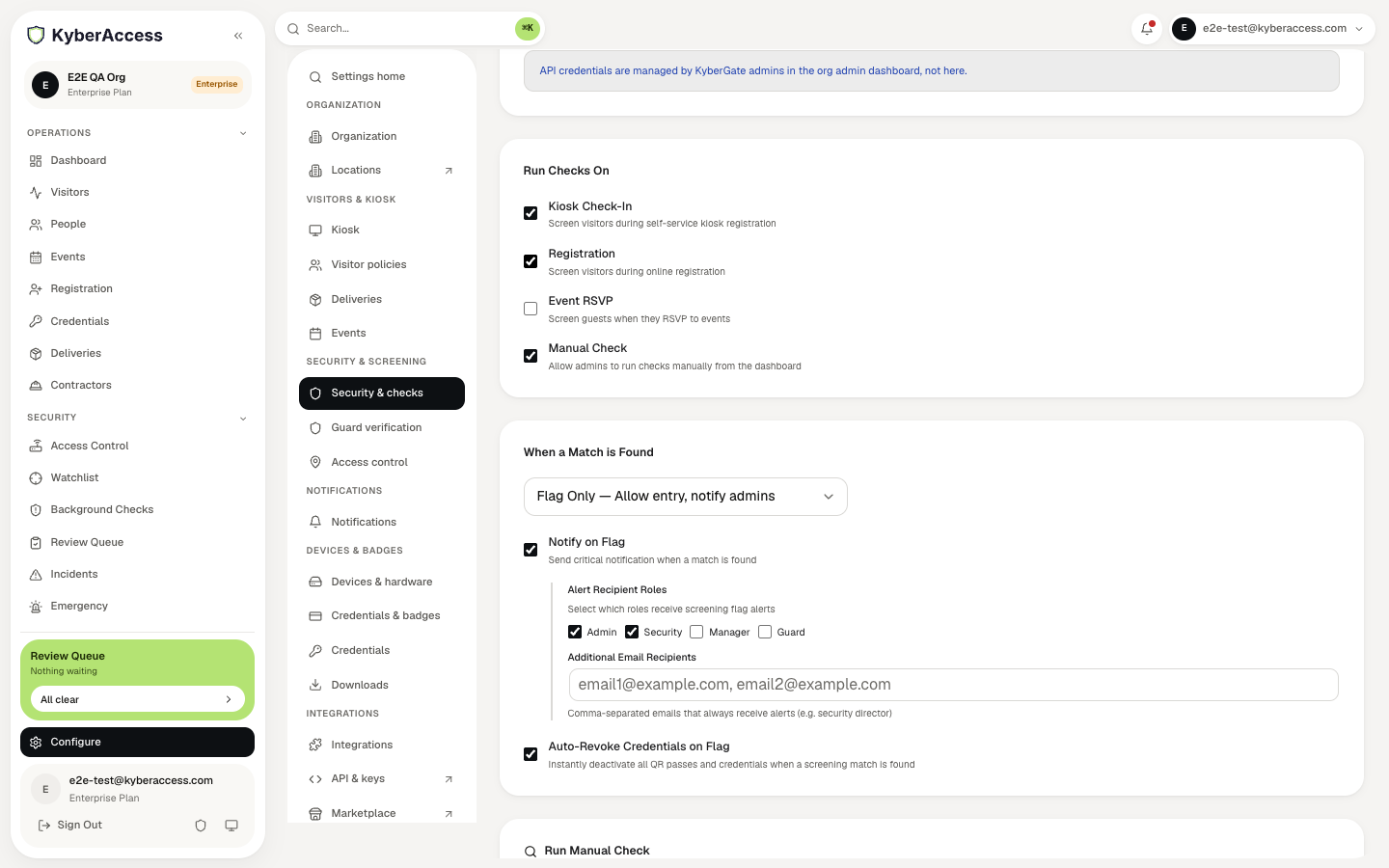
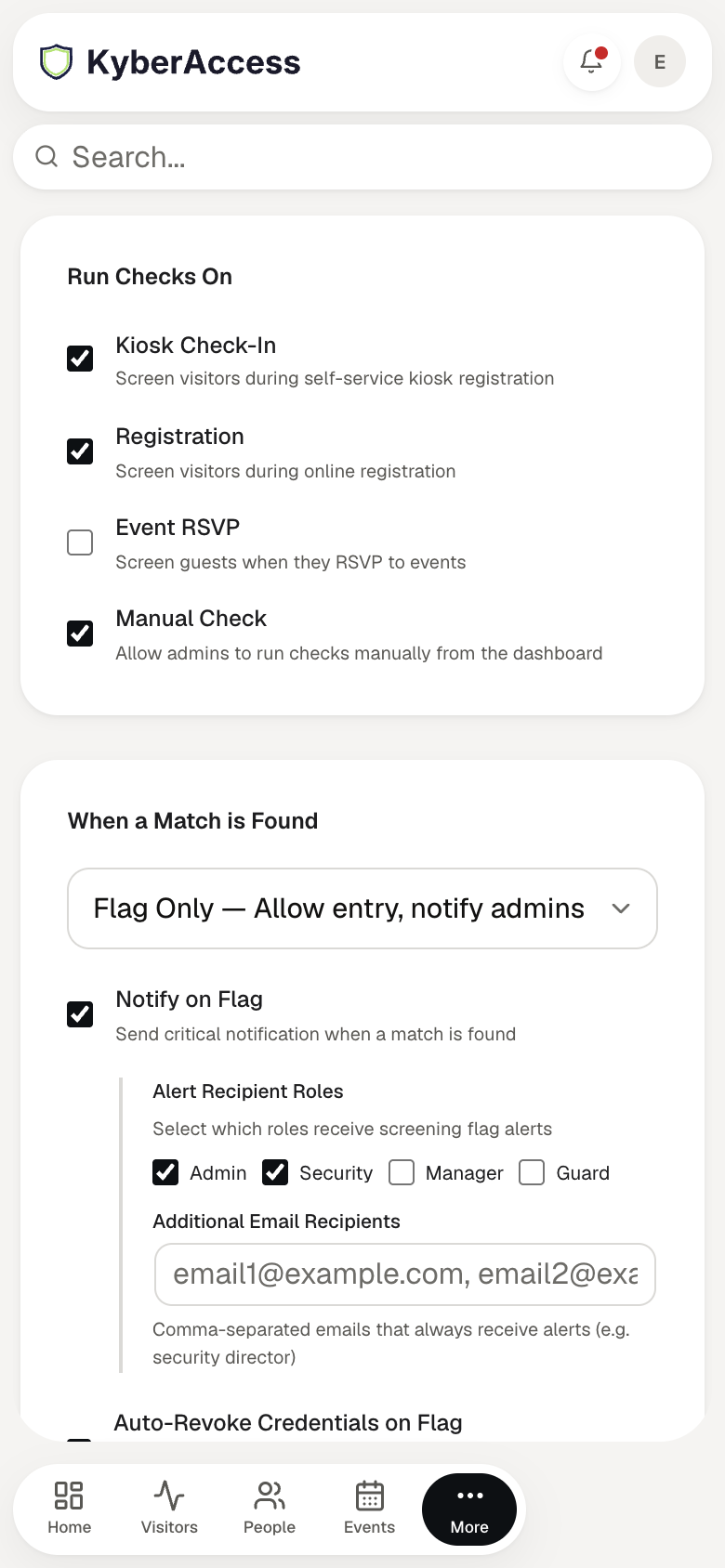
- Under Run Checks On, tick Kiosk Check-In to screen walk-ins at the iPad kiosk, and Registration to screen people who register online or through an event registration link.
- Under When a Match is Found, choose what the kiosk does (see the table below).
- Select Save at the top right of the panel.
- Open Settings › Apps › Front Desk › Kiosk features (classic menu: Configure › Kiosk › Features), open Background Check, check that the switch is on and that Run mode is Auto-run on every check-in, then save. This page saves the same on/off switch and match action as step 5, so the two pages must agree (see Troubleshooting).
- Open Settings › Apps › Security › Review alerts (classic menu: Configure › Notifications › Review queue alerts) and check who is emailed when someone is held. See Get alerted when people are waiting for review.
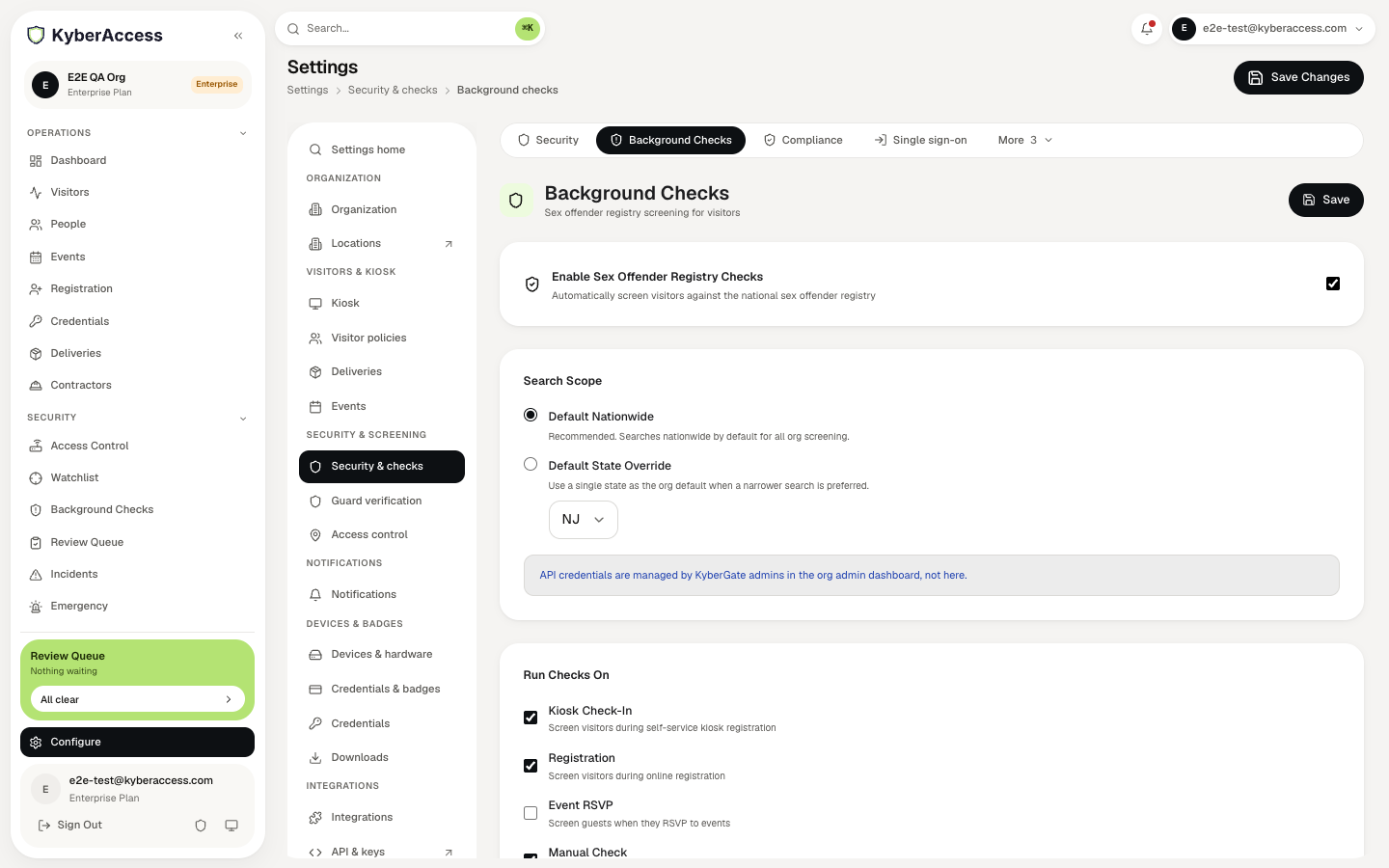
What each match action really does at the kiosk
| Option | What the visitor sees | What staff get |
|---|---|---|
| Flag Only — Allow entry, notify admins | No pass. "Your registration is being reviewed." They wait until someone approves them. | The person is held in Review Queue. |
| Deny Entry — Block check-in, show "see front desk" | No pass, and your denial message ("There seems to be an issue — please contact security." unless you changed it). | A denied visit is recorded. |
| Alert Admins Only — No visitor impact | They get their pass as normal. | A bell notification, and a Slack or Teams alert if you connected one. |
Despite its name, Flag Only does not let the person in. They get no pass until a reviewer approves them.
What happens next
- Every kiosk check-in and registration covered by your choices is screened within a few seconds, before a pass is issued.
- A clear result gives the person their pass. A possible match follows your match action. If the registry does not answer, the person is never let in automatically: they are sent to the front desk and held for review. See When screening could not run.
- Every check is listed on the Background Checks page: Apps › Security › Screening (classic menu: Background Checks in the sidebar, under Security).
- People who are never screened by these settings (for example, people already in your directory) can be screened in a batch. See Run background checks for a whole group (batch).
- Nothing re-screens people on a calendar. See Set how often people are re-screened.
Settings that change this
- Enable Sex Offender Registry Checks · Settings › Security & policies › Screening provider (classic: Configure › Security & checks › Background checks) · off · master switch for kiosk and registration screening and for batches.
- Background Checks ("Run background check on all visitors") · Settings › Security & policies › Sign-in & sessions (classic: Configure › Security & checks › Security) · off · when ticked, kiosk check-ins and registrations are screened even if the switch above is off.
- Search Scope · Settings › Security & policies › Screening provider (classic: Configure › Security & checks › Background checks) · Default Nationwide · batches follow it exactly. At the kiosk, a visitor whose ID shows a state is searched in that state. When the ID shows no state, the kiosk searches the state in the drop-down (NJ unless you change it), even when Default Nationwide is selected.
- Kiosk — on flag and Denial message (shown on kiosk) · Settings › Apps › Front Desk › Kiosk features › Background Check (classic: Configure › Kiosk › Features › Background Check) · same setting as When a Match is Found; whichever page you saved last wins.
- Recheck frequency · Settings › Apps › Front Desk › Kiosk features › Background Check (classic: Configure › Kiosk › Features › Background Check) · decides who a batch treats as already screened. It does not change kiosk screening: walk-ins are checked at every visit.
Event RSVP and Auto-Revoke Credentials on Flag were removed. What happens to a credential on a flag is now set on Settings › Security & policies › Credentials & screening (classic menu: Configure › Credentials & screening) (report only for now). Notify on Flag with Alert Recipient Roles and Additional Email Recipients still has no effect. Use Review queue alerts for email alerts. Do not use the Run Manual Check form on this page; see Run a background check on one person instead.
Troubleshooting
- The Background checks tab shows an upgrade prompt. Your plan does not include background checks. Contact KyberAccess to add them.
- Checks stopped after someone saved Kiosk › Features. That page saves its own copy of the on/off switch. Open Settings › Apps › Front Desk › Kiosk features › Background Check (classic menu: Configure › Kiosk › Features › Background Check), turn it on, and save.
- Matches are turned away when you expected them to be held (or the reverse). The last page saved wins. Set the same action in When a Match is Found and Kiosk — on flag.
- "Batch checks are off" on the Background Checks page. Enable Sex Offender Registry Checks is not ticked or not saved.
- Nobody gets an email when someone is held. Check Settings › Apps › Security › Review alerts (classic menu: Configure › Notifications › Review queue alerts). The flag alert settings on this page do not send email.