The Watchlist (also called BOLO, "be on the lookout") holds people your school has barred: trespass notices, court orders, former staff. When someone on the list checks in at the kiosk or scans at a turnstile, they are turned away and your security team is alerted.
Who this is for
Owners, admins, security and guards see Watchlist in the Security app (classic menu: in the sidebar under Security). The watchlist is included in the Pro and Enterprise plans and in free trials.
Before you start
- Have the person's full legal name as it appears on their ID. Matching is by name only. There is no photo or face matching.
- Collect any other names they use (maiden name, a shortened first name). Each one must be added as an alias.
Menus: steps show the app launcher first and the classic menu in brackets. See Find your way around to tell which one you have.
Steps: add a person
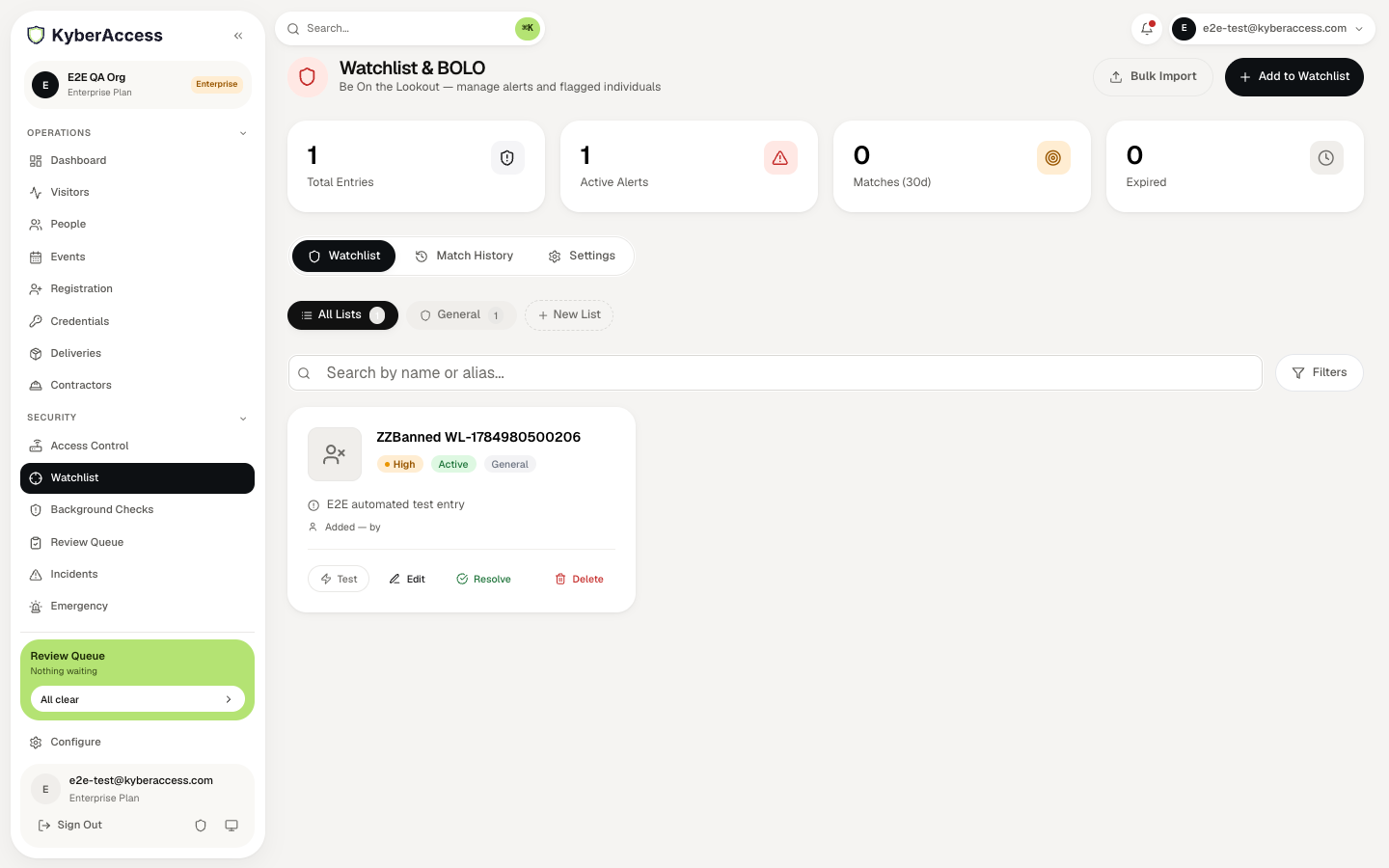
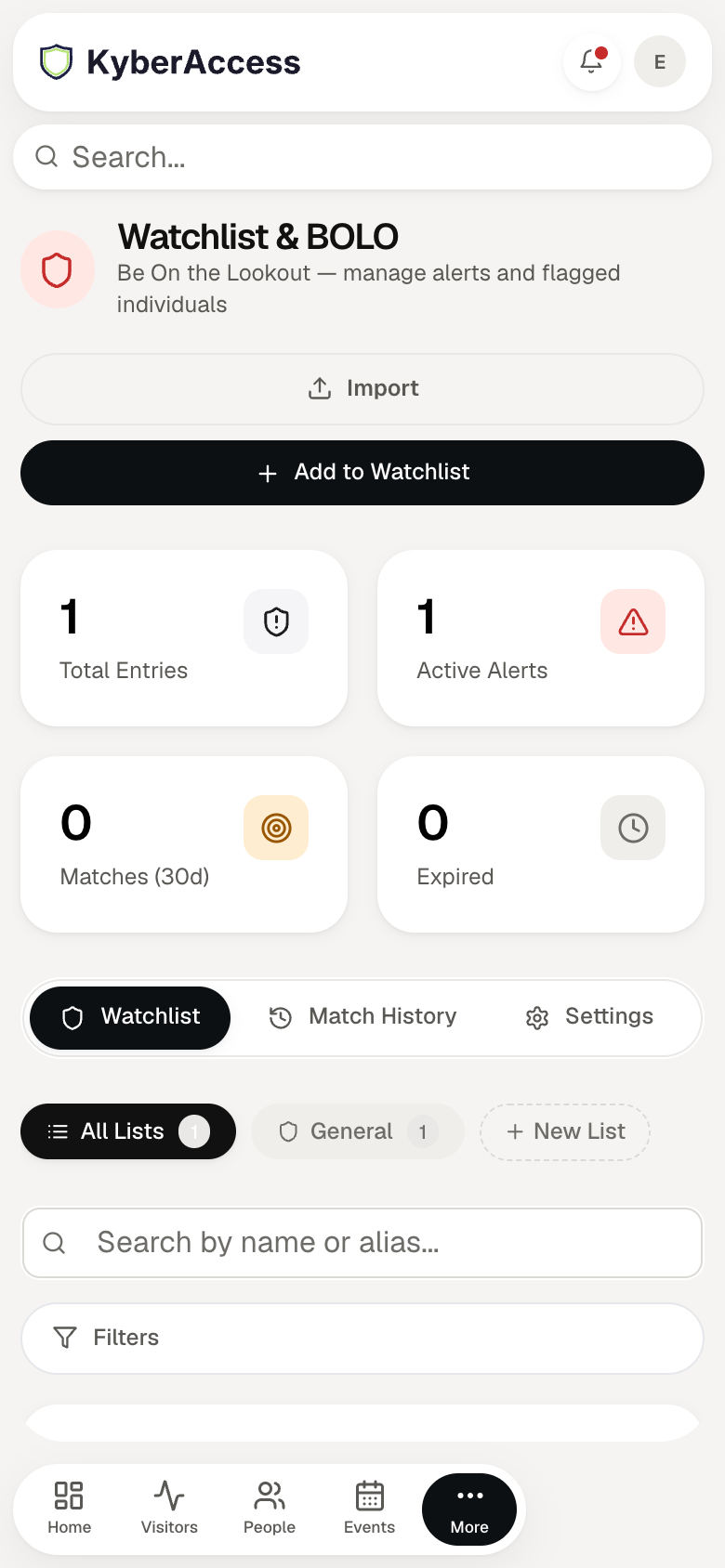
- Open Apps › Security › Watchlist (classic menu: Watchlist in the sidebar, under Security).
- Select Add to Watchlist.
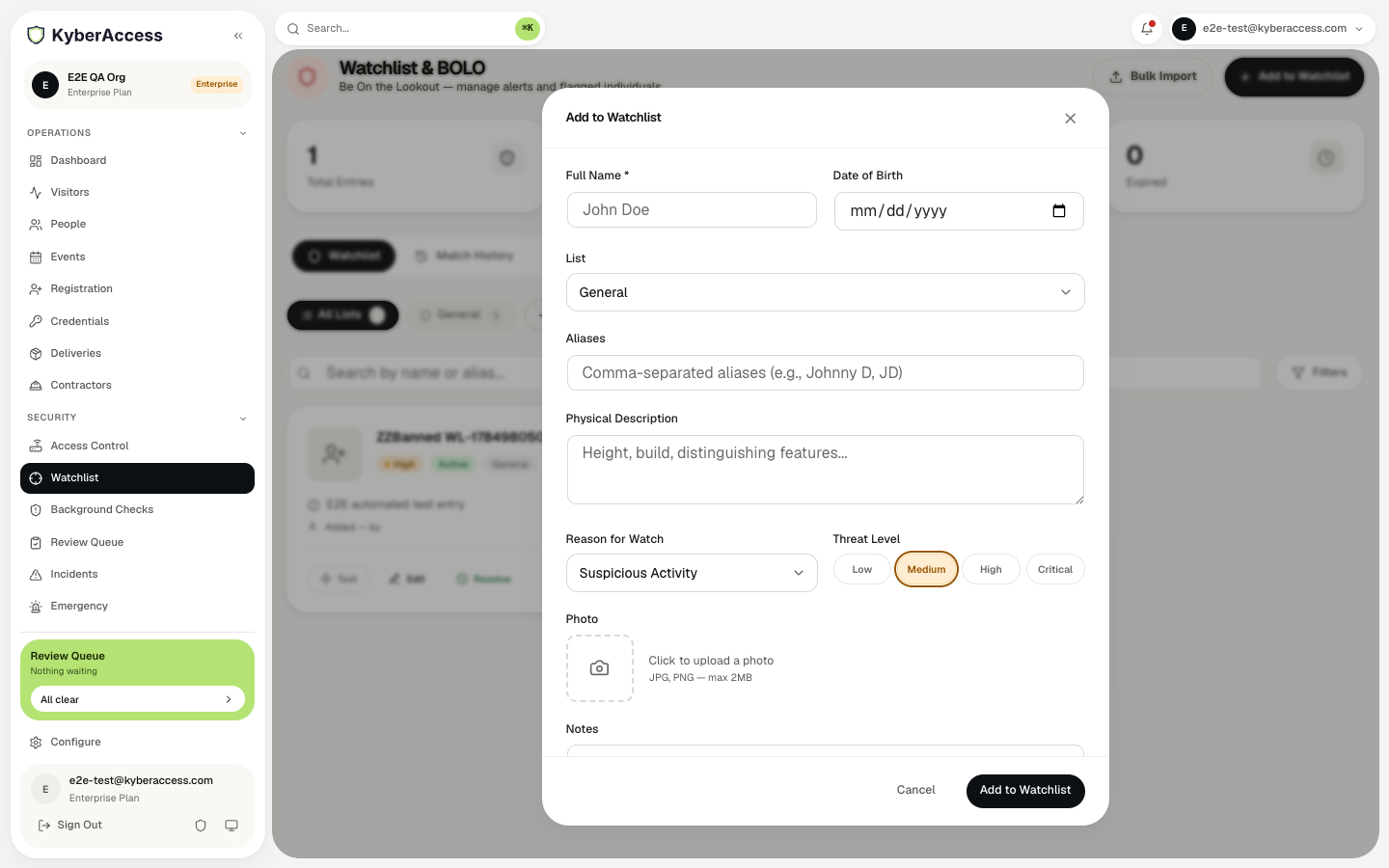
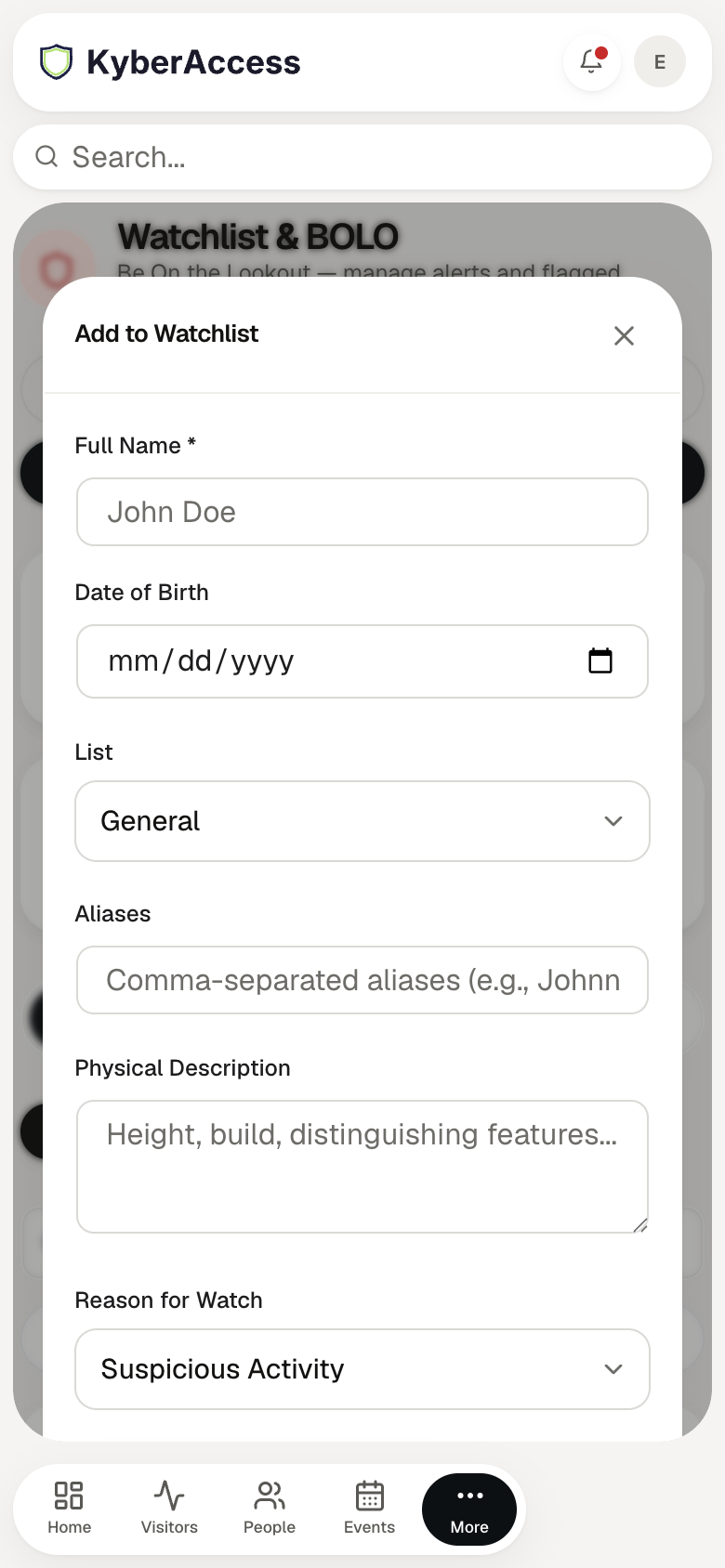
- Fill in Full Name (required). Use first and last name exactly as on their ID.
- In Aliases, type other names they use, separated by commas, written as full names (for example "Jim Doe, James Doe-Smith").
- Optional: Date of Birth, List, Physical Description, Photo (JPG or PNG, max 2MB) and Notes. These help staff recognize the person; they are not used for matching.
- Choose a Reason for Watch (Trespassed, Banned, Court Order, Employee Termination, Suspicious Activity, Other) and a Threat Level (Low, Medium, High, Critical).
- Optional: set Expiry Date (optional) for a ban that ends on a known date.
- Leave Notify on check-in match ticked if you want text-message alerts (see What happens next).
- Select Add to Watchlist.
To add many people at once, select Bulk Import, upload a CSV (use Download Template), match the columns, and import.
Steps: check an entry is working
- On the entry's card, select Test.
- The Test Alert Results window shows who received the test email and text. The messages are marked [TEST] and nobody is turned away.
How matching works
A person matches an Active entry when, ignoring capital letters: - their full name equals the entry's Full Name, or - their full name contains the entry's Full Name (for entries of 4 or more characters; "Robert Smith" matches "Robert Smith Jr"), or - their full name equals one of the Aliases.
"Bob Smith" does not match "Robert Smith" unless you add "Bob Smith" as an alias. A shorter name typed at check-in ("Rob Smith") does not match a longer entry.
What happens next
At the iPad kiosk (walk-ins, and registrations that go through the kiosk): a match is always turned away, whatever the threat level. The visitor sees the kiosk denial message (default "There seems to be an issue — please contact security."). Then: - the match is added to Match History and to Review Queue as a Watchlist (BOLO) match; - every active owner, admin and security team member is emailed a BOLO alert; - if the entry has Notify on check-in match ticked, owners, admins and security members with a phone number on their account get a text message; - a Slack or Teams alert goes out if you connected one.
At a turnstile: the scan is refused with "WATCHLIST MATCH" and the same alerts are sent.
Front-desk check-in by staff: the check-in is blocked with a message, but only on an exact full-name match (aliases are not checked here), and only a Slack or Teams alert is sent.
Expiry and resolving: an entry stops matching when you select Resolve or Delete. An entry past its Expiry Date is marked Expired the next time someone opens the Watchlist page; until then it can still match.
Settings that change this
- Denial message (shown on kiosk) · Settings › Apps › Front Desk › Kiosk features › Watchlist / BOLO Check (classic: Configure › Kiosk › Features › Watchlist / BOLO Check) · the message a matched visitor sees.
- Notify on check-in match · on each entry · turns text-message alerts on or off for that person.
These controls currently have no effect. A watchlist match at the kiosk is always turned away and always alerts: - On Settings › Apps › Front Desk › Kiosk features › Watchlist / BOLO Check (classic: Configure › Kiosk › Features › Watchlist / BOLO Check): the on/off switch, Auto-check, Kiosk — on match, Registration — on match, Lock kiosk on critical match and Alert admin on match. - On each entry: Notify all staff and Notify specific roles. - On the Watchlist Settings tab, the Alert Preferences switches. Save Preferences saves them safely (your other settings are kept), but nothing reads them yet.
Troubleshooting
- Someone on the list got in. Check the name they used against the entry and its aliases. Add the name they used as an alias. Make sure the entry shows Active, not Resolved or Expired.
- No email alert arrived. Alerts go to active owners, admins and security members. Check the person's role in Team.
- No text message arrived. The recipient needs a phone number on their account, and the entry needs Notify on check-in match ticked.
- "Security screening is temporarily unavailable" at the kiosk, or "WATCHLIST UNAVAILABLE — SEE GUARD" at a turnstile. The watchlist could not be checked, so the person was refused. Check them in by hand after checking their ID against the list.