Ask every visitor for something extra at the iPad kiosk, such as a national ID number (for example an HKID), a vehicle plate or a department, and show the answer to guards on the visitor's card in the Security Monitor. This takes two settings: a Custom Form step in the Flow builder, and the field turned on in Guard verification.
Who this is for
Owners and admins set it up. Guards and security see the result.
Before you start
- The iPad kiosk is set up (see "Set up an iPad kiosk").
- Visitors check in at the iPad app. Answers typed at the front desk are not collected by this field.
Menus: steps show the app launcher first and the classic menu in brackets. See Find your way around to tell which one you have.
Part 1: Ask the question at the kiosk
- Open Settings › Apps › Front Desk › Kiosk flow (classic menu: Configure, then Kiosk › Flow builder).
- If your flow has no Custom Form step, click Custom Form under Available Steps.
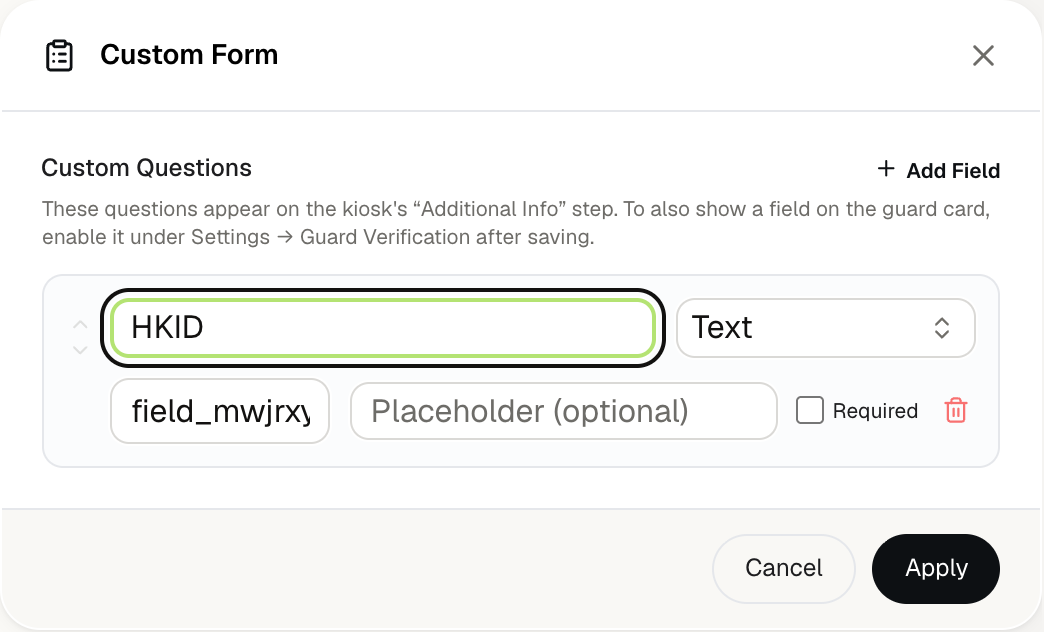
- Click the gear on the Custom Form step.
- Under Custom Questions, click Add Field.
- Type the question in Question label (e.g. HKID), for example
HKID. The short key box fills itself in; leave it as it is. - Choose the answer type: Text, Long text, Number, Date, Email, Phone, Multiple choice or Yes / No. For Multiple choice, type the options separated by commas.
- Tick Required if every visitor must answer.
- Click Apply, then Publish.
The iPad shows the question on an Additional Information screen during check-in.
Part 2: Show the answer to guards
- Open Settings › Apps › Security › Guard (classic menu: Configure, then Guard verification).
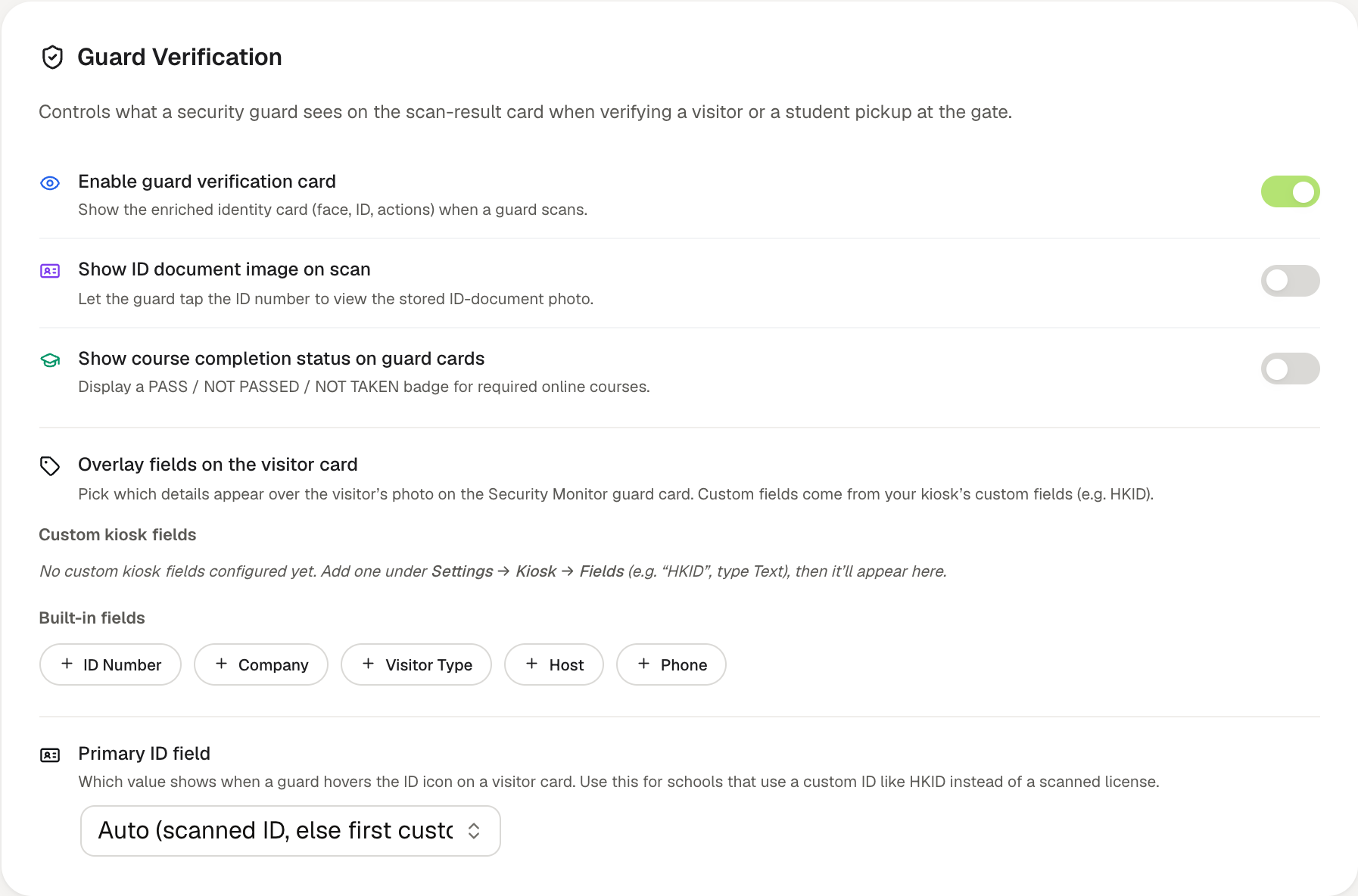
- Turn on Enable guard verification card.
- Under Overlay fields on the visitor card › Custom kiosk fields, click your field (for example HKID) so it turns blue. It saves straight away.
- Optional: under Built-in fields, also pick ID Number, Company, Visitor Type, Host or Phone.
- Optional: set Primary ID field to your field if guards should see it as the person's main ID (useful when you don't scan licenses).
What happens next
- The next visitor who checks in at the iPad is asked your question. The answer is saved on their record in People.
- Guards see the answer on the visitor's card in the Security Monitor (app launcher: Apps › Screens › Security monitor; classic menu: the shield button at the bottom of the sidebar; or Monitor in guard mode) and when they scan the visitor's pass.
Settings that change this
| Setting | Where | Default | Effect |
|---|---|---|---|
| Custom Form questions | Kiosk › Flow builder › Custom Form | None | What visitors are asked |
| Enable guard verification card | Settings › Apps › Security › Guard (classic: Configure › Guard verification) | Off | Shows the identity card to guards |
| Overlay fields on the visitor card | same page | ID Number | Which answers appear on the card |
| Primary ID field | same page | Auto | Which value shows as the person's ID |
Troubleshooting
- My field isn't listed under Custom kiosk fields → the flow wasn't published → open the Flow builder, click Publish, then reload Guard verification. (The hint on that page mentions "Settings → Kiosk → Fields"; that page is now the Flow builder's Custom Form step.)
- The field shows on the card for some visitors but not others → people who checked in before you added the field, or who skipped an optional question, have no answer. It fills in at their next check-in.
- Guards see no card at all → Enable guard verification card is off.
- The answer isn't asked at the front desk → custom questions are asked only by the iPad kiosk.