The Marketplace lists every add-on and integration, shows which ones your plan already includes, and lets you ask our team to turn on the ones it doesn't. Paid add-ons are never switched on by a button; our team confirms pricing and turns them on for you.
Who this is for
- Owners and admins can request add-ons and set them up. Other staff can browse.
Before you start
- Know which plan you're on (Settings › Billing & modules › Plan & invoices; classic menu: Configure › Billing & usage). Pro already includes SMS, background checks, Wallet passes, Slack, events, deliveries and the school campus features.
Menus: steps show the app launcher first and the classic menu in brackets. See Find your way around to tell which one you have.
Steps
See what you have
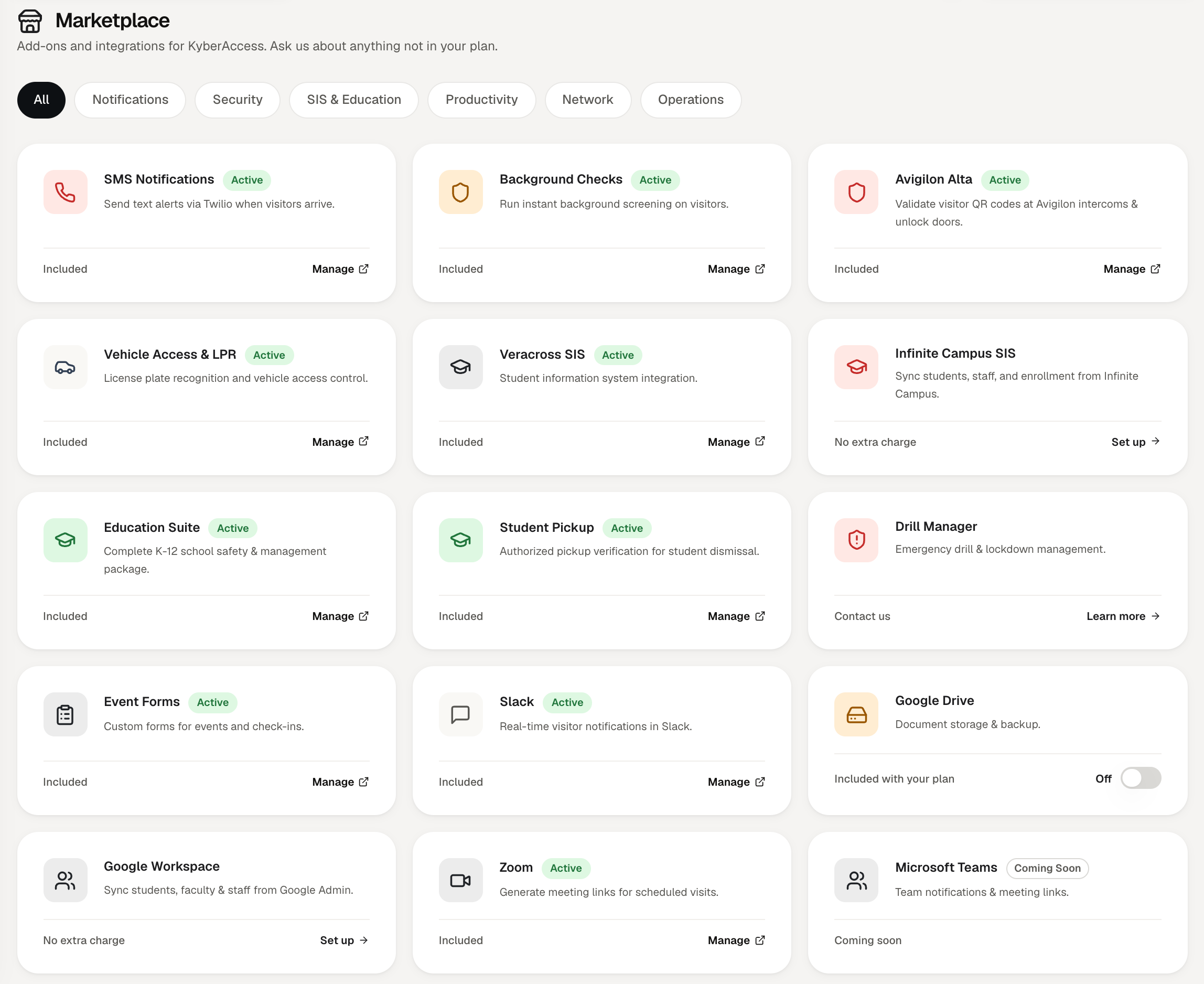
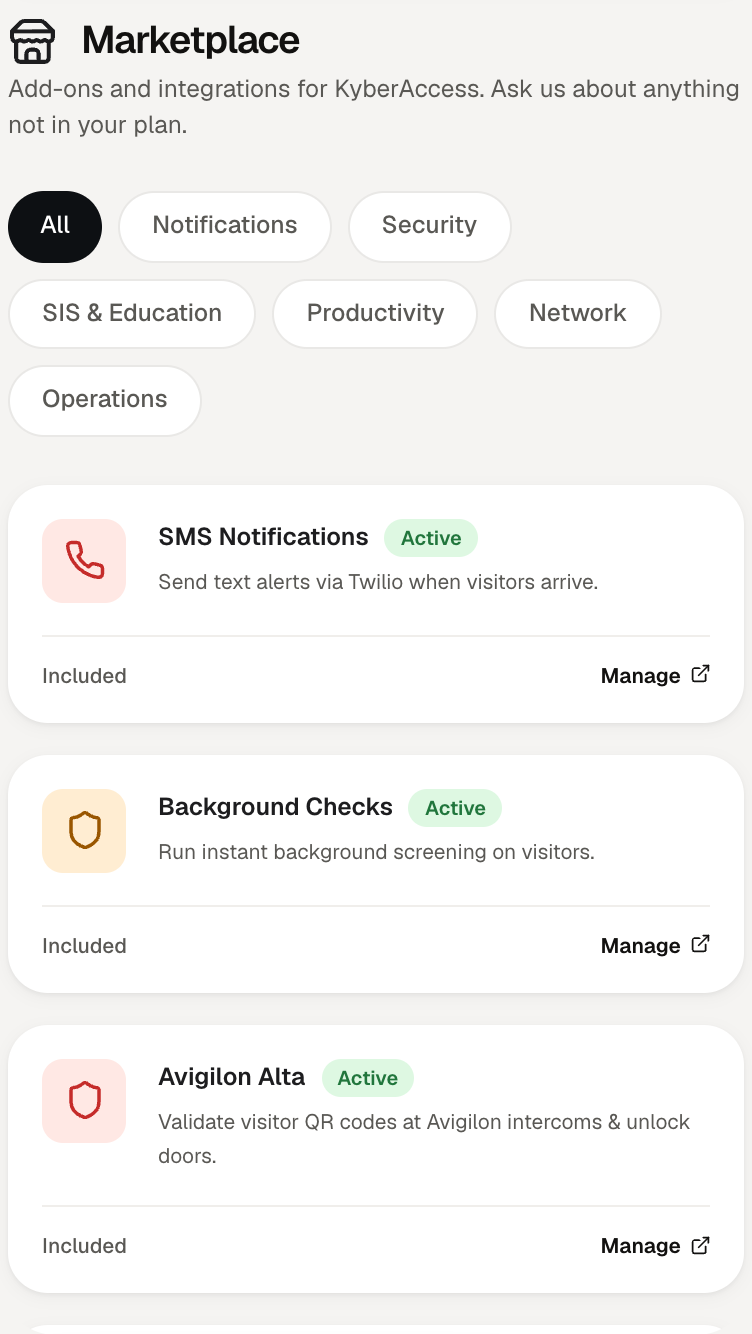
- Open Settings › Billing & modules › Get more (classic menu: Configure, then Marketplace under Integrations). Owners and Admins also see Get more in the Apps panel. It opens its own page.
- Filter by Notifications, Security, SIS & Education, Productivity, Network or Operations, or leave All.
- Read the label at the bottom of each card:
| Label | Meaning | Button |
|---|---|---|
| Included (with an Active badge) | Your plan or a purchased add-on covers it | Manage opens its settings page |
| No extra charge | A connector you set up with your own account (for example Infinite Campus, Google Workspace, Stripe) | Set up |
| Contact us | Not in your plan | Learn more |
| Coming soon | Not available yet | None |
Request an add-on
- Click Learn more on a Contact us card.
- Read the details. Pricing shows Contact us: "Not included in your plan. Our team will confirm pricing and turn it on for you."
- Click Request this add-on, add an optional note, and click Send request. You see Request sent. Our team will be in touch.
Set up an add-on you have
- Click Manage or Set up on the card.
- You land on its page under Settings › Integrations (classic menu: Configure › Integrations), for example SMS, Background checks or Veracross. Follow the article for that integration.
What happens next
- A request opens a ticket with our team. We reply by email to the address you signed in with, usually within one school day.
- When the add-on is turned on, its card shows Included and Active, and its pages unlock in the sidebar (with the app launcher, its app appears in the Apps panel). Refresh if a lock is still showing.
- Turning on an add-on doesn't configure it. You still need to connect it (for example enter Twilio details for SMS, or connect Veracross).
Settings that change this
| Setting | Where | Effect |
|---|---|---|
| Plan | Settings › Billing & modules › Plan & invoices (classic: Configure › Billing & usage) | Decides which cards are already Included |
| Each add-on's own settings | Settings › Integrations › All integrations (classic: Configure › Integrations) | How the add-on behaves once on |
Troubleshooting
- Request this add-on said "Could not send the request" → try again, or email sales@kyberaccess.com with the add-on name.
- An add-on shows Active but the page is still locked → refresh the page or sign out and back in.
- Microsoft Teams shows Coming Soon → the Marketplace card isn't available yet, but Teams alerts can be set up today under Settings › Integrations › Microsoft Teams (classic menu: Configure › Integrations; see Send alerts to Slack or Microsoft Teams).
- The Google Drive switch turns on but nothing is saved to Drive → there is no Google Drive connection yet; the switch currently has no effect.
- A teammate sees "Ask an admin to turn on" → only owners and admins can change add-ons.