A grey menu item with a lock icon is a feature your plan or add-ons don't include yet. You can still see it so you know it exists; clicking it explains what it does and how to get it. This article explains what decides the lock and what to do about it.
Menus: steps show the app launcher first and the classic menu in brackets. See Find your way around to tell which one you have.
Who this is for
Everyone sees the locks. Only owners and admins can change the plan or request add-ons.
Why an item is locked
Each locked item needs one of three things: - The Pro plan (for example Registration and Credentials). - The Enterprise plan (for example Compliance, single sign-on, API access, white label). - An add-on that isn't part of your plan (for example Contractors, Desk Booking, Vehicle Registry, LPR Dashboard, Parking Lot). Enterprise and active trials include every add-on. Pro includes Background Checks, Events, Deliveries, the School & Campus pages, Wallet passes and SMS.
With the app launcher, an app your plan or add-ons don't include is not shown under Apps in the Apps panel. Owners and admins see it under Get more instead (it opens Settings › Billing & modules › Modules). Locked items described below are in the classic menu.
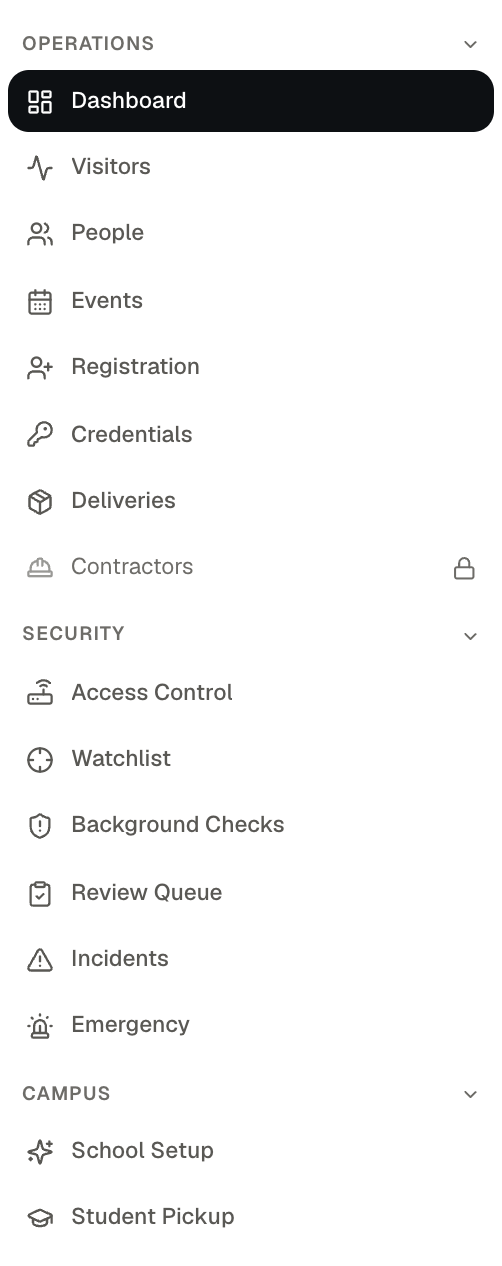
Items your role can't use are hidden, not locked. If a colleague sees a menu item you don't, ask an owner or admin about your role (see Roles and what they can do).
What you see when you click it
- A locked sidebar item opens a short card that says what it needs:
- Pro feature: Upgrade to Pro (opens Billing & usage), Start Free Trial on the free plan, and Maybe Later.
- Enterprise feature: Talk to us about Enterprise.
- Add-on: Request in Marketplace (opens Marketplace). A Pro organization is never asked to buy Pro for an add-on.
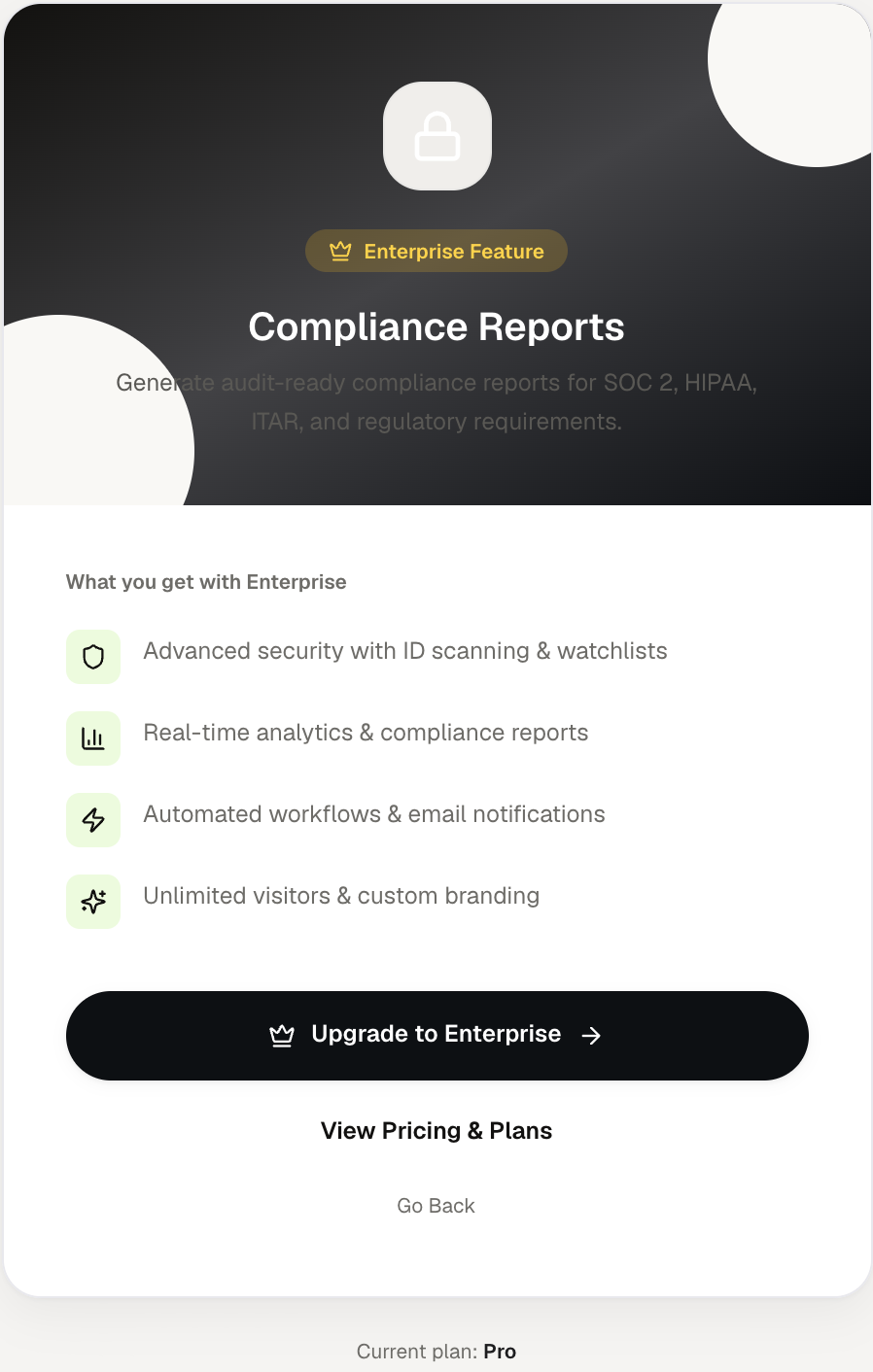
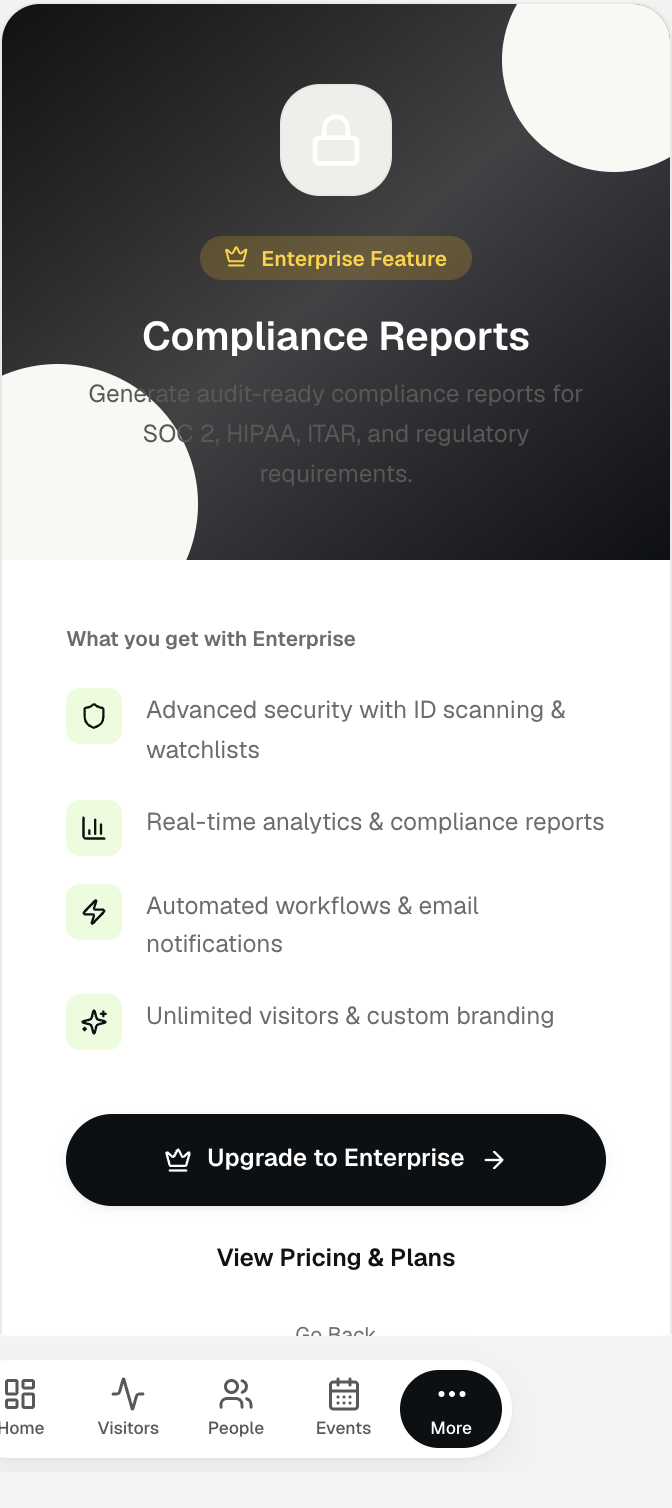
- A locked page (opened from a link or bookmark) shows a full card: Pro Feature or Enterprise Feature, the feature name, Upgrade to Pro / Upgrade to Enterprise (opens Marketplace), View Pricing & Plans (opens Billing & usage) and Go Back. Current plan is shown under the card.
- A locked section inside Settings shows a smaller dashed card with the same upgrade button.
Steps: unlock it
- Check your plan: Settings › Billing & modules › Plan & invoices (classic menu: Configure › Billing & usage). The classic sidebar also shows Pro, Enterprise or Pro Trial next to your organization name.
- For a plan feature: owners and admins choose a plan on Plan & invoices (classic menu: Billing & usage). Enterprise is arranged with our sales team.
- For an add-on: open Settings › Billing & modules › Get more (classic menu: Configure › Marketplace), find the add-on, select Learn more and then Request this add-on. Add a note if you like and send it. Our team contacts you; you don't pay anything in the app. Cards marked Active are already on. Cards with an on/off switch are free integrations an owner or admin can turn on directly; other staff see Ask an admin to turn on.
- When the plan or add-on is active, sign out and back in (or reload the page). The lock disappears.
Troubleshooting
- A page shows an upgrade card that disappears after you reload → your plan hadn't loaded yet. Pages now wait for your plan before deciding; if you still see this, reload and contact support with the page name.
- My trial ended and many items are locked → an expired trial falls back to the free plan's features. Upgrade on Plan & invoices (classic menu: Billing & usage); your data is kept.
- We pay for Pro and an item is still locked → it needs Enterprise or an add-on; the card says which.
- A feature was turned on for us but still shows a lock → reload the page. If it stays locked, contact support with the feature name; it may be set on your account by our team.
- I can't find Request this add-on or the plan buttons → only owners and admins can request add-ons or change the plan.