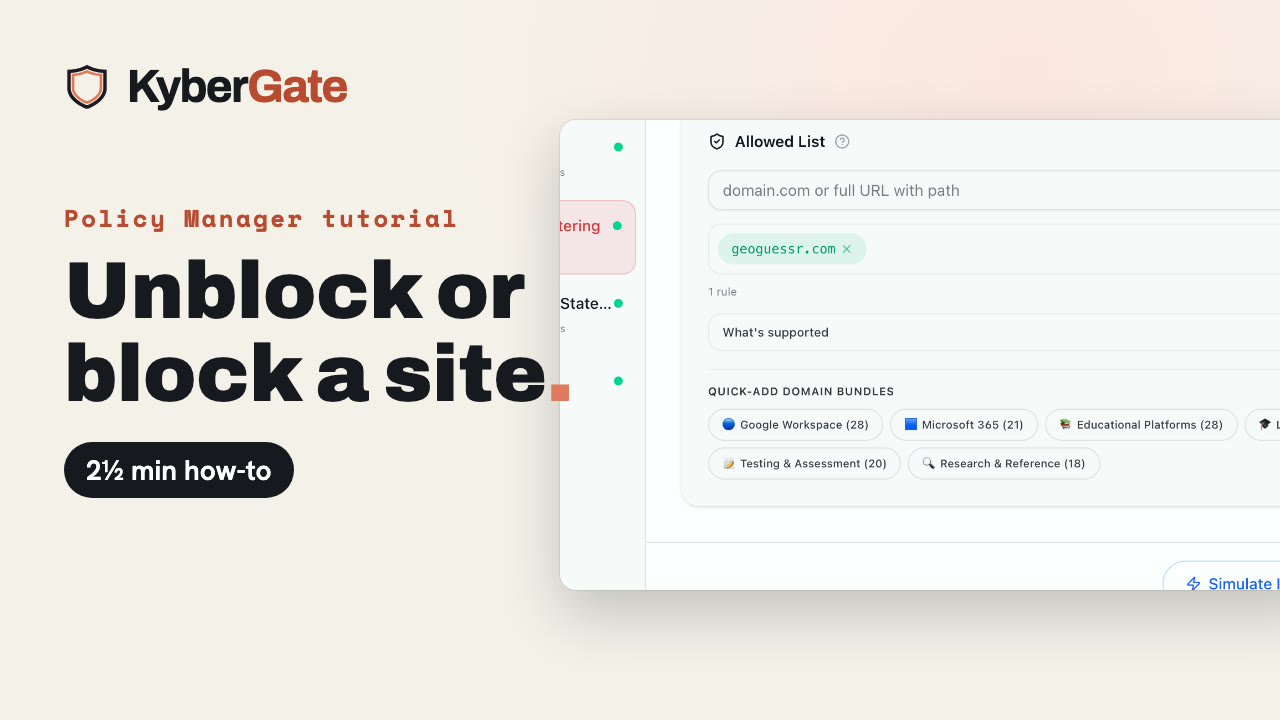
This 2½-minute video shows how to unblock or block a website in KyberGate's Policy Manager, and how to check that your change worked.
Chapters
- Open Policy Manager (0:08) – Open Policy Manager from the sidebar, click the policy you want to change, then open the Filtering tab. Policies are listed with the highest priority at the top.
- Unblock a site (0:27) – Scroll to the Allowed List, type the address (for example
geoguessr.com) and click Add. KyberGate asks if you want the same change in your other policies; pick any you need or click Skip. Then click Save Changes. Nothing is live until the button says Saved. - Block a site (0:56) – Same steps in the Blocked List, a little higher up the page. A site can't be on both lists in the same policy; if it is, KyberGate won't save and tells you which site to remove.
- Full addresses and single pages (1:25) – You can paste a full web address; the line under the box shows exactly what will be saved. To allow or block one page, include the path (for example
khanacademy.org/computing) and choose This Specific Page or Entire Domain when you click Add. Page rules only apply where KyberGate can inspect secure traffic. If a rule must always apply, use the whole site. - Check it worked (1:58) – Open Domain Checker under Policy Manager, type the site and click Check. It asks the live filter whether the site is allowed or blocked, and why. Changes can take up to 5 minutes to reach every device.
Quick recap
- Unblock: Allowed List, Add, Save Changes
- Block: Blocked List, Add, Save Changes
- One page: add the path, then pick This Specific Page
- Check: Domain Checker. Allow up to 5 minutes.