Keep a list of known vehicles in the Vehicle Registry. If your entrance has a license plate camera connected to KyberAccess, each plate it reads appears on the LPR Dashboard within about 15 seconds, marked as matched to a registered vehicle or unknown.
Who this is for
Owners, admins and security. Needs the Vehicle Access & LPR add-on. Connecting a plate camera is done with KyberAccess support.
Before you start
- For camera reads: a plate-reading camera (Digital Watchdog with native plate reading, or Plate Recognizer). Contact support@kyberaccess.com to connect it; there is no self-service setup page.
- Every camera needs your organization's LPR key, which support issues when connecting it. The camera sends it with each read. Reads without the right key are refused, so nobody else can add plate reads to your account.
Menus: steps show the app launcher first and the classic menu in brackets. See Find your way around to tell which one you have.
Add vehicles
- Open Apps › Parking & Vehicles › Overview (classic menu: in the sidebar, go to Vehicles › Vehicle Registry).
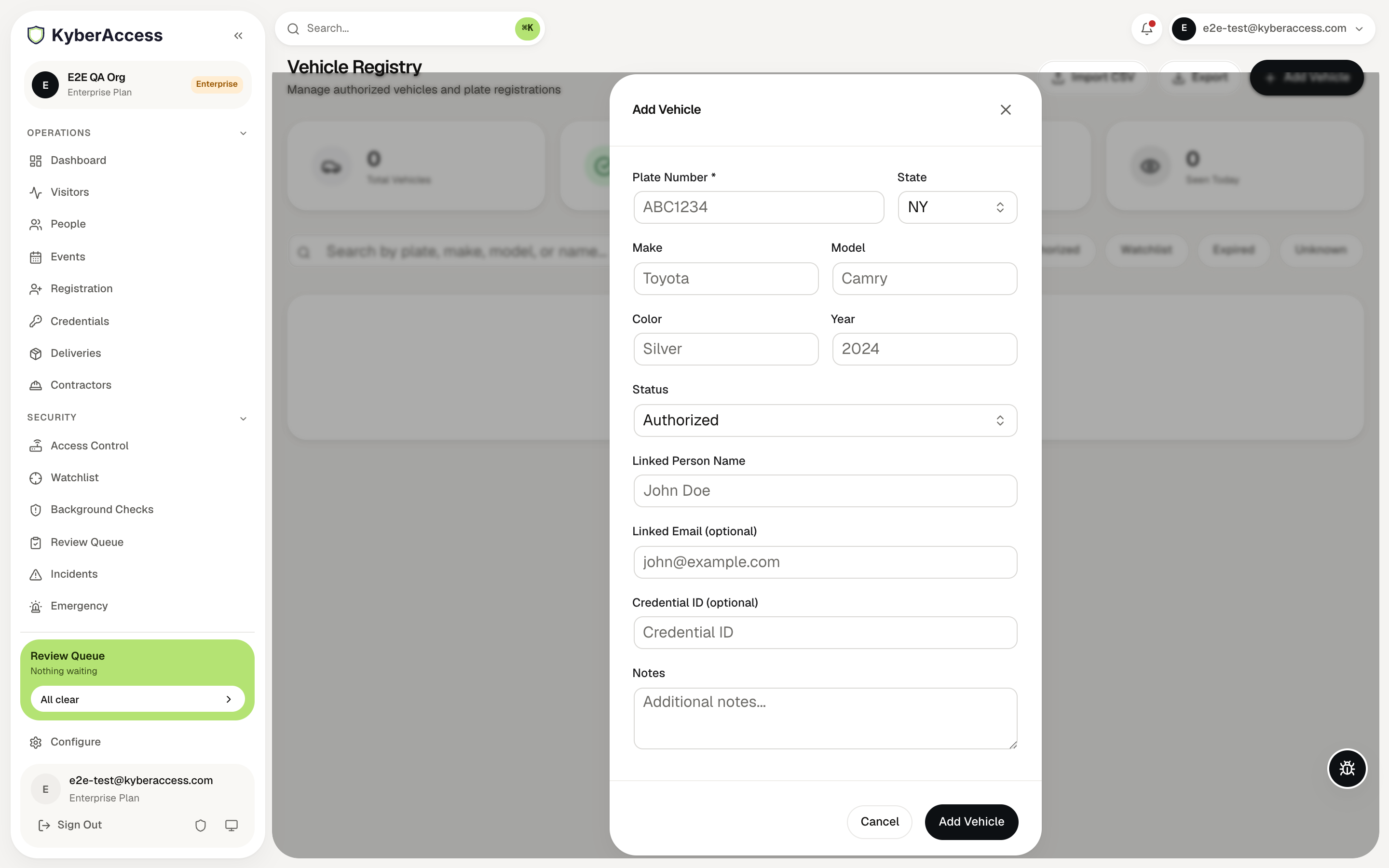
- Click Add Vehicle. Enter Plate Number (required), State, Make, Model, Color and Year (optional, 4 digits).
- Choose a Status: Authorized, Watchlist, Unknown or Expired. Add the Linked Person Name, Linked Email, Credential ID and Notes if you have them.
- Click Add Vehicle to save.
You can also add a car to a person: open them in People (in the Apps panel under Shared records), then ⋮ › Add Vehicle. That links the car to the person, so the parking map can attach it when you assign them a spot.
Import many at once: click Import CSV and choose a file whose first line names the columns. plate is required; state, make, model, color, year, name, email and status are read when present (a missing or unknown status becomes Authorized). The message says how many were imported and lists any lines that failed.
Export: Export downloads vehicles.csv.
Watch plate reads
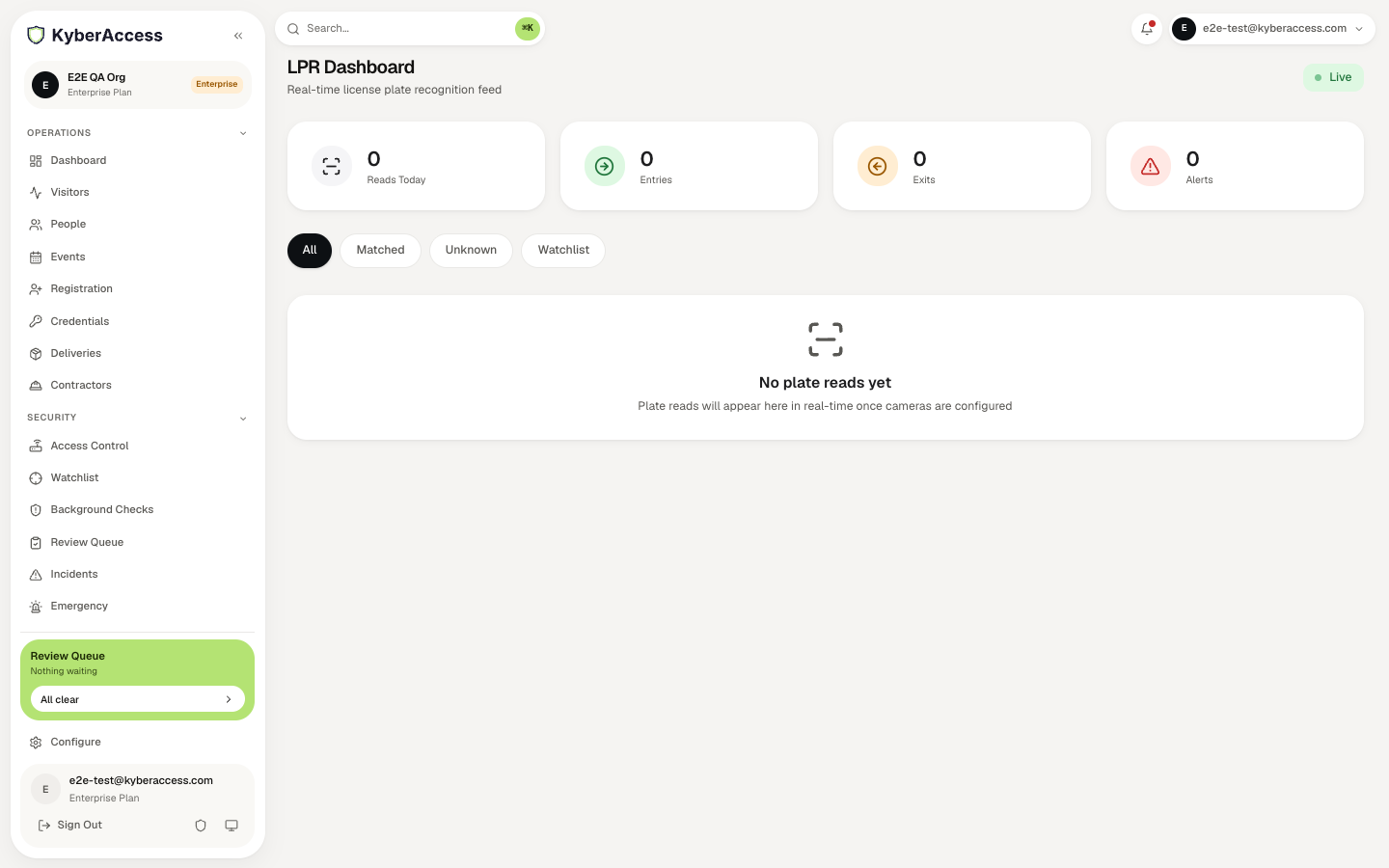
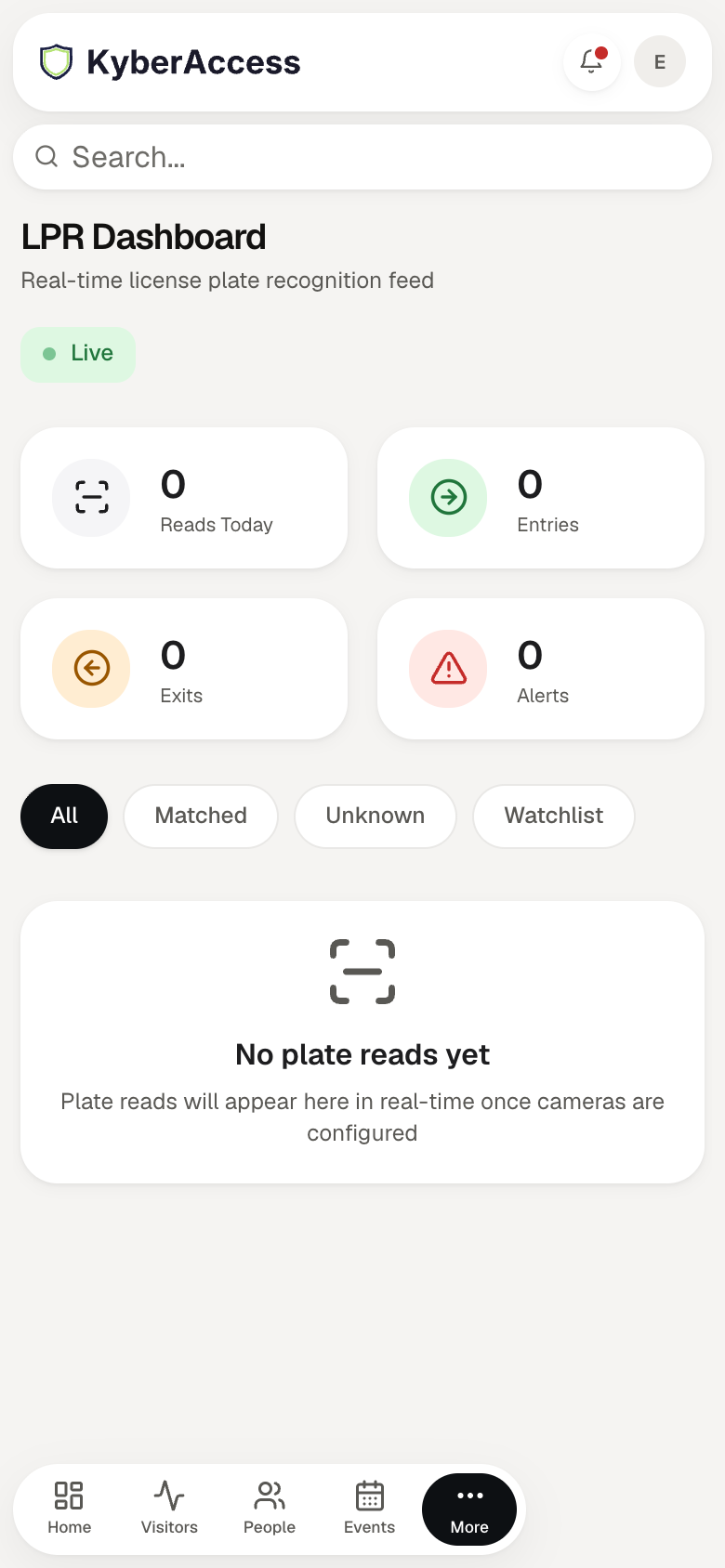
- Open Apps › Parking & Vehicles › Plate reads (classic menu: Vehicles › LPR Dashboard).
- The tiles show Reads Today, Entries, Exits and Alerts (reads of watchlisted vehicles).
- Filter with All, Matched, Unknown and Watchlist, or pick a camera in All Cameras.
- Each read shows the plate, camera, time, confidence and → Entered or ← Exited when the camera reports direction.
- Click a read for Plate Read Detail: the plate capture, the vehicle snapshot, camera, state, timestamp, confidence, Match Status, what it Matched To and direction.
What happens next
- A read is Matched when its plate is exactly the same as a plate in the Vehicle Registry, and Unknown otherwise.
- Matching labels the read. A watchlisted vehicle also raises a guard-mode alert. Plate reads never open a gate or check anyone in.
Watchlisted vehicles
- Set a vehicle's Status to Watchlist. When a connected camera reads that plate, the read is marked Watchlist, counts in the LPR Alerts tile, and raises a critical alert in guard mode (Alerts and the security monitor).
- A read of any registered plate updates that vehicle's Last seen time and camera, which drives the Seen Today tile.
- The Authorized, Watchlist, Expired and Unknown filters and counters count each vehicle by its status.
Settings that change this
- None in the app. Camera direction (which way counts as entering) is set by support when the camera is connected.
Troubleshooting
- Year didn't save → it wasn't 4 digits → enter a year like 2021, or leave it blank.
- Some CSV lines failed → the message lists them → fix those lines (for example an empty plate) and import just them again.
- A plate shows Unknown although it's registered → the plates differ (spaces, dashes, O vs 0) → register the plate exactly as the camera reads it, with no spaces or dashes.
- No plate reads yet → no camera is connected, the camera stopped sending, or it has no LPR key (cameras connected before November 2026 need one) → contact support.