Desk Booking lets staff reserve a desk for a full day or half day and book meeting rooms by the half hour. Admins draw each floor once in Floor Manager; after that, staff pick a day and book what's free.
Who this is for
- Admins: set up floors, desks, rooms and booking rules.
- Staff: book desks and rooms and see their bookings.
Needs the Workspace add-on. Without it the Workspace section shows the items locked.
Before you start
- Know your floors and how many desks and rooms each has. Each floor is a grid; you place desks and rooms on its squares.
Menus: steps show the app launcher first and the classic menu in brackets. See Find your way around to tell which one you have.
Set up a floor (admin)
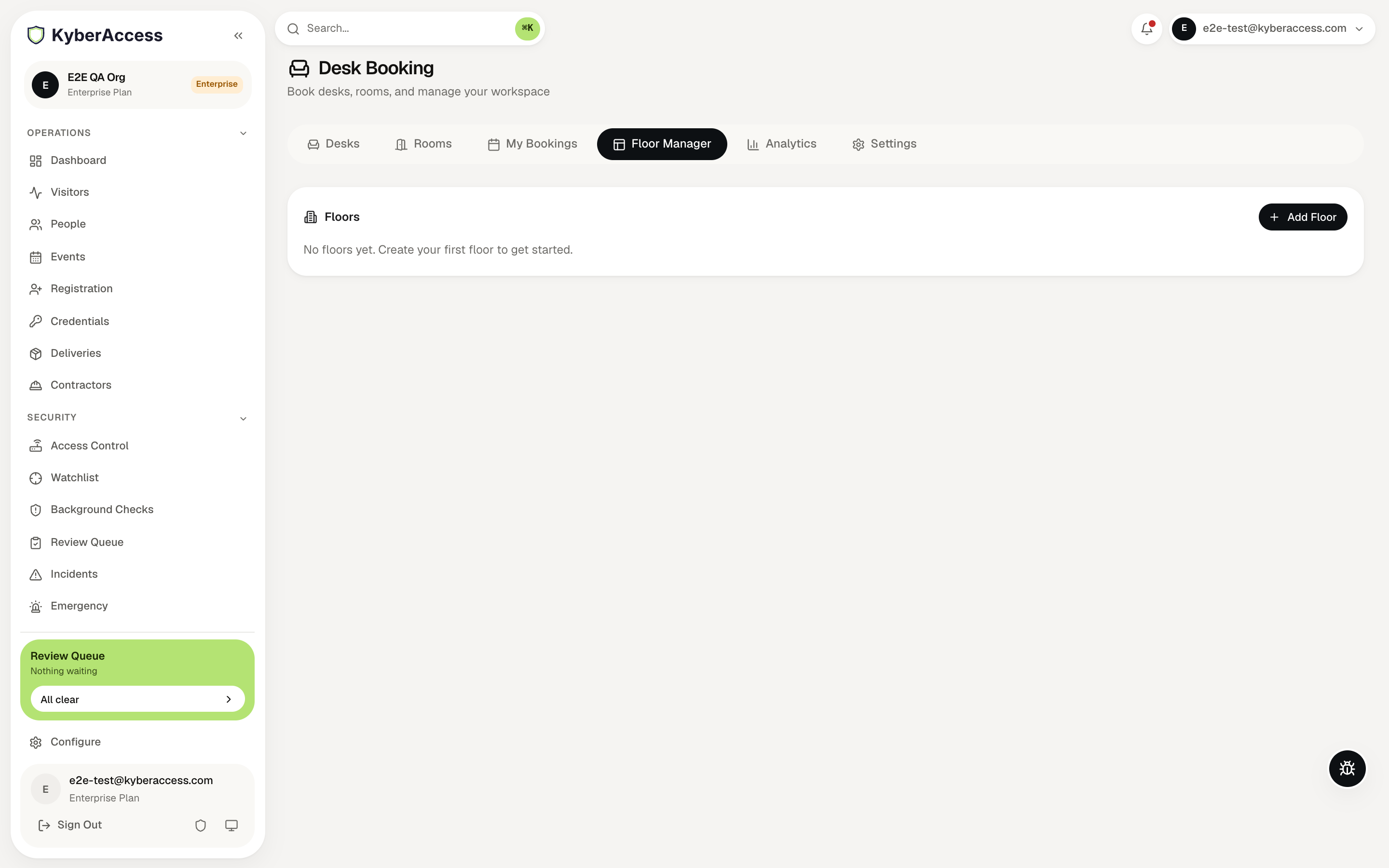
- Open Apps › Workspace › Desks (classic menu: Workspace › Desk Booking in the sidebar), then the Floor Manager tab.
- Click Add Floor. Enter Floor Name, Level, Grid Width and Grid Height, and save.
- Select the floor. Choose Desk in the tool bar, then click an empty square to place a desk. Give it a Name, Type (Hot Desk, Standard, Standing or Assigned), Zone, Status (Active, Inactive or Maintenance) and Amenities.
- To add many desks at once, click Bulk Add.
- Choose Room and click a square to place a room. Set its name, capacity, equipment (Projector, Whiteboard, TV Screen, Video Conf, Phone, Webcam), size and status.
- Use Select and click a desk or room to edit or delete it.
Book a desk
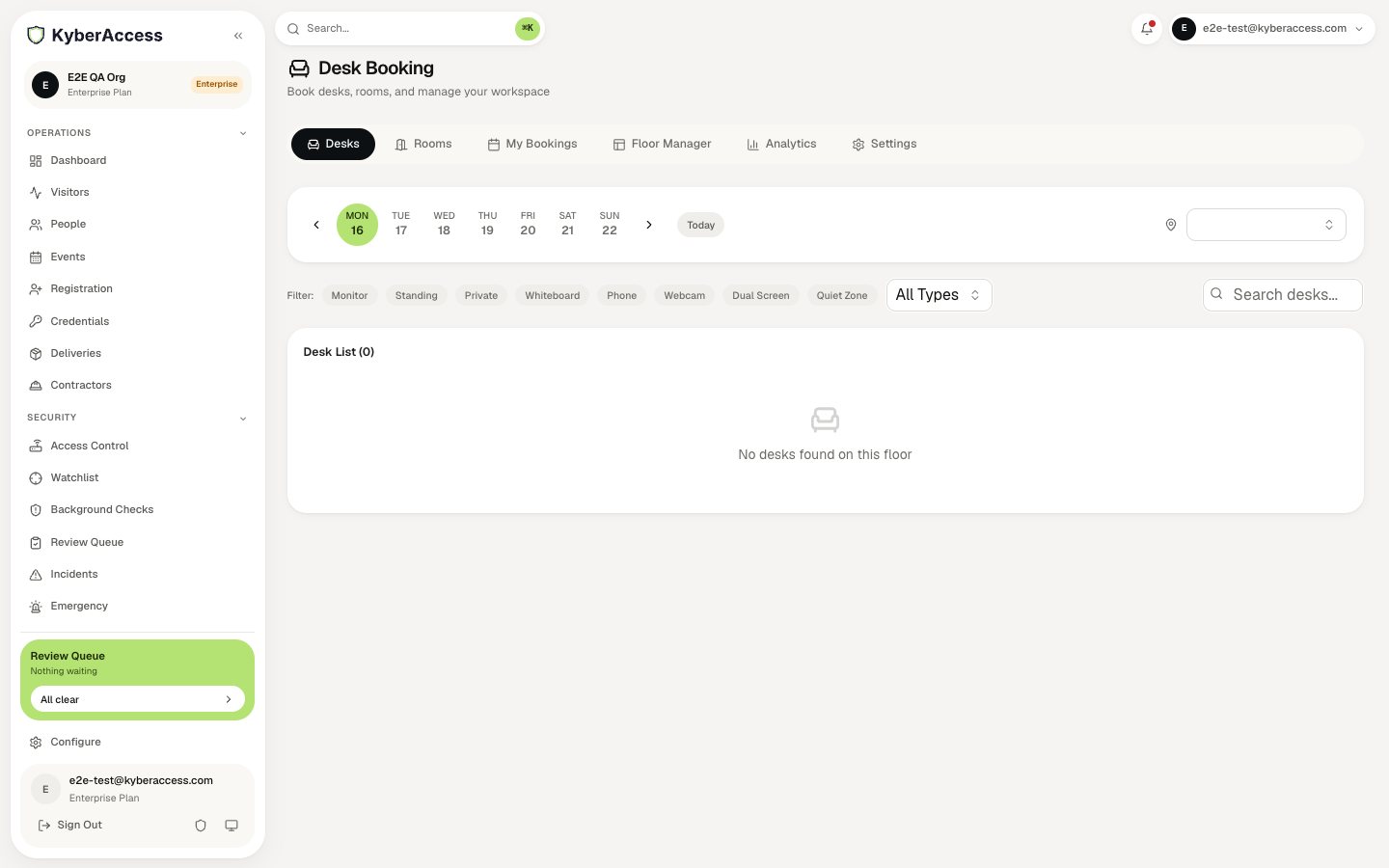
- Open Apps › Workspace › Desks (classic menu: Workspace › Desk Booking, the Desks tab).
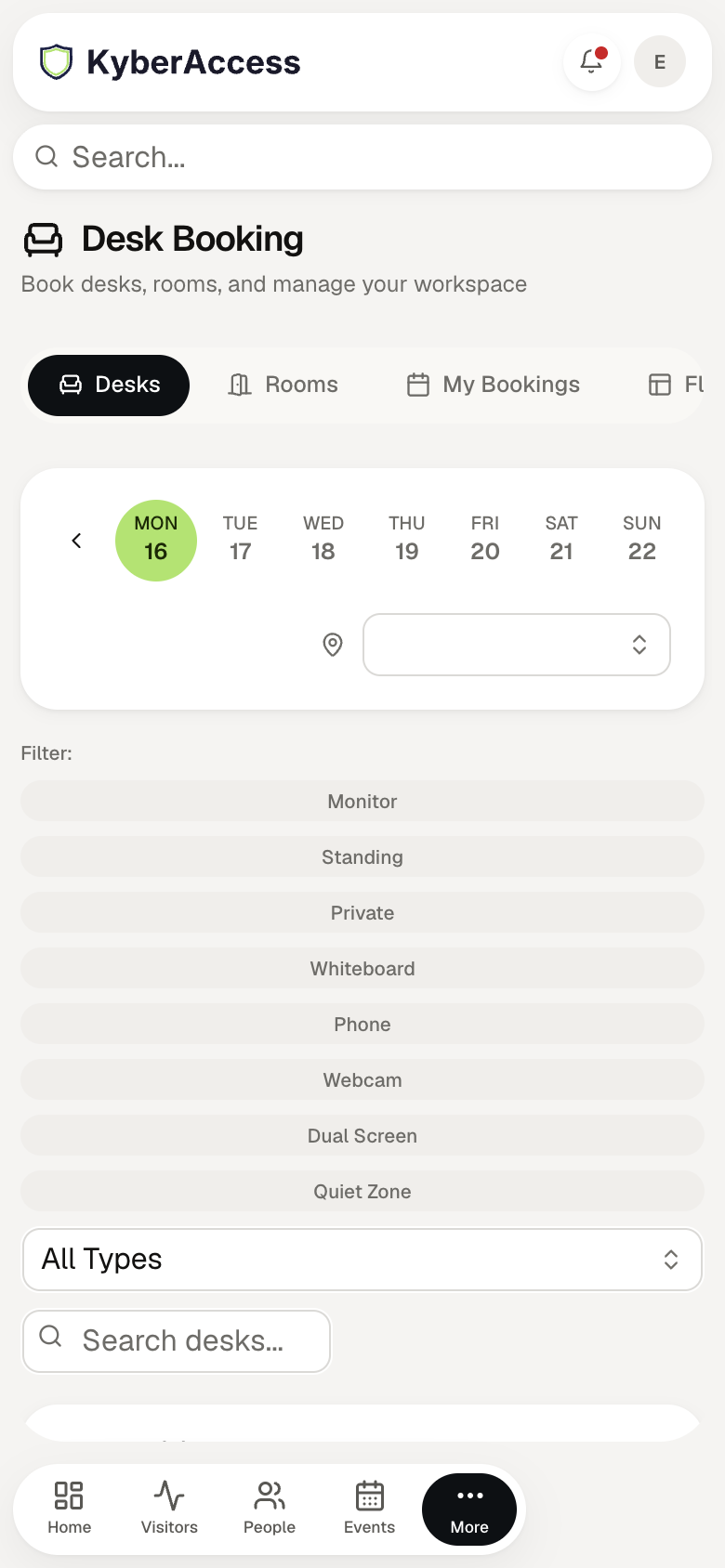
- Pick the day in the week strip; Today jumps back to today.
- Narrow the list with the amenity chips (Monitor, Standing, Private, Whiteboard, Phone, Webcam, Dual Screen, Quiet Zone), All Types, or Search desks....
- Click a free desk. In Book Desk, check the Date and choose the Period: Full Day, Morning (AM) or Afternoon (PM).
- To repeat it, tick Make recurring (weekly), choose the weekdays under Repeat on and an Until date (up to the Max Recurring Weeks limit).
- Click Book Desk. With a repeat, every matching date is booked; dates where that desk is already taken are skipped and the message tells you how many.
Book a room
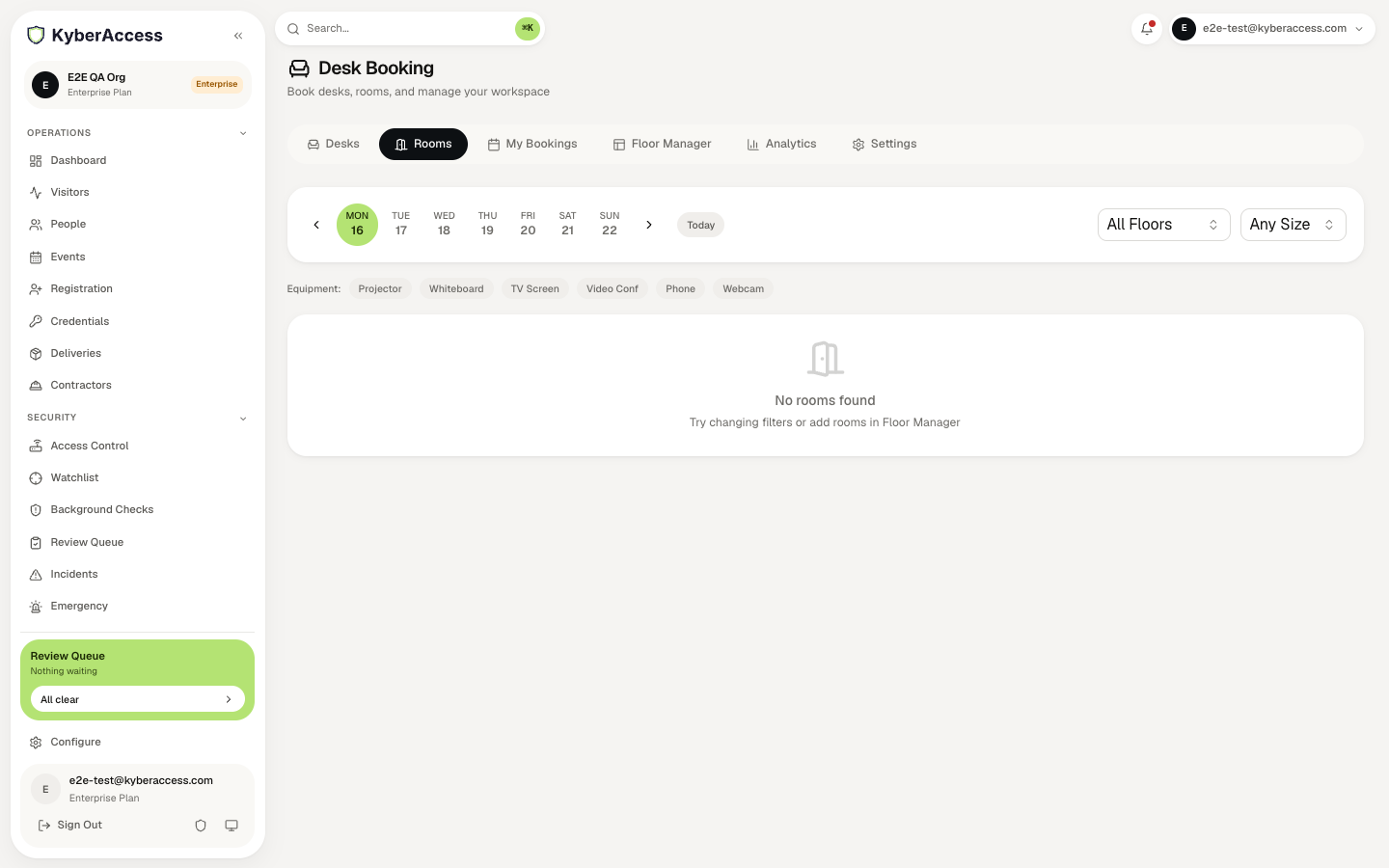
- Open Apps › Workspace › Rooms (classic menu: the Rooms tab, or Workspace › Room Booking in the sidebar).
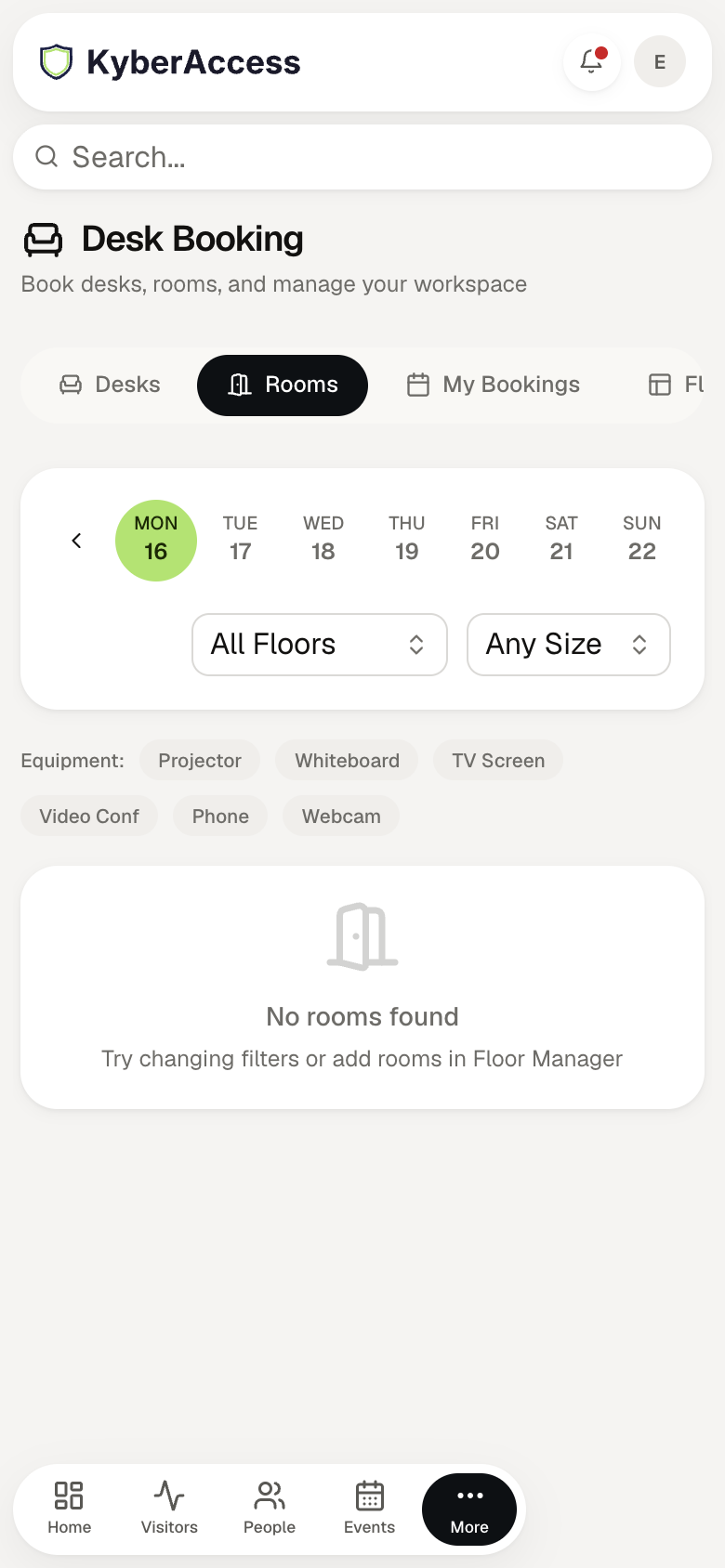
- Pick the day, and filter with All Floors, Any Size and the equipment chips.
- Click Book Room on a room, or a free half-hour slot (8:00 AM to 8:00 PM).
- Enter an optional Meeting Title, the Start and End times and the number of Attendees, then confirm.
See and manage your bookings
The My Bookings tab lists Upcoming Bookings, Recurring Bookings, Favorite Desks and Past Bookings. Cancel a booking from there. When Require Check-in is on, today's desk bookings show Check In.
What happens next
- A booked desk is no longer offered to others for that period. A full-day booking blocks both halves of the day.
- A room can't be booked for a time that overlaps another booking ("Room is already booked during this time").
- Nobody is emailed or sent a calendar invite.
- The Analytics tab shows Total Desks, Total Rooms, Bookings Today, No-Show Rate, utilization for the last 7 days, zone popularity, room peak hours and the 5 most booked desks.
Settings that change this
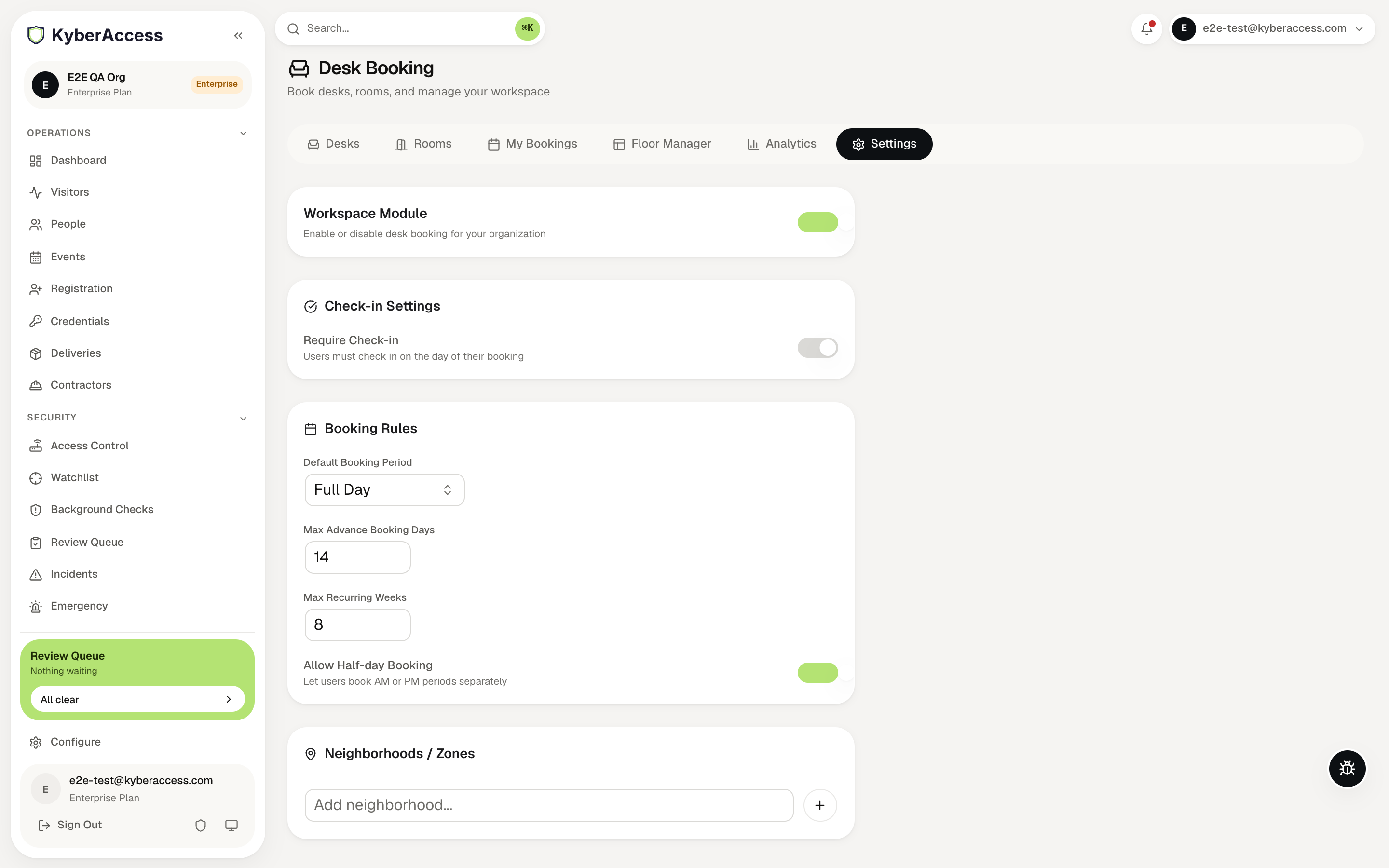
Settings tab on the Desk Booking page (admins) — Apps › Workspace › Desks, then Settings (classic menu: Workspace › Desk Booking › Settings): - Require Check-in: show a Check In button on the day of a booking. Default off. - Default Booking Period: Full Day (default), Morning (AM) or Afternoon (PM). - Allow Half-day Booking: allow AM or PM bookings. Default on. - Max Advance Booking Days: how far ahead a desk can be booked (default 14). A later date can't be booked. - Max Recurring Weeks: how long a weekly repeat can run (default 8).
Unused bookings are not released automatically. Zones are set per desk (the Zone field). Turning desk booking on or off for your organization is done under Settings › Billing & modules › Modules (classic menu: Configure › Modules).
Troubleshooting
- "This desk is not available for the selected period" → it is already booked, you already booked it, or it is Inactive or under Maintenance → pick another desk or period.
- "Desks can be booked up to N days ahead" → the date is past Max Advance Booking Days → pick an earlier date, or an admin raises the limit.
- "Booked …, but the repeat failed" → the first day was saved and the repeat was not → try the repeat again, or book the days one by one.
- Morning and Afternoon are greyed out → Allow Half-day Booking is off → an admin turns it on.
- No desks on this floor → no desks placed yet → an admin adds them in Floor Manager.